1
Participant User Manual
Participant User Manual
© 2006 BenefitStreet. All rights reserved.
NOTICE: All information contained herein is the property of BenefitStreet. No part of this publication (whether in hardcopy or electronic form) may
be reproduced or transmitted, in any form or by any means, electronic, mechanical, photocopying, recording, or otherwise, without the prior written
consent of BenefitStreet. The software described in this document is furnished under license and may only be used or copied in accordance with the
terms of such license.
This manual and the information herein is furnished AS IS, is subject to change without notice, and should not be construed as a commitment by
BenefitStreet. BenefitStreet assumes no responsibility or liability for any errors or inaccuracies, makes no warranty of any kind (express, implied, or
statutory) with respect to this publication, and expressly disclaims any and all warranties of merchantability, fitness for particular purposes, and noninfringement of third party rights.
If this manual is distributed with software that includes an end user agreement, this manual, as well as the software described in it, is furnished under
license and may be used or copied only in accordance with the terms of such license. Except as permitted by any such license, no part of this manual
may be reproduced, stored in a retrieval system, or transmitted, in any form or by any means, electronic, mechanical, recording, or otherwise, without
the prior written permission of BenefitStreet. Please note that the content in this manual is protected under copyright law even if it is not distributed
with software that includes an end user license agreement.
The content of this manual is furnished for informational use only, is subject to change without notice, and should not be construed as a commitment by BenefitStreet. BenefitStreet assumes no responsibility or liability for any errors or inaccuracies that may appear in the informational content
contained in this manual.
BenefitStreet
2420 Camino Ramon,
San Ramon, California 94583
Participant User Manual
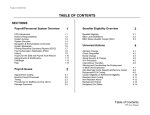
Contents
System Requirements_ _____________________________________________________________________4
Login____________________________________________________________________________________5
First Time User_ _________________________________________________________________________5
Forget Your Password or Login ID?_ _________________________________________________________6
Dashboard_ ______________________________________________________________________________7
Overview_______________________________________________________________________________7
Message Center_ ________________________________________________________________________8
Report Center___________________________________________________________________________9
Retirement Calculators ____________________________________________________________________10
401(k) Savings Calculator _ _______________________________________________________________10
Retirement Income Calculator_____________________________________________________________11
Retirement Planner_ ____________________________________________________________________12
Retirement Shortfall Calculator____________________________________________________________13
How Important is Social Security?__________________________________________________________14
Payroll Deductions______________________________________________________________________15
Sign Up_________________________________________________________________________________16
Enroll in 2 Minutes______________________________________________________________________16
Select Beneficiaries______________________________________________________________________17
Report Center____________________________________________________________________________18
Balance by Source Report_ _______________________________________________________________18
Balances by Fund_______________________________________________________________________19
Activity Detail Report____________________________________________________________________20
Statements____________________________________________________________________________21
Loan Detail Report______________________________________________________________________22
Fund Transaction Detail Report____________________________________________________________23
Manage Your Account_____________________________________________________________________24
Portfolio Selection_ _____________________________________________________________________24
Existing Balances_ ______________________________________________________________________25
Deferrals______________________________________________________________________________26
Automatic Rebalancing__________________________________________________________________27
Personal Data__________________________________________________________________________28
Change Beneficiaries____________________________________________________________________29
Document Center_ _______________________________________________________________________30
Taking Money Out________________________________________________________________________31
Participant Loans_ ______________________________________________________________________31
Termination Distribution_________________________________________________________________32
In Service Withdrawal____________________________________________________________________33
Hardship Distribution____________________________________________________________________34
Qualified Domestic Relations Order (QDRO)__________________________________________________35
Change Beneficiaries____________________________________________________________________36
Participant User Manual
System Requirements
|}
System Requirements
Below are the recommended and minimum system requirements.
Note: Adobe Acrobat Reader 6 or higher is required to use and view this manual.
Recommended Browser
Windows
• Internet Explorer 6 or higher
• Netscape Navigator 7 or higher
• FireFox 1.5 or higher
Mac OS
• Safari 1.2 or higher
• Netscape Navigator 7.1 or higher
Display Resolution
1024 x 768 or higher screen resolution using True Color (32 bit)
Additional Applications
• Adobe Acrobat Reader 6 or higher
Participant User Manual Login
First Time User
|}
Login
1.
2.
3.
In your Internet browser address bar, type in www.BenefitStreet.com
Click the Login link located in the upper right corner of the screen.
Type your Login ID and Password. Click the Log In link.
First Time User
1.
2.
3.
Click the First Time User link
Complete the required fields including your social security number and zip code.
Click the Find Me link.
4.
5.
6.
7.
Type your Login ID (minimum of 6 characters.)
Type your Password (minimum of 6 characters.)
Retype your password to confirm.
Click the Update link.
Participant User Manual Login
Forget Your Password or Login ID?
|}
Forget Your Password or Login ID?
1.
2.
Click the Forgot Your Password link.
Complete the information.
3.
4.
If you have forgotten your Login ID, check the box “I do not remember my Login ID”.
Click the Find Me link.
5.
6.
7.
Type a new Login ID and Password.
Retype the Password.
Click the Update link.
Participant User Manual
Dashboard
|}
Overview
Dashboard - Overview
The Dashboard page displays an overview of your portfolio.
Rollover to each section to view info.
Participant User Manual
Dashboard
Message Center
|}
Dashboard - Message Center
The Message Center on the Dashboard displays messages received.
To remove a message from the Dashboard Message Center:
1.
2.
3.
Click the Message Center link on the Dashboard.
Check the box next to the message in the Remove column.
Click Remove Messages link.
Participant User Manual
Dashboard
Report Center
|}
Dashboard - Report Center
Access any report from one location.
Available reports
1.
Click on the drop-down arrow to select the report from the report list:
2.
Select the appropriate reporting criteria based on the report you have selected.
3.
Click the View Report link to generate the report in Adobe Acrobat (PDF) format.
Notes: Acrobat 4.0 or higher is required to view reports.
Many reports can be downloaded as a CSV file that you can import into a spreadsheet or other program.
Click the Download File link to access this feature for the selected report.
Participant User Manual
Retirement Calculators
401(k) Savings Calculator
401(k) Savings Calculator
Show Me
A 401(k) can be one of your best tools for creating a secure
retirement. It provides you with two important advantages.
First, all contributions and earnings to your 401(k) are tax
deferred. You only pay taxes on contributions and earnings
when the money is withdrawn. Second, many employers
provide matching contributions to your 401(k) account
which can range from 0% to 100% of your contributions. The
combined result is a retirement savings plan you can not
afford to pass up.
1.
Enter your annual salary.
This is your annual salary from your employer before
taxes and other benefit deductions. Since your
contribution and company match are based on the
salary paid to you by your employer, do not include any
income you may receive from sources other than your
employer.
2.
Enter the percent you would like to contribute.
This is the percentage of your annual salary you
contribute to your 401(k) plan each year. Most
employers permit employees to contribute up to 15
percent of their salary to a 401(k).
Enter your current age.
3.
|}
4.
Enter the amount of your 401k current balance.
The starting balance or current amount you have
invested or saved in your 401(k).
5.
Enter the percent your employer matches your
contribution.
An employer match is in addition to your annual
contributions. It is based on a percentage of your annual
contributions. This range can be anywhere from 0% to
100%. For example, let’s assume the employer matches
50% of the employee’s contributions up to 6% of their
salary. The employee earns $100,000 per year and
contributes 10%. The results would be: $10,000 from the
employee $3,000 from the employer (which is 50% of
$6,000 or 6% of the annual salary). Total: $13,000
Please read the definition for “Employer maximum” for
a detailed description of maximum employer matching
contributions. It is also important to note employer
contributions do not affect the maximum amount
allowed to be contributed by an employee.
6.
Enter the age you wish to retire.
Age you wish to retire. This calculator assumes that
the year you retire, you do not make any contributions
to your 401(k). So if you retire at age 65, your last
contribution happened when you were actually 64.
7.
Enter the annual rate of return you expect on your
portfolio.
The annual rate of return for your 401(k) account. This
calculator assumes that your return is compounded
annually and your deposits are made monthly. The
actual rate of return is largely dependent on the type
of investments you select. The actual rate of return
is largely dependant on the type of investments you
select. From January 1970 to December 2003, the
average compounded rate of return for the S&P 500,
including reinvestment of dividends, was approximately
11.7% per year. During this period, the highest
12-month return was 64%, and the lowest was -39%.
Savings accounts at a bank pay as little as 1% or less.
It is important to remember that future rates of return
can’t be predicted with certainty and that investments
that pay higher rates of return are subject to higher risk
and volatility. The actual rate of return on investments
can vary widely over time, especially for long-term
investments. This includes the potential loss of principal
on your investment.
8.
Enter the employer maximum percent matched by your
employer.
This is the maximum percent of your salary matched by
your employer regardless of the amount you decide to
contribute. For example, let’s assume your employer has
a 50% match, up to a maximum of 6% of your annual
salary. If you have an annual salary of $25,000 and
contribute 6%, your annual contribution is $1500. With
a 50% match, your employer will add another $750 to
your 401(k) account. If you increase your contribution
to 10%, your annual contribution is $2500 per year. Your
employer match, however, is limited to the first 6% of
your salary and remains at $750.
9.
Click the Calculate button.
10. Click the View Report button to view a summary report.
10
Participant User Manual
Retirement Calculators
Retirement Income Calculator
Retirement Income Calculator
Show Me
Use this calculator to determine how much monthly income
your retirement savings may provide you in your retirement.
Your annual savings, expected rate of return and your
current age all have an impact on your retirement’s monthly
income. View the full report to see a year by year break down
of your retirement savings.
1.
Enter your starting balance.
This is the current balance of your 401(k) portfolio.
2.
Type your current age.
3.
Type the age you expect to retire.
This calculator assumes that the year you retire, you
do not make any contributions to your retirement
savings. So if you retire at age 65, your last contribution
happened when you were actually age 64.
4.
Type your annual contribution.
The amount you will contribute to your retirement
savings each year. This calculator assumes that you
make your contribution at the beginning of each year.
5.
Type the rate of return before retirement.
This is the annual rate of return you expect from your
investments before taxes. The actual rate of return is
largely dependant on the type of investments you
select. From January 1970 to December 2003, the
average compounded rate of return for the S&P 500,
including reinvestment of dividends, was approximately
11.7% per year. During this period, the highest
12-month return was 64%, and the lowest was -39%.
Savings accounts at a bank pay as little as 1% or less.
It is important to remember that future rates of return
can’t be predicted with certainty and that investments
that pay higher rates of return are subject to higher risk
and volatility. The actual rate of return on investments
can vary widely over time, especially for long-term
investments. This includes the potential loss of principal
on your investment.
6.
|}
the return earned before retirement due to more
conservative investment choices to help insure a steady
flow of income. The actual rate of return is largely
dependant on the type of investments you select.
From January 1970 to December 2003, the average
compounded rate of return for the S&P 500, including
reinvestment of dividends, was approximately 11.7%
per year. During this period, the highest 12-month
return was 64%, and the lowest was -39%. Savings
accounts at a bank pay as little as 1% or less. It is
important to remember that future rates of return can’t
be predicted with certainty and that investments that
pay higher rates of return are subject to higher risk
and volatility. The actual rate of return on investments
can vary widely over time, especially for long-term
investments. This includes the potential loss of principal
on your investment.
7.
Type your current tax rate.
Your current marginal tax rate you expect to pay on your
taxable investments.
8.
Type your expected retirement tax rate.
The marginal tax rate you expect to pay on your
investments at retirement.
9.
Check the box if these savings are tax deferred.
Check this box if your retirement savings are being
deposited into a tax deferred account. This includes
an IRA, 401(k), Variable Annuity or other tax deferred
investment.
10. Check the box if you will increase your annual
contribution based on inflation.
Check this box if wish to have your annual contribution
increased each year to keep up with inflation.
11. Click the Calculate button.
12. Click the View Report button to view a summary report.
Type the rate of return during retirement.
This is the annual rate of return you expect from your
investments during retirement. It is often lower than
11
Participant User Manual
Retirement Planner
Retirement Calculators
Retirement Planner
Show Me
1.
Current age
Your current age.
2.
Age of retirement
Age you wish to retire. This calculator assumes that the
year you retire, you do not make any contributions to
your retirement savings. So if you retire at age 65, your
last contribution happened when you were actually
age 64. This calculator also assumes that you make your
entire contribution at the end of each year.
3.
Household income
Your total household income. If you are married, this
should include your spouse’s income.
4.
5.
6.
|}
Current retirement savings
Total amount that you currently have saved toward your
retirement. Include all sources of retirement savings
such as 401(k)s, IRAs and Annuities.
Rate of return before retirement
This is the annual rate of return you expect from your
investments before taxes. The actual rate of return is
largely dependant on the type of investments you
select. From January 1970 to December 2003, the
average compounded rate of return for the S&P 500,
including reinvestment of dividends, was approximately
11.7% per year. During this period, the highest
12-month return was 64%, and the lowest was -39%.
Savings accounts at a bank pay as little as 1% or less.
It is important to remember that future rates of return
can’t be predicted with certainty and that investments
that pay higher rates of return are subject to higher risk
and volatility. The actual rate of return on investments
can vary widely over time, especially for long-term
investments. This includes the potential loss of principal
on your investment.
Rate of return during retirement
This is the annual rate of return you expect from your
investments during retirement. It is often lower than
the return earned before retirement due to more
conservative investment choices to help insure a steady
flow of income. The actual rate of return is largely
dependant on the type of investments you select.
From January 1970 to December 2003, the average
compounded rate of return for the S&P 500, including
reinvestment of dividends, was approximately 11.7%
per year. During this period, the highest 12-month
return was 64%, and the lowest was -39%. Savings
accounts at a bank pay as little as 1% or less. It is
important to remember that future rates of return can’t
be predicted with certainty and that investments that
pay higher rates of return are subject to higher risk
and volatility. The actual rate of return on investments
can vary widely over time, especially for long-term
investments. This includes the potential loss of principal
on your investment.
7.
Percent of income to contribute
The percentage of your annual income you will save for
your retirement goals.
8.
Expected salary increase
Annual percent increase you expect in your household
income.
9.
Years until retirement
Number of years before retirement.
10. Years of retirement income
Total number of years you expect to use your retirement
income.
11. Percent of income at retirement
The percent of your working year’s household income
you think you will need to have in retirement. This
amount is based on your income earned during the last
year you will work. You can change this amount to be as
low as 50% and as high as 150%.
12. Are you married?
Check this box if you are married. Married couples have
a higher maximum social security benefit than single
wage earners.
13. Include social security?
Check this box if you wish to include social security
benefits in your retirement planning.
14. Expected rate of inflation
What you expect for the average long-term inflation
rate. This has been calculated by the Consumer Price
Index from 1925 to 2002 to be 3.1%.
12
Participant User Manual
Retirement Calculators
Retirement Shortfall Calculator
Retirement Shortfall Calculator
Show Me
One of the biggest risks to a comfortable retirement is
running out of money too soon. This calculator helps you
determine your projected shortfall or surplus at retirement.
You can also see just how long your current retirement
savings will last. If your results project a shortfall, you might
need to save more, earn a better rate of return, or possibly
delay your retirement.
1.
Current retirement savings
This is your current retirement savings. You should
include any savings or investments that are specifically
for your retirement. Be careful not to include amounts
ear marked for other purposes, such as your children’s
education.
2.
Monthly contributions
The amount you will contribute each month to your
retirement savings. This calculator assumes that you
make your contribution at the beginning of each
month. We also assume that this amount remains
constant until you retire.
3.
Years before you retire
The number of years you have to save before your
retirement. If you are planning on retiring immediately,
you should enter a zero.
4.
Number of years in retirement
The number of years you expect to spend in retirement.
If this retirement savings plan is intended to support
you and your spouse, make sure this is long enough
years to account for your spouse’s potentially longer
lifespan.
5.
Annual retirement expenses
Your after tax retirement expenses. Since this calculator
assumes that you will be paying income taxes on
interest as it is earned, your expenses should be entered
on an after tax basis. Your retirement expenses are
increased each year by your expected inflation rate if
the “Increase expenses with inflation” box is checked.
6.
|}
Expected inflation rate
What you expect for the average long-term inflation
rate. This has been calculated by the Consumer Price
Index from 1925 to 2002 to be 3.1%.
7.
Rate of return before retirement
This is the annually compounded rate of return you
expect from your investments before taxes. The
actual rate of return is largely dependant on the
type of investments you select. From January 1970
to December 2003, the average compounded rate
of return for the S&P 500, including reinvestment of
dividends, was approximately 11.7% per year. During
this period, the highest 12-month return was 64%, and
the lowest was -39%. Savings accounts at a bank pay
as little as 1% or less. It is important to remember that
future rates of return can’t be predicted with certainty
and that investments that pay higher rates of return
are subject to higher risk and volatility. The actual rate
of return on investments can vary widely over time,
especially for long-term investments. This includes the
potential loss of principal on your investment.
8.
Rate of return during retirement
This is the annual rate of return you expect from your
investments during retirement. It is often lower than
the return earned before retirement due to more
conservative investment choices to help insure a steady
flow of income. The actual rate of return is largely
dependant on the type of investments you select.
From January 1970 to December 2003, the average
compounded rate of return for the S&P 500, including
reinvestment of dividends, was approximately 11.7%
per year. During this period, the highest 12-month
return was 64%, and the lowest was -39%. Savings
accounts at a bank pay as little as 1% or less. It is
important to remember that future rates of return can’t
be predicted with certainty and that investments that
pay higher rates of return are subject to higher risk
and volatility. The actual rate of return on investments
can vary widely over time, especially for long-term
investments. This includes the potential loss of principal
on your investment.
9.
Federal tax rate
Your marginal federal tax rate.
10. State tax rate
Your marginal state tax rate.
13
Participant User Manual
Retirement Calculators
How Important is Social Security?
How Important is Social Security?
Show Me
How will losing your Social Security benefits affect your
retirement? Use this calculator to determine how losing this
important retirement asset could affect you. Click the report
button to see your retirement savings with and without
Social Security benefits.
1.
|}
Social Security income
Social Security is based on a sliding scale depending on
your income, how long you work and at what age you
retire. Social Security benefits automatically increase
each year based on the rise in the Consumer Price Index
(CPI) the most common measure of inflation. Including a
spouse increases your Social Security benefits up to, but
not over, the maximum. This calculator provides only
an estimate of your benefits. Your actual benefit may be
higher or lower depending on your work history and the
complete compensation rules used by Social Security.
2.
Current age
Your current age.
3.
Current retirement savings
Total amount that you currently have saved toward your
retirement. Include all sources of retirement savings
such as 401(k)s, IRAs and Annuities.
4.
Household income
Your total household income. If you are married, this
should include your spouse’s income.
5.
Percent of income to save
The percentage of your annual income you will save for
your retirement goals.
6.
Expected inflation rate
Annual percent increase you expect in your household
income.
7.
Expected rate of inflation
What you expect for the average long-term inflation
rate. This has been calculated by the Consumer Price
Index from 1925 to 2002 to be 3.1%. This is used to
calculate increases in your retirement expenses and
increases in Social Security.
8.
Are you married?
Check this box if you are married. Married couples have
a higher maximum Social Security benefit than single
wage earners.
9.
Age of retirement
Age you desire to retire.
Total number of years you expect to use your retirement
income.
10. Years of retirement income
Total number of years you expect to use your retirement
income.
11. Percentage income at retirement
The percent of your household income you will need to have
in retirement income.
12. Rate of return before retirement
This is the annual rate of return you expect from your
investments before taxes. The actual rate of return is largely
dependant on the type of investments you select. From
January 1970 to December 2003, the average compounded
rate of return for the S&P 500, including reinvestment of
dividends, was approximately 11.7% per year. During this
period, the highest 12-month return was 64%, and the lowest
was -39%. Savings accounts at a bank pay as little as 1% or
less. It is important to remember that future rates of return
can’t be predicted with certainty and that investments that
pay higher rates of return are subject to higher risk and
volatility. The actual rate of return on investments can vary
widely over time, especially for long-term investments. This
includes the potential loss of principal on your investment.
13. Rate of return during retirement
This is the annual rate of return you expect from your
investments during retirement. It is often lower than the
return earned before retirement due to more conservative
investment choices to help insure a steady flow of income.
The actual rate of return is largely dependant on the type
of investments you select. From January 1970 to December
2003, the average compounded rate of return for the S&P
500, including reinvestment of dividends, was approximately
11.7% per year. During this period, the highest 12-month
return was 64%, and the lowest was -39%. Savings accounts
at a bank pay as little as 1% or less. It is important to
remember that future rates of return can’t be predicted with
certainty and that investments that pay higher rates of return
are subject to higher risk and volatility. The actual rate of
return on investments can vary widely over time, especially
for long-term investments. This includes the potential loss of
principal on your investment.
14
Participant User Manual
Payroll Deductions
Retirement Calculators
Payroll Deductions
Show Me
Use this calculator to help you determine the impact of
changing your payroll deductions. You can enter your
current payroll information and deductions, and then
compare them to your proposed deductions.
1.
2.
3.
4.
5.
|}
Select the Pay Period from the drop down menu.
This is how often you are paid. Your selections are:
Weekly (52 paychecks per year), Every other week (26
paychecks per year), Twice a month (24 paychecks per
year), Monthly (12 paychecks per year), and Annually
(one paycheck per year).
Select the Filing status from the drop down menu.
This is your income tax filing status. The choices are
“Single” and “Married”. Choose “Married” if you are
married or file as “head of household”. Choose “Single”
if you file your taxes as a single person or if you are
married but file separately.
Enter Gross Pay
This is your gross pay, before any deductions, for the
pay period. Please enter a dollar amount from $1 to
$1,000,000.
Enter your Number of allowances.
When your Federal income tax withholdings are
calculated, you are allowed to claim allowances
to reduce the amount of the Federal income tax
withholding. In 2005, each allowance you claim is
equal to $3,200 of income that you expect to have in
deductions when you file your annual tax return. The
number of allowances you should claim depends largely
on the number of dependents you have and your
itemized deductions. This calculator allows from 0 to 99
allowances.
Enter the 401(k)/403(b) plan withholding.
This is the percent of your gross income you put into a
taxable deferred retirement account such as a 401(k)
or 403(b). While increasing your retirement account
savings does lower your take home pay, it also lowers
your Federal income tax withholdings. The impact on
your paycheck might be less than you think. While
your plan may not have a deferral percentage limit, this
calculator limits deferrals to 80% to account for FICA
(Social Security and Medicare) taxes. Please note that
your 401(k) or 403(b) plan contributions may be limited
to less than 80% of your income. Check with your
plan administrator for details. For 2005, the maximum
contribution to a 401(k) or 403(b) is $14,000 per year for
individuals under 50 and $18,000 for individuals over 50.
6.
Enter the State and Local Taxes
This is the percentage that will be deducted for state
and local taxes. We take your gross pay, minus $3,200
per allowance, times this percentage to calculate
your estimated state and local taxes. Please note,
this calculator can only estimate your state and local
withholdings
7.
Type the amount of Post-tax deductions.
Enter any payroll deductions made by your employer
that are made with after tax income.
8.
Type the amount of Post-tax reimbursements.
Enter any reimbursements made by your employer that
are after tax.
9.
Click the Calculate button.
10. Click the View Report button to view a summary report.
FICA OASDI - FICA Old Age Survivors and Disability
Insurance. FICA OASDI is calculated as your gross
earnings times 6.2%. Please note that this calculator
does not make any assumptions as to the total FICA
OASDI paid for the current year. For 2005, incomes
over $90,000 that have already had the maximum
FICA OASDI amount of $5580 withheld will not have
additional FICA OASDI withholdings.
FICA Medicare - FICA Medicare is calculated as the gross
earnings times 1.45%. Unlike FICA OASDI there is no
annual limit to FICA Medicare deductions.
15
Participant User Manual
Sign Up
Enroll in 2 Minutes
|}
Enroll in 2 Minutes
Show Me
1.
Participation
Select to participate in the Plan or not and authorize the deduction from your paycheck.
Select and complete one of the options:
Percentage of pre-tax/post-tax earnings or A specific dollar amount of pre-tax/post-tax earnings
2.
Automatic Rebalancing (not available on all plan)
Select to have your plan automatically rebalanced on scheduled dates or not.
3.
Investment Portfolios
Choose one of the investment portfolio options, or choose custom portfolio.
Click on a portfolio type to see a graphical distribution of the portfolio type.
If you select Custom Portfolio, a screen appears to complete your election percentages for each fund once you click on
save changes. The percentages must equal 100%.
4.
Click the Save Changes.
Rollover to each section to view info.
16
Participant User Manual
Select Beneficiaries
Sign Up
Select Beneficiaries
|}
Show Me
1.
Select one or more beneficiaries and complete the information for each beneficiary. You may choose a primary and
contingent beneficiaries.
The primary beneficiaries will be entitled to the vested portion of your plan account. The contingent beneficiaries will
only be entitled to the assets once all the primary beneficiaries are no longer living.
The beneficiary name is a required field. The benefit percent for primary beneficiaries must sum to equal 100 percent
and the benefit percent for contingent beneficiaries must be 100 percent.
2.
Click the Create Beneficiary Designation Form link, print the document, and complete the information on the form. A
paper, signed copy is required. Give the form to your plan administrator.
NOTE: IRS regulations require that if you are married the sole beneficiary of your account must be your spouse. Should
you wish to designate anyone other than your spouse you must first obtain spousal consent. Your spouse’s consent
must be witnessed by a plan representative or notary. Should you list a non-spouse beneficiary without obtaining
spousal consent the benefits will be required to be paid to your spouse. It is very important that you update beneficiary
information as soon as you experience any changes in your marital status. The spousal consent form is included as page
2 of the Beneficiary Designation Form.
3.
Click the Save Changes link.
17
Participant User Manual
Report Center
Balance by Source Report
|}
Balance by Source Report
The Balance By Source Report provides summary balances by transaction type and money source. This report can be
queried with cash or accrual accounting on a plan year basis. The report is printed in PDF format. (See System Requirements
if you do not have Adobe Acrobat Reader.)
1.
2.
3.
Choose the Report and Reporting Period for the report from the drop-down lists.
Select whether you want to report on an Cash or Accrual basis.
Click View Report to generate the report in PDF format.
For each employee, the following balance information is reported for the period selected:
Plan Summary Sample Report
18
Participant User Manual
Report Center
Balances by Fund
|}
Balances by Fund Report
The Balance By Fund Report provides summary balances by fund. This report includes: investment ticker symbol, investment
name, price date, share price, current shares and participant balances as of the previous business day. This report can be
queried with a cash or accrual accounting on a month-end or last business day of the current month basis.
1.
2.
3.
Choose the Report and Date of the report from the drop-down lists.
Select whether you want to report on an Cash or Accrual basis.
Click View Report to generate the report in PDF format.
Participant Detail Report Example
19
Participant User Manual
Report Center
Activity Detail Report
|}
Activity Detail Report
The Activity Detail Report provides plan-level or participant-level daily transaction information. You may also select a specific
transaction hyperlink (underlined in blue) from the active page and identify the investments affected by that trade. This
report can be queried with a cash or accrual accounting on a monthly or quarterly basis.
To access the report, select Activity Detail Report from the Report drop-down list.
1.
2.
3.
Choose the Reporting Period and Ending date of the report from the drop-down lists.
Select whether you want to report on an Cash or Accrual as the Reporting Basis.
Click View Report to generate the report in PDF format.
20
Participant User Manual
Report Center
Statements
|}
Statements
The Statements Report provides a comprehensive, participant-level account summary in a Quarterly Report format. This
report includes sections for: “Account Summary”, “Portfolio Summary” (fund share and vesting information), “Asset Class
Allocation” (investment diversification), “Activity Summary” (transaction information), and the “Fund Transaction Summary”.
This report can be queried with a cash or accrual accounting on a monthly or quarterly basis.
To access the report, select Statements from the Report drop-down list.
1.
2.
3.
Choose the Reporting Period and Ending date of the report from the drop-down lists.
Select whether you want to report on an Cash or Accrual as the Reporting Basis.
Click View Report to generate the report in PDF format.
The Statement is displayed on the screen:
21
Participant User Manual
Report Center
Loan Detail Report
|}
Loan Detail Report
The Loan Detail Report provides a detailed transaction summary for participant loans. This report includes: participant name,
ssn, new loan amount, payment amount, principal payment and interest payment as well as monthly balances. The report
can be run on a cash or accrual accounting basis for annual, quarterly or monthly periods.
To access the report, select Loan Detail Report from the Report drop-down list.
1.
2.
3.
Choose the Reporting Period and Ending date of the report from the drop-down lists.
Select whether you want to report on an Cash or Accrual as the Reporting Basis.
Click View Report to generate the report in PDF format.
22
Participant User Manual
Report Center
Fund Transaction Detail Report
|}
Fund Transaction Detail Report
The Fund Transaction Detail Report provides transaction details on a daily, fund-by-fund basis. This report includes: ticker
symbol, transaction description, transaction date, effective fund price, shares traded, and total transaction amount. This
report can be queried on a cash or accrual accounting basis for annual, quarterly or monthly periods.
23
Participant User Manual
Manage Your Account
Portfolio Selection
|}
Portfolio Selection
You can change your portfolio options on this screen. The changes made on this page will only affect future contributions. If
you wish to change the percentages of your existing investment portfolio, select “Existing Balance” from the options menu.
1.
Select the portfolio type:
• Aggressive
• Moderate
• Conservative
• Custom
2.
3.
Click save changes.
Click View Portfolio to view asset class and portfolio details.
24
Participant User Manual
Manage Your Account
Existing Balances
|}
Existing Balances
On this page you can make changes to the percentages of your existing funds. If you make changes to existing investments,
there may be buy and sell trade transactions. Locked funds are excluded since they cannot be sold or reallocated. If you
would like to unlock a fund an incur possible charges, click on the lock icon next to the Desired Allocation % field to unlock
the fund.
You can also use this screen to rebalance your existing portfolio investments to the percentages you chose for each fund.
To rebalance the percentages in your existing investment portfolio:
1. Select the portfolio type from the drop down list.
2. Click the Rebalance To Portfolio link.
3. Click Submit Changes.
To change the percentages of your existing funds:
1. Review the fund details by clicking on the fund name.
2. Type the desired percentage of each fund in the Desired Allocation % field. The total must equal 100%.
3. Click Submit Changes.
25
Participant User Manual
Deferrals
Manage Your Account
Deferrals
|}
Show Me
Make changes to your deferral elections on this screen.
1.
2.
3.
Elect to not participate in the plan|
OR
Change your payroll deduction percentage OR amount.
Click the Save Changes link to update your deferral elections.
26
Participant User Manual
Manage Your Account
Automatic Rebalancing
|}
Automatic Rebalancing
On this screen, you can change the automatic rebalancing option selected when you enrolled in the plan.
Rebalancing allows you to adjust your portfolio to the percentages to the percentages you designated when choosing your
portfolio type. On this page you can choose to have the system rebalance your portfolio automatically on scheduled dates.
If you have a custom portfolio, automatic rebalancing is not available.
1.
2.
3.
Select not to participate in automatic rebalancing OR Elect to have your account rebalanced on scheduled dates.
Click the Save Changes link.
Click the Printable Confirmation link if you would like a copy of your change.
27
Participant User Manual
Manage Your Account
Personal Data
|}
Personal Data
On this screen, make changes or update your personal information.
1.
2.
Update the information in the fields.
Note: Your social security number, birth date, hire date and Term. date cannot be changed. If this information is incorrect,
please contact your Plan Administrator.
Click the Save Changes link.
28
Participant User Manual
Manage Your Account
Change Beneficiaries
Change Beneficiaries
|}
Show Me
On this screen you can change primary and contingent beneficiaries. A Beneficiary Designation form is required.
1.
Select one or more beneficiaries and complete the information for each beneficiary. You may choose a primary and
contingent beneficiaries.
The primary beneficiaries will be entitled to the vested portion of your plan account. The contingent beneficiaries will
only be entitled to the assets once all the primary beneficiaries are no longer living.
The beneficiary name is a required field. The benefit percent for primary beneficiaries must sum to equal 100 percent
and the benefit percent for contingent beneficiaries must be 100 percent.
2.
Click the Create Beneficiary Designation Form link, print the document, and complete the information on the form. A
paper, signed copy is required. Give the form to your plan administrator.
NOTE: IRS regulations require that if you are married the sole beneficiary of your account must be your spouse. Should
you wish to designate anyone other than your spouse you must first obtain spousal consent. Your spouse’s consent
must be witnessed by a plan representative or notary. Should you list a non-spouse beneficiary without obtaining
spousal consent the benefits will be required to be paid to your spouse. It is very important that you update beneficiary
information as soon as you experience any changes in your marital status. The spousal consent form is included as page
2 of the Beneficiary Designation Form.
29
Participant User Manual
Document Center
|}
Document Center
The Document Center contains useful information and content for your personal reference.
Click the View icon to read the document. Adobe Acrobat Reader 4+ is required to view the documents.
Download the latest version of Adobe Acrobat Reader
30
Participant User Manual
Participant Loans
Taking Money Out
Participant Loans
|}
Show Me
Loan Calculator:
To calculate the estimated monthly payment for your loan request
1.
2.
3.
4.
Type the Loan Request Amount
Enter the number of Monthly Payments.
Click the Calculate button.
Click the View Amortization Schedule link.
Refer to the Maximum Loan Amount, interest rates, and maximum duration (months/payments) fields on the screen for
either a non-principal residence or principal residence loan to guide your selections.
Click Create Loan Application and complete the form.
31
Participant User Manual
Taking Money Out
Termination Distribution
|}
Termination Distribution
To request a Service Termination or Plan Termination distribution, the following document is required:
• Distribution Request Form
1.
Click the request a Termination Distribution link.
2.
3.
Termination Distribution Request Form in PDF will generate.
Print and Complete form.
32
Participant User Manual
Taking Money Out
In Service Withdrawal
|}
In Service Withdrawal
In Service Withdrawal may be requested for any of the following reasons:
• 59 1/2 years old
• 70 1/2 years old
• Normal Retirement Age
• Post Tax Funds
1.
2.
Click the request an In Service Withdrawal link.
Click the Create In Service Withdrawal link.
3.
4.
In Service Withdrawal Form in PDF will generate.
Print and Complete form
33
Participant User Manual
Taking Money Out
Hardship Distribution
|}
Hardship Distribution
To request a Hardship Distribution, the following document is required:
• Hardship Distribution Request Form
1.
2.
Click the request a Hardship Distribution link.
Click the Create Distribution Request Form - Emergency Cash link.
3.
4.
Hardship Distribution Request Form in PDF will generate.
Print and Complete form.
34
Participant User Manual
Taking Money Out
Qualified Domestic Relations Order (QDRO)
|}
Qualified Domestic Relations Order (QDRO)
To request a QDRO, the following document is required:
• QDRO Distribution Form
• QDRO Court Order (this is issued by a state court, that gives a spouse, former spouse, child or other legal dependent
of the participant the right to any part of the participant’s interest in the Plan)
1.
Click the request a Qualified Domestic Relations Order link.
2.
3.
Qualified Domestic Relations Order Distribution Form in PDF will generate.
Print and Complete form.
35
Participant User Manual
Taking Money Out
Change Beneficiaries
|}
Change Beneficiaries
Complete the Beneficiaries screen under Manage Your Account - Beneficiaries. Then, click the Create Beneficiary Designation
Form. Print the form, complete, sign, and give the form to your Plan Administrator.
1.
2.
3.
Click the Create Beneficiary Designation Form link.
Create Beneficiary Designation Form in PDF will generate.
Print and Complete form.
36