1
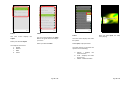
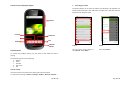
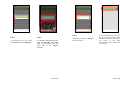
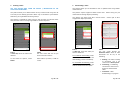
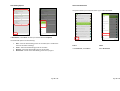
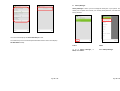
Congratulations on receiving your Text2Teach package! You are now on your
way to a more interactive and enriched teaching and learning experience.
PERSONAL INFORMATION
Name
:
Complete
Address
:
Telephone
:
Position
:
Mobile
:
SCHOOL INFORMATION
School Name
Complete
Address
Region /
Province
:
:
:
Division /
District
:
Telephone
:
Fax
:
Email
:
Website
:
Name
:
Position
:
Telephone
:
Mobile
:
School Head
TEXT2TEACH INFORMATION
Mobile Phone
Phone IMEI
:
Date
Received
:
Date
Received
:
Date
Received
:
Globe SIM Card
SIM No.
:
Television Set
Serial No.
:
TEXT2TEACH HELPDESK NUMBERS
Luzon
Visayas
Mindanao
0917.561.3585
0917.582.1639
0917.868.0495
Contact us first for any problems/concerns regarding Text2Teach.
Page 1 of 75
Page 2 of 75
Table of Contents
I.
INTRODUCTION
A. About Text2Teach
B. Philippine Implementation Team
5-6
7-11
THE TEXT2TEACH PACKAGE
12-13
III. THE MOBILE PHONE
A. Different Keys of the Phone
B. Charging the Mobile Phone
C. Re-setting the Mobile Phone
14-15
16
16
IV. THE TV SET
A. Parts of the TV Set
B. Connecting the Speaker to the TV
C. Connecting the Phone to the TV
17-18
19
20-21
II.
V.
USING NOKIA EDUCATION DELIVERY (NED)
A. Nokia Education Delivery (NED)
B. Opening NED
C. Videos
1. Playing a Video
• Volume Control and Playback Options
2. Searching for a Video
3. Deleting a Video
4. Downloading a Video
• Downloading Options
• Show Video Downloads
D. Library Manager
1. Updating a Library
2. Removing a Library
3. Adding a Library
E. Statistics
F. Settings
G. Exiting NED
VI. VIDEO RECORDING FEATURE
A. Recording a Video Clip
B. Video Setting
C. Viewing a Video Clip
D. Editing a Video
E. Transferring Video Clip/s to Computer
52-54
55-56
57
58-59
60-63
VII. ADDITIONAL INFORMATION
A. Mobile Internet Setting
B. Setting up Wi-Fi
C. Load Balance Inquiry
D. NED Installation
E. Equipment Care
F. Green Tips
64
65
65
65-66
66-67
68-69
VIII. TEXT2TEACH SECRETARIAT
71-72
22
23-25
26-28
29
30-32
33
34
35
36-37
40-41
42-43
44-45
46-47
48-50
51
Page 3 of 75
Page 4 of 75
I.
INTRODUCTION
A. About Text2Teach
The mission of Text2Teach is to make a significant contribution to the quality of
teaching and learning in grades 5 and 6 in underserved public elementary
schools and communities in the Philippines.
Its objectives are to 1) use advanced mobile communications technology for
education; 2) encourage cooperation among the public, private and civil society
sectors at the local levels; and 3) complement the indigenous curriculum with
high quality educational content delivered through a mobile network, and with
integrated teacher training.
Text2Teach started from a global program called BridgeIT, conceptualized in
2003 by Nokia, Pearson, the International Youth Foundation and the United
Nations Development Programme. BridgeIT’s aim is to deliver educational
video materials to schools by combining satellite, television, and mobile
technology. BridgeIT pilot-tested the project in the Philippines because of the
country’s robust mobile technology infrastructure and the Filipinos’ extensive
use of mobile phones. The Philippine pilot came to be known as Text2Teach.
The project was first introduced to 81 schools in Quezon City, Manila, Batangas,
Laguna, Cotabato City, Oriental Mindoro, Calapan City, Antique and Cagayan de
Oro (Phase 1: 2003-2004).
In 2005, SEAMEO INNOTECH, a member of the Education and Livelihood Skills
Alliance (ELSA), and Ayala Foundation (AFI) introduced Text2Teach to 124
public elementary schools in Mindanao. New videos and teachers’ guides were
developed to include Grade 5 and 6 English, Math and Science. This was funded
by USAID. The areas covered were Maguindanao, and North and South
Cotabato (Phase 2: 2005-2007).
In 2008, Nokia provided a grant to be matched 1:1 by the local alliance, to
expand Text2Teach to 350 new schools. Local project management was
transferred to AFI with Nokia, AFI, Globe Telecom, DepEd and SEAMEO
INNOTECH composing the local alliance. The Nokia Education Delivery (NED)
technology was introduced (Phase 3: 2008-2011).
Education and AFI) signed a Memorandum of Agreement for the Phase 4 of
Text2Teach (Phase 4: 2012-2014).
Phase 4 covers the following components: 1) review and enhance existing
Text2Teach education materials; 2) develop and produce new videos and
teachers guides; 3) train trainers and teachers; 4) expand to 850 new schools;
5) upgrade the satellite and media master schools to NED as needed; and
6) evaluate the program.
New downloadable educational materials on English, Math, and Science were
developed. Videos and lesson plans on Values were also developed, as
contributed by the Ramon Magsaysay Awards Foundation (RMAF).
In the Phase 4 of the program, Toshiba Corporation, a long-time donor/partner
of AFI, committed to donate 850 units of 32-inch Toshiba LED TV sets for
distribution to Text2Teach schools over the 3-year period of implementation.
NOKIA DATA GATHERING (NED). The Text2Teach technology evolved from the
original satellite-based delivery used in Phase 1, to the NED developed by Nokia
in Phase 3. NED uses mobile technology to deliver educational videos to
remote, hard-to-reach areas. Using a Nokia high-memory capacity mobile
phone with TV output capability, teachers and trainers access and download
videos from a constantly updated catalog over Globe Telecom’s mobile
network and store them in the phone for future use. The videos are used for
interactive teaching in classrooms by connecting the phone to a TV.
NOKIA DATA GATHERING (NDG). The NDG software enables AFI to design, send,
receive, and analyze surveys sent to the Text2Teach-recipient schools’ mobile
phones. This will be used to help gather data on the usage and effects of
Text2Teach on its recipient schools, for monitoring and evaluation purposes.
With the partnership of Ayala Foundation, Nokia Corporation, the Department
of Education, Globe Telecom, Pearson Foundation and Toshiba Corporation,
Text2Teach is expanding to reach more schools in the Philippines.
In putting together a program that would empower the teacher and the
student with relevant and high-quality educational resources in the least
amount of time and cost, Text2Teach is a cost-effective approach to closing the
ever-widening gap restricting social and economic progress in the country.
In 2011, the members of the national alliance (now composed of Nokia
Corporation, Globe Telecom, Pearson Foundation, the Department of
Page 5 of 75
Page 6 of 75
B. Philippine Implementation Team
Globe is the mobile communications service provider of Text2Teach. They
provide leadership in the development and exploration of new technologies for
content delivery using their telecommunications network.
AYALA FOUNDATION INC.
Ayala Foundation, Inc.’s (AFI) vision is to develop communities where people
are productive, creative, self-reliant and proud to be Filipino. AFI is committed
to pursue this vision by understanding community realities and engaging
people in the change process; acting as catalyst for inclusion to bridge
community and business aspirations; and building and nurturing partnerships
to achieve impact, scale and sustainability.
Globe provides free monthly load allowance for one year to recipient schools of
Text2Teach that will be used exclusively for helpdesk concerns and provides
feedback about the project to the secretariat. Globe also provides additional
load if there are new or updated materials to be downloaded through the
mobile phones within the first year of implementation.
NOKIA
To realize these goals, AFI harnesses the full potential of corporate social
responsibility, and creating shared value among the organizations and
communities where it operates; developing and promoting social technologies
that respond to the country’s needs; facilitating access to knowledge and
learning; and instilling pride in being a Filipino.
Now over 50 years old, AFI has expanded into more development-oriented
projects for the youth, in education, information communications technology,
youth leadership, entrepreneurship, community development, and cultural
rootedness.
To ensure a more global perspective in its programs and services, AFI has
forged strong and multi-year partnerships with local and multinational
institutions. All these partnerships understand the need for more innovative
and sustainable strategies to address the needs of the poor and
disadvantaged.
Text2Teach is one example of an education project that successfully uses this
multi-sectoral consortium approach. AFI is entrusted with the national project
management of Text2Teach, and its roles include area identification; schools
validation and coordination; and partner resource and public sector
counterpart funds mobilization.
GLOBE TELECOM, INC.
Globe is a leading telecommunications company in the Philippines. Its mission
is to transform and enrich lives through communications by way of its vision of
making great things possible. It strives to create and deliver products that are
relevant to its customers' needs and are easy to understand and use.
Page 7 of 75
Nokia is committed to connecting people. They combine advanced technology
with personalized services that enable people to stay close to what matters to
them. Every day, more than 1.2 billion people connect to one another with a
Nokia device – from mobile phones to advanced smartphones and highperformance mobile computers.
Today, Nokia is integrating its devices with innovative services through OVI
(www.ovi.com), including music, maps, apps, email and more. Nokia’s NAVTEQ
is a leader in comprehensive digital mapping and navigation services, while
Nokia Siemens Networks provides equipment, services and solutions for
communications networks globally.
Nokia provided the big bulk of the private sector funding for Text2Teach. They
are the lead in the development and enhancement of the Nokia Education
Delivery (NED) technology which allows the teachers to select from the
hundreds of educational audio/video materials specifically created for the
project. NED is configured to match Nokia’s N95 8GB, Nokia N86 8MP and
Nokia 701 smartphones.
PEARSON FOUNDATION
The Pearson Foundation is an independent nonprofit organization that aims to
make a difference by promoting literacy, learning and great teaching. We do
this by collaborating with leading businesses, nonprofits, and education experts
to share good practice; foster innovation; and find workable solutions to the
educational disadvantages facing young people and adults across the globe.
We believe we can make an important difference by focusing our efforts,
resources, and alliances on the key approaches inside and outside the
classroom that can most shape a child's success.
Page 8 of 75
We focus on:
• Literacy – We're sharing books we love, and helping teachers, parents,
and great nonprofit organizations ensure that young people are ready
to read and learn.
• Great Learning – We're helping schools make use of mobile and digital
technologies to improve student learning; identifying and supporting
new approaches that encourage deeper learning inside and outside
the classroom; and celebrating the remarkable ways that young
st
people are using 21 century skills to make a difference in their local
communities.
• Great Teaching – We're honoring great educators in local
communities; supporting teaching and leadership that delivers better
outcomes for students; and supporting innovative public-private
partnerships to improve teaching practice in classrooms around the
world. We also share with educators' perspectives with potential to
improve their own schools and better student outcomes.
Where administrator exercise visionary leadership responsive to emerging
learning needs of the nation; ensure adequate resources; promote appropriate
technology; create and sustain a conducive climate to enhance learning; and
Each year an initial grant from Pearson, the world's leading learning company,
provides us with operating funds we use to develop programs and partnerships
around the world. We also work with Pearson, other funders, and with a roster
of exemplary nonprofit organizations, corporations, and partners to deliver
scalable and replicable educational solutions to students, teachers, and
educational institutions.
The DepEd and Text2Teach Partnership
DEPARTMENT OF EDUCATION
For the Phase 4 of Text2Teach, DepEd has taken on the teacher training
component of the project. DepEd will provide the training on the integration of
Text2Teach with the DepEd curriculum for English, Science, Math and Values
Education. In September 2012, Text2Teach conducted the training of trainers
(TOT) for Luzon, Visayas and Mindanao. The TOT is one of the main
components of Phase 4. The local trainers (composed of education supervisors
from select DepEd regional and division offices based on Text2Teach’s target
areas) that were trained under the TOT will be tapped for the teachers training
program for schools.
The DepEd Vision
We are people organization committed to a culture of excellence in public
service. Believing that the most important resource of our country is its people,
we make the task of educating the Filipino child our singular mission.
We assist the Filipino child to discover his/her full potential in a child-centered
and value-driven teaching-learning environment and thereby, enable him/her
to create his/her own destiny in global community. We prepare him/her to
become a responsible citizen and an enlightened leader who loves his/her
country and is proud to be a Filipino.
Where the family, the community and other institutions actively support our
efforts.
We affirm the right of every Filipino child especially the less advantaged to
benefit from such a system.
This is our vision. With God’s help, we dedicate all our talents and energies to
its realization.
The DepEd Mission
To provide quality basic education that is equitably accessible to all and lay the
foundation for life-long learning and service for the common good.
In the Text2Teach project, the Department of Education, through its Bureau of
Elementary Education, helps in defining the curriculum-based objectives of the
program. It ensures that the educational materials produced by the project
meets the objectives of DepEd and are aligned with the Basic Education
Curriculum. The local DepEds also assist Text2Teach in coordinating and
monitoring the Text2Teach-recipient schools.
We provide a school system…
Where teachers and principals achieve the desired learning outcome not only
because they are empowered, competent and accountable, but because they
care;
Page 9 of 75
Page 10 of 75
II. THE TEXT2TEACH PACKAGE
TOSHIBA
Toshiba is a world-leading diversified manufacturer, solutions provider and
marketer of advanced electronic and electrical products and systems. Toshiba
Group brings innovation and imagination to a wide range of businesses: digital
products, including LCD TVs, notebook PCs, retail solutions and MFPs;
electronic devices, including semiconductors, storage products and materials;
industrial and social infrastructure systems, including power generation
systems, smart community solutions, medical systems and escalators &
elevators; and home appliances.
Toshiba was founded in 1875, and today operates a global network of more
than 550 consolidated companies, with 202,000 employees worldwide and
annual sales surpassing 6.1 trillion yen (US$74 billion).
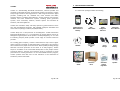
The Text2Teach package includes the following:
Mobile Phone &
Nokia Education
Delivery
RCA /
Video Cable
Globe
Bridgecom
SIM Card
Headset
Television
Set
Phone
Charger
Teacher’s
Guide
Television
Rack
Automatic
Voltage
Regulator
Text2Teach
User’s Manual
Toshiba Group has a solid presence in the Philippines. Toshiba Information
Equipment (Philippines), Inc., is a manufacturer of storage devices and one of
Philippines largest exporters of the product. Toshiba (Philippines), Inc. is a sales
& marketing company which provides a wide range of consumer electronic
products.
As a leading global company, Toshiba is determined to help create a higher
quality of life for all people. Its CSR philosophy is anchored on the company’s
total commitment to people and to the future. With capability building through
education and earth protection at the center of its CSR programs, Toshiba
hopes to contribute to the sustainable development of the people and the
community where it operates and constantly strives to contribute to earth
preservation for future generations. For this TEXT2TEACH Phase-4 program,
Toshiba provides total 853 units of LCD Televisions to be distributed to
elementary schools nationwide.
Page 11 of 75
Li-Ion
Battery
Speaker
Page 12 of 75
DEFINITIONS:
•
III. THE MOBILE PHONE
Mobile Phone – Mobile device where the NED and NDG application
and videos are stored. Text2Teach requires mobile phones with at
least 8GB memory capacity and with TV output capability.
•
Nokia Education Delivery (NED) software – Software installed in the
mobile phone used to access and download the educational
video/audio materials. This works on Nokia’s Symbian, S40, Windows
operating systems and Java-enabled phones.
•
RCA / Video cable – Cable that connects the phone to the TV.
•
Globe Bridgecom SIM (Subscriber Identity Module) Card – The Globe
Bridgecom SIM is a specially designed pre-paid SIM card that cuts
regular rates in half, giving users a more affordable access to text and
call services. Part of Globe’s commitment to Text2Teach is to provide
PhP150 free monthly pre-paid load for one year from date of
deployment of the phones to the schools.
•
User’s Manual – User’s guide intended to help you understand how to
operate and troubleshoot the various Text2Teach components.
•
Headset – Phone accessory that can be used to view the videos in
private, without disturbing others.
•
Television Set – A 32-inch LED colored display device into which the
mobile phone is connected to enable the viewing of the Text2Teach
video materials by an entire class.
•
Phone Charger – Device used to charge the mobile phone’s battery.
•
Li-Ion Battery – Mobile phone battery made of Lithium-Ion, which is a
type of rechargeable battery. This should always be inserted to your
phone to make it power on and function as needed.
•
Teacher’s Guides – Contains prototype lesson plans and seatworks
written by DepEd and RMAF subject specialists to help you facilitate
lessons of the particular educational video.
•
Television Rack – a piece of furniture that holds a television set,
usually standing on the floor.
•
Automatic Voltage Regulator (AVR) – Device used to protect your
television against surging and fluctuating electricity by maintaining the
load voltage against wide variances.
•
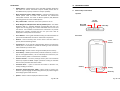
A. Different Keys of the Phone
Top View
3.5 mm
Connector
Micro USB
Connector
Power Key
Front View
Front
Camera
Call Key
End Key
Menu Key
Speaker – Device used to amplify the television audio.
Page 13 of 75
Page 14 of 75
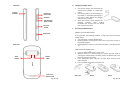
Side View
B. Charging the Mobile Phone
1.
Charger
Connector
Volume Up/
Zoom in Key
2.
Voice Key
Volume Down/
Zoom out Key
3.
Key Lock
Switch
C.
Connect the charger that came with the
mobile phone package, to a 220V wall
outlet.
Connect the power cord to the device. If
the battery is completely discharged, it
may take a while before the charging
indicator starts scrolling.
When the battery is fully charged, the
charging
indicator
stops
scrolling.
Disconnect the charger from the device,
then from the wall outlet.
Re-setting the Mobile Phone
WHEN to reset the Mobile Phone
Camera Key
If you encounter the following problems, it means you need to reset the
mobile phone:
1. The video stops or freezes while playing.
2. Nothing happens on the phone screen, even if you press any key on
the phone’s keypad.
3. Nothing appears on the TV screen while the phone is connected to the
TV.
Back View
HOW to Reset the Mobile Phone
1.
2.
Back
Camera
Camera
Flash
3.
4.
Back Cover
Release Latch
Page 15 of 75
Press and hold the button to power it off.
With the back of the device facing you, remove the back cover by
pressing the release button, and lifting it from the bottom end of the
device and remove the battery.
Insert the battery again, and press the cover down until the cover
locks into place.
Press and hold the
button to power it on.
Step 1 & 4
Step 2
Step 3
Page 16 of 75
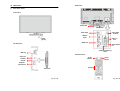
Back Panel:
IV. THE TV SET
A. Parts of the TV Set
Front Panel:
Power Cord
Cable Holder
Aerial Input
Terminal
Audio Input
RGB/PC
Input
Power
On/Off
Video (1)
Port
HDMI Port
Left Side View:
Audio Output
(for
Component/Video (2)
Input
USB Port
Remote Control:
Power On/
Standby
TV/AV
Selector
Power
On/Off
Volume
Program/
Input Source
Volume
Page 17 of 75
Page 18 of 75
B. Connecting the Speaker to the TV
C.
Connecting the Phone to the TV
Connecting a sound system will amplify the sound of the video especially if
the classroom is bigger than the normal size.
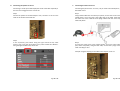
Connecting the phone to the TV is easy. All you need is the mobile phone,
RCA cable and TV.
Step 1
Connect the speaker to the RCA adaptor. Then, connect it to the TV in the
audio in slot located at the back left.
Step 1
Using the RCA cable that came with your phone, connect the TV out to the
mobile phone. The TV out plug is the single plug on the cable. Note that
the other end of the cable has three plugs marked with the colors red,
white and yellow.
Step 2
In the TV/remote, press Menu. Using the right and left arrow, select
‘Sound’. Then, using the up and down arrow, select ‘Power Bass Booster’.
Using the right and left arrow, select ‘Off’.
Step 2
The rear part of the TV has a port marked “Video”. This port is color-coded
(red, white and yellow). Using the RCA cable, connect the 3 plugs of the
cable according to color.
Example: Plug the red plug on the cable to the red port on the TV.
Page 19 of 75
Page 20 of 75
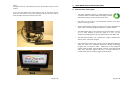
Step 3
Using the remote or TV/AV button, press the TV/AV button until you reach
Video1.
If the TV screen displays the same output as that on the phone screen,
then your connection is correct and successful and you are now ready to
show the video lesson for the day to your class.
Page 21 of 75
V. USING NOKIA EDUCATION DELIVERY (NED)
A. Nokia Education Delivery (NED)
•
The Nokia Education Delivery or NED application was
created by Nokia to enable mobile technology to deliver
educational videos to remote, hard-to-reach areas.
•
The videos can be used for any educational purpose, from school
lessons to training sessions.
•
Using a mobile phone, teachers and trainers can access and download
videos from a constantly updated catalog over a mobile network.
•
The Nokia device with TV-out connector can be connected to a normal
TV or a video projector to play the videos to a class. For the
Text2Teach package given to you, the mobile device is the Nokia 701.
•
The NED-based platform has replaced the original satellite-based
delivery in the Text2Teach program.
•
The first batch of schools that started to use the NED-based platform
under the Elimu kwa Teknolojia (Education through technology)
program was in Tanzania in 2007. Deployment in the Philippines
started in March 2009. Other BridgeIT countries using NED include
India, Chile, Colombia, Nigeria and work is currently underway to
introduce the software in Kenya, Egypt and South Africa.
Page 22 of 75
B. Opening NED
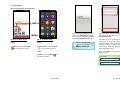
There are two options for opening NED:
NED
After opening the NED, the display
goes to the NED welcome screen.
This will be immediately followed
by the User Authentication screen.
MENU
Option 1: Via Home Screen
Option 2: Via Main Menu
STEP 1
STEP 1
TIP: To remember the
password, check the
On Homescreen, locate the NED
icon and select to open it.
On Homescreen, locate the Menu
icon and select to open it.
Remember Me.
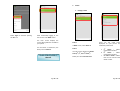
When you have opened the NED,
the first screen that greets you is
User Authentication.
Complete the user authentication
process by entering the correct
details provided to you during the
technical training. To enter the
username and password, select the
text box below the label.
Then select Menu to proceed or
Exit to close it.
STEP 2
On Menu, locate the NED
and select to open it.
icon
User name:
Password:
Page 23 of 75
Page 24 of 75
C.
Videos
1.
Select Login to continue opening
the NED 2.1.
Playing a Video
After successfully logging in, the
next screen is the Main screen.
The main screen displays the
current library/libraries available in
your phone.
STEP 1
In Main screen, select Phase 4.
For the Phase 4 Text2Teach, the
library name is Phase 4.
Phase 4 Library name is
Phase 4
Page 25 of 75
These are the grade levels
displayed on your phone and
covered by Text2Teach:
STEP 2
a.
The next screen displays the Grade
th
th
th
th
Level (5 , 6 , and 5 and 6 ).
b.
Select your desired Grade Level.
c.
th
Grade – Videos
5
produced for Grade 5.
6th Grade – Videos
produced for Grade 6.
th
th
5 and 6 Grade – Videos
that can be used for both
Grade 5 and 6.
Page 26 of 75
STEP 3
STEP 4
After you select Open, the video
starts playing.
STEP 5
The next screen displays the
subject.
The next screen displays the video
list for the grade level and subject
you chose.
The next screen displays the video
list options.
Select your desired video.
Select Open, to play the video.
Select your desired subject.
The subjects covered are:
a. English
b. Science
c. Math
d. Values
The other options in the video list
options are the following:
a.
b.
c.
Page 27 of 75
Details – Displays the
video overview
Links – Displays the video
links (if any)
Delete – Delete the video
Page 28 of 75
2.
Volume Control and Playback Options
Searching for a Video
This feature allows you to search for videos using keywords. The keywords can
be part of the video title or the video code. The video title or the video code can
be found in the Teachers Guide.
Volume
Forward
Fullscreen
Pause
Rewind
Exit
Playback
Options
Playback Options
STEP 1
STEP 2
You can search for the videos in
the video list. Select Menu.
Then select Search.
To activate the playback options, tap the phone screen while the video is
playing.
The playback options are the following:
a. Rewind
b. Pause
c. Forward
d. Full screen
e. Exit
Volume Control
The volume control is located at the upper right side of the phone.
To activate the sound, go to Menu > Settings > Profiles > General > Activate.
Page 29 of 75
Page 30 of 75
STEP 5
STEP 3
STEP 4
In the Search pop up box, select
the text box, below the Search for:
The QWERTY keyboard will display.
Enter the video title or the video
code of your desired video and
select Ok on the QWERTY
keyboard.
Page 31 of 75
Select Ok to proceed or Cancel to
cancel the search.
If you selected Ok, the next screen
will show the list of videos which
contains the keyword you used for
the search, or the video
corresponding to the video code
you entered.
Page 32 of 75
3.
Deleting a Video
4.
Downloading a Video
USE THIS OPTION ONLY UPON THE ADVICE / INSTRUCTION OF THE
TEXT2TEACH SECRETARIAT.
This feature allows you to download a new or updated video using Globe’s
mobile internet.
This feature allows you to delete videos. Be very cautious when using this. Be
sure that you are deleting particular videos only on the advice of Text2Teach.
Otherwise, you might delete the wrong video/s.
This feature requires sufficient Globe airtime load. Please setup first your
mobile internet settings before proceeding.
This feature is intended for videos that you will no longer use because either
that particular video is no longer applicable or has been replaced.
STEP 1
In video list, select the video to be
deleted.
STEP 2
The next screen will ask: Do you
want to remove content?
In the video list options, select
Delete.
Select Yes to proceed, or No to
cancel.
This feature also works with Wi-Fi internet access.
configuration before proceeding.
STEP 1
In video list, select the video you
want to download.
For immediate downloading, select
Download Now. This will start the
downloading process immediately.
For scheduled downloading, select
Add to queue. This will add the
video for download to the queue.
Page 33 of 75
Please refer to Wi-Fi
STEP 2
The next screen displays the
Download status. Status of video
downloads can be any of the
following:
a. Waiting – the video is waiting
to download. This is the
status for the Add to queue.
b. Connecting – establishing
connection to the server to
be able to download the
video.
c. Connected – video
downloading is in progress.
Page 34 of 75
Downloading Options
Show Video Downloads
This feature allows you to view the status of your video downloads.
In Downloads, select Menu and then your desired download options.
The download options are the following:
a.
b.
c.
d.
Start – Start the downloading process of the video (this is visible if the
status of the video is Waiting)
Pause – Pause the downloading process of the video
Remove – Cancel the downloading process of the video
Remove All – Cancel all the downloading processes in progress.
Page 35 of 75
STEP 1
STEP 2
In the Video list, select Menu.
Select Downloads.
Page 36 of 75
D. Library Manager
Library Manager is where you can manage the library/ies in your phone. This
allows you to update and remove your existing library/libraries, and add new
library/libraries.
The next screen displays the video download/s screen.
You will know you have successfully downloaded a video if the screen displays
No Downloads already
Page 37 of 75
STEP 1
STEP 2
To go to Library Manager, in
Main, select Menu.
Select Library Manager.
Page 38 of 75
1.
Updating a Library
USE THIS OPTION ONLY UPON THE ADVICE / INSTRUCTION OF TEXT2TEACH.
This feature allows you to update your existing library/ies when new or updated
library/ies has/have been added.
This feature requires sufficient Globe airtime load. Please setup first your mobile
internet settings before proceeding.
This feature also works with Wi-Fi internet access. Please refer to Setting up
Wi-Fi before proceeding.
The next screen displays the Library Manager.
Page 39 of 75
STEP 1
STEP 2
In Library Manager, select your
desired library (e.g. Phase 4) to
update and then select Menu.
Select Check for Update.
Page 40 of 75
2.
Removing a Library
USE THIS OPTION ONLY UPON THE ADVICE / INSTRUCTION OF TEXT2TEACH.
This feature allows you to delete a library. Be very cautious when using this. Be
sure that you are deleting a particular library only on the advice of Text2Teach.
Otherwise, you might delete the wrong library.
STEP 3
STEP 4
A prompt displays if there are new
versions available.
A notification displays the updates.
The updated items are highlighted
in the library.
Select Yes to proceed or No to
cancel.
Page 41 of 75
STEP 1
STEP 2
In Library Manager, select your
desired library (e.g. Phase 4) to
delete and then select Menu.
Select Remove Library.
Page 42 of 75
3.
Adding Library
USE THIS OPTION ONLY UPON THE ADVICE / INSTRUCTION OF TEXT2TEACH.
This feature allows you to add new library/ies. Text2Teach will advise you if
new library/libraries are available.
This feature requires sufficient Globe airtime load. Please setup first your mobile
internet settings before proceeding.
This feature also works with Wi-Fi internet access. Please refer to Setting up
Wi-Fi before proceeding.
STEP 3
You will be prompted with the question Do you want to remove library? Select
Yes to proceed and No to cancel.
Page 43 of 75
STEP 1
STEP 2
In Library Manager, select the text
box under New Library ID and type
the library ID of the library to add.
Then select, Menu.
Select Add Library.
Phase 4 Library ID is
text2teach
Page 44 of 75
E.
Statistics
This feature is useful for monitoring the usage of the Text2Teach videos. It also
allows you to view and upload video usage statistics.
STEP 3
If you are successful, the newly added library will show in the Show Libraries
portion.
Page 45 of 75
STEP 1
STEP 2
In Main, select Menu.
Then select Statistics.
Page 46 of 75
F.
Settings
This feature allows you to change the settings in Statistics options, Download
options, Switch user and Languages.
STEP 3
STEP 4
The next screen displays the list of
videos you viewed.
If you selected Upload, a
notification displays Statistics
uploaded successfully.
To send the statistics data to the
Text2Teach secretariat, select
Upload, or select Back to cancel.
STEP 1
In Main, select Menu.
STEP 2
Select Settings.
This means that the data was
successfully sent to the Text2Teach
secretariat. Select Ok.
Once the statistics have been
uploaded, the next time you access
it, the logs are cleared.
Page 47 of 75
Page 48 of 75
STEP 3
Statistics Options
In Settings, there are four options,
select your desired option.
Statistics options refers to the
configurations for statistics upload,
or for sending the statistics to the
Text2Teach Secretariat. You can
choose to keep it On or Off.
The four options listed in the
settings are the following:
a.
b.
c.
d.
Statistics Options
Download options
Switch user
Languages
If this is set to On, this means that
the your phone will be deducted
with PhP 5 for every upload.
Download Options
Switch user
Download
options
is
the
configuration for downloading
mode.
In Switch user, it is where the user
can log off in the current user and
log in to a different user.
You can set this to On or Off.
This is not applicable; there is only
one user to a school. There is no
need to log out.
If On, this means that your video
downloads
are
managed
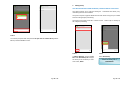
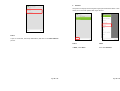
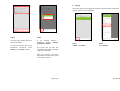
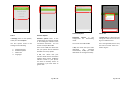
automatically. If Off, your video
downloads are managed manually.
If On, this means that your
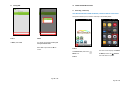
statistics will be sent to Text2Teach
regularly every month. If Off, the
statistics remain in your phone.
You have to manually send it to
Text2Teach if you want them to
get the data.
Page 49 of 75
Page 50 of 75
G. Exiting NED
VI. VIDEO RECORDING FEATURE
A. Recording a Video Clip
USE THIS OPTION ONLY UPON THE ADVICE / INSTRUCTION OF TEXT2TEACH.
This feature allows you to record a video clip in the mobile phone.
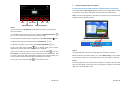
STEP 1
STEP 2
In Main, select Exit
You will be prompted with Are you
sure you want to exit?
Select Yes to proceed and No to
cancel.
STEP 1
The next screen displays the Menu.
On Homescreen, select the
Menu icon.
On Menu, locate the
Camera
icon and select to open it.
STEP 2
Page 51 of 75
Page 52 of 75
Camera
Capturing Mode
Video
Elapsed time
of recording
Pause
STEP 3
STEP 5
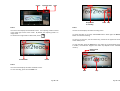
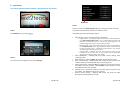
The next screen displays the viewfinder screen. The capturing mode is located
in the upper right corner of the screen. By default, the capturing mode is in
image mode.
To switch from image mode to video mode, select
.
The next screen displays the video recording screen.
Stop
To pause recording at any time, select Pause button. Select again the Record
button to continue recording.
To zoom in or zoom out, use the volume keys, located in the upper left corner
of the mobile phone.
To stop recording, press the Stop button. The video clip is automatically saved
in Gallery. The maximum length of the video clip depends on the available
memory.
Running Time
of Video
In Video Mode
Record
STEP 4
The next screen displays the video viewfinder screen.
To start recording, press the red record icon.
Back
Page 53 of 75
Play
Page 54 of 75
B. Video Setting
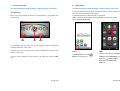
USE THIS OPTION ONLY UPON THE ADVICE / INSTRUCTION OF TEXT2TEACH.
Back Arrow
STEP 3
STEP 1
The next screen is the Video Settings. Select the settings you want to change.
To go back to the viewfinder screen, press the back arrow.
On Viewfinder screen, select
The following are the Video Settings options:
1.
Video Quality – There are three types of video quality:
•
•
•
2.
STEP 2
3.
The next screen is the Options menu. Select Settings.
4.
5.
6.
7.
Page 55 of 75
High Definition – Choosing this type ensures that your video produced will
be of high definition (HD) quality. This is recommended for videos to be
viewed on a compatible TV or PC. But this also means bigger file size,
therefore, bigger space used in terms of phone memory.
Medium quality – Choosing this type ensures that your video produced will
be of standard quality. This is recommended for videos to be viewed only
through the mobile phone. Compared to High Definition, this occupies
less space used in terms of phone memory.
Sharing quality – Choosing this type ensures that the video clip you
recorded can be shared (sent) to other mobile devices (multimedia
message) or the Internet (email, social media).
Video Stabilization – Selecting On will reduce camera shaking when
recording a video.
Audio recording – Selecting Mute will disable the recording of sounds.
Show captured video – Selecting Yes will enable the first frame of the
recorded video clip to be displayed after the recording stops.
Default video name – Selecting Title will enable you to name the video clip
according to the title you want. Selecting Date will just show the current
date when the video was recorded.
Memory in use – This option enables you to select where you want to store
your videos. The default storage is mass memory.
Restore camera settings – Selecting Yes returns the values for Video
Settings to the default/factory settings.
Page 56 of 75
C.
Viewing a Video Clip
D. Editing a Video
USE THIS OPTION ONLY UPON THE ADVICE / INSTRUCTION OF TEXT2TEACH.
USE THIS OPTION ONLY UPON THE ADVICE / INSTRUCTION OF TEXT2TEACH.
After Recording
You can combine pictures and videos with sounds, effects, and text, and easily
turn them into short movies or slide shows.
NOTE: This is only available if “Show last captured video” is set to Yes in the
video settings.
Back
Play
The following file types and file formats are supported:
MPEG-4, H.263, H.263 BL, WMW, JPEG, PNG, BMP, MP3, AAC/AAC+/eAAC+,
WAV, and AMR-NB/AMR-WB.
Erase
To immediately play the video clip you just recorded, select the Play icon
located at the center of the screen.
If you do not want to keep the video, select the Erase icon, located at the
bottom of the screen.
To return to the Viewfinder and to record a new video clip, select the Back
icon.
Page 57 of 75
STEP 1
On Homescreen, locate the
Menu icon and select to it.
STEP 2
The next screen displays the Menu.
On Menu, locate Video Editor icon.
Next, select
Easily create a
video from your photos and
videos icon.
Page 58 of 75
E.
Transferring Video Clip/s to Computer
USE THIS OPTION ONLY UPON THE ADVICE / INSTRUCTION OF TEXT2TEACH.
The mobile phone’s data transfer feature enables you to transfer data or videos
to a laptop or PC using the USB cable that came with your mobile phone.
Note: To avoid corrupting data or possible virus infection, do not disconnect the
USB data cable during data transfer.
Back
Add Sound
Add Videos/Picture
Trim
Save
Add Text/Subtitles
STEP 3
The next screen is the Storyboard. The Storyboard is where you manage the
flow of your video.
To add videos and pictures to your video, select the Add Videos/Picture
icon. To view the files you have selected, swipe left to right.
To add transitions between videos and pictures, select Add Transition
To add sounds to play in the background, select Add Sound
To add text or subtitles to your video, select Add Text/Subtitles
icon.
icon.
icon.
To trim your video, select the Trim
icon. In editing mode, you can cut the
length of the video or define how long a picture is displayed.
If you want to edit your video at a later time, select the Save
icon and
Save project. This feature ensures that all activities (such as Add videos, Add
Transition, Add sound, Add Text/Subtitles) related to that particular video you
want to produce will be saved and will be available for future edits.
To save your video, select the Save
icon, then Save video.
Removable Drive
STEP 1
Using the USB cable, connect the mobile phone to a laptop or computer.
When the device asks which mode to use, select Mass Storage. In this mode,
you can see your device as a removable hard drive in your laptop or computer.
STEP 2
Once the mobile phone is connected to the laptop or computer, the removable
drive icon will appear in the system tray of the laptop or computer at the lower
right corner of the desktop screen.
Page 59 of 75
Page 60 of 75
STEP 5
The display goes to the Removable disk folder.
Go to the Videos icon, and double-click it to open.
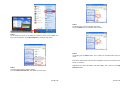
STEP 3
At the lower left corner of the laptop or computer screen, click on Start. The
Start menu will appear. Select My Computer by clicking on this option.
STEP 6
The display goes to Videos folder. This is where the recorded videos clips are
saved.
Browse the videos folder and select the files/folders you want to transfer to the
laptop or computer.
Right Click your chosen file/folder, and select Copy. Then, paste it to your My
Document folder.
STEP 4
The display goes to My Computer folders.
Go to the Removable disk icon, and double-click it to open.
Page 61 of 75
Page 62 of 75
VII. ADDITIONAL INFORMATION
A. Mobile Internet Setting
STEP 7
To properly end the connection from the computer without damaging the
phone’s memory card, use the Safely Remove Hardware wizard in Microsoft
windows located at the lower right corner of the desktop screen.
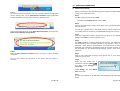
Before proceeding to NED downloading, please configure the Globe GPRS
setting of the mobile phone first.
Step 1
Text Go <space> handset model to 2951
Example: Text Go Nokia 701 then send to 2951
Step 2
Wait for the configuration settings, which will be sent to your phone within
the next 24 hours.
Click the removable drive icon or the Safely Remove Hardware, and choose the
Safely remove USB Mass Storage Device.
You may also call 211 which is the Globe customer service hotline from
your mobile phone to request for your MMS/GPRS settings free of charge.
Step 3
Open the configuration settings received and save them as your default
settings. Enter 1234 if you are prompted for a pin.
STEP 8
When the Safe To Remove Hardware wizard is successful, a pop-up message
will appear.
You can now remove the connection of the phone from the laptop or
computer.
Step 4
Text TIME to 1111 for time-based charging of the Internet. This means that
the downloading cost is charged according to the duration it takes to
download a video, which is at PhP 5.00 per 15-minute Internet or video
download time. Otherwise, downloading might be charged according to
the data/video size (per kilobyte-based charging), which is much more
expensive.
Step 5
Wait for the confirmation message, which will be sent to your phone
within the next 24 hours.
Step 6
Make sure that mobile data is
switched on. Select the Menu
icon. Next, choose Settings, then
Connectivity.
TIP: As a shortcut to Step 6,
simply swipe down the top of
the screen then select
.
Select Settings and then Mobile
Data. Choose On.
Step 7
You may now proceed to the NED video downloading process (see page
33-36).
Page 63 of 75
Page 64 of 75
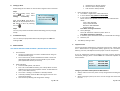
B. Setting Up Wi-Fi
a.
b.
c.
Downloading the T2T videos can also be done using Wi-Fi data connection.
Step 1
On active standby screen, select
Menu
icon, then select
Setting, then Connectivity.
Next, choose Wi-Fi. If the Wi-Fi is
Off, you will be prompted to turn it
On. Switch on Wi-Fi by selecting
this icon
.
c.
Open the NED for the first time
1. Go to Menu > Applications > NED and select it
2. In server details, http://203.177.165.52:8080
3. In user authentication,
Please contact our helpdesk and ask for the user authentication
details
Luzon: 0917 561 3585
Visayas: 0917 582 1639
Mindanao: 0917 868 0495
Remember Me
Press Menu and Login and Select.
4. Library Manager,
Library ID: text2teach and Library Name: Phase 4
Press Menu, Add Library and Select
5. In the Main, open the Libraries Phase 4, to download the catalogs.
6. And then, Exit.
d.
Test NED by viewing a video.
TIP: As a shortcut to Step 1,
simply swipe down the top of
the screen then select
.
Step 2
You may now proceed to the NED video downloading process (see page
33-36).
C.
Load Balance Inquiry
You can check your prepaid load balance by texting the word Bal and
sending to 222.
E.
Network Access: Always allowed
Read user data: Always allowed
Edit user data: Always allowed
Equipment Care
D. NED Installation
USE THIS OPTION ONLY UPON THE ADVICE / INSTRUCTION OF TEXT2TEACH.
a.
b.
Pre-installation
1. Using your mobile phone, connect to mobile internet and go to
www.text2teach.org.ph
2. Go to resources tab, under the NED client installer. Locate and
download the NED installer. Save the installer in your mobile
phone (Remember where you saved it)
Install and Setup
1. Locate the NED jad file, and select it.
2. Press ‘ok’ to install NED. And then, press ‘Always Allow’ to allow
application to access protected phone content. If asked where to
save it, select Mass memory.
3. Go to menu > Settings > Installations > Already Installed.
4. In already installed, locate the NED and long press the icon and
choose Suite settings.
5. Choose Security Warning and change the ff settings:
Page 65 of 75
Use the Text2Teach equipment for Text2Teach purposes only. Please note
that a Memorandum of Agreement (MOA) signed by the Text2Teach
Alliance, your LGU, and DepEd covers the proper use of the components.
If you are experiencing technical problems and other concerns with the
Text2Teach package, please contact FIRST the Text2Teach Helpdesk at
these numbers:
Luzon
: 0917 561 3585
Visayas
: 0917 582 1639
Mindanao : 0917 868 0495
Caring for your Nokia mobile phone and NED software
1. Always make sure that the phone is fully charged before viewing the
videos.
2. When charging the phone, be sure to use the charger that came with
the unit.
Page 66 of 75
3.
4.
5.
6.
7.
8.
Never expose the phone to extreme sunlight.
Make sure to store the phone in a dry and secure place.
DO NOT delete files/data pre-stored in the mobile phone unless
otherwise advised by Text2Teach.
DO NOT store/save pictures and music files on the mobile phone
unless otherwise advised by Text2Teach.
The licensed video materials already consumed a very large amount of
the phone’s memory. Adding/storing pictures, music files, etc. can
slow down the phone’s performance and may cause inconvenience
such as the video stopping/freezing while playing; getting an alert
message saying ‘The memory is full’, etc.
Copying/editing of the licensed video materials is prohibited. It is
intended only for the use of Text2Teach trained partner schools. The
MOA signed by the Text2Teach Alliance, your LGU, and DepEd covers
this.
Caring for your television set
1. The television set is under a 1-year warranty with Toshiba starting
from the date of delivery to your school. Contact FIRST the Text2Teach
helpdesk, if you are experiencing any problems. Please note that the
warranty will be void if you send the TV to other repair centers not
authorized by Toshiba.
2. Do not expose the TV to extreme sunlight.
3. Make sure to store the TV in a safe, dry and secure place.
Caring for your Automatic Voltage Regulator (AVR) and Speakers
1. Do not expose the AVR and speakers to extreme sunlight.
2. Make sure to store the AVR and speakers in a dry and secure place.
F.
Green Tips (Energy Saving Tips)
Following these energy saving tips can help make a difference in your
power consumption.
TV Power-Saving Tips
1.
It's easy to get into the habit of leaving the TV on as "background" when
you're not really watching it. While TVs still consume power in standby
mode, it's a tiny fraction of what they draw when they're actually on. Old
habits die hard, but you'll be saving yourself some money if you remember
this tip.
Be careful to power down other connected devices, too, like the mobile
phone, speaker and AVR--which are easy to leave on accidentally even
after you turn the TV off.
2.
Turn off the Quick Start option
Some HDTVs and other AV gear have an option called Quick Start or
something similar, which allows them to turn on more quickly when you
press the power button. The flipside of this mode is that when engaged, it
consumes more power (sometimes up to 50 times as much) during
standby, which can really add up. Do your energy bill a favor and turn this
mode off. That few extra seconds' wait for the TV to warm up is worth it.
3.
For more information about taking care of the Text2Teach equipment:
• For the TV, please read page i of the TV manual on Cautions for
Safety
• For the phone, please read page 148-149 of the Nokia phone
manual under Taking care of your device.
Turn off the TV and other connected devices when not in use.
Turn down the LCD's backlight
Many LCDs give you the ability to control the intensity of the backlight in
the TV. By turning down the backlight, you'll lower power consumption,
but also make the TV less bright. While retail stores love to turn the
backlights up all the way for their displays, we get the best image quality
when we turn down the backlight significantly.
4.
Turn on the power saver mode
Your Toshiba 32-inch LED TV comes with a power saver mode that's
designed to cut down the power consumption. (Performance of this mode
varies from model to model, with varying effects - from drastic to only
slight savings.) The only downside is that the power saver mode usually
makes the TV less bright, but sometimes this has a beneficial effect on the
Page 67 of 75
Page 68 of 75
image quality, especially with the room lights turned off, in which case it's
a win-win situation.
5.
Reduce light output with other settings
Most TVs are very bright by default, which uses a lot of energy. You can
turn down the light output--which is traditionally controlled primarily by
"contrast" or "picture" controls--along with several other adjustments that
will maximize the performance of your TV.
6. Control room lighting
Many of these tips make the TV less bright, but that can be compensated
by controlling the light in your room. While this may be a little overboard
just for power consumption, limiting the room lighting also goes a long way
toward creating the "theater" experience, as well as getting the most out
of your TV.
Mobile Phone Energy Saving Tips: Turn your cell phone green
1. Unplug your phone charger when not in use
Did you know your phone’s charger still draws energy even when it’s not
plugged into your phone? Unplug it when it’s not in use.
2.
Minimize your phone’s backlight
If your phone’s backlight is illuminated for longer than you need, you’re
wasting energy. Reduce it so you’re only using what’s necessary. Your
phone’s battery will thank you.
3.
Charge your phone when necessary
Many people are accustomed to charging their cell phones every night
whether or not the battery has been depleted. To be less wasteful, don’t
charge your phone until the battery really needs it.
Page 69 of 75
Page 70 of 75
VIII.
VISAYAS TEAM
Room 416 Krizia Building,
Gorordo Avenue, Cebu City
T: (+6332) 412 2405
TEXT2TEACH SECRETARIAT
For queries or technical support, please text or send to:
Mario A. Deriquito
Senior Director
[email protected]
LUZON TEAM
th
10 Floor BPI Main Building
Ayala Ave. cor. Paseo de Roxas, 1226 Makati City
T: (02) 752-1101 loc. 85 or 1067 / Direct: (02) 752-1067 / 752-1187
Marisse Catangay
Manager
M: (0917) 840-6958
[email protected]
Dino C. Abellanosa
Manager
M: (0917) 854-5197
[email protected]
MINDANAO TEAM
2nd Floor A.B. Santiago Building
Velez corner Gaerlan Streets, Cagayan de Oro City
T: (+6388) 857 3128
Archie G. Velasco
Senior Manager
M: (0917) 854-5195
[email protected]
JR G. Demecais
Senior Development Specialist
M: (0917) 860-7764
[email protected]
Jaypee P. Gulay
Development Associate
M: (0917) 868-0495
[email protected]
Pete D. Rabago
Senior Development Specialist
M: (0917) 881-8312
[email protected]
Melissa L. Yamson
Development Associate
M: (0917) 561-3585
[email protected]
Erika M. Barja
Development Associate
M: (0917) 881-8314
[email protected]
Page 71 of 75
Page 72 of 75
Page 73 of 75
Page 74 of 75
Page 75 of 75