1
Advanced Secure 2-port
Flip KVM Switches
User Manual
F1DN102F-3 – Secure 2-port Flip DVI-D KVM with Audio, PP 3.0
F1DN102N-3 – Secure 2-port Flip DP KVM with Audio, PP 3.0
F1DN102V-3 – Secure 2-port Flip VGA KVM with Audio, PP 3.0
Document Number HDC10383 Rev.D
Table of Contents
Table of Contents
SECTIONS
1
2
3
5
6
Installation . . . . . . . . . . . . . . . . . . . . . . . . . . . . . . . . . . . . . . . . . . . . . . 15
Before Installation . . . . . . . . . . . . . . . . . . . . . . . . . . . . . . . . . . . . . . . 15
Setup . . . . . . . . . . . . . . . . . . . . . . . . . . . . . . . . . . . . . . . . . . . . . . . . . 16
Introduction . . . . . . . . . . . . . . . . . . . . . . . . . . . . . . . . . . . . . . . . . . . . . 1
Package Contents . . . . . . . . . . . . . . . . . . . . . . . . . . . . . . . . . . . . . . . . 1
Overview . . . . . . . . . . . . . . . . . . . . . . . . . . . . . . . . . . . . . . . . . . . . . . . . 2
Security Features . . . . . . . . . . . . . . . . . . . . . . . . . . . . . . . . . . . . . . . . . 2
Operational Features . . . . . . . . . . . . . . . . . . . . . . . . . . . . . . . . . . . . . . 4
Flip KVM . . . . . . . . . . . . . . . . . . . . . . . . . . . . . . . . . . . . . . . . . . . . . . . . 5
Equipment Requirements . . . . . . . . . . . . . . . . . . . . . . . . . . . . . . . . . . 6
Safety Precautions . . . . . . . . . . . . . . . . . . . . . . . . . . . . . . . . . . . . . . . . 8
User Guidance & Precautions . . . . . . . . . . . . . . . . . . . . . . . . . . . . . . . 9
Tamper Evident Labels . . . . . . . . . . . . . . . . . . . . . . . . . . . . . . . . . . . 10
Product Specifications . . . . . . . . . . . . . . . . . . . . . . . . . . . . . . . . . . . . 11
F1DN102F-3 Features . . . . . . . . . . . . . . . . . . . . . . . . . . . . . . . . . . . . 12
F1DN102V-3 Features . . . . . . . . . . . . . . . . . . . . . . . . . . . . . . . . . . . . 13
F1DN102N-3 Features . . . . . . . . . . . . . . . . . . . . . . . . . . . . . . . . . . . . . 14
Belkin Advanced Secure 2-port Flip KVM Switch User Manual
4
Operation . . . . . . . . . . . . . . . . . . . . . . . . . . . . . . . . . . . . . . . . . . . . . . . 18
Operating the Belkin Secure Flip KVM Switch . . . . . . . . . . . . . . . . . 18
Troubleshooting . . . . . . . . . . . . . . . . . . . . . . . . . . . . . . . . . . . . . . . . . 19
Information . . . . . . . . . . . . . . . . . . . . . . . . . . . . . . . . . . . . . . . . . . . . . 22
i
Introduction
Table of Contents
SECTIONS
1
2
3
5
6
Package Contents
Thank you for purchasing this Belkin Advanced Secure 2-port Flip
KVM Switch. This Switch is designed for use in secure environments
comprised of sources with different security levels. Providing the
highest security safeguards and features, this product meets all
required cyber prevention requirements.
• Belkin Advanced Secure Flip KVM Switch
• 12V 1A DC Power Supply
• Remote Control Unit
This User Manual provides all the details you’ll need to install and
operate your new product and to troubleshoot it in the unlikely event
of a problem.
• User Manual
Please note: Belkin Secure KVM Products cannot be upgraded,
serviced or fixed.
Why use the Belkin Secure Flip KVM Switch?
Belkin’s Advanced Secure DVI-D 2-port Flip KVM Switch is the first
secure KVM in the industry specifically designed for 2-computer
scenarios.
Important Security Note: If you are aware of potential security
vulnerability while installing or operating this product, we encourage
you to contact us immediately at the following email address:
[email protected]
Many users in large organizations are required to switch between two
isolated networks and call for a KVM solution that is both secure and
cost-effective.
Important: This product is equipped with an always-on active antitamper system. Any attempt to open the enclosure may activate the
anti-tamper system and render the unit permanently inoperable. If
the unit’s enclosure appears disrupted or if all the port LEDs flash
continuously, please call Belkin Technical Support at 1 (800) 282-2355
Most secure KVMs are high cost and require a lot of desktop space.
Belkin’s Flip KVM Switch addresses both the form factor and the price
level issues. It is both compact and low cost and arrives with all cables
integrated.
It is designed and tested to integrate seamlessly with systems and
peripherals used by government, agencies, defense, intelligence,
finance and any other high-security profile company.
Belkin Advanced Secure 2-port Flip KVM Switch User Manual
4
Revision
A – Initial Release, 23 Feb 2015
B – Updates to User Guidance, 26 April 2015
C – User Guidance changes, 16 June 2015
D – Correction to Features section, 13 August 2015
1
Overview
Table of Contents
SECTIONS
1
2
3
4
5
6
Security Features
Isolation of power domains
Product is designed, manufactured and delivered in security-controlled
environments. Below is a summary of the main advanced features
incorporated in product:
Complete isolation of power domains prevents signaling attacks.
Secure administrator access & log functions
Advanced isolation between computers and shared peripherals
Product incorporates secure administrator access and log functions to
provide auditable trail for all product security events, including battery
backup life for anti-tampering and log functions. Non-reprogrammable
firmware prevents the ability to tamper with product logic.
The emulations of keyboard, mouse and display EDID, prevent direct
contact between computers and shared peripherals. Product design
achieves maximal security by keeping the video path separate with
keyboard and mouse switched together, purging keyboard buffer when
switching channels. All these features contribute to strong isolation
between computer interfaces, maintained even when product is
powered off.
Always-on, active anti-tamper system
Active anti-tampering system prevents malicious insertion of hardware
implant such as wireless key-logger inside product enclosure. Any antitampering attempt causes isolation of all computers and peripheral
devices rendering product inoperable and showing clear indications of
tampering event to user.
Unidirectional data flow: USB, audio and video
Unique hardware architecture components prevent unauthorized data
flow, including:
Holographic security tamper-evident labels are placed on the enclosure
to provide a clear visual indication if product has been opened or
compromised.
• Optical unidirectional data flow diodes in the USB data path that
filtrate and reject unqualified USB devices;
• Secure analog audio diodes that prevent audio eavesdropping
with no support for microphone or any other audio-input device;
Metal enclosure is designed to resist mechanical tampering with all
microcontrollers protected against firmware-read, modification and
rewrite.
• Video path is kept separate from all other traffic, enforcing
unidirectional native video flow. EDID emulation is done at power
up and blocks all EDID/MCCS writes. For DisplayPort video,
filtration of AUX channel exists to reject unauthorized transactions.
Belkin Advanced Secure 2-port Flip KVM Switch User Manual
2
Overview
Table of Contents
SECTIONS
1
2
3
Secure Packaging
“Tear away” packaging ensures secure delivery of the Switch as it is
routed to the end user. The recyclable packaging also breaks down flat,
simplifying the cleanup process.
Composite Device Support
To enable support for USB composite devices, such as KVM extenders,
the keyboard port can also support a mouse, if connected. The mouse
port, cannot support keyboards.
Belkin Advanced Secure 2-port Flip KVM Switch User Manual
3
4
5
6
Overview
Table of Contents
SECTIONS
1
2
3
4
5
6
Operational Features
Port Coloring
The Belkin Secure Flip KVM Switch was designed with the user in mind
for today’s IT environment. Below is a summary of some of the features
incorporated into the product.
The Belkin Secure Flip KVM Switch has two illuminate channel select
push buttons colored in red and green for easy selection and clear
indication of channels.
Compact, cost effective and secure KVM for 2 computer scenarios
Increased Reliability
Belkin’s Advanced Secure DVI-D 2-port Flip KVM Switch is the first
secure KVM in the industry specifically designed for 2-computer
scenarios. Many users in large organizations are required to switch
between two isolated networks and call for a KVM solution that is both
secure and cost-effective.
Using a new, advanced anti-tampering battery with extremely low selfdischarge rate, the life expectancy of the switch has been increased
dramatically to over 25 years
No Cables required
Exceptionally Small Footprint
No cables are required with the Belkin Secure Flip KVM Switch as all
cables are part of the product making it very easy to install.
Weighing as little as ~1 lbs., sized ~4X3X1 Inches, Belkin Flip Secure
KVMs are by far the world’s smallest secure KVMs on the market today.
Audio Support
This Belkin Secure Flip KVM Switch supports audio out switching.
Microphone switching is not supported to prevent analog leakages
through audio ports.
Belkin Advanced Secure 2-port Flip KVM Switch User Manual
4
Overview
Table of Contents
SECTIONS
1
2
3
Flip KVM
• Belkin ® Secure 2-Port Flip KVM Switch controls Keyboard, Video,
and Mouse
• User operates computers using a single set of keyboard and mouse
• User interacts with a single display at a time
• Switching control between computers can be done via:
–– Switch control push-buttons
Belkin Advanced Secure 2-port Flip KVM Switch User Manual
5
4
5
6
Overview
Table of Contents
SECTIONS
1
2
3
4
5
6
Equipment Requirements
Operating Systems
USB Mouse console port
Product is compatible with devices running on the following operating
systems:
• Microsoft® Windows®
• Red Hat®, Ubuntu® and other Linux® platforms
• Mac OS® X v10.3 and higher.
The product console USB mouse port is compatible with standard USB
mice.
Notes:
a. Console USB keyboard and mouse ports are switchable,
i.e. you can connect keyboard to mouse port and vice
versa. However, for optimal operation it is recommended to
connect USB keyboard to console USB keyboard port and
USB mouse to console USB mouse port.
USB Keyboard console port
The product console USB keyboard port is compatible with Standard
USB keyboards.
b. Console USB mouse port supports Standard KVM Extender
composite device having a keyboard/mouse functions.
Notes:
a. Console USB keyboard and mouse ports are switchable,
i.e. you can connect keyboard to mouse port and vice
versa. However, for optimal operation it is recommended to
connect USB keyboard to console USB keyboard port and
USB mouse to console USB mouse port.
b. For security reasons products do not support wireless
keyboards. In any case do not connect wireless keyboard
to product.
c. Non-standard keyboards, such as keyboards with integrated
USB hubs and other USB-integrated devices, may not be
fully supported due to security policy. If they are supported,
only classical keyboard (HID) operation will be functional. It
is recommended to use standard USB keyboards.
Belkin Advanced Secure 2-port Flip KVM Switch User Manual
c. For security reasons products do not support wireless mice.
In any case do not connect wireless mouse to product.
6
Overview
Table of Contents
SECTIONS
1
2
3
User Audio Devices
Product is compatible with the following types of user audio devices:
• Stereo headphones;
• Amplified stereo speakers.
Note: In any case do not connect a microphone to product audio
output port including headsets.
USB Mouse, keyboards, video and audio molded cables
The Belkin Secure Flip KVM Switch includes two sets of USB, DVI-D
and Audio cables, one for each connected PC. The USB connectors on
the client side of these computers are of type USB-A and audio 3.5mm
jacks.
Belkin Advanced Secure 2-port Flip KVM Switch User Manual
7
4
5
6
Overview
Table of Contents
SECTIONS
1
2
3
4
5
6
Safety Precautions
• Before cleaning, disconnect the product from any electrical power
supply.
• Do not expose the product to excessive humidity or moisture.
• The product should be stored and used only in temperature and
humidity controlled environments as defined in the product’s
environmental specifications.
• Do not store or use for extensive period of time in extreme thermal
conditions – it may shorten product lifetime.
• Never attempt to open the product enclosure. Any attempt to open
the enclosure will permanently damage the product.
• Install the product only on a clean secure surface.
• The product contains a non-replaceable internal battery. Never
attempt to replace the battery or open the enclosure.
• If the product is not used for a long period of time, disconnect it
from electrical power.
• This product is equipped with an always-on active anti-tampering
system. Any attempt to open the product enclosure will activate
the anti-tamper triggers and render the unit inoperable and
warranty void.
• If any of the following situations occurs, have the product checked
by a qualified service technician:
–– Liquid penetrates the product’s case.
–– The product is exposed to excessive moisture, water or any
other liquid.
–– The product is not working well even after carefully following
the instructions in this user’s manual.
–– The product has been dropped or is physically damaged.
–– The product shows obvious signs of breakage or loose internal
parts.
–– In case of external power supply – If power supply overheats, is
broken or damaged, or has a damaged cable.
Belkin Advanced Secure 2-port Flip KVM Switch User Manual
8
Overview
Table of Contents
SECTIONS
1
2
3
4
5
6
User Guidance & Precautions
Please read the following User Guidance & Precautions carefully before
using the product:
1. As product powers-up it performs a self-test procedure. In case of
self- test failure for any reason, including jammed buttons, the product
will be Inoperable. Self-test failure will be indicated by the following
abnormal LED behavior:
a. All channel-select LEDs will be turned ON and then OFF;
b. A specific, predefined LED combination will be turned ON;
c. The predefined LED combination will indicate the problem type
(jammed buttons, firmware integrity).
Try to power cycle product. If problem persists please contact your
system administrator or technical support.
2. Product power-up and RFD behavior:
a. By default, after product power-up, the active channel will
be computer #1, indicated by the applicable front panel push
button LED lit.
b. Product Restore-to-Factory-Default (RFD) function is available
via a physical control button on rear panel. Use a sharp object
or paper clip to hold RFD button pressed for several seconds
to initiate an RFD action.
c. RFD action will be indicated by front panel LEDs blinking all
together.
d. When product boots after RFD, keyboard and mouse will be
mapped to the active channel #1 and default settings will be
restored, erasing all user-set definitions.
Belkin Advanced Secure 2-port Flip KVM Switch User Manual
3. The appropriate usage of peripherals (e.g. keyboard, mouse, display,
authentication device) is described in detail in this User Manual’s
appropriate sections. Do not connect any authentication device with
an external power source to product.
4. For security reasons products do not support wireless keyboards and
mice. In any case do not connect wireless keyboard/mouse to product.
5. For security reasons products do not support microphone/line-in
audio input. In any case do not connect a microphone to product audio
output port, including headsets.
6. Product is equipped with an always-on active anti-tampering system.
Any attempt to open product enclosure will activate the anti-tamper
system indicated by all channel-select LEDs flashing continuously.
In this case, product will be inoperable and warranty void. If product
enclosure appears disrupted or if all channel- select LEDs flash
continuously, please remove product from service immediately and
contact technical support.
7. In case a connected device is rejected in the console port group the
user will have the following visual indications:
a. When connecting a non-qualified keyboard, the keyboard will
be non-functional with no visible keyboard strokes on screen
when using the keyboard.
b. When connecting a non-qualified mouse, the mouse will be
non-functional with mouse cursor frozen on screen.
c. When connecting a non-qualified display, the video diagnostic
LED will flash green and video will not work.
d. When connecting a non-qualified USB device, CAC LED will
flash green and USB device will be inoperable.
9
Overview
Table of Contents
SECTIONS
1
2
3
4
5
User Guidance & Precautions (Con.)
Tamper Evident Labels
8. Do not connect product to computing devices:
a. That are TEMPEST computers;
b. That include telecommunication equipment;
c. That include frame grabber video cards;
d. That include special audio processing cards.
9. Important! Before re-allocating computers to channels, it is mandatory
to power cycle product, keeping it powered OFF for more than 1
minute.
10. Product log access and administrator configuration options are
described in product Administrator Guide.
11. Authentication session will be terminated once product power is down
or user intentionally terminates session.
12. If you are aware of any potential security vulnerability while installing or
operating product, please remove product from service immediately
and contact us in one of the ways listed in this manual.
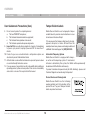
Belkin Secure Switch uses holographic tamper
evident labels to provide visual indications in case
of enclosure intrusion attempt.
12345678
If for any reason the tamper evident seal is missing,
appears disrupted, or looks different than the
example shown here, please avoid using product and
call Belkin Technical Support at: (800) 282-2355.
Active Anti-Tampering System
Belkin Secure Switch is equipped with alwayson active anti-tampering system. If mechanical
intrusion is detected by this system, the Switch will be permanently
disabled and LED will blink continuously.
If product indication tampered state (all LEDs blinking) - please call
Technical Support and avoid using that product
Product Enclosure Warning Label
Belkin Secure Switch has the following
warning printed next to the location of the
product Asset Tag and Tamper Evident
labels on product enclosure:
Belkin Advanced Secure 2-port Flip KVM Switch User Manual
6
10
Overview
Table of Contents
SECTIONS
1
2
3
4
5
6
Product Specifications
Warranty
3 Years
Enclosure
Impact Resistant ABS Plastic
Computer Audio Input plug
1/8" (3.5mm) stereo plug
Part No.
F1DN102F-3, F1DN102V-3,
F1DN102N-3
No. of Users Supported
1
No. of Computers Supported
2
Power Requirements
12V DC, 1A (maximum) power adapter
with center-pin-positive polarity
AC Input Voltage
100 to 240VAC
Console Keyboard Input
USB Type A
Console Mouse Input
USB Type A
User Channel Selection Methods
Front panel push-buttons
F1DN102F-3 – DVI-D
Operating Temp
32° to 104° F (0° to 40° C)
F1DN102V-3 – VGA
Storage Temp
-4° to 140° F (-20° to 60° C)
Console Video Port
F1DN102F-3 – DVI-D
Computer Video Input plug
F1DN102N-3 - DisplayPort
Port Selector illuminated pushbuttons
F1DN102N-3 – HDMI
Console Audio output jack
1/8" (3.5mm) stereo female jack
Computer Keyboard/Mouse cable
USB Type A
Computer wire length
6 ft [1.8 meters] – channel 1
2 ft [0.6 meters] – channel 2
OS
Windows, Linux, MAC OS
Made In
Designed in California. Assembled in
US with US and Foreign components.
Product life-cycle
5 years
Belkin Advanced Secure 2-port Flip KVM Switch User Manual
F1DN102V-3 - VGA
11
2
Humidity
0-80% RH, non-condensing
Dimensions
4.3 (W) x 3 (D) x 1 (H) inch
110 (W) X 80 (D) X 25(H) mm
Weight
1.2 lbs. / 0.56 KG
Overview
Table of Contents
SECTIONS
1
2
3
4
5
6
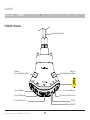
F1DN102F-3 Features
Computer Interface Cables
Channel #1
Select Illuminated Push-Button
Channel #2
Select Illuminated Push-Button
Console USB Mouse
Console Audio Out Jack
Console USB Keyboard
Flip Remote Control Device Jack
Console DVI-D Video Port
DC Jack
Display Status LED
Belkin Advanced Secure 2-port Flip KVM Switch User Manual
12
Overview
Table of Contents
SECTIONS
1
2
3
4
5
6
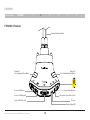
F1DN102V-3 Features
Computer Interface Cables
Channel #1
Select Illuminated Push-Button
Channel #2
Select Illuminated Push-Button
Console USB Mouse
Console Audio Out Jack
Console USB Keyboard
Flip Remote Control Device Jack
Console VGA Video Port
DC Jack
Display Status LED
Belkin Advanced Secure 2-port Flip KVM Switch User Manual
13
Overview
Table of Contents
SECTIONS
1
2
3
4
5
6
F1DN102N-3 Features
Computer Interface Cables
Channel #1
Select Illuminated Push-Button
Channel #2
Select Illuminated Push-Button
Console USB Mouse
Console Audio Out Jack
Console USB Keyboard
Flip Remote Control Device Jack
Console HDMI Port
DC Jack
Display Status LED
Belkin Advanced Secure 2-port Flip KVM Switch User Manual
14
Installation
Table of Contents
SECTIONS
1
2
3
Before Installation
4
5
6
Consider the following when deciding where to place the Switch:
• Access to the front-panel push buttons
• The lengths of the cables attached to your keyboard and mouse
Important:
1. If the unit’s enclosure appears disrupted or if all channel-select LEDs
flash continuously, please remove product from service immediately
and contact Belkin Technical Support at (800) 282-2355.
2. Do not connect product to computing devices:
a. That are TEMPEST computers;
b. That include telecommunication equipment;
c. That include frame grabber video cards;
d. That include special audio processing cards.
• The location of your computers in relation to your console
Warning: Avoid placing cables near fluorescent lights, airconditioning equipment, or machines that create electrical noise
(e.g., vacuum cleaners).
Important: As the unit powers up it performs a self-test procedure. In
case the self- test has failed for any reason the product LED behavior
will be abnormal as described in User Guidance section. Try to
power cycle the unit. If problem persists please contact your system
administrator or Technical Support.
Unpacking the Product
Before opening the product packaging, inspect the packaging seal
condition to assure that product was not accessed or tampered
during delivery. If the packaging seal looks suspicious, contact Belkin
Technical Support and do not use the product.
After removing the packaging seal, please inspect packaging content to
verify that required components are included as listed in the Package
Contents of this manual.
After the Belkin Secure Flip KVM Switch is removed from its packaging
materials, inspect the tampering-evident label to assure that product
is properly sealed. If one or more label is damaged or missing, contact
Belkin Tech Support and do not use that product.
Belkin Advanced Secure 2-port Flip KVM Switch User Manual
15
Installation
Table of Contents
SECTIONS
1
2
3
4
5
6
User’s Desktop
Setup
User Display
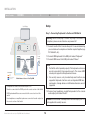
Step 1 – Connecting Peripherals to the Secure KVM Switch
Warning: Before attempting to connect anything to the Switch or
computers, please ensure all devices are powered off.
Mouse
1.1 Connect monitor to the Console video port. For easier referencing,
you can label each computer and monitor coupled together (e.g.
PC1-Monitor1, etc.).
Audio
Keyboard
1.2 Connect USB keyboards to the USB port marked “Keyboard.”
Power
Supply
Port 1
Cable
PC 1
1
1.3 Connect USB mouse to the USB port marked “Mouse”.
Port 2
Cable
2
Note:
1. The Switch will not operate properly if the keyboard and mouse
are not connected to their respective ports. The mouse USB
console port supports both keyboard and mouse.
PC 2
Connections
Video
Audio
USB Keyboard/Mouse
12V, 1A Power
2. For security reasons, only standard keyboard functions are
supported. Keyboards functions such as integrated USB hubs,
card-readers, storage devices or multimedia extensions are not
supported.
Belkin Advanced Secure 2-Port Flip KVM
1. Computers are connected to the Switch ports 1 & 2
2. Monitor is connected to the DVI-D port on the console section of the Switch
1.4 Connect user headphone or amplified speakers to the console
audio output port marked “Audio”.
3. USB Keyboard and Mouse are connected to the console section of the
switch
4. User headphones or amplified speakers are connected to audio-out port on
the console section of the Switch
Belkin Advanced Secure 2-port Flip KVM Switch User Manual
Caution: Do not connect a microphone to the audio output port. It is
not supported for security reasons.
16
Installation
Table of Contents
SECTIONS
1
2
3
Step 2 – Connecting Computers to the Secure KM Switch
2.1 Connect the switch to two computers via product’s molded wires.
For USB, select any available functional USB port on the computer.
For audio connect to available audio output jack (lime green color)
or line output jack (blue color).
Step 3 – Powering Up
3.1 Power up the monitor.
3.2 Connect the product to the cable DC plug of the 12V 1A external
AC/DC power supply.
3.3 Power up the two computers, and check display and peripheral
functionality.
Check that display, keyboard, mouse and audio are working properly
on each computer. If you encounter a problem, please check the cable
connections to that computer and reboot. If problem persists, please
refer to the Troubleshooting section in this Manual.
Belkin Advanced Secure 2-port Flip KVM Switch User Manual
17
4
5
6
Operation
Table of Contents
SECTIONS
1
2
3
Operating the Belkin Secure Flip KVM Switch
Self-Test Procedure
As product powers-up it performs a self-test procedure. In case of
self- test failure for any reason, including jammed buttons, the product
will be Inoperable. Self-test failure will be indicated by the following
abnormal LED behavior:
• All channel-select LEDs will be turned ON and then OFF;
• A specific, predefined LED combination will be turned ON;
• The predefined LED combination will indicate the problem type
(jammed buttons, firmware integrity).
Try to power cycle product. If problem persists please contact your
system administrator or technical support.
Illuminated Push Buttons
The default channel is #1 upon powering up.
The user can select the other channel by pressing the other push
button. The mouse cursor will be positioned at the center of the
selected computer display.
The selected channel is indicated by the appropriate push button being
illuminated.
The video, keyboard, mouse and audio will follow the selected channel
once pressing the push button.
Belkin Advanced Secure 2-port Flip KVM Switch User Manual
18
4
5
6
Troubleshooting
Table of Contents
SECTIONS
1
2
3
4
General
Keyboard/Mouse
As product powers-up all channel-select LEDs are turned ON and
then OFF. After that a specific, predefined LED combination is
turned ON. Product is inoperable.
Mouse not working (both channels)
6
• Check that the mouse is not plugged into keyboard port
The computer does not detect my keyboard, or my keyboard does
not work when I switch computers or reboot
• The product did not pass self-test procedure. Try to power
cycle product. If problem persists please contact your system
administrator or our technical support.
• Check that the keyboard you are using is connected properly to
the KM Switch
No power, and none of the channel selected buttons is illuminating
• Check that the USB cable between the KM Switch and the
computer is completely connected
• Check that the power supply or power cable is properly connected
to the mains socket
• Try connecting to a different USB port on the computer
• Check that DC plug is fully inserted into the switch DC jack
• Make sure the keyboard works when directly plugged into the
computer, i.e the HID USB driver is installed on the computer.
Rebooting may be necessary when trying this
• Check that the device is powered by using optical mouse with
visible red light
• If power is not available, change the power supply
• Make sure you are not using a keyboard with an integrated USB
hub or other USB-integrated devices
Channel select LEDs are blinking with audible repeating clicking
sounds
• If the computer is coming out of standby mode, allow up to one
minute to regain mouse function
• This occurs after the configuration is set. Power-cycle the unit
(disconnect and re-plug the power adapter)
• Try a different keyboard
• If the blinking and clicking still persist after power cycling the unit,
it is possible that the device anti-tampering system was triggered.
Change the unit and call Belkin technical support
Belkin Advanced Secure 2-port Flip KVM Switch User Manual
5
19
Troubleshooting
Table of Contents
SECTIONS
1
2
3
The CAPS, NUM, and Scroll Lock lights on my keyboard do not
function when I connect to the Switch
5
6
• Make sure you are not using a wireless mouse or a mouse with an
integrated USB hub or other USB-integrated devices. These are
not supported by the switch due to security policy
• This is normal operation. The lock-state information is fully
functional. Due to the security of the Switch and known
exploitation of lock-state information for leakages, the LED
status is not supported. Please refer to the operating system for
verification of the lock-state information for CAPS, NUM, and
Scroll Lock
• If the computer is coming out of standby mode, allow up to one
minute to regain mouse function
• Try a different mouse
• For extending USB, use only active USB extenders (over CAT5
cable)
Certain keyboard functions are not working
Video
• Some non-standard keyboard functions are disabled by the
switch to prevent security risks. Contact Belkin Tech Support for
latest compatibility list
No video image appears on user display in both channels
• Check that the display is properly powered
Mouse
• Check that video cable is properly secured to the video port on
the Switch console
The computer does not detect my mouse, or my mouse does not
work when I switch computers or reboot
• Check at the display on-screen menu that source selected
matches the video cable connected to the display
• Check that the mouse you are using is connected properly and to
the correct port on the Switch
• Check whether display video mode is identical to display video
mode in as the relevant PC, i.e DVI-D and DVI-D
• Check that the USB cable between the Switch and the computer
is completely connected
• Check that the display LED is steady green. If not, this might be
due to the fact the Switch did not receive EDID from the display.
With everything connected, power-cycle the Belkin Secure Flip
KVM Switch to reset the video. Make sure the Video Diagnostic
LED is solid green
• Try connecting to a different USB port on the computer
• Make sure the mouse works when directly plugged into the
computer, i.e. the HID USB driver is installed on the computer.
Rebooting may be necessary when trying this
Belkin Advanced Secure 2-port Flip KVM Switch User Manual
4
20
Troubleshooting
Table of Contents
SECTIONS
1
2
3
No video image appears on user display in one channel
• Reboot the computer
• Check that the video cable connecting computer and KVM is
properly secured at both sides
• Check that PC video output is sent to the connected video
connector if PC supports multiple displays
• Check that PC resolution matches connected display capabilities
• Connect the display directly to the PC to confirm that video output
is available and that good image is shown
Bad video image quality one or both channels
• Check that all video cables are properly connected to the Switch,
computer, and display
• With everything connected, power-cycle the Belkin Secure Flip
KVM Switch to reset the video. Make sure the Video Diagnostic
LED is solid green
• Check that the display that you are using supports the resolution
and refresh-rate settings on your computer
• Lower the video resolution of your PCs
• Connect the display directly to the computer you are having
trouble with to see if the problem still appears
Note: If the Belkin Secure Switch does not work properly, or the
configuration procedure is unclear or does not work, contact Belkin
support at 1-800-282-2355.
Belkin Advanced Secure 2-port Flip KVM Switch User Manual
21
4
5
6
Information
Table of Contents
SECTIONS
1
2
3
4
5
6
FCC Statement
Warranty
DE C LARAT I ON OF C ONFOR M I T Y W I T H FC C RULES FOR
ELECTROMAGNETIC COMPATIBILITY
Belkin International, Inc., Limited 3-Year Product Warranty
What this warranty covers.
We, Belkin International, Inc., of 12045 E. Waterfront Drive, Playa Vista,
CA 90094, declare under our sole responsibility that the products
described in this manual, to which this declaration relates:
Belkin International, Inc. (“Belkin”) warrants to the original purchaser of
this Belkin product that the product shall be free of defects in design,
assembly, material, or workmanship.
Comply with Part 15 of the FCC Rules. Operation is subject to the
following two conditions: (1) this device may not cause harmful
interference, and (2) this device must accept any interference received,
including interference that may cause undesired operation.
What the period of coverage is.
Belkin warrants the Belkin product for three years.
What will we do to correct problems?
CE Declaration of Conformity
Product Warranty.
We, Belkin International, Inc., declare under our sole responsibility that
the the products described in this manual, to which this declaration
relates, are in conformity with Emissions Standard EN55022 and with
Immunity Standard EN55024, LVP EN61000-3-2, and EN61000-3-3.
Belkin will repair or replace, at its option, any defective product free of
charge (except for shipping charges for the product). Belkin reserves
the right to discontinue any of its products without notice, and disclaims
any limited warranty to repair or replace any such discontinued
products. In the event that Belkin is unable to repair or replace the
product (for example, because it has been discontinued), Belkin will
offer either a refund or a credit toward the purchase of another product
from Belkin.com in an amount equal to the purchase price of the
product as evidenced on the original purchase receipt as discounted
by its natural use.
ICES
This Class B digital apparatus complies with Canadian ICES-003. Cet
appareil numérique de la classe B est conforme á la norme NMB-003
du Canada.
Belkin Advanced Secure 2-port Flip KVM Switch User Manual
22
Information
Table of Contents
SECTIONS
1
2
3
4
5
6
What is not covered by this warranty?
All above warranties are null and void if the Belkin product is not
provided to Belkin for inspection upon Belkin’s request at the sole
expense of the purchaser, or if Belkin determines that the Belkin
product has been improperly installed, altered in any way, or tampered
with. The Belkin Product Warranty does not protect against acts of God
such as flood, lightning, earthquake, war, vandalism, theft, normal-use
wear and tear, erosion, depletion, obsolescence, abuse, damage due
to low voltage disturbances (i.e. brownouts or sags), non-authorized
program, or system equipment modification or alteration.
2. Your Belkin Customer Service Representative will then instruct
you on how to forward your receipt and Belkin product and how to
proceed with your claim.
Belkin reserves the right to review the damaged Belkin product. All
costs of shipping the Belkin product to Belkin for inspection shall be
borne solely by the purchaser.
If Belkin determines, in its sole discretion, that it is impractical to ship
the damaged equipment to Belkin, Belkin may designate, in its sole
discretion, an equipment repair facility to inspect and estimate the cost
to repair such equipment. The cost, if any, of shipping the equipment
to and from such repair facility and of such estimate shall be borne
solely by the purchaser. Damaged equipment must remain available
for inspection until the claim is finalized. Whenever claims are settled,
Belkin reserves the right to be subrogated under any existing insurance
policies the purchaser may have.
How to get service.
To get service for your Belkin product you must take the following steps:
1. Contact Belkin International, Inc.,
at 12045 E. Waterfront Drive, Playa Vista, CA 90094,
Attn: Customer Service, or call (800)-282-2355,
within 15 days of the Occurrence.
Be prepared to provide the following information:
a. The part number of the Belkin product.
b. Where you purchased the product.
c. When you purchased the product.
d. Copy of original receipt.
Belkin Advanced Secure 2-port Flip KVM Switch User Manual
23
Information
Table of Contents
SECTIONS
1
2
3
4
5
6
How state law relates to the warranty.
Reporting Belkin Product Security Vulnerability
THIS WARRANTY CONTAINS THE SOLE WARRANTY OF BELKIN.
THERE ARE NO OTHER WARRANTIES, EXPRESSED OR, EXCEPT AS
REQUIRED BY LAW, IMPLIED, INCLUDING THE IMPLIED WARRANTY
OR CONDITION OF QUALITY, MERCHANTABILITY OR FITNESS FOR A
PARTICULAR PURPOSE, AND SUCH IMPLIED WARRANTIES, IF ANY,
ARE LIMITED IN DURATION TO THE TERM OF THIS WARRANTY.
If you are aware of potential security vulnerability with any Belkin
Government product, we encourage you to contact us immediately
at the following email address: [email protected] or our
technical support line at: 1-800-282-2355
After your communication is received, Belkin Government personnel will
contact you to follow up. To ensure confidentiality, Belkin encourages
you to use PGP encryption key for secure communications.
Some states do not allow limitations on how long an implied warranty
lasts, so the above limitations may not apply to you.
The [email protected] email address is not intended to reach
technical support on Belkin Government products or services.
IN NO EVENT SHALL BELKIN BE LIABLE FOR INCIDENTAL, SPECIAL,
DIRECT, INDIRECT, CONSEQUENTIAL OR MULTIPLE DAMAGES SUCH
AS, BUT NOT LIMITED TO, LOST BUSINESS OR PROFITS ARISING
OUT OF THE SALE OR USE OF ANY BELKIN PRODUCT, EVEN IF
ADVISED OF THE POSSIBILITY OF SUCH DAMAGES.
This warranty gives you specific legal rights, and you may also have
other rights, which may vary from state to state. Some states do not
allow the exclusion or limitation of incidental, consequential, or other
damages, so the above limitations may not apply to you.
GS 5/15/2013
Belkin Advanced Secure 2-port Flip KVM Switch User Manual
24
belkinbusiness.com
© 2015 Belkin International, Inc. All rights reserved. All trade names are registered trademarks of respective manufacturers
listed. Windows and Windows Vista are either registered trademarks or trademarks of Microsoft Corporation in the United
States and/or other countries. Mac OS is a trademark of Apple Inc., registered in the U.S. and other countries.