1
Troubleshooting
Table of Contents
SECTIONS
1
2
3
4
General
Keyboard/Mouse
As product powers-up all channel-select LEDs are turned ON and
then OFF. After that a specific, predefined LED combination is
turned ON. Product is inoperable.
Mouse not working (both channels)
6
• Check that the mouse is not plugged into keyboard port
The computer does not detect my keyboard, or my keyboard does
not work when I switch computers or reboot
• The product did not pass self-test procedure. Try to power
cycle product. If problem persists please contact your system
administrator or our technical support.
• Check that the keyboard you are using is connected properly to
the KM Switch
No power, and none of the channel selected buttons is illuminating
• Check that the USB cable between the KM Switch and the
computer is completely connected
• Check that the power supply or power cable is properly connected
to the mains socket
• Try connecting to a different USB port on the computer
• Check that DC plug is fully inserted into the switch DC jack
• Make sure the keyboard works when directly plugged into the
computer, i.e the HID USB driver is installed on the computer.
Rebooting may be necessary when trying this
• Check that the device is powered by using optical mouse with
visible red light
• If power is not available, change the power supply
• Make sure you are not using a keyboard with an integrated USB
hub or other USB-integrated devices
Channel select LEDs are blinking with audible repeating clicking
sounds
• If the computer is coming out of standby mode, allow up to one
minute to regain mouse function
• This occurs after the configuration is set. Power-cycle the unit
(disconnect and re-plug the power adapter)
• Try a different keyboard
• If the blinking and clicking still persist after power cycling the unit,
it is possible that the device anti-tampering system was triggered.
Change the unit and call Belkin technical support
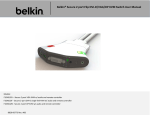
Belkin Advanced Secure 2-port Flip KVM Switch User Manual
5
19