1
Managing the OfficeScan Server
7.
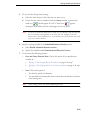
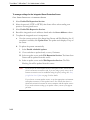
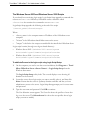
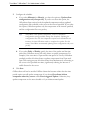
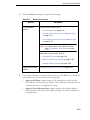
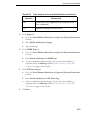
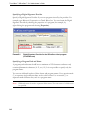
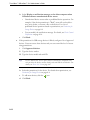
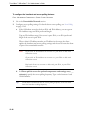
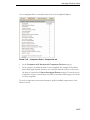
If you change any of the settings on this screen after registration, click Update
Settings after changing the settings to notify the Control Manager server of the
changes.
8.
If you no longer want the Control Manager server to manage OfficeScan, click
Unregister.
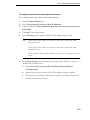
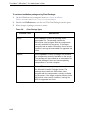
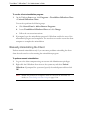
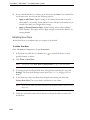
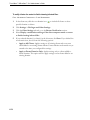
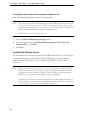
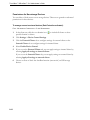
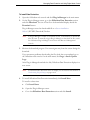
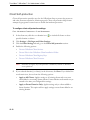
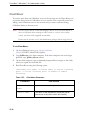
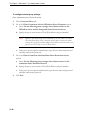
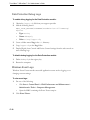
To check the OfficeScan status on the Control Manager management console:
1.
Open the Control Manager management console.
To open the Control Manager console, on any computer on the network, open a
web browser and type the following:
https://<Control Manager server name>/Webapp/login.aspx
Where <Control Manager server name> is the IP address or host name of the
Control Manager server
2.
In Main Menu, click Products.
3.
Select Managed Products from the list.
4.
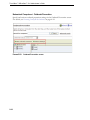
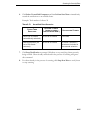
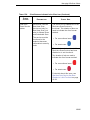
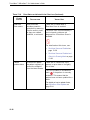
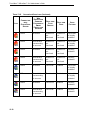
Check if the OfficeScan server icon displays.
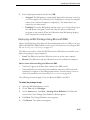
Reference Servers
One of the ways the OfficeScan client determines which of the firewall profiles or Web
Reputation Policies to use is by checking its connection status with the OfficeScan
server. If an internal client (or a client within the corporate network) cannot connect to
the server, the client status becomes offline. The client then applies a firewall profile or
web reputation policy intended for external clients. Reference servers address this issue.
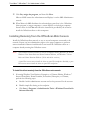
A client that loses connection with the OfficeScan server will try connecting to
reference servers. If the client successfully establishes connection with a reference
server, it applies the firewall profile or web reputation policy for internal clients.
12-25