1
Capturing Data
65
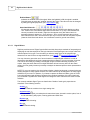
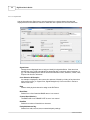
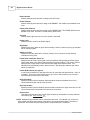
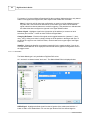
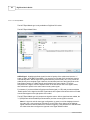
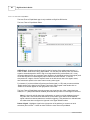
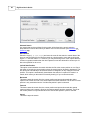
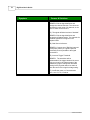
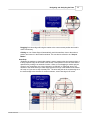
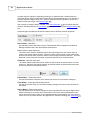
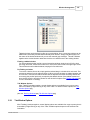
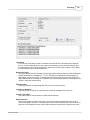
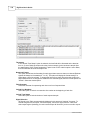
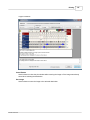
Browse Button
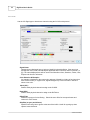
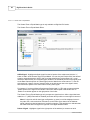
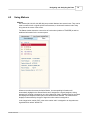
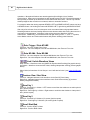
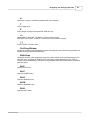
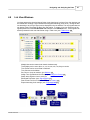
A Left-Click or Right-Click on the browse button will load the previous or next item in the
history buffer. Holding the mouse down will repeat the action in the same direction, causing
an "Animation" of the history.
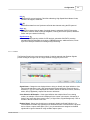
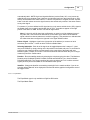
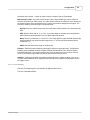
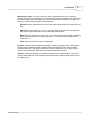
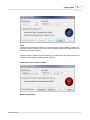
Search History Button
Click this button to open the Capture History Search. This allows a search of the entire
capture history using any normal search displayed in the Global search or the Search
Manager (see History Searching below).
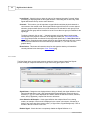
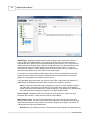
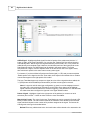
Bookmark Button
Click the Bookmark button to toggle a bookmark for the current capture. If already
bookmarked, then the bookmark is cleared.
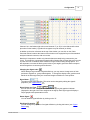
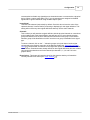
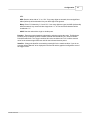
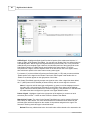
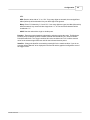
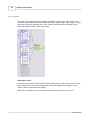
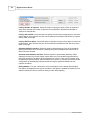
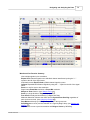
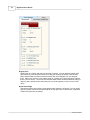
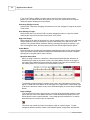
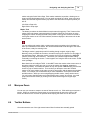
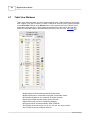
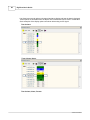
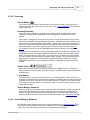
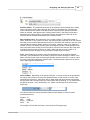
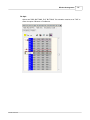
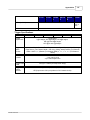
Bar Graph
Click on the bar graph to "jump" to different items in the history.
Click and drag the mouse in the bar graph to display the history item number to be loaded
when the mouse is released.
The triangle in the bar graph indicates the current position in the buffer.
The small squares represent a bookmarked item which will also be listed in the history's menu
for quick access.
The numbers in the top-left portion of the bar graph represent the Capture ID Number, the
Position of the current capture in the buffer and the Total number of captures stored (in that
order).
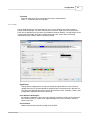
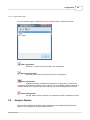
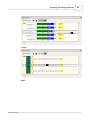
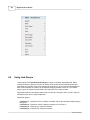
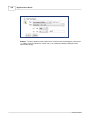
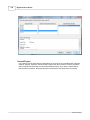
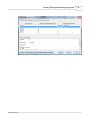
History Searching
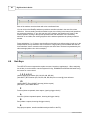
The entire captured history can be searched forward and backward to find a capture with a
search result that matches the halt qualifier specified.
© 2014 TechTools