1
Introduction
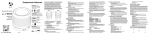
Thanks for using your QUO INFINITY PQ5 smart phone. This quick start guide will help you
better understand the QUO Infinity PQ5 smart phone and how to use the important functions.
For more detailed manual please refer to www.QUOmobility.com. The image here exposed
could be referential and have aesthetic and operational changes.
Power key: Press and hold this key to turn on /off the mobile phone; In standby state, press this
key to turn on /off the screen
Menu key:
Press this key to open the actions list, so that you can execute the action in
current interface or menu.
Home key:
Press this key to return to the home page from any application or interface.
Back key:
Press this to return to pervious interface, or close the dialog side key: press this
key to adjust volume
Installation Method And Precautions of Sim Card
By setting pin (personal identification number) code of the SIM card, you can protect your SIM
card front illegal operation.
Installing Sim Card
This is a dual SIM mobile phone with two sim slots. Please turn off the mobile phone first, take
out the battery, and insert the SIM card into the slot as shown in the picture below; then, place
the battery into the battery jar and install the battery cover.
Connecting to network
When the SIM card is decrypted, the mobile phone will search registered network or available
local network automatically. Once connected, the logo of the network operator appears in the
top of the screen, the mobile phone is in standby state, and you can make or answer calls.
Please contact your network operator if the SIM card has a failure.
Precautions of SIM card:
• Put the SIM card out of children’ s reach.
• Please use, insert and remove the SIM card carefully because the SIM card and
its contacts are prone to be scratched or damaged by bending.
• Do not expose the SIM card to electrostatic, dusty or moist environment.
Operation and installation methods of SD card
SD card is a removable mobile memory card inside the mobile phone and used for extending
the storage space of the mobile phone.
Battery and charging methods
1. Connect the charger to provided USB cable.
2. Connect the charger plug to the power outlet.
3. Connect the USB cable to the mobile phone; this icon indicates the charging status.
4. The battery is fully charge when the status icon changes to; please disconnect the charger from the power outlet.
5. Disconnect the charger from the mobile phone.
Note: If the battery isn’t used for a long time or the battery is used up, the mobile phone may
be not turned on normally while charging. It is normal, Please charge for a while before turning
on the mobile phone.
User Manual
mobility.com
1
User Manual
The battery can be charged repeatedly; however, it is consumable product, please change a
new battery if the standby duration reduces significantly.
The data service consumes more power and will reduce the standby duration.
The charging time changes according to temperature and battery usage. The mobile phone
will show prompt if the battery is too low. The mobile phone will power off automatically if
battery level drops too low.
Unlocking mode
Mobile phone options list
In standby state, you can press the Power key to lock and turn off the
screen, and press it again to turn on the screen. Press and hold the
Power key to open the mobile phone option fist.
Manage applications
In Manage applications interface, you can manage the running
applications to improve the running speed of the mobile phone. You
can view the information of all applications, restrict permissions or
uninstall third party applications.
Unlocking interface
In locked screen, tap the
right to unlock the screen.
Contacts
You can search contacts through English of others name and first stroke.
Press the Menu Key to select Delete contact, Contacts to be displayed,
Import/Export, Accounts, or Share visible contacts.
icon in the bottom of the screen, slide to
Main menu
Main Menu page:
Slide to left/right on the screen to switch the main menu page, and tap
the Menu Key to select Manage indications or Settings.
Drag and drop an icon to desktop to create a shortcut.
Status bar
Pull down the status bar, to turn on/off WLAN, Bluetooth, Data
connection, GPS, Flight mode and customize profiles, or view the
notifications of the mobile phone.
2
User Manual
Smart dialing
In dial plate interface, the mobile phone will fuzzy match with local
contact info and show in the result while you are typing. In call settings,
you can set up voice call, video call, IP call and others.
During a call, you can access the dial plate or contacts through
shortcuts. After typing the number with keypad, press MENU and select
Speed dial During the call, the backlight turns off when the phone is
close to your ear for saving power and preventing misoperation
Messaging & browser
Messaging interface
Tap
to set up the common functions. If the language of spelling
correction is set to English, tap the word in the input box while typing
to get suggested results for choosing, if not you can write your message
without spelling correction.
Browser
The navigation interface of the browser shows the thumbnails of
commonly used web pages; you can tap to visit the web, or tap and
hold the thumbnail to edit the web address information. In web
browsing interface, press the Menu Key to set up the web Page.
Music
Music interface:
Support MP3, AAC, AAC+, EAAC, OGG, midi and other formats; drag the
progress bar while playing to move to any segment of the music, and
tap play button to pause or play.
Tap and hold artist, album or music name to perform operations such
as play, add to playing list, send to ring tone, delete, and search; select
search to search music and play °nine.
Camera function
Tap on the screen to focus and follow the focus automatically, making
the capture of moving object more convenient. You can set smile
shutter, best capture, continuous shooting, common mode, automatic
scene detection and other modes. The camera integrates various creative styles; you can tap to preview different effects.
Dual-camera
Support front camera; tap
to switch to front camera and take self
photo shoot.
Video recorder
Support video recording, tap
to switch to video recorder.
Sound recorder
You can record the sound, and send it through MMS
or Bluetooth directly, or set as ring tone.
3
User Manual
FM radio
Insert the headset and listen to FM radio, which supports loud speaker.
Gallery
You can view the pictures and videos recorded by the camera in Gallery
and or pictures and videos on SD card.
In gallery, you can perform operations to multimedia files such as share,
edit and set as wallpaper, or contact icon.
Email
Support Gmail and E-mail; you can create an account and read e-mails
at anytime and anywhere.
With this function, you can merge the a-mads of different e-mail boxes
to the same interface.
File Manager
In File Manager interface, tap the Menu Key to select New folder, Cut,
and view the files stored on SD card directly.
Tap and hold a file or folder and select Copy, Cut, Delete, Rename and
other options.
Software store
This mobile phone is designed with built-in ‘play store’ , Which
provides popular software and other sources; you can find wanted
software through search or rank list. Experience the desktop shortcut
of play store, get the recommended info quickly, and experience free
download through WIFI or web dent.
Dual SIM function
You can insert two SIM cards into the mobile phone, turn on/off the SIM
cards, edit SIM card name number, set up the background color, and set
up data connection, voice call and video call.
Settings
There are a number of settings that you can change in your mobile
device to adjust smartphone performance, connections, visual effects,
security etc. Your service provider may default some device settings, so
you may not be able to change these settings.
Drop-down menu bar
You can drop down the menu bar to select several options and
notifications displayed in phone. Example drop down USB connection
in menu bar; as the mobile phone can be set as flash drive, the files on
SD card can be copied to PC or front PC to mobile phone.
By example you can:
Security function
You can set up screen security, encryption, SIM lock, etc.
Backup and reset
In this interface: you can back up the application data, WLAN password
and other setting to Google server; also reset all data stored on the
mobile phone.
4
User Manual
Single SIM interface
If only one SIM card is inserted, the interface and operation mode
switch to single SIM state automatically.
Troubleshooting
Please refer to the following list of problems and solutions if there is any abnormity when you
use the mobile phone. Please contact the distributor or service provider if it still doesn’t work.
Problem
Can’t access
Internet normally
when using
browser
Reason
Solution
The network operator
doenst provide this service
or you hasn’t applied
this service
Please contact and
consult your network
operator for information
in how to apply and
use this service
The setting is not correct
SIM card is damage
SIM card error
Can’t charge
battery
Please contact your
network operator
The SIM card isn’t
installed properly
Check the SIM card
The metal surface of
the SIM card is dirty
Clean it with clean cloth
Please make or answer a
call in places with
strong signal
Poor receiving
The mobile phone is used
when communications is
busy and line are
congested
5
User Manual
Can’t connect to
network
SIM card is invalid
Please contact your
network operator
Beyond service area
Move to service area of
your network operator
Weak signal
Move to a place with
strong signal and try again
The voltage is not within
rated range of charger
Use and allowed voltage within
the rated range of charger
Nonstandard charger
used
Poor contact
Basic specifications:
GSM 850/900/1800/1900 - WCDMA 850/1900
Dual Sim Card
Display 5” IPS 480*854
Android 4.4 (KitKat)
Quad Core ARM Cortex A7 1.3GHz
(MT6582M)
Camera 5MP Rear / 2MP Front
RAM 1GB + 8GB internal Storage
External Microsd Slot Up to 32GB
Conections: GSM/WCDMA, BT, Wifi 802.11
Check whether the plug
is connected properly
b/g/n, GPS
FM Radio (Require Headphone)
Net Weight: 300gr
Dimensions: 144.5 x 71 x 7.1mm
You can visit www.QUOmobility.com to find
more info about this phone and also get any
required support.
Try to avoid using mobile
phone when
communication is busy
Can’t switch on
Battery is to low
Charge the battery
Can’t make a call
Call barring is active
Cancel call barring
Copyright © 2013 QUO. ALL RIGHTS RESERVED. The product displayed on the packaging is for
illustrative purposes only and may slightly differ from the actual product. QUO is a registered
trademark. Android and the Android Robot Logo are trademarks of Google Inc. All other
trademarks and logos are of their respective owners. Any mention of such is for identification
purposes, and shall not be construed as a claim to any or all rights pertaining to those brands.
Use of these trademarks is subject to users permissions. This unit features content, applications,
products and/or services offered and controlled by third paties and your use of same is
governed by such third parties’ terms of use.