1
DCS-950G User’s Manual
IPView Lite
How to Add a Camera
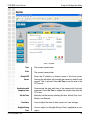
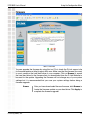
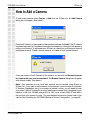
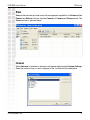
To add a new camera select Camera > Add from the IPView Lite. An Add Camera
dialog box will appear. (See below.)
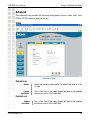
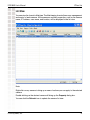
Enter the IP Address of the camera in the specified field and click Add. If the IP Address
is entered incorrectly or if you have a bad network connection, a dialog box will appear to
notify you of the error. To add cameras in IPView Lite, check that you have your network
configured correctly. To add a remote camera, you need to have Internet access.
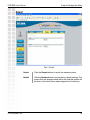
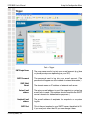
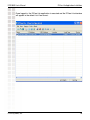
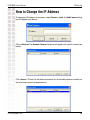
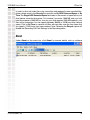
If you are unsure of the IP Address of the camera, you can click on Browse to search
for cameras on your local area network. The Browse Camera dialog box will appear
with a blank screen. (See below.)
Note: Only cameras on your local area network can be located using Browse in
IPView Lite. If you want to add a camera via the Internet, you must enter in a physical
IP Address. Remember that if your camera is behind a router, you will need to enter
your router’s WAN IP followed by a colon, then the port number that is assigned to your
camera, i.e. 68.2.34.156:800, where 68.2.34.156 is your router’s WAN IP and :800 is
the port that your camera is using. For more detailed information, please refer to the
section titled “Installing the DCS-950G Behind a Router Configuration” on page 48.
D-Link Systems, Inc.
60