1
Chapter Three. Setting Up for the
First Time
This chapter explains how to connect the Receiver for the first time to the source device.
There are three source device options: Intel WiDi, Windows 8.1+, and Miracast™.
Note: The Receiver works in the 2.4 GHz wireless band only. Make sure your device is not
connected to a 5 GHz access point (AP) prior to connecting to the Receiver.
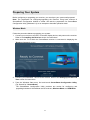
Connecting via Intel WiDi App
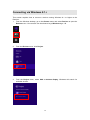
This section explains how to connect a device running Intel's WiDi application to the
Receiver.
Note: If the device's operating system is Windows 8.1 or higher, go to the next section in this
manual ("Connecting via Windows 8.1+") for connection instructions.
Follow the procedure below to connect your device to the Receiver:
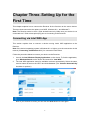
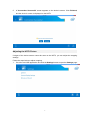
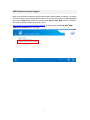
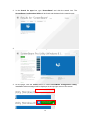
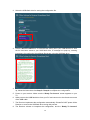
1. Launch the Intel Wireless Display Application on the device. To find the application,
go to Windows Search on the device and search for “Intel WiDi.”
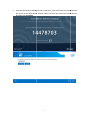
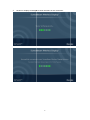
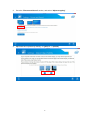
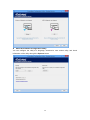
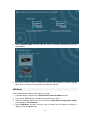
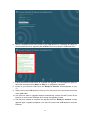
2. The Intel WiDi application scans for available receivers automatically. Select the same
receiver name as seen on the HDTV and click Connect. (The “Connect Automatically”
checkbox is optional.)
Note: If your receiver is found, you can click the Scan button to scan again.
4