1
User manual
Copyright © 2009-2012, Anich Gregor
Table of Contents
1 Overview................................................................................................................................. 2
1.1 What is MTCVideoSlave.................................................................................................... 2
2 Using MTCVideoSlave.............................................................................................................. 2
2.1 Controls............................................................................................................................ 3
2.2 Sync/MTC status icons...................................................................................................... 3
2.3 Seek tables....................................................................................................................... 3
2.4 Transcoding videos........................................................................................................... 3
2.5 Keyboard shortcuts.......................................................................................................... 4
2.6 Settings............................................................................................................................ 5
2.6.1 Common................................................................................................................... 5
2.6.2 Overlay..................................................................................................................... 5
2.6.3 Seek Tables............................................................................................................... 5
2.6.4 Appearance............................................................................................................... 6
2.6.5 Subtitles.................................................................................................................... 6
2.6.6 Count In.................................................................................................................... 6
2.6.7 Audio........................................................................................................................ 7
2.6.8 Projector................................................................................................................... 7
2.6.9 OpenGL..................................................................................................................... 7
2.7 Remote control application...............................................................................................8
1 Overview
1.1 What is MTCVideoSlave
MTCVideoSlave (MIDI Time Code Video Slave) is a video player which syncs the video
playback to MIDI time code.
It uses the FFmpeg1 library for decoding video files and therefore supports numerous file
formats. But since not all of these formats are suited equally well for synchronized playback it
is sometimes required to transcode the video file into a format suitable for playback with
MTCVideoSlave.
By using OpenGL for displaying the video the CPU load is kept low and multiple video windows
can be shown simultaneously – so you can have a small window on your DAW desktop and a
big window on another screen at a remote location for example. You can also use
MTCVideoSlave to offload the video playback onto another PC or keep multiple PCs in sync for
video installations.
Usually it is best if the video file has the same frame rate as the MIDI time code but this is not a
requirement. MTCVideoSlave supports videos with any frame rate and tries its best to
accurately keep them in sync.
2 Using MTCVideoSlave
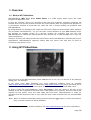
Main Window
First you have to tell MTCVideoSlave which MIDI device to use. You can do this in the Settings
dialog (see 2.6 Settings).
If you don't have MIDI hardware you need additional software such as LoopBe1
(http://nerds.de/en/loopbe1.html) or MIDI Yoke (http://www.midiox.com/) which will allow you to
connect the output of your DAW to the input of MTCVideoSlave with a “virtual MIDI cable”.
To open a video file press Ctrl+O or select File->Open... from the menu at the top of the
window. If the file is opened for the first time a seek table has to be built. This may take a few
minutes for big videos. Once the seek table has been built, MTCVideoSlave is ready for
operation and will keep the video in sync with the time code received from the selected MIDI
device.
Note: When an external timecode is being received and the Sync button is active the internal
play and seek commands will be disabled.
1 FFmpeg is a trademark of Fabrice Bellard. See http://www.ffmpeg.org/ for more information.
Page 2/8
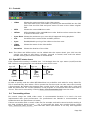
2.1 Controls
•
Video
Shows the current position in the video stream.
The video FPS can be overridden by entering the wanted FPS into the FPS
field. Clear the FPS field and press return to reset to the videos original
FPS.
•
MTC
Shows the current MIDI time code.
•
Offset
Offset between video and MIDI time code. Positive values mean the video
is ahead of the time code.
•
Sync Error Shows the maximum sync error which happened during playback.
•
Set
Set Offset from current Video and MTC position.
•
Sync
Enable/Disable syncing of the video to the time code.
•
Video
Buffer
Shows the status of the video buffer.
•
Duration
Shows the duration of the video.
Note: The Video and Offset values can be edited with the mouse wheel. Just click into the
section you want to edit (hours, minutes, seconds or frames) and scroll the wheel.
Double clicking will reset the value to 00:00:00:00.
2.2 Sync/MTC status icons
If the current time overlay is enabled (see 2.6 Settings) then the sync status (on/off) and the
MTC status (running/stopped) are indicated by one of four icons:
Sync off
Sync off
MTC stopped MTC running
Empty
square
Filled square
Sync on
MTC stopped
Empty
triangle
Sync on
MTC running
Filled triangle
2.3 Seek tables
In order to quickly seek the video MTCVideoSlave has to build a seek table for every video file.
This is automatically done when a file is opened the first time and can take some time (usually
a few minutes). By default the program does a quick check of the seek table after a new seek
table has been built. For correct operation of the program it is essential that the seek table is
correct. This can be assured by choosing Tools→Check seek table (full) from the menu.
2.4 Transcoding videos
For normal usage the H264 video codec is recommended because it is used a lot and
implemented with good performance. For professional use DNxHD is recommended over
ProRes because the performance is better.
If there are troubles with a certain video file (for example seek table cannot be built, seeking is
too slow, playback doesn't work, ...) try to transcode the video into another format. Select
Tools→Transcode video stream... from the main menu (this feature is not very well supported
Page 3/8
however).
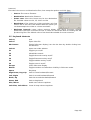
First select the source and destination files, then setup the options and click Start.
•
Source: The source filename.
•
Destination: Destination filename.
•
Frame rate: Select the frame rate for the destination
file. Possible values are 24, 25, 29.97 and 30.
•
Resolution: If the video has a high resolution only few
frames will fit into the video buffer. With this option you
can downsample the video to a lower resolution.
•
Keyframe interval: Lower values produce bigger files which increases seeking
performance but also increases file size. A value of 1 would be ideal for seeking but will
produce big files. The default value of 10 should be suitable for most scenarios.
2.5 Keyboard shortcuts
Ctrl+Q
Quit
Ctrl+O
Open video file
Alt+Return
Toggle fullscreen display (can also be done by double clicking into
the window)
Ctrl+N
Open new video window
F1
Toggle sync on/off
F2
Show/hide controls
F3
Toggle timecode overlay on/off
F4
Toggle filename overlay on/off
F5
Toggle subtitle overlay on/off
F6
Toggle count in on/off
Escape
Leave fullscreen display
Return
Toggle menubar and statusbar visibility in fullscreen mode
Space
Play/Stop
Page Down, Page Up
Seek 1 frame backward/forward
Left, Right
Seek 1 second backward/forward
Down, Up
Seek 10 seconds backward/forward
Home, End
Seek to begin/end
Plus, Minus
Audio track volume up/down
Ctrl+Plus, Ctrl+Minus
Count in beep volume up/down
Page 4/8
2.6 Settings
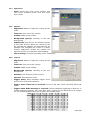
2.6.1
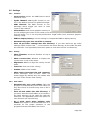
Common
•
Input device: Select the MIDI Device which
should be used.
•
SysEx Channel: MIDI SysEx channel to use.
127 is the default channel for global messages.
•
MIDI Channel: The MIDI channel to use.
Messages which trigger the count in must
come on this channel.
•
Video Buffer: How much graphics memory to
use for buffering the video. If this value is too small only few frames of the video will fit
into the buffer, if it is too big the performance might suffer from excessive graphics
memory usage.
•
MIDI to display latency: Use this setting to compensate MIDI to display latency.
•
Automatically open last used file on startup
•
Save all per-video settings into this directory: If you don't want the per video
settings (offset, aspect ratio, ...) to be saved in the same directory as the video file (with
the extension .mtc appended) select this option to save them all into one directory.
2.6.2
Overlay
•
Show filename: Show the filename on top of
the video.
•
Show current time: Whether to display the
current time on top of the video.
•
Alignment: Where to align the overlay on the
video.
•
Font size: Font size of the overlay.
•
Outline: Width of the outline.
•
Show status messages big and centered:
Status messages, such as Sync: on/off are
shown bigger. By default they are shown with
the style of the current time overlay.
2.6.3
Seek Tables
•
Automatically save seek tables: Tells the
program to automatically save seek tables so
they don't have to be built every time a file is
opened.
•
Save all seek tables into this directory: If
you don't want the seek tables to be saved in
the same directory as the video file (with the
extension .skt appended) select this option to
save them all into one directory.
•
Do a quick check when building seek
tables: This option is recommended since it is
essential for the proper operation of the
program that the seek tables are correct.
Page 5/8
2.6.4
•
2.6.5
Appearance
Style: Choose the style of the controls. You
can choose between native look and some
other styles.
Subtitles
•
Alignment: Where to align the overlay on the
video.
•
Font size: Font size of the overlay.
•
Outline: Width of the outline.
•
Background opacity: Intensity of the text
background.
•
Subtitle file: The text for the subtitle overlay
is read from this file. When the content of the
file changes the subtitles will automatically be
updated. The intended use of this is to have
another application update the subtitle file
with the text for your speakers while dubbing.
•
File encoding: Character encoding of the subtitle file.
2.6.6
Count In
•
Alignment: Where to align the overlay on the
video.
•
Font size: Font size of the overlay.
•
Outline: Width of the outline.
•
Background opacity: Intensity of the text
background.
•
Duration: The duration of the Count In.
•
Interval: Time between clicks.
•
Trigger delay: Delay between trigger event
and Count In (minimum 1000ms).
•
Trigger when TimeCode is received: Count In will start when incoming TimeCode
starts.
•
Trigger when MIDI message is received: Choose between triggering on Note on or
Control change messages. You must also enter a value for the Note/Control to trigger
on. The following table shows the numbers of the MIDI notes:
Octave
C C#
D D#
E
F F#
G G#
A A#
B
-2
0
1
2
3
4
5
6
7
8
9 10 11
-1 12 13 14 15 16 17 18 19 20 21 22 23
0 24 25 26 27 28 29 30 31 32 33 34 35
1 36 37 38 39 40 41 42 43 44 45 46 47
2 48 49 50 51 52 53 54 55 56 57 58 59
3 60 61 62 63 64 65 66 67 68 69 70 71
4 72 73 74 75 76 77 78 79 80 81 82 83
5 84 85 86 87 88 89 90 91 92 93 94 95
6 96 97 98 99 100 101 102 103 104 105 106 107
7 108 109 110 111 112 113 114 115 116 117 118 119
8 120 121 122 123 124 125 126 127
Page 6/8
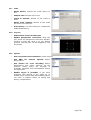
2.6.7
Audio
•
Audio device: Choose the audio device to
use.
•
Sample rate: Sample rate to use.
•
Count In Volume: Volume of the count in
beep.
•
Audio Track Volume: Volume of the audio
track from the video file.
•
A/V Latency: Use this setting to compensate
Audio/Video latency.
2.6.8
Projector
•
Hide mouse cursor in fullscreen
•
Enable perspective correction: Drag the
four points for perspective correction. Doubleclicking a point will reset it to the default
position. The red lines can be dragged to crop
the picture.
2.6.9
OpenGL
•
Use non-power-of-two textures: Saves memory.
•
Use PBO for
performance.
•
Use shader for color decoding: Better
performance and saves memory. At the
moment videos which are encoded in
YUV420P, YUV422P and YUV422P10LE format
are supported.
•
Enable VSync if possible: If you have
problems with tearing of the video try to
enable VSync. Please note that enabling VSync
can have a negative effect on timing and
latency compensation.
texture
upload:
Better
Page 7/8
2.7 Remote control application
MTCVideoSlave comes with a remote control application which can be found in MTCVS'
installation directory and is called remote.exe.
The following commands are supported:
-help
Show help/supported commands
-close
Close file
-offset [timecode]
Set offset
-open [filename]
Open file
-play
Play
-pos [timecode]
Set video position
-quit
Quit MTCVideoSlave
-stop
Stop
-subtitle [text]
Set subtitle
-wait
Wait for command completion (i.e. wait for seektable build when
file is opened)
Page 8/8