1
Introduction
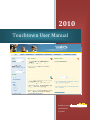
Welcome to Touchtown! In this manual we’ll give you a complete tour of your
community’s very own website, showing you how to log in, check your email, view
community info, and get in touch with other people.
Getting Online
Double-click on this symbol
internet.
to open the
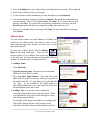
Type your community’s Touchtown website address in the address box at the top of the
screen. This is the address that begins with “www” (see sample above). Then press Enter
on your keyboard. (If you do not know your community’s website address please contact
a staff member or computer club leader).
Logging In
Logging in is how Touchtown knows who you are. You must log in if you want to check
your email, view the photo gallery, post to discussion forums, check the resident
directory, or view community information. Here’s how:
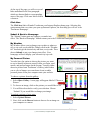
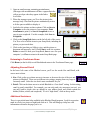
1. Go to the login box, located on the left-hand side of the Touchtown Home
page.
2. Type your username. For most Touchtown users, this is usually your first
name and last name, separated by a period, for example “john.smith” or your first
initial followed by your last name, for example “jsmith”.
3. Type your password.
4. Click on the Go button. You’ll know that you’ve successfully logged in when you see
your name appear in place of the Username and Password boxes.
Home
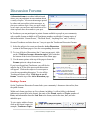
On the Home page you’ll see a variety of options, including:
• Personalize Account: Click on this link to customize your Touchtown
account.
• Weather: Includes the day’s forecast. Click on the forecast for more
detailed weather information.
• Web Search: A shortcut to the Google Search Engine. Simply type a
keyword of the item you are searching for to view links to internet
websites that match your search.
3|Page
© 2010 Touchtown, all rights reserved.