1
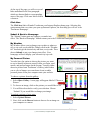
 Close. The Close button closes the current message and takes you back to your Inbox.
Closing a message does not delete it.
Composing a Message
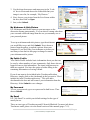
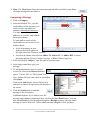
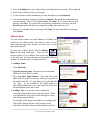
1. Click on Compose.
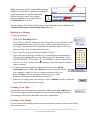
2. In the box labeled “To”, type the
email address of the person(s) you
wish to receive the email, for
example, [email protected].
You may type as many email
addresses as you like, and separate
them with commas.
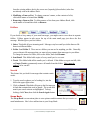
To send mail to people whose
email addresses are saved in your
Address Book:
• A list of the names in your
Address Book will appear on
the right side of the Compose window.
• Just click on a name, then click on Add to To, Add to CC, or Add to BCC to insert
that name into the To box, Carbon Copy box, or Blind Carbon Copy box.
3. In the box labeled “Subject,” type the topic of your message.
4. In the large central box, type your
message.
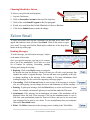
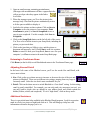
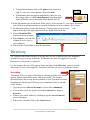
5. To add an attachment, such as a picture
or text file, click on the Browse button to
open a “Choose File” or “File Upload” box.
Next, find the file you want, click on it and then
click Open.
Click on the Add button. Once a file has been
attached, its name will appear near the bottom of
the screen.
6. Click the Send button to email the
message to the recipient(s).
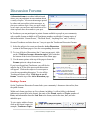
Additional Options: If you want to save the
message and continue composing it later, click on the Save Draft button. You can
also add a Priority to this message and request a Receipt message when the email
message is read or delivered. To discard the message altogether, click on Inbox.
9|Page
© 2010 Touchtown, all rights reserved.