1
Clipboard export
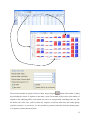
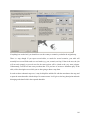
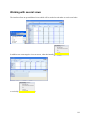
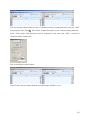
The content of the currently shown view can be copied to the clipboard by pressing the
button.
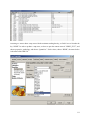
Tables are placed as tab delimited text in the clipboard, so that they can be pasted into spreadsheets.
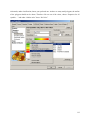
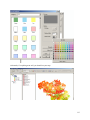
Graphics and maps are placed as graphics in the clipboard and can be copied e.g. into word processing.
Export to file
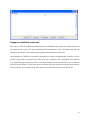
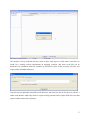
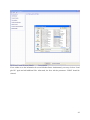
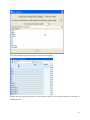
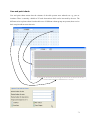
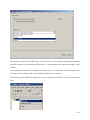
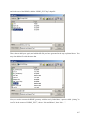
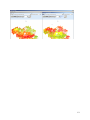
A dialog opens when pressing the
button to export the full dataset of the view to a file. The action
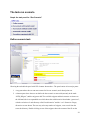
provoked by the button depends on the view type. In tabular view, in opposite to the clipboard export, the
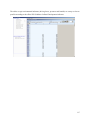
export file will scroll through the outer dimensions and will copy all stacked tables after each other into a
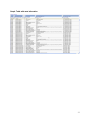
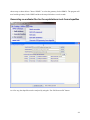
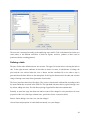
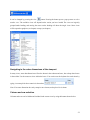
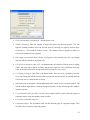
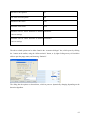
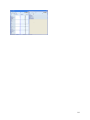
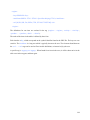
file. Take the table below as an example. Clipboard export will export the data for Belgium and 1984. File
export fill export data for all regions and for all years, if the user does not apply filters in the export
dialog. An example is discussed on page 102.
Sorting
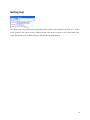
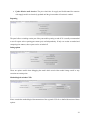
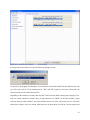
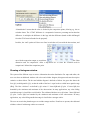
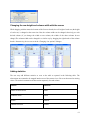
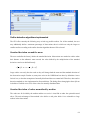
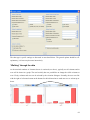
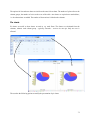
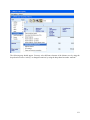
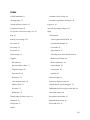
The rows can be sorted by one or several columns by clicking with the left mouse button in the column
headers. Adding additional sorting columns is achieved by pressing the “shift”-key and then using the
mouse as explained before. A sorting symbol will show sort direction, and its size will show the sorting
order.
Numerical filtering based on cell content
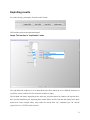
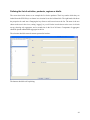
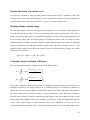
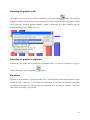
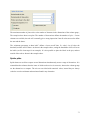
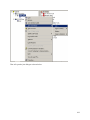
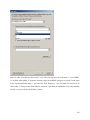
Clicking with the right mouse button on one of the column headers will open the “filter dialog” which can
be used to apply numerical filters to remove rows not matching the filter from the view.
60