1
SplashNotes helps you analyze your ideas by allowing you to temporarily hide items that you think you
may not need. You can then try out different scenarios of what your final outline will look like, without
losing information. Once you have decided on a final list, you can permanently delete all the items that
you do not want to include.
Finishing
Once you have your outline complete, it is time to finish your project. Depending on what you are
working on, this may require different approaches. For example, if you are creating an outline of a
report you are writing, you will want to export your outline to the Memo Pad so that you can edit it and
finish it in a word processor.
Or, keeping the outline in SplashNotes may be your finishing step. For example, many teachers use
SplashNotes to create curriculum and lesson notes. While teaching a class, they check off items they
have completed. They can then always know what progress they have made in a particular course. By
saving an outline as a template, a teacher can reuse the course outline the next time the course is taught.
Or perhaps your outline represents a project plan. SplashNotes's checklist feature can then be used to
check off items in a project as they are completed.
Installation
Launch the SplashNotes Installer and follow the on screen instructions. You will be required to connect
your Smartphone to complete the installation. The installer installs the following files:
•
•
SplashNotes.CAB - A Windows Mobile Smartphone application on the Smartphone.
SplashNotes Desktop -- A desktop application (for Windows) used to view and edit
information on the desktop as well as Sync with the outlines on the device.
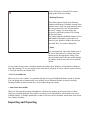
The Outline List
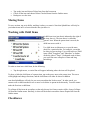
The List Screen displays the titles of each of the
outlines that you have created.
Each line in the list represents an outline that you have
entered. To view or edit an outline, simply tap on its
title. To create a new outline, tap the New button.