1
TTS MOBILE HANDHELD APPLICATION
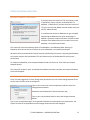
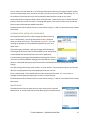
Two types of handheld applications are available, batch mode and wireless.
BATCH VS. WIRELESS HANDHELDS
Batch handheld units hold data in a mobile database file that gets transferred back and forth between
the handheld and the host PC. These units will work with both Microsoft Access and Microsoft SQL
Server host databases. The handheld must be docked with the host PC to perform the transfer. The
tool data on the handheld is a snapshot of the data on the host PC. If there are multiple users changing
data on the host database, the handheld data may be outdated in a short period of time. Therefore, it
is important to synchronize the handheld with the host PC often, so that it has current information.
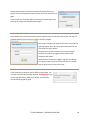
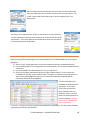
Wireless handheld units communicate with the host database in real time. This requires the host
database to be Microsoft SQL Server. Your facility will have to have a wireless infrastructure in place
for communication. No data is stored on the handheld.
COMMUNICATION WITH H OST PC
Communication software must be installed on the host computer. Choose the correct software based
on the operating system of the host computer.
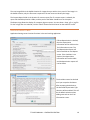
MICROSOFT ACTIVE SYNC INSTALLATION (FOR WINDOWS XP)
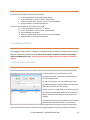
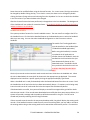
1) Locate a copy of the latest version of Active Sync for your computer system. The correct version is
available from Microsoft’s WEB site. Version 4.5 is the latest from Microsoft as of this printing.
2) Look for the installation file (i.e. activesync_setup.msi) and run it. We recommend that you follow
the installation instructions and accept the standard default settings during your install.
3) Leave Active Sync running to install and connect your handheld computer.
NOTE: Some users may use a single PC to connect multiple handheld computers. If this is the case, it
is best to setup your PC to recognize each handheld as a “Guest”. This avoids having Active Sync
loading shared data from your Outlook and other PC applications. To set all connected handhelds as a
Guest, please double-click and run the provided “GuestOnly.reg” file. It will instantly update your
system for future connections.
WINDOWS MOBILE DEVICE CENTER INSTALLATION (FOR WINDOWS VISTA OR WINDOWS 7)
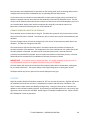
1) Locate a copy of the latest version of Windows Mobile Device Center for your computer system.
The correct version is available from Microsoft’s WEB site.
2) Look for the installation file (i.e. drvupdate-x86.exe) and run it. We recommend that you follow the
installation instructions and accept the standard default settings during your install.
TTS USER MANUAL – CONTRACTOR EDITION
50