1
Basic Operations
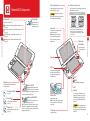
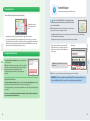
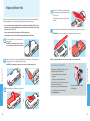
Nintendo 3DS XL Components
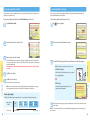
3D Depth Slider
Indicates the status of the system.
(blue) You have received SpotPass data; blinks for about five seconds
(see page 39).
(green) You have received StreetPass data; blinks for about five seconds
(see page 39).
(orange) A friend has come online; blinks for about five seconds
(see page 34).
(red) Battery power is low; blinks continuously when very low
(see page 17).
Adjusts the depth of the
3D image from zero to
maximum (see page 18).
Touch-sensitive screen. This screen should only be operated
with a Nintendo licensed stylus.
When opening or closing the
Nintendo 3DS XL system, keep your fingers away
from the hinge to avoid pinching them.
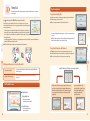
Inner camera
Used by games or other applications that
include camera features.
NOTE: Avoid getting the camera lens
dirty. If it becomes dirty, wipe gently
with a soft cloth, being careful not to
damage the lens.
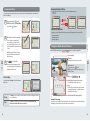
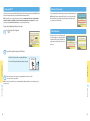
Using the Touch Screen
The lower LCD screen, or Touch Screen, is touchsensitive. For games that include this game control
feature, operate the screen by using the included
stylus. Lightly touch or slide the stylus across the Touch
Screen as shown.
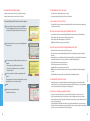
Right speaker
Control buttons
For game-play control.
See game instructions for
details.
Left speaker
Nintendo 3DS XL Components
Notification LED
Touch Screen (Lower screen)
Capable of displaying 3D content for games that
include this feature (see page 18).
Basic Operations
Basic Operations
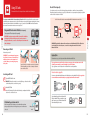
Nintendo 3DS XL Components
3D Screen (Upper screen)
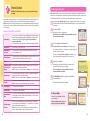
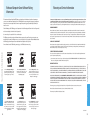
Circle Pad
For game-play control that supports
this feature. See the instructions for
the game you are playing for specific
control information.
Microphone
Used by games and applications that include
microphone features.
Power Button (POWER)
See page 14.
Power LED ( )
Lights when the power is turned on
(see page 17).
Recharge LED
Lights when the battery is being charged
(see page 17).
10
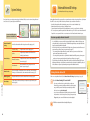
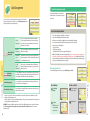
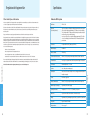
Volume
Wireless LED ( )
Lights when wireless communication is
turned on, turns off when communication
is turned off, and blinks while data is being sent or received or
when the system is in Sleep Mode (dimly).
Wireless switch (WIRELESS)
Push this switch to turn wireless communication on or off.
NOTE: For Nintendo DS or Nintendo DSi software, you must
enable wireless communication before starting the game.
However, once enabled, you can turn communications off by
pushing the wireless switch.
SELECT
HOME
Displays the HOME Menu during a game.
START
Audio jack
Volume control
Slide to adjust the volume.
NOTE: The camera shutter sound always plays
at a fixed volume and is not affected by the
volume control.
+ Control Pad
For game-play control.
For connection of stereo headphones (sold
separately). If headphones are connected, no
sound will play through the speakers. (This
system is not compatible with the Nintendo
DS Headset.)
When using headphones, set
the volume at a safe level. Setting the volume
too high may harm your hearing or damage the
headphones.
11