1
S P A T C H(tm)
Pager Dispatch System
User Manual
SPATCH Gets the message out!
THE HYDE COMPANY
Suite G-327
5805 State Bridge Road
Duluth, Georgia 30097
Sales:
(770) 495-0718
[email protected]
Support: (406) 542-9051
[email protected]
September 5, 1998
Copyright 1994-1998, The Hyde Company, all rights reserved
Trademark Notices
APC and PowerChute are trademarks of American Power Conversion Corporation.
HAYES is a trademark of Hayes Microcomputer Products, Inc.
IBM is a trademark of International Business Machines Corporation
MS-DOS is a trademark of Microsoft Corporation.
SCO is a trademark of The Santa Cruz Operation, Inc.
UNIX is a trademark of SCO, Inc.
FineLine is a trademark of Sound Ideas of America, Inc.
2
IMPORTANT – READ CAREFULLY BEFORE USING. You agree to be bound by the terms
of this License Agreement, upon the earlier of:
(1)
(2)
(3)
Opening a sealed envelope containing a SPATCH License Agreement,
Signing a SPATCH Authorization Form, or
Installing the SPATCH software product.
SPATCH LICENSE AGREEMENT
This agreement is between you and THE HYDE COMPANY (“HYDE”). This agreement constitutes the
complete and entire agreement between you and HYDE with respect to the SPATCH software product (the
“SOFTWARE PRODUCT”), which supersedes any proposal or prior agreement, oral or written, and any
other communications between us relating to the subject matter of this agreement. If you do not agree to
the terms of this agreement, promptly return this software, user manual and accompanying items in the
same manner you obtained them before any of the events referred to in the first sentence have occurred
for a full refund.
(1)
The SOFTWARE PRODUCT is protected by copyright laws and international copyright treaties, as well as
other intellectual property laws and treaties. The SOFTWARE PRODUCT is licensed, not sold.
(2)
HYDE, as Licensor, grants to you, as Licensee, a nonexclusive, nontransferable right to use this product in
accordance with the terms and conditions of this agreement.
(3)
You may install and operate this product only on a single central processing unit (CPU). You may not rent,
lease, or loan this software. You may keep the original for back-up and archival purposes only and may
make no additional copies. You may not copy the printed materials.
(4)
You may not reverse engineer, decompile, or disassemble the SOFTWARE PRODUCT, except and only to
the extent that such activity is expressly permitted by applicable law notwithstanding this limitation.
(5)
Without prejudice to any other rights, HYDE may terminate this license if you fail to comply with the terms
and conditions of this license. In such event, you must return the original SOFTWARE PRODUCT,
including the user manual, to HYDE, and destroy and delete any copies of the SOFTWARE PRODUCT and
all of its component parts in your possession and control.
(6)
Any updates to this product that HYDE may provide to you from time to time, whether with or without a
separate charge, are deemed as Licensed to you under this agreement.
(7)
This agreement and performance hereunder, shall be governed and construed in accordance with the laws of
the State of Georgia. In the event of any legal or equitable action arising under this agreement you agree
that the jurisdiction and venue of such action shall lie exclusively within either the state courts of Georgia
located in DeKalb County, Georgia, or the U.S. District Court for the Northern District of Georgia, and you
specifically waive any other venue.
(8)
ALL SOFTWARE PRODUCTS and documentation are provided with RESTRICTED RIGHTS. Use,
duplication, or disclosure by the Government is subject to restrictions as set forth in Subparagraph (c)(1)(ii)
of the Rights in Technical Data and Computer Software clause at DFARS 252.227-7013 or subparagraphs
(c)(1) and (2) of the Commercial Computer Software - Restricted Rights at 48 CFR 52.227-19, as
applicable. Manufacturer is THE HYDE COMPANY, Suite G327, 5805 State Bridge Road, Duluth, GA
30155.
(9)
Hyde warrants that the enclosed software will perform substantially in accordance with the accompanying
documentation for a period of 90 days from the date of receipt. HYDE DISCLAIMS ALL OTHER
3
WARRANTIES, EITHER EXPRESSED OR IMPLIED, INCLUDING, BUT NOT LIMITED TO, IMPLIED
WARRANTIES OF MERCHANTABILITY AND FITNESS FOR A PARTICULAR PURPOSE.
(10)
EXCEPT AS MAY OTHERWISE BE REQUIRED BY APPLICABLE LAW, IN NO EVENT WILL
HYDE OR ITS SUPPLIERS BE LIABLE FOR ANY SPECIAL, INCIDENTAL, INDIRECT, OR
CONSEQUENTIAL DAMAGES WHATSOEVER (INCLUDING, WITHOUT LIMITATION,
DAMAGES FOR LOSS OF BUSINESS PROFITS, BUSINESS INTERRUPTION, LOSS OF
BUSINESS INFORMATION, OR ANY OTHER PECUNIARY LOSS) ARISING OUT OF THE USE
OR INABILITY TO USE THE SOFTWARE PRODUCT OR THE PROVISION OF OR FAILURE
TO PROVIDE SUPPORT SERVICES, EVEN IF HYDE HAS BEEN ADVISED OF THE
POSSIBILITY OF SUCH DAMAGES. EXCEPT AS MAY OTHERWISE BE REQUIRED UNDER
APPLICABLE LAW, HYDE’S ENTIRE LIABILITY UNDER ANY PROVISION OF THIS
AGREEMENT SHALL BE LIMITED TO THE GREATER OF THE AMOUNT ACTUALLY PAID BY
YOU FOR THE SOFTWARE PRODUCT OR U.S.$5.00.
4
Table of Contents
SPATCH LICENSE AGREEMENT..........................................................................................................3
INTRODUCTION.................................................................................................................................11
PAGING SYSTEM ...............................................................................................................................13
GETTING STARTED ...................................................................................................................................14
Overview.............................................................................................................................................14
How It Works ......................................................................................................................................14
Configuration Work Sheet ...................................................................................................................15
Screen Navigation...............................................................................................................................15
Objects............................................................................................................................................................16
Menu Bar....................................................................................................................................................16
Pull-down Menu .........................................................................................................................................16
Window ......................................................................................................................................................16
Field ...........................................................................................................................................................16
Pop-Up List.................................................................................................................................................16
Action Button..............................................................................................................................................16
Keys................................................................................................................................................................16
F1 or CTRL+T (UNIX only)....................................................................................................................16
ESCAPE .....................................................................................................................................................16
UP Arrow or CTRL+B (UNIX only) ...........................................................................................................17
DOWN Arrow or CTRL+F (UNIX only)....................................................................................................17
LEFT Arrow ...............................................................................................................................................17
RIGHT Arrow .............................................................................................................................................17
RETURN/ENTER.......................................................................................................................................17
BACKSPACE .............................................................................................................................................17
DELETE (UNIX) .......................................................................................................................................17
DELETE (Windows) ..................................................................................................................................17
FILES MENU ...........................................................................................................................................17
Configuration Screen ..........................................................................................................................18
Port ID........................................................................................................................................................18
Dial Type....................................................................................................................................................19
Dialing Prefix .............................................................................................................................................19
Modem Initialization String.........................................................................................................................19
Auto Print Reports ......................................................................................................................................19
Screen Time-out..........................................................................................................................................19
SMS Retry Interval .....................................................................................................................................19
Default Moniker..........................................................................................................................................20
Ignore Duplicates ........................................................................................................................................20
History........................................................................................................................................................20
Roll Off Threshold ......................................................................................................................................20
Error Reporting...........................................................................................................................................20
None.......................................................................................................................................................20
Console...................................................................................................................................................20
Except to Requestor ................................................................................................................................20
Confirm to Requestor..............................................................................................................................20
E-Mail Address.......................................................................................................................................20
Console Name.............................................................................................................................................20
Error Threshold...........................................................................................................................................21
Maintenance Login ID.................................................................................................................................21
Message Send Order ...................................................................................................................................21
Carrier Screen ....................................................................................................................................21
Name ..............................................................................................................................................................22
Source.............................................................................................................................................................22
Password.........................................................................................................................................................22
5
Time Stamp.....................................................................................................................................................22
Phone# ............................................................................................................................................................22
Modem Pool....................................................................................................................................................22
Message Size ..................................................................................................................................................22
Baud ...............................................................................................................................................................23
Parity ..............................................................................................................................................................23
Protocol...........................................................................................................................................................23
TAP ............................................................................................................................................................23
TNPP..........................................................................................................................................................23
SMS ...........................................................................................................................................................23
Abandon Time.................................................................................................................................................23
STORE ...........................................................................................................................................................23
DELETE .........................................................................................................................................................23
Subscriber Screen ...............................................................................................................................23
Name ..............................................................................................................................................................24
Acct# ..............................................................................................................................................................24
Type................................................................................................................................................................24
Alpha..........................................................................................................................................................24
Numeric......................................................................................................................................................24
DTMF.........................................................................................................................................................24
Group .........................................................................................................................................................24
Carrier ............................................................................................................................................................24
Protocol...........................................................................................................................................................25
Coverage .........................................................................................................................................................25
Page Type .......................................................................................................................................................25
Max Msg Size Override...................................................................................................................................25
Pager...............................................................................................................................................................25
Function..........................................................................................................................................................25
PIN/CAP .........................................................................................................................................................25
Delay ..............................................................................................................................................................25
STORE ...........................................................................................................................................................25
DELETE .........................................................................................................................................................25
Group Paging......................................................................................................................................26
Group Type .....................................................................................................................................................26
Moniker ..............................................................................................................................................27
Rolloff Msg .........................................................................................................................................27
PAGING....................................................................................................................................................27
REPORTS MENU ....................................................................................................................................29
COMMAND LINE INTERFACE .....................................................................................................................30
Command Line Options.......................................................................................................................30
Interactive mode..............................................................................................................................................30
In-Line message ..............................................................................................................................................30
Message text in a file ......................................................................................................................................31
Message via standard input .............................................................................................................................31
Multiple pages from a file ...............................................................................................................................31
Pass-Through Paging.......................................................................................................................................31
SECURING SPATCH.................................................................................................................................32
UNIX...................................................................................................................................................32
BATCH SUBSCRIBER MAINTENANCE ..........................................................................................................32
INSTALLATION .........................................................................................................................................33
Loading SPATCH from DOS Format Diskette .....................................................................................34
AIX.................................................................................................................................................................34
SCO ................................................................................................................................................................34
SunOS / Solaris...............................................................................................................................................35
On-Line Download ..........................................................................................................................................35
UNIX...................................................................................................................................................36
Windows NT/95 ...................................................................................................................................38
Windows 95: ...................................................................................................................................................38
6
Windows NT...................................................................................................................................................39
Modem Notes ......................................................................................................................................39
OPERATION ..............................................................................................................................................40
UNIX...................................................................................................................................................40
WIN NT/95 ..........................................................................................................................................40
TROUBLESHOOTING..................................................................................................................................40
System Messages .................................................................................................................................40
Can Not Open Port: .........................................................................................................................................40
Can Not Initialize Modem: ..............................................................................................................................40
Dial Failed: .....................................................................................................................................................41
Did Not Get Prompt: .......................................................................................................................................41
Page Rejected:.................................................................................................................................................41
Diagnostic Mode.................................................................................................................................41
SUPPORT ..................................................................................................................................................42
UNIX NOTES...........................................................................................................................................42
Special Features..................................................................................................................................43
Direct Connect ................................................................................................................................................43
Page translate table .........................................................................................................................................43
SPATCH 3.X OPTIONAL FEATURES ..........................................................................................................43
E-Mail Forwarding .............................................................................................................................43
Call Report .........................................................................................................................................43
Secure .................................................................................................................................................43
Pmailweb ............................................................................................................................................43
On Call Scheduling .............................................................................................................................44
TNPP ..................................................................................................................................................44
PagePage............................................................................................................................................44
Echelon Page ......................................................................................................................................44
Pass Through ......................................................................................................................................44
Remote SPATCH .................................................................................................................................44
Event File Monitor..............................................................................................................................44
LICENSING METHODOLOGY ......................................................................................................................44
CATALOG ................................................................................................................................................45
UPGRADING .............................................................................................................................................46
From Version 2 ...................................................................................................................................46
From Version 3 ...................................................................................................................................46
From Version 4 ...................................................................................................................................47
EVENT FILE MONITOR ....................................................................................................................48
UNIX...................................................................................................................................................49
WIN95.................................................................................................................................................49
WIN NT...............................................................................................................................................49
CALL REPORTS..................................................................................................................................50
OVERVIEW ...............................................................................................................................................51
CONFIGURATION ......................................................................................................................................51
Subscriber...........................................................................................................................................51
Account...............................................................................................................................................51
Cover Page .........................................................................................................................................51
Order by..............................................................................................................................................52
From/To Date......................................................................................................................................52
Message Detail ...................................................................................................................................52
Summary Report..................................................................................................................................52
Over Call Limit ...................................................................................................................................52
Terminal Summary ..............................................................................................................................52
7
Error Detail ........................................................................................................................................52
Account Tag File Name.......................................................................................................................52
REPORTS..................................................................................................................................................52
TECHNICAL ..............................................................................................................................................53
SECURITY MODULE .........................................................................................................................54
OVERVIEW ...............................................................................................................................................55
INSTALLATION .........................................................................................................................................55
OPERATION ..............................................................................................................................................55
ON CALL SCHEDULING ...................................................................................................................57
OVERVIEW ...............................................................................................................................................58
INSTALLATION .........................................................................................................................................58
UNIX...................................................................................................................................................58
WIN95/NT ...........................................................................................................................................58
OPERATION ..............................................................................................................................................58
UNIX...................................................................................................................................................58
WIN95/NT ...........................................................................................................................................58
Schedule Maintenance ........................................................................................................................59
Shift Entry...........................................................................................................................................59
Shift Select ..........................................................................................................................................60
On-Call Schedule Batch Maintenance.................................................................................................60
TECHNICAL ..............................................................................................................................................60
PAGE PAGE .........................................................................................................................................62
OVERVIEW ...............................................................................................................................................63
INSTALLATION .........................................................................................................................................63
UNIX...................................................................................................................................................63
Line 1 .............................................................................................................................................................63
Line 2 .............................................................................................................................................................63
Line 3 .............................................................................................................................................................63
Windows NT ........................................................................................................................................64
Line 1 .............................................................................................................................................................64
Line 2 .............................................................................................................................................................64
Line 3 .............................................................................................................................................................64
All Platforms.......................................................................................................................................64
E-MAIL FORWARDING MODULE...................................................................................................66
INTRODUCTION ........................................................................................................................................67
OVERVIEW ...............................................................................................................................................67
INSTALLATION .........................................................................................................................................67
UNIX...................................................................................................................................................67
WIN NT...............................................................................................................................................68
OPERATION ..............................................................................................................................................68
Global Configuration ..........................................................................................................................69
Mail Path ........................................................................................................................................................69
Cycle Sleep Time ............................................................................................................................................70
Maint Login Name ..........................................................................................................................................70
Mail Type. ......................................................................................................................................................70
Max message size............................................................................................................................................70
Message Limit.................................................................................................................................................70
Filters .............................................................................................................................................................70
Start............................................................................................................................................................71
Size.............................................................................................................................................................71
Lines...........................................................................................................................................................71
8
Text ............................................................................................................................................................71
Suggested Filters.............................................................................................................................................71
Internet .......................................................................................................................................................71
Fineline Message Manager..........................................................................................................................71
STORE ...........................................................................................................................................................72
User Configuration .............................................................................................................................72
Paging Subscriber Name or FAX Number........................................................................................................72
Send To...........................................................................................................................................................72
Pager ..........................................................................................................................................................72
FAX............................................................................................................................................................72
Voice Mail..................................................................................................................................................72
Notify Alpha ...............................................................................................................................................72
Notify Numeric ...........................................................................................................................................72
Code ...............................................................................................................................................................73
Max Message Size of Body to Forward............................................................................................................73
Delivery Window ............................................................................................................................................73
STORE ...........................................................................................................................................................73
Selection Specifications.......................................................................................................................73
Search Field ....................................................................................................................................................73
Match Type .....................................................................................................................................................74
ANY ...........................................................................................................................................................74
BEST..........................................................................................................................................................74
EXACT.......................................................................................................................................................74
Override Message Size ....................................................................................................................................74
Key Words ......................................................................................................................................................74
STORE ...........................................................................................................................................................75
DeSelection Specifications ..................................................................................................................75
Activate/Suspend/Terminate ................................................................................................................75
Chg User.............................................................................................................................................75
FAX AND VOICE MAIL FORWARDING .......................................................................................................76
Login name .........................................................................................................................................76
FAX or Voice mailbox number ............................................................................................................76
Pass file name .....................................................................................................................................76
BATCH SUBSCRIBER MAINTENANCE ..........................................................................................................76
TECHNICAL ..............................................................................................................................................77
Programs ............................................................................................................................................77
pmc.................................................................................................................................................................77
pmsmon ..........................................................................................................................................................77
Files....................................................................................................................................................77
mconfig.dat .....................................................................................................................................................77
<user name>/mconfig.dat ................................................................................................................................77
mactive.dat......................................................................................................................................................77
temp1.dat ........................................................................................................................................................78
<user name>/temp1.dat ...................................................................................................................................78
E-MAIL FORWARDING USER’S MAINTENANCE FOR BROWSER...........................................79
OVERVIEW ...............................................................................................................................................80
INSTALLATION PROCEDURE ......................................................................................................................80
UNIX...................................................................................................................................................80
Line 1..................................................................................................................................................80
Line 2..................................................................................................................................................81
Line 3..................................................................................................................................................81
WIN NT...............................................................................................................................................81
Line 1..................................................................................................................................................81
Line 2..................................................................................................................................................81
Line 3..................................................................................................................................................81
OPERATION ..............................................................................................................................................82
9
IMPLEMENTATION ....................................................................................................................................82
ECHELON PAGING ............................................................................................................................83
OVERVIEW ...............................................................................................................................................84
ECHELON GROUP .....................................................................................................................................84
CANCELING AN ALARM ............................................................................................................................85
From a Terminal .................................................................................................................................85
From a Touch-Tone Phone ..................................................................................................................85
PROGRAM OPERATION ..............................................................................................................................85
Alarm Module .....................................................................................................................................85
IVR Module.........................................................................................................................................86
INSTALLATION .........................................................................................................................................86
UNIX...................................................................................................................................................86
WIN95/NT ...........................................................................................................................................86
IVR Messages......................................................................................................................................87
E-MAIL PAGING GATEWAY............................................................................................................88
REMOTE SPATCH..............................................................................................................................91
SETUP ......................................................................................................................................................92
UNIX...................................................................................................................................................92
WIN95.................................................................................................................................................92
NT.......................................................................................................................................................92
USER INTERFACE ......................................................................................................................................92
10
Introduction
With the increased popularity and affordability of alphanumeric paging has come a need for
convenient access to the paging network by those initiating pages. Dispatch services, while
accessible to anyone with a phone, become expensive with frequent use. Alpha Access terminals
are inconvenient to use, as employees must leave their work area to use the device. In a large
organization, it may be necessary to utilize multiple terminals (and phone lines) to provide
adequate access to the service.
Since many workers have either a personal computer or computer terminal on their desk and
alphanumeric paging is nothing more than one computer dialing up another and transferring
information, it is logical that these resources could be used to eliminate or reduce dispatch service
or dedicated device usage. The obvious advantage to using existing computing resources is a
reduction in costs, both tangible and intangible.
Tangible costs are reduced because use of existing equipment eliminates the need to purchase
dedicated devices. By initiating pages directly, dispatch service charges can be reduced or totally
eliminated. The intangible costs to a company are reduced, since workers can dispatch pages
without significant interruption of their work routine.
SPATCH was created to use existing computing resources to initiate alphanumeric pages. It is
targeted for computer systems using the UNIX operating system. In addition to providing a page
initiation capability, SPATCH provides the user with virtually unlimited subscriber capacity and
reports to audit paging traffic and internal databases.
This evaluation kit includes the SPATCH Alphanumeric paging system and most optional
modules. The system will support unlimited users and will remain fully functional for thirty
days. A short promotional message will be added to each page during the demonstration period.
This message will cease once an activation key is successfully installed. When you purchase a
license to use the software, you will receive an authorization form which you must fill in and fax
to us to obtain the appropriate activation key for your system.
If you have purchased a license without first evaluating SPATCH, you must still obtain and
install the evaluation kit since it contains all the files the system needs to function. The
activation key makes the evaluation system live and disables features not licensed.
The paging system should be installed and tested first. If you wish to evaluate other modules, run
the appropriate install script and configure that system as described in the section of the manual
dealing with that feature.
UNIX versions of the interactive programs use TERMINFO CURSES so the TERM
environmental variable must be set to correspond to the terminal or emulation in use. Incorrect
setting of the TERM variable will prevent the system from using the correct cursor movement
commands and recognizing function keys.
Should you encounter difficulty or have any questions about the product, please call technical
support (number on front of manual). There is no charge (except the phone call) and you will
avoid frustration. Our staff carry pagers and will respond on a best effort basis on weekends and
after hours.
The UNIX operating system does not require a special extension to the file name of an executable
program. If your target environment is WINDOWS, you may assume that any executable file
name without an extension or with the cgi extension will have an extension of exe.
11
12
Paging System
Version 4.0
13
Getting Started
Overview
The installation instructions are presented at the end of this chapter so you will be familiar
with the screens which you will encounter and information required before beginning the
installation process.
During the installation of the paging system, you will need to enter three types of information:
System configuration values, Paging company (Carrier) values and pager (Subscriber) values. A
work sheet is provided in this manual to help you gather the required information. When filling
in these values, read the pages referring to the Configuration Screen, Carrier Screen and
Subscriber Screen. On these pages, you will find explanations of values required for each field in
the form. The system will prompt you for entry of the system configuration record, one or more
paging carrier record and one or more paging subscriber record the first time the interactive
program is run. These screens may also be accessed from the files menu during normal
operation.
In addition to the information on the configuration work sheet, the configuration screen will also
present other system parameters with which you should be familiar prior to installing the system.
Please review this screen in the manual before attempting installation.
NOTE: When setting up the Carrier entry, we recommend that the baud rate be set at 300 unless
the carrier specifically tells you it can not support this speed, in which case you should use 1200
baud. While many carriers support higher rates, they usually do so using a speed-buffering
modem connected to a serial port set to 300 baud. This will cause buffer overflow or time-out
problems with longer messages.
How It Works
To send an alphanumeric page, your computer must use a modem to connect to the paging
company’s computer and then transfer the message data. To call the paging company’s computer
your computer, must know the alpha access number. This is the phone number of the
computer’s modem. To obtain this number, call the paging carrier and ask for the TAP alpha
access number. You may need to specify that you are using a computer program that uses the
TAP protocol. Since computers are capable of communicating at different speeds (baud rates)
your computer must also know the baud rate that the other computer expects to use. Paging
companies have different limits on the size of the message they will allow you to send, so your
system will also need to know this limit for each paging company it will be calling. Don't be
bashful about calling the paging carrier to obtain this information.
When the connection is made, your computer must tell the paging system which pager to send
the message to. This is done using the Pager ID Number(PIN). Each pager is identified by a
unique PIN. When obtaining this number beware! Many paging companies use a different
number for numeric and alphanumeric messaging. If you are not sure of this number, call your
paging carrier.
Before you can page a subscriber with SPATCH, you must enter the paging carrier information
into the Carrier record and the information about the pager into the subscriber record. The
following form will help you assemble the information you need. Each field marked with an
asterisk is mandatory and should be completed. If you are unsure, call the paging carrier; don't
14
try to guess. Incorrect information will cause error messages to spew forth from the system
console.
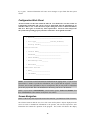
Configuration Work Sheet
All starred fields on this form should be filled in. You should also read the sections on
Configuration, Subscriber and Carrier record to understand what the information is for
and what values to use. If the directions require calling the carrier to obtain information,
then do it. Don't guess or assume any values required here. Incorrect values will prevent
the system from operating properly and cause frustration. Do it right the first time.
* Port ID________________________________
* Dial Type________________(T=Tone,P=Pulse)
Dialing Prefix________________________________
Carrier Record:
* Carrier Name___________________________________
Password_____________________________
* Phone Number__________________________
* Max Message Size_______
* Baud Rate_________
Subscriber Record:
* Name_____________________
* ID Number________________
NOTE: Several items on this form MUST be obtained from the paging carrier. If your account
representative is unable to provide this information, ask to speak with the engineer. On rare
occasions, the account representative may be uncooperative and you may need to remind that
person who pays the bill. Don’t be intimidated or deterred by your carrier. Be insistent!
NOTE: It your carrier is MCI/SKYTEL, you will need to get the TAP Access Number from
them. IT IS NOT the same number used by their own software.
Screen Navigation
NOTE: If the F1 key does not provide access to the menu bar, you should use CTRL+T instead.
The software interacts with the user via a CRT screen and keyboard. Objects displayed on the
screen are used to communicate information to the operator, who uses the keyboard to enter
information and control the operation of the program. This section will discuss the display
15
objects, their properties and the key sequences used to control them. As the cursor is moved
about the screen, the object on which it is positioned is highlighted. The operator may shift the
cursor to another object or act on the object currently highlighted.
Objects
Menu Bar
Use the LEFT/RIGHT Arrow keys to select the desired choice, then press the DOWN arrow or
RETURN key to invoke your selection. The result may be a direct action or the system may
display a window or pull-down Menu.
Pull-down Menu
This object will display a list of choices. Select the desired choice using the UP/DOWN arrow
keys, then press RETURN. To escape a pull-down menu and return to its parent, press
ESCAPE.
Window
A Window is a rectangular portion of the screen, usually with borders, containing a set of objects.
Field
A field is used to enter alphanumeric or numeric only information. When the field is exited
using RETURN, UP or DOWN Arrow keys, the information entered is accepted by the
program. If the ESCAPE key is pressed, the information entered is discarded and the current
window is deactivated.
Pop-Up List
This object is used to offer the operator a list of values from which to choose. When selected, the
operator may display the list by pressing any alphabetic or numeric key, the RIGHT/LEFT
Arrow keys or ENTER. Once the list is displayed, the UP/DOWN Arrow keys may be used to
select the desired choice. Pressing RETURN terminates the entry, and the cursor advances to
the next object.
Action Button
This causes a function to be performed. An Action Button will display a word or phrase denoting
the function to be performed. The UP or DOWN arrow keys may be used to traverse this object
backward or forward respectively without causing activation.
Keys
F1 or CTRL+T
(UNIX only)
Selects the Menu Bar.
ESCAPE
Exits the current window or menu. If the cursor is in a field, any information entered in that
field is NOT stored. Exiting from the primary window terminates the program.
16
UP Arrow or CTRL+B (UNIX only)
This causes the cursor to traverse the objects of a window in reverse order. The exception is Text
Editing and Browse objects where this key causes the cursor to move up one line.
DOWN Arrow or CTRL+F (UNIX only)
This causes the cursor to traverse the objects of a window. The exception is Text Editing and
Browse objects where this key causes the cursor to move down one line.
LEFT Arrow
Moves the cursor left one entry on the Menu Bar or one character position in a data entry object.
RIGHT Arrow
Moves the cursor right one entry on the Menu Bar or one character position in a data entry
object.
RETURN/ENTER
Terminates entry on a data entry object or indicates an affirmative action on a choice object.
BACKSPACE
Moves the cursor left one character position in a data entry object, erasing the character under it.
DELETE (UNIX)
Same as backspace.
DELETE (Windows)
Deleted next character.
FILES Menu
Selection of this pull-down menu will allow you to access maintenance routines for the system's
17
data files and configuration parameters.
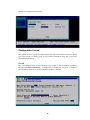
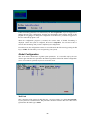
Configuration Screen
This window is used to specify the communications port where the modem is connected, dialing
type (Tone or Pulse), a dialing prefix, if used, modem initialization string and several other
environmental parameters.
Port ID
This is the computer's name for the connection to the modem. It will be something resembling
/dev/ttyxx (or com2 on WIN95/NT). A default value is provided only as a guide. It should be
replaced with the actual device name to which the modem is connected.
18
Dial Type
If the telephone line is equipped for tone dialing, this field should be set to T, otherwise P should
be used to instruct the modem to dial using pulses (rotary dial).
Dialing Prefix
This field is used only when it is necessary to dial additional digits to connect to an outside line
and/or disable call waiting. An example would be 9, . To disable call waiting, add *70, to this
field.
Modem Initialization String
These codes configure the modem to operate with the application software. Each code is
separated from the next by a space to allow the system to send it separately. This allows codes
which the modem does not recognize to be ignored, while valid codes can be accepted. If the
communications module indicates an error on certain codes, these codes may be removed from
the list. You will not be able to access this field when the system is first installed. The system
will attempt to determine what string to use. The purpose is to disable advanced features of
newer modems such as error correction, compression, etc. When these features are enabled,
your modem may not be able to connect to the carrier since most carriers use older modems
which do not recognize the advanced features.
(See the section titled Modem Notes for command strings for some of the more popular
modems.)
NOTE: DO NOT insert the AT command in this string. SPATCH automatically prefixes AT to
each command in the string before it is passed to the modem.
Auto Print Reports
This field determines how printed reports selected from the Reports Menu are handled. If this
field is set to NO, the report file is created but not printed. When this field is set to YES, the file
is automatically printed. The report file is created in the directory containing the paging software
and is named with the user's Login name and the .lst extension.
The report will print on the default system printer unless redirected to another printer by the
LPDEST environmental variable. If your system does not have a default printer, this field
should be set to NO.
Screen Time-out
This is the number of minutes the program will wait for input before terminating. Values from
zero (no time-out) to 99 minutes may be entered.
SMS Retry Interval
This field is used only with the NEXTEL SMS protocol. It determines the interval, in minutes,
at which SPATCH will call the paging terminal to check for delivery confirmation. If your site
does not use this protocol, this field may be ignored.
19
Default Moniker
No one likes to receive an anonymous page. To avoid this, we now provide an option which
will cause the Login name of the page initiator to be appended to a message if the Moniker is
left blank.
Ignore Duplicates
If this field is greater than zero, it specifies a time window, in seconds, within which duplicate
paged will be ignored. This is a handy feature if you have system monitoring scripts which send
the same message more than once. If this field is set to zero, no duplicate checking is performed.
History
This is the name of the file, into which messages from the message file will be rolled. Each time
a roll-off is done, all processed messages from the message file are added to the end of the history
file.
Roll Off Threshold
This value specifies the number of days of history you wish to keep. Messages in the history.dat
file older than this value will be purged during the RollOff process.
Error Reporting
Use this field to determine how error messages are reported. The following choices are available:
None
Selecting this option will suspend error reporting.
Console
Error messages are sent to the system console.
Except to Requestor
Error messages are sent, via E-Mail, to the user initiating the page. When an error is reported, a
confirmation message will also be generated when the message is finally sent to inform the user
that the problem has been corrected.
Confirm to Requestor
A confirmation message is sent, via E-Mail, to the user initiating the page when it has been sent.
No errors are reported.
E-Mail Address
Error messages are sent, via E-Mail, to a specified address. When an error is reported, a
confirmation message will also be sent when the message is finally sent.
Console Name
The contents of this field are determined by the Error Reporting option as follows:
20
•
Console - This is the device name to receive error messages directed to the system console.
It is useful when the system console is not monitored and you wish to use another terminal in
its place. If a disk file name is entered in this field, system messages will be appended to this
file.
•
E-Mail Address - This is the address where system messages will be sent.
Error Threshold
This value determines how many times an error must occur before it is reported. It is useful to
prevent reporting of non recurring errors. A value of zero causes every error to be reported. A
value of 1 will cause errors to be reported on the second occurrence. Values for this field are 0
thru 9. It also determines how many times a rejected page will be retried before flagging it as
rejected and giving up on it.
NOTE: We recommend a value of 4.
Maintenance Login ID
This field controls which user may access this screen, the Rolloff Msg function and be able to
view all the unsent pages in the unsent pages report. A valid Login name must be entered. For
maximum security, the SPATCH system uses the actual Login name and not the effective user ID
(EUID).
NOTE: If you can not login as root from a remote terminal, you might want to consider using a
Login name other than root.
Message Send Order
This option determines the order in which pages will be sent. Using the Last in First out (LIFO)
method, the recipient does not have to reposition the message pointer on his pager to read the
first message. The First in First out (FIFO) method sends pages in the order they were entered.
When configuration data entry is complete, select the STORE action button and press ENTER
to save the configuration.
NOTE: When the product is first installed, you must STORE the configuration to create the
config.dat file needed by the communications module. Failure to create this file will cause the
communication module to terminate when it is executed.
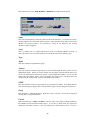
Carrier Screen
This window provides for entry and maintenance of the Paging Company's Alphanumeric access
parameters. Use this window to ADD new Carrier records, DELETE or MODIFY existing
ones.
21
Name
This is the internal name by which this program will refer to a paging company's Paging
Computer. When setting up a subscriber record, enter this name in the Carrier field to indicate
that the subscriber's pages are to be sent to this computer. To view an existing carrier record, the
complete name must be entered (no best match search here). If the name is not found in the
database, the system assumes that this is a new carrier, otherwise the existing carrier data is
displayed.
Source
This field is used only when the TNPP protocol is selected. It is the node name assigned to your
computer by the paging carrier.
Password
Enter the access password provided by the paging company. If no password is required, leave
this field blank. If you are uncertain about this field, call your paging company and ask them if
they require a password for Alpha Access and, if so, what it is. Most paging companies do not
require a password.
Time Stamp
Many paging carriers add a time stamp to pages. Some do not. SPATCH provides an option on
the Carrier Record to add a time stamp to all pages sent to a carrier. The time stamp added
will be the time the message was scheduled to be sent.
Phone#
Enter the paging company's Alpha Access number. Enter a 1 and an area code, only if required
to force a long distance call. If you are not sure of this number, call your paging company and
ask them for the TAP Alpha Access Number. Call the number with your telephone to see if a
modem answers. If you do not hear a tone or the number continues to ring, you probably have
the wrong number. If a prefix is required to access an outside line, it should be put in the
dialing prefix field of the Config Screen, not as part of the phone number.
BEWARE! If you enter the wrong number, any pages you try to send will cause the system to
keep dialing the wrong number.
NOTE: This is not the phone number of the pager. It is a special number you must obtain from
your paging carrier.
Modem Pool
This field is used only with the SPATCH-XL system. It designates which group of modems to
use when sending messages to this carrier.
NOTE: The second and third phone number modem pool pair are used for back-up routing by the
SPATCH-XL product.
Message Size
Enter the maximum size of the message that the paging company will accept. This is usually 80
characters, but may be greater or smaller depending on the company.
WARNING! DO NOT guess at the size. Call your paging carrier to be sure.
22
Baud
This is the speed at which the paging company's modem must connect with your modem to allow
pages to be transferred. If you don't know which speed to select, contact your paging company.
Parity
Most US carriers use even parity for TAP pages. A few US carriers and many in foreign
countries require 8 bits/no parity. An option is provided in the Carrier Record to change the
parity for a given carrier. The choices are: EVEN and NONE. DO NOT change this value to
NONE unless you to.
Protocol
The value of this field will be one of the following:
TAP
This is the standard alphanumeric paging protocol. It should be used unless you are specifically
told to use another protocol by your paging company.
TNPP
This is a special protocol usually used internally by paging companies.
NOTE: This is an optional feature which must be licensed separately.
SMS
This protocol is used with NEXTEL and some PCS systems that support delivery confirmation.
It can not be used with other paging carriers.
NOTE: This is an optional feature available only with the unlimited user version of the paging
system.
Abandon Time
This field is used only by the NEXTEL SMS protocol. It defines the time, in minutes, after
which an un-confirmed page should be logged as Not Delivered. Once this time expires, the
system will delete the page from the paging system and cease interrogating the paging terminal
for the status of this message.
STORE
Pressing RETURN on this action button will cause the information to be retained by the system.
DELETE
Use this action button instead of STORE to remove a record from the file.
NOTE: This form remains on the screen to allow multiple entries. To exit from this screen,
press ESCAPE.
Subscriber Screen
The Subscriber is usually the person carrying the pager. SPATCH also provides special types of
subscribers such as the Group Subscriber. This special subscriber does not refer directly to a
pager; instead, it refers to a list of subscribers. These subscribers may be pagers or other special
subscribers.
23
This window allows you to ADD, MODIFY or DELETE subscribers from the system.
Name
This is the internal name by which the system will know the subscriber. To view the record of an
existing subscriber, the exact name must be entered. If the subscriber name does not exist in the
database, the system assumes a new subscriber is being set up; otherwise, the existing
subscriber’s data is displayed.
Acct#
This is a number from 1 to 8 digits which may be used as an alternate identifier to Name. If
used, it provides a fast, convenient alternative to entering the name when sending a page.
Type
Alpha
This value indicates an alphanumeric pager.
Numeric
This value indicates a numeric pager which can be accessed through the same protocol used for
alphanumeric pagers. Before you use this setting, call your paging company and ask them if you
can use the TAP protocol with numeric pagers. If they support this method, you can use this
setting with your numeric pagers. This is preferable since pages can be sent much faster and
reliably using the TAP protocol instead of tone-dialing each number.
DTMF
This value indicates a numeric pager which is accessed using tone-dialing. Tone-dialing must be
used when the paging company does not allow numeric pages to be sent using the TAP protocol.
Group
This designates a GROUP subscriber. When this value is selected, a screen will be displayed
allowing entry of the group members.
Carrier
If the subscriber type is Alpha or Numeric, enter the name of the paging company (defined in
the Carrier record) associated with this pager. If you enter a partial name, the system will
display the best match it finds or a list of possible choices from which to select. If a list is
24
displayed, use the UP/DOWN Arrow keys to position the bar over the desired choice, and press
RETURN to select it. If no choices are desired, press ESCAPE and enter a new key.
Protocol
This field will be set to the protocol defined in the Carrier Record linked to the pager. It will
almost always be TAP unless the TNPP or SMS protocol is used.
Coverage
If the TNPP protocol is selected, this field should contain the coverage designator for the pager.
The coverage designator selects a list of areas where the messages are to be sent.
Page Type
This field is valid only when using the TNPP protocol. It selects an ID or CAP page.
Max Msg Size Override
If this field is non-zero, it overrides the Max Msg Size field in the Carrier record. This feature
is only needed when the message size entered in the Carrier record is greater than that of
the pager.
Pager
The pager encoding method is defined in this field. It is used only with the TNPP protocol.
Function
This is the function code to be sent with the page when using the TNPP protocol. Its value will
depend on the pager used.
PIN/CAP
This is the Pager ID number (PIN) of the pager for alphanumeric messaging. Sometimes it is the
same number used to send a numeric page, sometimes it is not. Check with your paging carrier
to be sure. If you are using the TNPP protocol and the Page Type is CAP then this field should
contain the Cap Code of the pager.
If the type is DTMF, this field contains the pagers phone number. If a PIN must be entered after
the phone number, enter it after the phone number separated by 3 to 5 commas (the delay to
connect and bypass the prompt) (Ex. 3215049,,,123).
Delay
This field is only used for DTMF pages. It is the number of 2 second increments to wait before
sending the numeric message after the phone number is dialed. Enough time must be allowed to
connect and skip over the prompt.
STORE
Press RETURN on this action button to store the information entered in the database.
DELETE
Press RETURN on this action button instead of STORE to delete the record.
25
NOTE: This form remains on the screen to allow multiple entries. To exit from this screen,
press ESCAPE.
Group Paging
The Group feature is useful when it is necessary to send the same message to several subscribers
routinely. To define a group, set up a subscriber record as you normally would, but set the type
to GROUP. The Group Subscriber List window will appear and you may enter the names of
each subscriber in the group. If partial names are entered, the system will perform a best-match
search to find a subscriber matching the key.
To initiate a group page, enter the Group Subscriber name instead of an individual subscriber
name. The message entered will then be sent to all subscribers in the group.
If a group consists of more than 9 subscribers, multiple group records can be set up and
referenced by a Base Group record or a user defined group may be used.
Group Type
This field has two possible settings, NORMAL, ECHELON or USER. A NORMAL group
will send the message to all subscribers in the group at the same time. ECHELON is an
optional feature used by mission critical applications when it is imperative that someone be
notified. When an ECHELON group is paged, the message is only sent to the first subscriber.
Optionally a Repeat Page interval may be specified. If the subscriber fails to cancel the alarm
condition, the system then begins sending the message to the next subscriber (higher echelon) in
the group (usually a supervisor). Escalation continues until someone cancels the alarm or the list
of subscribers in the group is exhausted. USER works the same way as NORMAL except the
subscriber names are taken from a user-maintained text file. Each line in the file has the name of
one subscriber. The file must be named the same as the group subscriber name with an extension
of “.grp” and must reside in the directory containing the SPATCH system. The name of the file
on disk must be lower case and contain no special characters except for the period. There is no
limit to the number of subscribers in a USER group but no line in the file can exceed 30
characters in length.
When an ECHELON page is canceled, a page is sent to each member of the group who has
already received an alarm. This feature can be disabled by setting the Do not send CANCEL
message to YES.
26
Moniker
This feature enables you to provide a name or other identifier which will automatically be
appended to each message sent. This will insure that the person receiving your page will know
who sent it.
Rolloff Msg
This function moves all processed pages from the message file (message.dat) to the history file
(history.dat). It should be run periodically to keep the message file small or if the message file
becomes corrupt.
A processed page is one which has been sent, deleted or rejected by the paging carrier.
This function can also be run in batch mode by placing the argument -m on the command line
following dp. Using this method, the Roll Off function can be scheduled for periodic execution
with a cron job or as part of a system housekeeping script.
Paging
The Paging Message Entry window allows you to initiate pages to subscribers. You may enter an
account number, subscriber name or partial subscriber name. If the system finds one subscriber
record matching your search specification, the name is displayed and the cursor moves to the
Immediate/Scheduled pop-up. If more than one subscriber record matches your entry, a browse
list is displayed.
At the bottom of the Paging Message Entry window is a status display. This line displays a status
message written to a pass file by the communications program pagercom. When pages are being
sent, this line will show different messages indicating the state of the communications program.
Since the screen is only updated about every two seconds (longer if the system is busy), you will
not see everything that's happening. The purpose of this display is to indicate that the system is
operating and alert an operator to possible problems the system might be having. When the
paging system has nothing to do, the status bar will show Sleeping.
27
Select the desired subscriber by using the UP/DOWN Arrows to position the bar, then press
RETURN to select.
Once a subscriber has been selected, you may choose to send the page immediately or schedule it
to be sent in the future. To change this value, press any alpha or numeric key and a pop-up list
will be displayed.
RETURN.
Use the UP/DOWN Arrow keys to indicate your choice, then press
If a scheduled page has been selected, you may enter the date and time at which the page should
be sent.
The state of the Single/Duplicate pop-up determines if the message field will be cleared after the
message is accepted. Selecting Duplicate allows the message to remain for the next subscriber.
This is useful when you must send the same message to several subscribers.
Enter the message to be sent in the Message field. Use the UP/DOWN/LEFT/RIGHT Arrows to
navigate within this field. When input is complete, press RETURN and the cursor will proceed
to the next object. It is possible to enter a message larger than the maximum size allowed by the
paging company; the system will automatically break up the text into multiple messages. When
sending a long message, the only concern is the limitation on the number of messages which the
subscriber's pager can hold.
Press RETURN on the SEND action button to store your page in the Message file. The cursor
returns to the subscriber name field for entry of another page.
28
REPORTS Menu
This menu provides access to the system's reports and page status inquiry. Reports are provided
which list the contents of each database within the system. They may be used to provide hard
copy records for archival purposes or simply for information. The content of each report reflects
information previously discussed.
Except for the Unsent Pages inquiry, which responds to the screen, all reports are formatted for
an 80 column printer. See the Auto Print Report parameter on the configuration screen for the
destination of the output.
The Unsent Page inquiry lists all pages in the Message file which have not been sent and the
reason. If the list fills the window, you may use the UP/DOWN Arrow keys to browse the
report. Pages will be listed as Pending if they are scheduled to be sent in the future or the
communications module has not gotten to them yet. If the reason is Rejected, this indicates that
the subscriber ID number or message size may be incorrect and should be checked.
You may select a message for viewing by placing the bar on the desired line and pressing the
return key. The paging message display screen will appear with the message on it. You may
scroll through the message but you may not alter it. If you don't want the system to send the
message, you may delete it by moving the cursor to the CANCEL button and pressing return. Be
careful not to keep pressing the return key when viewing this screen, since it will advance to the
next object each time it is pressed. If you do not want to cancel this message, exit this screen by
pressing ESCAPE.
For security reasons, only the messages entered by the Login user are displayed. If the Login
name of the user is the same as the Maintenance Login ID entered in the configuration screen, all
unsent messages are displayed.
29
NOTE: Only Pending messages may be canceled.
When the List Messages report is selected, a window is displayed to allow a time window to be
entered. If the To date and time are omitted, the present date and time are assumed. This report
scans both the History and Message files to produce the report.
NOTE: The year field requires a four digit value.
Command Line Interface
You may also enter pages from the command line without using the interactive screens. This
feature is handy for including pages in job streams which run for long periods of time to notify
you when a job has reached a certain point or has been completed.
To page from the command line, invoke the paging job (dp), followed by the name of the
subscriber, a / separator and the message (Ex.: dp "john doe/month end processing
completed"). The subscriber name must be spelled exactly as it was defined in the system. Be
sure to call the dp script, never use pp directly.
NOTE: Do NOT use special characters in the subscriber name since they will be seen as
delimiters by the scanner. Omission of special characters will not affect the subscriber search
since only letters and numbers are considered when matching.
Command Line Options
Interactive mode
dp <with no arguments>
In-Line message
dp "<subscriber name>/<message>"
When using the in-line message format, we advise enclosing the subscriber/message in double
quotes so that it will be passed to the program as one argument and minimize the possibility of
the shell intercepting special characters.
30
NOTE: Be careful using this method. The shell may still trap some characters such as the $.
Message text in a file
dp “-F <subscriber name>/<file name>“
Use this option to send a file to a subscriber. The program will scrub the file removing the 8 bit
of each character and converting all control characters to spaces.
Message via standard input
dp “-s <subscriber name>/”
Use this option to send a file to a subscriber. The program will scrub the file removing the 8 bit
of each character and converting all control characters to spaces.
Multiple pages from a file
dp “-f<file name>“
When using this option, each line in the file must contain the subscriber’s name, a slash, then the
message text. Each line is terminated with a line feed character. Carriage return and line feeds
may not be embedded in the message. The file name must immediately follow the -f. After
processing, the file is removed.
Pass-Through Paging
This feature, available only with the paging company package license, allows pages to be sent
directly using a PIN and Carrier name. Using this feature, the Subscriber database is not used,
only the Carrier database is needed. This feature is intended for paging carriers or Internet
Service Providers who forward messages directly to pagers.
To use this feature interactively, enter the number sign (#) followed by the PIN in the
subscriber name field of the message entry screen. The system will prompt you for the
carrier name.
To use this feature from the command line, the carrier name must be specified as the first
argument in the string. The carrier name is prefaced with "-c" and terminated with a slash (/).
To send a direct page to PIN 1234567 at the "Big Paging Company" the command line would
look like this:
dp "-c big paging company/#123456/test page"
To send direct pages using a file of pages:
dp "-c big paging company/-fpassfile.tmp”
Each line in the pass file would have the number sign and PIN in place of the subscriber name
followed by the slash and text.
31
Securing SPATCH
UNIX
The SPATCH installation process is designed for unsophisticated users thus security issues are
not dealt with. This section is intended for the system administrator of a secure system.
Dedicated serial port, Secure.
•
Set the owner of all the files in the SPATCH directory and subdirectories to any user name
desired other than root.
•
Set the owner of the serial port used by SPATCH to the same user name.
•
Set the permissions on all the data files in the SPATCH directory and subdirectories to -rw------. Set the permissions on the serial port the same way.
•
Set the permissions of the following executables to -rws--x--x:
pagercom, pp, callrpt, secure, pmc and oncall.
If some of these files are missing, don't worry. Some of them are optional.
•
If you have installed the pmailweb.cgi program, change its owner to the same as the
SPATCH files and the group name to the owner of the web server. Set the permissions to -rwsrwx--. Depending on the configuration of your system, you may need to change the
owner of this program to root to allow access to the password file.
•
Change the umask 0 line in the following script files to umask 0077
NOTE: The s in the permission mask forces the program to run as the name of the owner,
regardless of who executed it. This allows anyone to access the SPATCH database using the
SPATCH programs while denying direct access to the files. The s bit is set using the following
command: chmod u+s <file id>.
NOTE: A script, “setpo”, is provided which will set these permissions for you. Your current
directory must be the directory containing the SPATCH system when you run this script or you
risk corrupting your system. Read the instructions at the front of the script.
Batch Subscriber Maintenance
This feature is available only with the unlimited user version of the paging system. It allows
other applications to perform subscriber maintenance via a comma delimited text file. To use
this feature, call dp with the -b argument and redirect standard input to the text file. The format
of the text file is:
<command>,<subscriber>,<carrier>,<acct>,<pin>,<type>,<size>,<delay>\
[,<coverage>,<cap/id>,<pager type>,<function>]
Where command is c or d for Add/Change, Delete respectively.
subscriber is the name of the subscriber.
32
carrier is the name of the paging carrier.
acct is the account number.
pin is the pagers ID number for Alpha and Numeric pagers. It contains the phone number for
DTMF pagers.
type is 0= Alpha, 1=Numeric (through alpha port), 2= numeric (using DTMF),3=Group
size is the max message size for this subscriber.
dealy is the number of 2 second increments to wait after sending the dial string for a DTMF
page before sending the message.
The following fields are only used for the TNPP protocol and may be ignored by most users.
coverage is the coverage designator used to select the destination point of the message.
cap/id determines if a capcode or ID page is being sent.
pager_type is the type of encoding used by the target pager.
function is the function code if required by the pager.
If type is blank or not present, the default is an alpha pager. If the size is omitted, no override
size is used for this pager. The carrier must exist in the SPATCH database for an
Add/Change transaction to be processed.
A Delete transaction only requires the subscriber name following the command.
Alphanumeric strings may be enclosed in quotes. Numeric entries must not be enclosed in
quotes.
Examples:
c,joe schmo,big pageco,,1234567
d,john doe
c,mary jane doe,big pageco,,7654321,,120
NOTE: When the batch facility is used to setup a group sunsctiber, it is for a “user defined”
group
Installation
NOTE: If you are upgrading from an earlier version, follow the instructions in the section
Upgrading.
33
Loading SPATCH from DOS Format Diskette
Fill out the Configuration work sheet. Review the Getting Started section and the installation
procedure. Where the installation instructions call for you to unpack the file, use the following
procedure for the DOS formatted diskette.
AIX
•
Log in as root.
•
Set umask to 0.
umask 0
•
Create a directory for SPATCH.
mkdir /usr/spatch
•
Change to that directory.
cd /usr/spatch
•
Copy the file from the diskette into the directory (binary copy).
dosread aix.Z aix.Z
dosread aixu.Z aixu.Z
•
Extract the files.
uncompress aix
uncompress aixu
tar xvf aix
tar xvf aixu
SCO
•
Log in as root.
•
Set umask to 0.
umask 0
•
Create a directory for SPATCH.
mkdir /usr/spatch
•
Change to that directory.
cd /usr/spatch
•
Copy the file from the diskette into the directory (binary copy).
doscp -r /dev/fd0:sco.Z .
doscp -r /dev/fd0:scou.Z .
34
•
Extract the files.
uncompress sco
uncompress scou
tar xvf sco
tar xvf scou
SunOS / Solaris
•
Log in as root.
•
Set umask to 0.
umask 0
•
Create a directory for SPATCH.
mkdir /usr/spatch
•
Change to that directory.
cd /usr/spatch
•
Mount the diskette as a PC file system.
mount -F pcfs /dev/diskette <mount point>
•
Copy the file from the diskette into the directory (binary copy).
cp /dev/diskette/*.Z .
•
Extract the files.
uncompress solaris
uncompress solarisu
tar xvf solaris
tar xvf solarisu
On-Line Download
•
Log in as root.
•
Set umask to 0.
umask 0
•
Create a directory for SPATCH.
mkdir /usr/spatch
•
Change to that directory.
cd /usr/spatch
35
•
Copy the downloaded files to the directory .
doscp -r /dev/fd0:sco.Z .
doscp -r /dev/fd0:scou.Z .
•
Extract the files.
uncompress sco
uncompress scou
tar xvf sco
tar xvf scou
NOTE: The above directions are for UNIX systems. If you downloaded a WIN95/NT demo then
you will have a file named nt.exe. Place this file in a work directory and evecute it. It will
extract the setup diskette immage which will be used during the installation procedure.
UNIX
This product should be installed by the system administrator or someone having root access and
sufficient technical knowledge to perform the tasks required. If this presents a problem or you
would prefer for us to install the software via dialup, we will be happy to do this for a small
additional fee.
•
Prior to installing the software, the site should be prepared as follows:
•
Select an unused serial port, and connect a HAYES compatible modem to it.
•
Connect the modem to a dedicated telephone line and turn on the power to the modem.
•
Determine the TTY name of the serial port to which you have just connected the modem.
On most systems, the TTY names are numeric (i.e., tty01, tty02, etc.), while on others they
are alphanumeric (i.e., ttyi1a, ttyi1B, etc.). If the TTY names have both upper and lower
case letters for the same port (SCO UNIX), use the TTY name with the lower case letter.
•
Be sure that the TTY port is set OFF or DISABLED. SPATCH must have exclusive use of
the port. If getty (or ttymon) is also using the port, conflict will occur and the
communications daemon pagercom will not function properly.
•
If you have not already done so, create a directory for the paging programs and files (i.e.,
mkdir /usr/spatch). Set the permissions for this directory to allow reading, writing and
execution by all users (i.e., chmod a+rwx /usr/spatch).
After you have prepared your site, proceed as follows to install the software, or contact us at our
support number if you wish us to install it for you.
•
If you haven't already done so, sign on to the system as root and change to the directory you
have set up to contain the paging software (i.e., cd /usr/spatch).
•
If you received a UNIX formatted diskette, copy all files on the distribution diskette to this
directory using the tar command (i.e., tar xvf /dev/rfd0).
•
If you received a DOS formatted diskette, use the dos copy utility provided with your system
to copy the files on the diskette to the paging directory or use a file transfer program to load
the files from a PC. Be sure to use a binary file transfer when copying the files. After the
36
files have been copied to the paging directory, use the tar command to unpack them (i.e., tar
xvf <file name>).
NOTE: The section Loading SPATCH from DOS Format Diskette provides instructions for
some of the more popular operating systems.
NOTE: If you received files ending in “Z”, you must use the uncompress utility on these files
before they can be un-tared.
•
If you received the files via FTP, then use the tar command to unpack them (i.e., tar xvf
<file name>).
•
If a readme file is present, read it! It will comtain information about new features added
since this manual was printed.
•
Change to the pager directory (cd /usr/spatch), set execute permission on the file instpage
(chmod a+x instpage) and run the script instpage (./instpage).
•
The instpage process will create several data files in the current directory and will place two
files in the /usr/bin directory of which you should be aware. The dp script allows access to
the paging system from any other directory. The startpage script is used to start the
pagercom daemon when it is not active.
•
Do not proceed until you have all the information required by the configuration work sheet.
The program will prompt you for this information the first time it is used. Failure to enter
the correct information will prevent the system from functioning reliably.
•
When the system is run for the first time, it will automatically display the Configuration
screen, Carrier screen and Subscriber screen. Pictures of these screens and explanation of
the data elements required are presented earlier in this manual. You should familiarize
yourself with the information required in each screen. The Carrier and Subscriber screens
allow for multiple entries, so you must press ESCAPE to exit these screens after you have
completed your entry. At least one carrier and one subscriber must be set up to complete
installation.
•
Run the interactive program by typing dp then press the RETURN key. When the
configuration screen appears, enter the appropriate parameters for your system. You will
not be allowed to enter a modem initialization string at this time. When the pagercom
program runs, it will automatically configure the modem. If adjustments to the modem
initialization string are needed, you must wait to do so until pagercom has entered its basic
configuration string. If the program can not communicate with the paging computer, call us
and we will help you set this parameter (Consult the section Modem Notes in this Manual).
•
Set up a Carrier record for your paging company. This must be done before you can set up
the individual subscriber (pager) records, since a subscriber must be linked to an existing
carrier.
•
Exit the system and bring up the pagercom daemon by running the script startpage
(startpage). If the page is not received within a reasonable amount of time, review your
installation procedure. If you can not get the system to operate or have questions, please call
Technical Support.
NEVER execute the pagercom program directly. This will create files with restrictive
permissions and prevent other users from accessing the system. If you must run pagercom
directly (as described in the trouble shooting section in this manual), enter the command umask
0 first to insure that file permissions are set correctly.
37
NOTE: If you start the pagercom program without first entering a page into the system, you
will get a message that the message.dat file can not be found. This file is created the first time a
page is entered into the system.
After you have tested the system and are satisfied that it is working properly, you should modify
your startup script to execute the startpage script so the paging system will be started
automatically when the system is re-booted. Check your system documentation for the proper
way to do this. The following command should be used to start the paging system:
/usr/bin/startpage
This will cause the paging daemon to be started when the system is booted.
Windows NT/95
SPATCH may be implemented on a network or stand-alone processor providing that it is
only installed on the hard disk of a single CPU. If it is to be installed on a network, it must be
placed on a disk drive which is visible to all work stations which will use it.
SPATCH may be used interactively by any number of work stations simultaneously up to the
licensed user limit.
•
Run setupex.exe (nt.exe it you downloaded form the internet).
•
Click on the Paging Program Item to run the interactive program and enter the required
information into the forms displayed. The Carrier and Subscriber forms allow multiple
entries so you must use the ESCAPE key to exit these forms to proceed.
•
Enter a test page and exit the Paging program.
•
Go to a DOS window and change to the spatch directory.
•
Edit the file dp.bat and change the path to the spatch directory.
•
Go to the work station with the modem which will be used to send pages (Only one station
may be used), change to the directory containing the SPATCH programs and execute the
pagercom.exe program. This is a backgroung program which sends the messages to the
carrier.
SPATCH should now try to send the page you have entered. If SPATCH is unable to send
the message, consult the trouble shooting section in the users manual.
If you need to stop the pagercom.exe program, switch to that session
CTRL+BREAK. The process will perform an orderly shutdown.
and
press
When you have determined that the SPATCH system is operating properly you are ready to
include it in the startup processing. This procedure differs between Windows NT and Windows
95 so follow the appropriate procedure.
Windows 95:
•
Create a shortcut in the startup folder and set the program name to pagercom.exe. Be
sure to include the full path name to the program. The program needs this to know where
its files are.
38
Windows NT
To execute the spatch programs at boot time on Windows NT, a service must be used. The
service.exe program is used to execute the programs in the SPATCH system when the system
boots.
NOTE: The SPATCH service should not be installed until the system has been tested and is
operating properly. The daemon programs may be run in a DOS window for testing.
•
To do this, it needs to know what programs to execute. Edit the service.dat so the path
name preceding each program matches the path to the directory where SPATCH is installed.
Lines starting with "#" are ignored. Do not include programs until they have been
installed and tested.
•
When the service.dat file is correctly set up. Install the service using the instserv.exe
program with the following command line:
instserv SPATCH <full path name of service program>
•
For example, if the SPATCH system is in the spatch directory on the c drive the command
would look like this:
instserv SPATCH c:\spatch\service.exe
•
To un-install the service you would use the command:
instserv SPATCH remove
•
NOTE: Be sure to stop the service before removing it.
•
Once the service is installed, go to the services dialogue under control panel, select the
SPATCH service and start it.
•
Send a test page to be sure the system is operational.
•
If the system is operating properly, go to the services dialogue under control panel, select
the SPATCH, select startup and set it to automatic. This will cause the SPATCH
programs to start at boot time.
NOTE: Unless specifically stated otherwise, all the data files used in this system contain binary
data and are maintained interactively. Please do not attempt to use a text editor to change these
files as this will corrupt them and prevent the system from operating properly.
Modem Notes
When the modem initialization string on the configuration screen is left blank, the
communications program pagercom will attempt to detect the type of modem and provide an
appropriate set of initialization commands. This works with most Hayes compatible modems but
not all. If the string which SPATCH provides does not work, you will have to consult the manual
for your modem and add commands to the initialization string that disable advanced features
such as error correction, compression, etc. and force the modem to connect at the same speed as
the serial port. Never use commands that force the modem to a specific speed as this will prevent
SPATCH from changing speeds to accommodate other paging carriers.
39
Operation
UNIX
To operate the system, type dp at the prompt. This Script file will execute the interactive
program (pp), which will allow you to enter pages and access the system databases. Since the
Communications Module is memory-resident at all times, pages will be sent whenever they are
entered. NEVER operate the system by typing pp as this will create files with incorrect
permission attributes.
WIN NT/95
Access the pp.exe program using the shortcut or from the command line. If you run pp.exe from
the command line, the full path name must be used.
Troubleshooting
When the interactive module has difficulty, it will let you know via error messages delivered to
the CRT screen. These messages are usually self-explanatory and rare, so this section will deal
only with problems of the Communication Module, since they are the most likely to be
encountered. You will know that there is a problem with the Communication Module when
pages are not received. Use the following system message chart to pinpoint the difficulty, then
take corrective action.
System Messages
Can Not Open Port:
The Comm Port you specified in configuration does not exist, does not have the correct
permission and/or owner settings to allow SPATCH access or is in use and locked by another
process. If the comm port you are using for SPATCH is on a multi-port serial board then there is
also the possibility that the board does not support 300 baud.
Can Not Initialize Modem:
This indicates that SPATCH can not communicate with your modem. Possible causes are:
1.
The modem has a dip switch set to disable responding to commands (dumb modem vs. smart
modem).
2.
The modem is turned off.
3.
The modem is not connected to the port specified in configuration.
4.
The modem cable is loose, damaged or incorrect for your system.
5.
The port is not disabled and getty (or ttymon) is eating the messages returned by the
modem.
6.
The modem is defective.
40
Dial Failed:
The modem did not connect with the paging company’s modem. Possible causes are:
1.
Wrong phone number for paging company.
2.
Wrong dialing prefix.
3.
Phone line unplugged or plugged into wrong jack on modem.
4.
Paging company’s line is busy.
5.
Incorrect command in modem init string. Check the init string commands with the
documentation that came with your modem to verify the validity of each command in the
string.
Did Not Get Prompt:
SPATCH did not receive the handshake from the paging terminal after connection was
established. Possible causes are:
1.
Your modem is trying to use advanced features not supported by the paging company’s
modem. Consult the modem notes at the back of this manual. If your modem is listed,
make the recommended modifications to the modem init string. If your modem is not listed,
consult the manual for the modem for commands to disable advanced features such as error
correction, compression, etc. and add them to the init string.
2.
The phone number you entered is for a modem that does not support the standard
alphanumeric paging protocol TAP. If your paging company has provided you with
proprietary PC software and you are using the same phone number for SPATCH, you should
call them and obtain the TAP access phone number.
Page Rejected:
The paging company did not like the message sent to it. Possible causes are:
1.
The Pager ID Number (PIN) is incorrect or is not valid for the paging terminal you are
dialing.
2.
The size of the message exceeds the maximum allowed by the paging company.
Diagnostic Mode
Once you have SPATCH communicating with the modem, you can use Diagnostic Mode to see
the dialogue between the pagercom daemon and the serial port. Before you can use this feature,
you must kill the pagercom daemon if it is running. Next, change to the directory containing the
SPATCH programs and data files (cd /usr/spatch) and run the daemon manually with a
command line argument of x (./pagercom x).
The daemon will terminate automatically after six (6) errors have been encountered.
41
Support
Should you encounter problems installing or operating this product, please call us. Our phone
number and E-Mail address are on the cover of this manual. When you call, be prepared to give
us the following information:
1.
Modem type (have modem manual handy).
2.
Carrier name and Alpha Access number (the telephone number of the paging computer).
3.
Pager ID number (sometimes called a PIN).
4.
Maximum message length allowed by the paging company.
There is also a SPATCH users group. To join, send an E-Mail to:
[email protected]
In the body enter the following:
subscribe spatch-news your-e-mail-address
NOTE: You can download updates on the internet with your web browser from our web page:
http://www.spatch.com
UNIX Notes
To start the pagercom program, use the command startpage. You must be logged in as root to
do this.
The CONFIG and ROLLOFF MSG options on the FILES menu will only be available only when
the user is logged in as the Maintenance User (see configuration screen). This will prevent users
from inadvertently clearing the Message File or altering the configuration parameters.
This system makes use of the TERMINFO database provided on UNIX systems to handle special
features of the terminal such as Function Keys, Line Drawing, Cursor Control Keys and Colors.
Depending on the platform, a terminal's definition may be incorrect or incapable of providing the
program with the specific information needed to handle certain tasks. Be sure the TERM
environmental variable is set correctly for the terminal you are using.
If you are having problems with a particular style of terminal, please let us know. We may be
able to add additional code to the system to handle this terminal, if you can provide us with the
necessary technical information.
If your terminal has programmable function keys or the UNIX system you are using does not
fully support your terminal with its TERMINFO file, the F1 key used to access the menu may
not work. To access the menu bar, use the key sequence CTRL+T.
To make SPATCH work with some old style terminals, you must disable the highlights. To do
this, add the BARNEY environmental variable to the environment of any user of an old
terminal. You could add the following line of code to the .profile file of the user:
42
BARNEY=1;export BARNEY
When SPATCH finds this environmental variable, it will not send highlight codes to the
terminal.
Special Features
Direct Connect
When you have a direct connection to the paging company instead of dial-up, add the argument
direct to the command line which executes pagercom in the startpage script.
Page translate table
This feature allows character translation of the out-going message. It is useful for converting
extended character codes used by non-English languages to the appropriate 7-bit code sent to
the pager. It is implemented by providing a single line text file named tran.dat in the spatch
directory. This file contains four byte translate pairs. The first two bytes of each pair are the
hexadecimal code of the character to be translated. The next two bytes are the hexadecimal code
to be substituted. Example:
F15CD17C
SPATCH 3.x Optional Features
E-Mail Forwarding
Used to send selected E-Mail to pagers. It operates independently of the mail system by passively
monitoring the mailbox files for new mail. Each user may set his/her own selection criteria and
delivery time windows.
Call Report
Call count summary and message audit reports are produced by this module. The summary totals
may be used for billing or activity tracking. The message report provides a means of printing all
messages sent to each subscriber.
Secure
Access to the SPATCH programs and critical menu items within programs can be restricted
using this module.
Pmailweb
This is a web browser based version of the interactive E-Mail forwarding parameter maintenance
module. It is used when the end users are connected to the host via intranet or internet and use
personal computers with web browsers instead of CRT terminals. This module uses the user's
login to secure its transactions.
43
On Call Scheduling
Use this feature when on-call duties are rotated among several individuals. When an on-call
subscriber is paged, the system uses the date and time as a key into a user maintained calendar to
page the appropriate subscriber.
TNPP
Used mostly by large paging carriers to send pages out on remote paging networks via a direct or
dial-up link to a local paging terminal.
PagePage
This is a web browser version of the paging message entry screen. It is useful in an
intranet/internet environment to allow network access to the paging system. An interactive CGI
program is used to allow the same user-friendly name search capability provided by the CRT
based interactive module.
Echelon Page
This module allows a group of subscribers to be paged in sequence until one of the subscribers
responds to cancel the alarm. It is useful for highly critical applications which require immediate
attention to error conditions. A repeat Page interval can be specified so that each subscriber can
be paged more than once to improve the chances of reception. The system escalates to the next
subscriber in the group when the specified Escalation Interval has expired.
Pass Through
Also called the Paging Company Solution, this feature allows messages to passed through
SPATCH using only the pagers PIN and Carrier name thus bypassing the subscriber database.
This feature is typically used by Internet Service Providers who forward E-Mail directly to pagers
without using a mailbox.
Remote SPATCH
Designed for system monitoring applications, this feature allows remote systems to send pages
through a single server with SPATCH installed.
Event File Monitor
This program can monitor up to 10 event files and send new events to pagers. The event files
must be line delimited text files having a record size no larger than 80 bytes.
Licensing Methodology
The paging module is licensed incrementally by the number of concurrent interactive users and
the number of allowed pagers. The number of allowed pagers is 30 times the number of users
licensed. For example, a single-user system will support 30 pagers; a four-user system will
support 120 pagers. There is no limit to the number of concurrent users when the Command line
interface is used.
The E-Mail forwarding system is licensed incrementally by the number of mailboxes (Login
Names) for which forwarding will be active.
44
All optional modules require the presence of the paging module.
Catalog
Description
Item Code
SPATCH PAGING 1 USER LICENSE
(30 pagers)
SPA01NSL
SPATCH PAGING 4-USER LICENSE
(120 pagers)
SPA04NSL
SPATCH PAGING UNLIMITED USERS
Includes:
SPATCH SECURITY OPTION
SPATCH CALL COUNT REPORTING
SPATCH PAGEPAGE
SPA10NSL
SPATCH E-MAIL FORWARDING LIC 4-USER
SPA21NSL
SPATCH E-MAIL FORWARDING LIC 8-USER
SPA24NSL
SPATCH E-MAIL FORWARDING UNLIMITED
Includes:
SPATCH PMAILWEB
SPA25NSL
SPATCH SYSTEM MONITORING PACKAGE
Includes:
SPATCH ON CALL SCHEDULING
SPATCH ECHELON PAGE
REMOTE SPATCH
EVENT FILE MONITOR
SPA45NSL
SPATCH PAGING COMPANY PACKAGE
Includes:
SPATWAY E-Mail to pager Gateway
Pass-Through Paging Capability
* NEW *
45
Upgrading
From Version 2
You will need to contact us to obtain the convrt30 program which will convert the SPATCH
data files to version 3 format. Once you have this program, follow the From Version 3 upgrade
procedure but run the convrt3 program just before running convert4.
To obtain the convrt30 program, send E-Mail to the support address (on the cover) and specify
your operating system and version.
From Version 3
This version of SPATCH is not compatible with your current files! You must run a conversion
program to make the existing SPATCH database compatible with the new version. Before
running the conversion program to convert your files to the 4.0 format, you should backup all
files in the directory containing the SPATCH programs and files. If you must fall back, it will be
necessary to restore all of these files to use your current version of SPATCH.
•
To upgrade your SPATCH system, perform the following steps:
•
If the pagercom (and pmsmon if E-Mail forwarding is installed) program is running, kill it.
Be sure it is dead! Kill it with -9.
•
Log in as root and change to the directory containing the SPATCH programs and files.
•
Enter the command umask 0 and press ENTER.
•
Load the files on the diskette (you can get them off the internet, too) into the current
directory using the DOS utilities provided with your system, or transfer from a remote
computer or work station. Be sure to use the binary transfer option so that the contents of
the file are not altered.
•
Uncompress the files: uncompress <filename>
•
Extract all files from the files: tar xvf <file name>.
•
When the files have loaded, execute the convert4 program (./convert4). If everything is
correct, you will see the message “Your files have been reformatted for SPATCH 4.0”.
•
Make certain that all your files have read/write permission for all users. Enter the command
ls -l and view the list. If the non-executable file permissions do not resemble rw-rw-rw- ,
change them by typing the command chmod a+rw * and press ENTER. If you are running
a secure site, see the section Securing SPATCH, and set file permissions accordingly.
•
Restart pagercom using the command startpage. If E-Mail forwarding is installed then
restart pmsmon using the startmail command.
•
Run the paging system by typing dp and press RETURN.
46
You should be able to use the system. If your software does not work properly, call technical
support.
From Version 4
If you already have version 4 installed then it is not necessary to run the conversion program.
The update files can be copied over the existing SPATCH system. Before doing this you must
first kill any SPATCH daemons and backup all files in the directory containing the SPATCH
programs and files. If you must fall back, it will be necessary to restore all of these files to use
your current version of SPATCH.
•
To upgrade your SPATCH system, perform the following steps:
•
Kill any SPATCH daemons (pagercom, upsmon, pmsmon, etc.). Be sure they are dead!
Kill them with -9.
•
Log in as root and change to the directory containing the SPATCH programs and files.
•
Enter the command umask 0 and press ENTER.
•
Load the files on the diskette (you can get them off the internet, too) into the current
directory using the DOS utilities provided with your system, or transfer from a remote
computer or work station. Be sure to use the binary transfer option so that the contents of
the file are not altered.
•
Uncompress the files: uncompress <filename>
•
Extract all files from the files: tar xvf <file name>.
•
Make certain that all your files have read/write permission for all users. Enter the command
ls -l and view the list. If the non-executable file permissions do not resemble rw-rw-rw- ,
change them by typing the command chmod a+rw * and press ENTER. If you are running
a secure site, see the section Securing SPATCH, and set file permissions accordingly.
•
Restart the daemons.
•
Run the paging system by typing dp and press RETURN.
You should be able to use the system. If your software does not work properly, call technical
support.
47
Event File Monitor
(Optional Feature)
48
In addition to providing a facility for users to enter alphanumeric pages, SPATCH also provides
the capability for the computer to automatically alert key personnel of potentially harmful events.
For jobs that provide user hooks on exception events, a command line page may be used to send
the alert. For applications which maintain an event log file instead, we have provided a program
(sysmon) that can monitor these files and alert the desired user when a message is added to the
file.
The sysmon program was designed primarily for use with PowerChute software for the APC
UPS, but can be used with other applications that log critical events in a similar fashion. The
format of an event log file is a one-line entry per event containing some header information,
followed by descriptive text.
Information describing the event files to monitor is provided by a parameter file named
sysmon.dat, resident in the same directory with the sysmon program. Each line in this file,
which may be maintained with a text editor, has four parameters:
•
event file name - Fully qualified name of the text file to monitor
•
designator - a short name to be displayed which indicated the file containing the message
•
subscriber name - The exact name of the subscriber to be paged.
•
offset to message text - Number of characters to skip from the beginning of the record.
•
select text strings - optional comma separated text strings which select messages to be sent
Parameters are separated by commas.
See the example sysmon.dat file provided with the system.
To start the program at boot time:
UNIX
Move the startmon script from the paging software directory to the /usr/bin directory (Ex.: mv
startmon /usr/bin/startmon). Use a text editor to add the following line at the end of your
system startup script:
/usr/bin/startmon
WIN95
Create a shortcut in the startup folder to the sysmon.exe program in the SPATCH directory.
WIN NT
Using a text editor, add the full path name of sysmon.exe program to the service.dat file
49
Call Reports
Version 2.0
(optional feature)
50
Overview
The CALL REPORT program adds additional reporting capabilities to the SPATCH
Alphanumeric paging system. The reports produced are suitable for billing purposes and/or
tracking pager usage.
Configuration
The CALL REPORT SPECIFICATIONS screen allows you to specify which calls are to be
included in the reports, order of presentation, reports to be produced and optionally, an externally
produced tag file name which supplies account numbers for each terminal phone number/pin
combination. This process stores the specifications for the report process, which is run
separately.
To access the CALL REPORT SPECIFICATIONS screen, execute the callrpt program without
parameters. The complete path name must be used (Ex. /usr/spatch/callrpt).
Subscriber
Enter a subscriber name to select only the calls for a single subscriber.
Account
Enter an account number to select only calls for that account. Either a subscriber name or
account number may be used but not both. If both fields are blank, all calls are selected.
Cover Page
Setting this option to YES causes a Cover Page to be prepended to the report. The cover page is
a text file containing a form letter and the mailing address of the account positioned for a
window envelope. The Cover Page file must be in the same directory as the callrpt program and
must be named using the full 8 digit account (with leading zeros) and an extension of .lst.
51
Order by
The value of this field is NAME or PIN and tells the system to exhibit the data in subscriber
name or PIN order respectively.
From/To Date
Enter the date range of calls to be selected for the reports. The program examines the in-date
field in the call record. This field contains the date and time that the page was entered into the
system for immediate pages or the date and time the page was to be sent for scheduled pages.
Message Detail
The value of this field is YES or NO and tells the system if this report is to be created.
Summary Report
The value of this field is YES or NO and tells the system if this report is to be created.
Over Call Limit
Optionally, an over call limit may be specified for the summary report. If this value is greater
than zero, only those pagers exceeding the specified value are printed. The grand total at the end
of the report is the total for all pages selected, not just those displayed.
Terminal Summary
If this field is set to YES, a report exhibiting the total number of pages sent to each paging
terminal is created.
Error Detail
This report is similar to the Message Detail Report, except that only those pages which were not
sent are listed. Setting this field to YES will cause the report to be created.
Account Tag File Name
Specifies the name of the data file to be used for matching with the paging terminal phone
number/pin number of each page to determine the account number to be associated with that
page. If no path is given, the file is expected in the current working directory. If this field is left
blank or the specified file can not be found, the system will attempt to get the account number
from the Subscriber database.
Reports
To create the reports, execute the callrpt program with either the parameter, r or o (ex. callrpt
r). The o parameter causes grand totals to be omitted from the reports. This option is useful for
reports sent to customers. For in-house reports, you would probably use the r parameter to obtain
grand totals. Since configuration is performed separately, the report process does not halt for
operator input, so it may be run as part of an automated job stream.
52
The From-To date range specified in configuration can be overridden at run time by adding
From and optionally To dates following the r argument. The format of these dates is
mm/dd/yyyy. If the To date is omitted, the current date is used in its place.
(Ex.: callrpt r 4/15/1996 5/5/1996)
Technical
The callrpt program extracts data from the message history file created by Rolloff Msg function
of the paging dispatch system. To include all pages up to a cut-off date, perform a message rolloff on the day following the cut-off date.
All reports are written to a file having the name callrpt.lst. This file may be printed as you would
print any other text file.
53
Security Module
Version 1.4
(optional feature)
54
Overview
On a system with a large and/or diverse user base, it may be necessary to restrict access to some
features of the system or deny access to the system entirely. The secure program enables the
system administrator to secure SPATCH paging and SPATCH Mail E-Mail forwarding.
Authority to use the secure program can also be extended to select users allowing delegation of
maintenance responsibility.
Installation
This product should be installed by the system administrator or someone having root access and
sufficient technical knowledge to perform the tasks required.
•
Change to the pager directory (cd /usr/spatch).
•
Set execute permission on the file insecure (chmod a+x insecure).
•
Run the script insecure (./insecure).
The insecure process will place a file in the /usr/bin directory, of which you should be aware.
The spatchsecure script allows access to the secure program from any other directory.
NEVER execute the secure program directly. This will create files with restrictive permissions
and prevent other users from accessing the system. If you must run secure directly, enter the
command umask 0 first to insure that file permissions are set correctly.
NOTE: Unless specifically stated otherwise, all the data files used in this system contain binary
data and are maintained interactively. Please do not attempt to use a text editor to change these
files as this will corrupt them and prevent the system from operating properly.
Operation
Run the script spatchsecure. You must be logged in as the Maintenance User the first time this
program is run. When the screen appears, enter the Login name of the user whose access rights
you wish to create or modify. Users who have not been assigned access rights with this program
will be denied use of the SPATCH programs.
The first set of attributes, program access, determines to which programs the user has access.
The next set of attributes, Paging Files and Paging Reports, allows or denies access to the
respective items on the Files and Reports menus of the paging system. E-Mail Forwarding
attributes allow or deny access to the respective menu items of the PMAIL system.
When a user other than the Maintenance User is authorized to use the secure program, only
attributes which are turned on (YES) may be modified. The user may not change his/her own
security attributes. When entry is complete, move to the SAVE button and press RETURN to
store the new settings. To exit the screen without saving, press ESCAPE.
55
A default set has been provided to speed the setup of rights for those who use the SPATCH
system. Set up a user named 'DEFAULT' with the rights you will most often grant a user (Be
sure 'DEFAULT' is upper case). Each time a new users Login name is entered, the default set
will be used if no rights record is present for that user. Those using the SPATCH system who do
not have rights assigned will default to those defined in the DEFAULT set.
56
On Call Scheduling
Version 1.2
(optional feature)
57
Overview
The On-Call Scheduling module allows the paging system to automatically determine, using the
system date and time, which subscriber to page from a user-maintained schedule of On-Call
subscribers. This feature is useful in any environment where On-Call responsibilities are rotated
among several people.
Installation
UNIX
This product should be installed by the system administrator or someone having root access and
sufficient technical knowledge to perform the tasks required.
•
Change to the pager directory (cd /usr/spatch).
•
Set execute permission on the file instsche (chmod a+x instsche).
•
Run the script instsche (./instsche)..
The instsche process will also place one file in the /usr/bin directory, of which you should be
aware. The schedule script allows access to the On-Call Scheduling system from any other
directory.
WIN95/NT
Create a short-cut to oncall.exe in the spatch directory. Be sure to use the fill path name.
NOTE: Unless specifically stated otherwise, all the data files used in this system contain binary
data and are maintained interactively. Please do not attempt to use a text editor to change these
files as this will corrupt them and prevent the system from operating properly.
Operation
UNIX
To operate the system, type schedule at the prompt. This Script file will execute the interactive
program (oncall) which will allow you to access the On-Call Scheduling databases. NEVER
operate the system by typing oncall since this will create files with incorrect permission
attributes.
WIN95/NT
Click on the oncall.exe short-cut.
58
Schedule Maintenance
The Schedule Maintenance form will appear when the program is executed. It is used to select
the on-call schedule, with which you wish to work. Up to 99 schedules may be defined. Each
schedule name is also a subscriber name in the paging system, so it may not be a subscriber name
that already exists. When a page is sent to this subscriber, the paging system will automatically
interrogate the corresponding on-call schedule to find the actual subscriber to which the page will
be sent.
If you are defining a new On-Call Schedule, select the New function after entering the Schedule
Name.
If the Schedule Name entered exists, the Open function can be selected to perform maintenance,
or the Delete function may be used to delete the schedule from the system.
Shift Entry
The Shift Entry screen is used to enter the date and time that an on-call shift begins and the
subscriber who is to be paged during that shift. If a record exists in the file with the same date
and time entered on the screen, that record will be overwritten or deleted, depending on the
function selected.
To view all the on-call entries for a month, enter the year, month and leave the day blank. A
scroll screen will appear showing all entries for that month. An entry may be selected by moving
the bar to that line and pressing the RETURN key.
When a schedule is selected, it is automatically pruned to remove entries earlier than the current
date and time. When entering new data, the system will not accept a date and time that is earlier
than the current date and time of the system clock.
59
Shift Select
The Shift Select screen displays all entries for a month. An entry may be selected to allow
maintenance to it.
On-Call Schedule Batch Maintenance
When the '-b' flag is given on the command line, the program expects the name of an existing
schedule to follow and will read a comma delimited file of shift entries from STANDARD IN.
The format of the file is:
c,mm,dd,yyyy,th,tm,s
Where c = Maintenance command: c-change, d-delete
mm = month
dd = day of month
yyyy = year (4 digit)
th = hour
tm = minute
s = Subscriber name
Technical
The Schedule Name file, redir00.dat, holds all schedule names defined. If it is missing, it will
be rebuilt from the subscriber file, subs.dat, of the paging system.
Each schedule has its own file named redir01 thru redir99 for the first thru 99th schedule
respectively.
60
When a page is sent to an on-call schedule subscriber name, the paging system will interrogate
the appropriate schedule file to obtain the actual subscriber name to page. This may be a regular
or group subscriber.
61
PAGE Page
Version 1.2
(optional feature)
62
Overview
pagepage is a CGI program which allows people to send alphanumeric pages using a web
browser instead of a TTY style terminal. It is intended for use on intranets and, with proper
restriction, by internet sites. This program requires that the SPATCH paging system be installed
on the same processor.
Installation
UNIX
Before installing this module, you should follow the directions in the Securing SPATCH section
of the Paging System chapter. Failure to do this will prevent proper operation of this program.
Create a script file in your web server’s CGI directory named pagepage and having two
commands:
cd spatch directory
./pagepage.cgi
Ownership and permissions on this file should be set so the web server can execute it.
Code a link from your web pages to the pagepage program, so your users may access it. If you
are an ISP, you may want to add some promo web pages to explain the service. The link to the
program should look something like this:
<a href=“/cgi-bin/pagepage”>Send A Page</a>
In the directory containing the SPATCH programs, create the program’s environment file
pagepage.dat. This is a three line text file which tells the CGI program about its environment.
Each line contains the following information:
Line 1
Full path name of the directory containing the SPATCH programs and database.
Line 2
The command used to execute the interactive program.
Line 3
The name of the PAGE page object program as it should appear in the action statement of the
generated HTML.
Example:
/usr/spatch
/usr/spatch/pp
/cgi-bin/pagepage
63
Change the owner of pagepage.cgi and pagepage.dat to match the owner of the SPATCH files.
Set the user execute bit of pagepage.cgi so that it can read the SPATCH database.
Windows NT
Move the pagepage.exe program to the CGI directory of your HTTP server (usually cgi-bin).
Code a link from your web pages to the pagepage.exe program, so your users may access it. If
you are an ISP, you may want to add some promo web pages to explain the service. The link to
the program should look something like this:
<a href=“/cgi-bin/pagepage.exe”>Send A Page</a>
In the same directory , create the program’s environment file pagepage.dat. This is a three line
text file which tells the CGI program about its environment. Each line contains the following
information:
Line 1
Full path name of the directory containing the SPATCH programs and database.
Line 2
The command used to execute the interactive program.
Line 3
The name of the PAGE page object program as it should appear in the action statement of the
generated HTML.
Example:
c:\spatch
c:\spatch\pp
/cgi-bin/pagepage.exe
All Platforms
HTML forms used in this program are provided as text files to allow customization. Each file
contains field names enclosed in braces to indicate where the program is to insert required data.
When modifying these forms DO NOT ALTER THE FUNCTIONALITY OF THE
STATEMENTS BETWEEN <FORM> AND </FORM>. Do not remove any of the field
names in the form since this will adversely effect the operation of the program. The names of
the HTML files used with this program are "pagepage.ht*" and must reside in the same
directory as the SPATCH system.
NOTE: DO NOT modify the HTML files until you have obtained proper operation of the
program. DO NOT modify the HTML files if you do not understand HTML and CGI Forms.
If the program does not work after you have modified the forms then re-read the above
paragraph.
Two methods of paging a subscriber are supported. The subscriber name may be used or
the PIN can be used. The method used is selected by the presence of absence of a file named
pinpw.dat in the SPATCH directory. If this file is present, the system will prompt for a PIN
instead of a name. Optionally, a access password may be associated with the PIN to restrict
the entry of pages to authorized users. The pinpw.dat file is a comma delimited text file with
two entries per line. The first entry is the PIN and the second entry is the password. Only PINs
64
which require a access password need be entered in this file. The PIN and password entries must
each be 10 of fewer characters. The system will first search for the PIN in the subscriber data
base. If found it will check the pinpw.dat file to see if a password is required. If it is present
in the pinpw.dat file then the password is validated.
If the paging company option is licensed, a third method is available which uses the pin
number to look up the paging terminal name using a range list file pintable.dat. When the
paging terminal name is found, the pass-through option is used to send the page. This feature
is designed for paging company web sites. The format of the range list file is:
<from pin>,<to pin>,<pin size>,"<terminal name>",<coverage>
The FROM and TO PINs provide a range of PINs. The PIN SIZE allows the PIN to contain an
area code during the look up and send only the rightmost PIN SIZE digits to the paging system.
The TERMINAL NAME must match a terminal defined in the SPATCH carrier database.
COVERAGE is only used when the protocol is TNPP. It specifies the coverage designator to be
used to route the message. If you are not using TNPP this field can be omitted.
If the pintable.dat file is present then pinpw.dat is ignored.
NOTE: The SPATCH paging system must be installed, configured and operational for PAGE
page to work (you knew that).
65
E-Mail Forwarding Module
Version 3.6
(optional feature)
66
Introduction
While E-Mail provides faster routing of messages, the recipient of the message must be attached
to the network to receive it. When the recipient is away from the network connection for an
extended period, critical messages may not be read in time.
Alphanumeric paging provides a cost-effective method of forwarding an E-Mail message to the
recipient, once it has reached the target host computer.
SPATCH MAIL - an application program that runs on computers using the UNIX operating
system - detects new E-Mail messages for subscribers who have activated the forwarding service
and forwards those messages that match the specified selection parameters.
Overview
The SPATCH MAIL system is totally passive and does not require any special interface to the
existing mail system. It works by monitoring the mailbox files of users who have activated the
service. When a new message is detected, it is compared to the selection parameters defined by
the user. If the forwarding conditions are met, the body of the message is sent to the SPATCH
paging system for transmission to the pager. The user may specify how many characters of the
message are to be sent. Space compression is applied to the body before transmission.
The mailbox is not modified in any way. All messages forwarded to the pager remain in the
mailbox and may be read by the user at a later time. Messages which have already been read will
not be considered for forwarding.
The E-Mail forwarding system consists of two programs:
•
a configuration module (pmc) used to define system parameters, specify message selection
parameters and activate or suspend forwarding.
•
a monitor module (pmsmon) which monitors the subscriber's mailbox and sends selected
messages to the subscriber's pager, using the SPATCH paging software already installed on
the system.
Installation
UNIX
NOTE: If you will be monitoring UNIX mailbox files then he SPATCH paging software must be
installed on the processor where the mailboxes reside (mail server). If you plan to use the POP3
interface then the SPATCH system may be installed on any system. The paging system must be
operational before configuring E-Mail forwarding.
•
Log in as root and change to the directory containing the SPATCH paging system (cd
/usr/spatch).
•
Execute the installation script instmail
•
Execute the P-Mail configuration program pmail.
•
Press the F1 key or CTRL+T if the F keys are not supported on your system, and select the
Global Configuration option from the Files menu. When the entry screen appears, enter the
67
name of the system mail directory used at your site (usually /usr/spool/mail). If you wish to
receive mail for root, enter the user configuration and selection screens (also accessed from
the files menu) and enter the appropriate information as described later in this document.
•
From the main screen, you have the option to activate or suspend E-Mail forwarding to your
pager.
•
After all configuration has been entered for root, start the monitor daemon (startmail). If
you wish the P-Mail monitor daemon to be started automatically at boot time, add a line to
your startup script to call the startup script /usr/bin/startmail.
•
Installation is now complete. Other users need only sign on and run pmail to enter their
individual configurations and activate mail forwarding. Since the forwarding parameters are
user-name dependent, each user of the service must log in and configure his/her own
forwarding parameters.
WIN NT
•
Add a shortcut to pmc.exe in the SPATCH directory to your folder.
•
Using a text editor add the full path name to pmsmon.exe to the end of the service.dat file.
•
Execute the P-Mail configuration program pmc.exe.
•
Press the F1 key and select the Global Configuration option from the Files menu. You may
change any global parameters at this time however we recommend that you accept the
defaults at this time and store the form. You can revisit this form latter after determining
which options need to be changed.
•
Press the F1 key and select Chg User.
•
Enter the full POP3 account name of your mailbox ([email protected]).
•
Enter your password if you wish to activate your E-Mail forwarding now or you can do it
from pmailweb.exe.
•
From the main screen, you have the option to activate or suspend E-Mail forwarding to your
pager. If your password has not been captured by pmailweb.exe or entered previously in the
Chg User form, you can not select activate at this time.
•
Press the F1 key, select Config and configure your E-Mail forwarding service.
•
Installation is now complete. To configure other users, Set them up as you did yourself but
DO NOT enter a password in the Chg User form. After a user is set up, they may access
their forwarding parameters with a browser using pmailweb.exe to activate their service.
Operation
68
E-Mail forwarding parameters are maintained by the user Login name. If you are logged in as
george, then the User Configuration, Selection and Forwarding status settings entered in this
program are for george. To change the configuration for another user, you must be logged in as
that user when this program is run.
When the configuration program is executed, the current status of E-Mail forwarding is
displayed. Before the system is configured, the status is Suspended. You will not be able to
activate mail forwarding until you have completed your configuration.
From this screen, the configuration screens are accessible under the File menu by pressing the F1
key (or CTRL+T if the F1 key is not recognized by your system).
Global Configuration
This screen allows maintenance of global system parameters. It is accessible only by the user
whose Login name has been specified in the Maint Login Name field of the Global Configuration
screen. If no name is specified, anyone can access this screen.
Mail Path
This is the name of the system's E-Mail directory. On most systems, it is called usr/spool/mail.
If your system uses a different name, that path name should be entered in this field. This field is
ignored when the Mail Type is POP3.
69
Cycle Sleep Time
This is the number of seconds for the pmsmon daemon to sleep between cycles. If this field is set
to less than 10 seconds, the system will assume a value of 10. If you are using POP3, we
recommend at least 300 (5 minutes).
Maint Login Name
Enter the Login name of the user authorized to access Global Configuration and the Chg User
menu item. Once this value is set, only the designated user will be able to access this screen.
Mail Type.
You must select what kind of mailbox access technique to use. You may select either UNIX to
monitor standard UNIX style mailbox files or POP3 to monitor mailboxes through a POP3
mail server. The system can only monitor one type of mailbox so care should be taken when
setting this parameter.
UNIX style mailboxes must be on the same host as SPATCH but can be processed efficiently
since they are files which can be read directly.
POP3 style mailboxes do not have to be on the same host. SPATCH will connect to the
respective mail server and query the mailbox for new mail. This makes the process slower but
more flexible.
WARNING! When using the POP3 interface, SPATCH must store the mailbox password for
each subscriber in its database. This is necessary to gain access to the mailbox. Adequate
security measures should be taken to insure that the SPATCH system files cannot be accessed
by unauthorized individuals.
Max message size.
The Global Config screen allows the entry of a max message size for the E-Mail forwarding
system. When this parameter is set, it specifies the maximum characters of the E-Mail message
which will be forwarded to pagers. If a subscriber enters a size larger that this value, the
subscribers value will be ignored. Subscribers can still set their individual max msg size
parameter to sizes smaller than the global size.
Message Limit
This parameter in the Global Configuration limits the number of messages which will be
forwarded. It is intended as a safeguard against flooding the paging terminal and running up
the subscribers page counts in the event of a mail-bomb attack or accidental flooding of the
mailbox. Each time a mailbox is queried, the system counts the number of messages forwarded.
When this count exceeds the Message Limit, subsequent messages are
parameter is set to zero, no limit is enforced.
ignored.
If this
Filters
This parameter allows you to specify text which, when found in a line of the E-Mail body, will
cause the specified number of lines to be omitted. This mechanism is useful for preventing
unwanted strings of characters from going to the pager. Up to ten (15) filters may be specified.
Each filter has four values:
70
Start
The zero relative character offset where the search is to begin.
Size
The number of characters from the offset to scan for the first character of the search text.
Lines
The number of lines to skip (including the present line) if a match is found. A value of 99
indicates that the remainder of the message is to be omitted. A value of 98 will cause lines to be
ignored until a line is encountered which matches any of the filters.
Text
A string of characters for which to search. Trailing spaces are ignored.
The above example defines three filters. The first one tests for the tilde character in the first
position of the line. If found, the remainder of the message is ignored. This is handy for
skipping signatures. The second filter drops lines with three equal signs found in the first 20
positions of the line to be dropped. The third filter drops lines if three hyphens are found in the
first 20 positions.
Suggested Filters
Internet
Filters: Start Size Lines Text
1
1
>
20
1
===
20
1
--20
1
***
1
99
~
1
1
Content-Type: text
1
99
Content-Type:
1
1
Content1
1
--openmail-part
1
1
This is a multi8
1
1
charset=
60
1
wrote:
12
5
2
is in MIME
20
1
+++
Fineline Message Manager
Filters: Start Size Lines Text
5
10
98
= Advanced
20
1
===
20
1
--20
1
***
5
11
99
* TELEPHONE
16
99
This Message Was
71
STORE
Press RETURN on this action button to store the information entered in the database.
User Configuration
This screen allows maintenance of subscriber data.
Paging Subscriber Name or FAX Number
If E-Mail is being forwarded to a pager, enter the subscriber name used in the SPATCH paging
system to identify the pager. You may enter a partial name to have the system search its database
for matching entries. If E-Mail is being forwarded to a FAX program, enter the phone number to
dial. If E-Mail is being forwarded to a voice mail system, enter the mailbox number.
Send To
Pager
The Body of a messages are sent to a pager. If the Body is empty then the Subject will be sent.
If the Body and Subject are both empty, no page is sent.
FAX
Messages are passed to a FAX program for subsequent transmission.
Voice Mail
Messages are passed to a voice mail program.
Notify Alpha
Use this option to provide notification of E-Mail to an alphanumeric pager. When this option is
selected, only the From and Subject fields of the header are sent to the pager.
Notify Numeric
Use this option to provide E-Mail notification to a numeric pager. The Code field specifies the
four digit code to send to the subscriber to indicate the presence of selected E-Mail.
72
Code
This field contains the four digit numeric code sent to the pager to indicate that selected E-Mail
has arrived.
Max Message Size of Body to Forward
The value in this field specifies the number of characters from the body of the E-Mail message
that are sent to the pager. If this field is left blank, the system limit of 1500 characters is used.
This field is only used for alphanumeric pagers. When forwarding to FAX or voice mail, the size
is automatically set to 5000 characters.
Delivery Window
Enter from and to times for each day of the week (use military time) that you want mail
forwarded. Up to five time windows may be specified for each day of the week. If you do not
want mail forwarded on a given day, set all the from and to times for that day to zero.
STORE
Press RETURN on this action button to store the information entered in the database.
Selection Specifications
This screen allows a subscriber to tell the SPATCH MAIL system how to recognize a message
that should be forwarded or ignored, depending on the setting of the Selected Messages field in
the User Configuration screen..
Search Field
This pop-up menu selects which field of the message is to be searched for key words. Choices
are: FROM, TO, SUBJECT, BODY and ALL. If the first key word field on this screen is left
blank, no search is performed and all new messages are selected.
73
Match Type
The type of matching to be performed is defined by this pop-up. The choices are: ANY, BEST
and EXACT.
ANY
If any key word is found in the search field, the message is selected.
BEST
If at least half of the key words are found in the search field, the message is selected.
EXACT
All of the key words must be present in the search field for the message to be selected.
Override Message Size
If this field contains a value greater than zero, it specifies the maximum message size to be used.
It may be less than or greater than the subscriber's maximum message size defined in the USER
CONFIGURATION screen.
Key Words
This is a 199 character horizontal scrolling window containing key words used to select
messages. Word order is unimportant. Presence of a key word anywhere in the target field is
sufficient to make a match.
74
Up to ten sets of search parameters may be defined. This allows different types of messages to be
recognized.
STORE
Press RETURN on this action button to store the information entered in the database.
DeSelection Specifications
This parameter set function similarly to Selection Specifications except they determine which
messages are NOT forwarded. If the Key Words field of the first line is not blank, the system
checks the message for matches. If one is found, the Selection Specifications will not be
processed and the message will NOT be forwarded. This feature is useful for filtering out
messages from mailing lists and other sources which you don’t want to receive.
Activate/Suspend/Terminate
You may Activate or Suspend E-Mail Forwarding by selecting the Activate or Suspended
choices respectively from the pop-up on the main screen. The system will prevent you from
activating your forwarding service until you have stored the User Configuration.
Chg User
This feature is available only to the Maintenance User or a user authorized, via the secure
program. It is normally used by internet service providers (ISPs) or system administrators for
initial setup of E-Mail forwarding. Using this feature, you may maintain forwarding parameters
for another user without having to log in as that user.
The Password field is optional and only relevant when using the POP3 mailbox type. It is
provided as a convenience for the Maintenance User and should not be used when setting up
mailboxes for other users. Other users must use the pmailweb.cgi program from a web browser
to configure and activate their forwarding service.
75
FAX and Voice Mail Forwarding
To use this feature, set the user config record to forward to FAX or Voice Mail instead of Pager
and place the FAX or voice mailbox number in the paging subscriber name field. The system
will call a script named spatchfax.x (for fax) or spatchvox.x (for voice mail) and pass it three
(3) arguments:
Login name
This is the Login name of the mailbox being forwarded. It can be used for billing purposes, or to
select a cover page for a FAX.
FAX or Voice mailbox number
This is the FAX phone number or voice mail mailbox number where the text is to be sent.
Pass file name
This is the raw name of the text file to be passed to the FAX or voice mail program. The file will
reside in the directory containing the SPATCH system.
NOTE: You must modify the scripts to call the FAX or voice mail package in use on your
system. The pass file should be removed (so it won't fill up your disk) after it has been used by
the FAX or voice mail program.
Batch Subscriber Maintenance
This feature is available only with the unlimited user version of the E-Mail Forwarding system.
It allows other applications to perform subscriber maintenance via a comma delimited text file.
To use this feature, call pmail with the -b argument and redirect standard input to the text file.
The format of the text file is:
<command>,<login name>,<send to>,<subscriber>,<code>
Where command is c or d for Add/Change, Delete respectively,
login name is the Login name of the E-Mail box,
send to is: 0 = pager, 1 = FAX, 2= Voice Mail, 3= Notification Alpha, 4= Notification Numeric
subscriber is :
•
send to = 0 - subscriber name of pager in paging system
•
send to = 1 - FAX telephone number
76
•
send to = 2 - Voice Mail Box number
code is the four digit notification code used with numeric pagers. It is used only when the value
of send to is 4.
A Delete transaction requires only the login name following the command.
Alphanumeric strings may be enclosed in quotes. Numeric entries must not be enclosed in
quotes.
Examples:
c,jsmith,0,joe smith
d,doe
c,root,2,1234
c,sales,1,7704676726
Technical
Programs
pmc
P-Mail configuration
This process must be invoked by each Login user who wishes to have E-Mail forwarded to
his/her pager. The Login name is used to identify the user to the system.
pmsmon
P-Mail system monitor
This daemon process monitors the system mail boxes for a change in content. When a change is
detected for a user who has activated E-Mail forwarding, the mailbox is scanned for messages
that satisfy the selection criteria specified by the user. If a match is found, the mail message is
sent to the user's pager, via the SPATCH paging software installed on the system. This program
does NOT alter the mail file in any way. Mail is left intact to be read by the user at a later time.
Files
mconfig.dat
Global configuration file
<user name>/mconfig.dat
User’s individual configuration
mactive.dat
List of active forwarding users
77
temp1.dat
Working copy of active users
<user name>/temp1.dat
Mail message pointers
NOTE: The data files used by this system are NOT text files and should NOT be modified using
a text editor as this will corrupt them.
78
E-Mail Forwarding User’s Maintenance for Browser
(optional feature)
79
Overview
This module provides functionality similar to that of the interactive module of the E-Mail
forwarding system, except that it uses web browser interactive forms. It allows the end users to
view and change their forwarding parameters by filling in the blanks in web forms linked to a
CGI program. The user must enter his/her Login name and password to gain access to the
maintenance forms.
Since the CGI program accesses the E-Mail forwarding parameter files, it must reside on the
same physical system as the mailboxes.
Installation Procedure
UNIX
Before installing this module, you should follow the directions in the Securing SPATCH section
of the Paging System chapter. Failure to do this will prevent proper operation of this program.
Create a script file in your web server’s CGI directory named pmailweb and having two
commands:
cd spatch directory
./pmailweb.cgi
Ownership and permissions on this file should be set so the web server can execute it.
Code a link from your web pages to the pmailweb program, so your users may access it. If you
are an ISP, you may want to add some promo web pages to explain the service. The link to the
program should look something like this:
<A HREF="/cgi-bin/pmailweb">E-Mail Forwarding Maintenance</A>
In the directory containing the spatch programs, ownership and permissions of pmailweb.cgi
should be set as follows:
•
If Mail Type is set to UNIX, change the owner of the program to root and set the user
execute bit so the program will become root when it executes. This is necessary to allow the
CGI program to access the password file so that it can validate its users.
chown root pmailweb.cgi;chmod u+s pmailweb.cgi
•
If Mail Type is set to POP3, set the user execute bit. The owner should already be the nonroot owner of SPATCH if you followed the directions in Securing SPATCH.
In the directory containing the SPATCH programs, create the program’s environment file
pmailweb.dat. This is a three line text file which tells the CGI program about its environment.
Each line contains the following information:
Line 1
The full path name where the SPATCH system resides.
80
Line 2
The complete E-Mail address where requests for establishment of forwarding service will be sent.
Line 3
The CGI file name to be placed in the action statement of each form returned by the
pmailweb.cgi program.
Following is a sample file:
/usr/spatch/
[email protected]
/cgi-bin/pmailweb
WIN NT
Copy the pmailweb.exe program to the CGI directory of your HTTP server (usually cgi-bin).
Code a link from your web pages to the pmailweb.exe program, so your users may access it. If
you are an ISP, you may want to add some promo web pages to explain the service. The link to
the program should look something like this:
<A HREF="/cgi-bin/pmailweb.exe?">E-Mail Forwarding
Maintenance</A>
In the CGI directory of the HTTP server, create the program’s environment file pmailweb.dat.
This is a three line text file which tells the CGI program about its environment. Each line
contains the following information:
Line 1
The full path name where the SPATCH system resides.
Line 2
Fully qualified name of text file where Establish Service information collected from potential
subscribers is stored.
Line 3
The CGI file name to be placed in the action statement of each form returned by the
pmailweb.cgi program.
Following is a sample file:
C:\spatch
c:\spatch\newguys.txt
/cgi-bin/pmailweb.exe
NOTE: The environment file must be present and properly configured for the program to work.
81
HTML forms used in this program are provided as text files to allow customization. Each file
contains field names enclosed in braces to indicate where the program is to insert required data.
When modifying these forms be careful not to alter the context of critical HTML objects. Do
not remove any of the field names in the form since this will adversely effect the operation of
the program. The names of the HTML files used with this program are pmailweb.ht* and
must reside in the same directory as the SPATCH system.
NOTE: DO NOT modify the HTML files until you have obtained proper operation of the
program.
Operation
Before any E-Mail forwarding maintenance transaction can be performed, the user is required to
provide his/her Login name and password for security purposes. After successful log in, a menu
of transactions is displayed. All transactions except Establish Service are performed immediately
on the user’s E-Mail Forwarding parameters. Establish Service transactions are formatted into
an E-Mail message and sent to the address specified in line 2 of the environment file, usually the
customer support address. The administrative personnel receiving this message can then perform
the necessary set-up procedures. New service data should be scrutinized very closely to insure its
accuracy before entry into the paging system.
Implementation
E-Mail forwarding setup is accomplished using the pmail program from a terminal or telnet
session. End user maintenance is accomplished using interactive web forms with the
pmailweb.cgi program.
When a subscriber fills out and sends the Establish Service form, the information is formatted
into an E-Mail message and sent to the address designated in the environment file (usually the
customer support address). When this information is received, perform the following steps:
1.
Check the carrier access number by dialing it to be sure it is answered by a modem. If it is
good, set up the carrier record (if it doesn't already exist) in the paging system followed by
the subscriber record. Using the paging message entry screen, send a test page to have them
call you. This will insure that the numbers provided are correct.
2.
Run the pmail program, change the Login name to that of the user and enter the user
information from the set-up form. Be sure to enter the name as it was set up in the paging
system.
3.
Send the user an E-Mail telling them how to access the pmailweb program from their web
browser so they can set their forwarding parameters and activate the service.
Subsequent maintenance to the forwarding parameters can be performed by the user via the
interactive web forms. On-line documentation is included with each form to assist the user.
82
Echelon Paging
(optional feature)
83
Overview
This feature is for those critical processes which - when something is amiss - must absolutely,
positively receive attention. An Echelon page will page the first subscriber in a group, then page
that subscriber at specified intervals until a response is received or a specified time limit has
elapsed. If a response is not received within a specified interval, the page is escalated to the next
subscriber in the group, usually at a higher echelon within the organization, and the process is
repeated. Paging stops when a response is received or the list of subscribers is exhausted.
When an echelon page is canceled, a message is sent to each member of the group who received
the alarm informing them that the alarm has been canceled. The entire group is not paged, only
those who have already been alerted. This feature prevents higher level personnel from
needlessly responding to the alarm.
Echelon Group
An Echelon Group is set up the same way as a Normal group, but the group type is set to
Echelon and repeat and escalate intervals should be entered. Normally, the first subscriber in
the group will be the On-Call person. If these duties are rotated, the On-Call Scheduling module
may be used to define an On-Call subscriber. This subscriber name would be entered as the first
member of the group. Each additional member of the group would be at successively higher
echelons within the organization.
When an Echelon Page is sent, the message is prepended with a unique system-generated Alarm
Number. The message on the pager will look something like this:
ÚÄÄÄÄÄÄÄÄÄÄÄÄÄÄÄÄÄÄÄÄÄÄÄÄÄÄÄÄÄÄ¿
³ 01:ALARM[27]Ping failed on ³
³ Node 5
³
³
³
ÀÄÄÄÄÄÄÄÄÄÄÄÄÄÄÄÄÄÄÄÄÄÄÄÄÄÄÄÄÄÄÙ
84
Canceling an Alarm
From a Terminal
If the subscriber paged has access to a terminal attached to the system, or can call someone with a
terminal (24 hr Help Desk), the alarm can be canceled using the command, acancel -c <alarm
number> [“<message>“]. If the alarm number is valid and has not yet been canceled, the system
will respond with the message alarm canceled. If the alarm number is not valid or has already
been canceled, the system will respond with an appropriate message. Running the acancel
command without arguments produces a list of outstanding alarms.
An optional message may be provided to provide additional information. If this message is
provided, it should be enclosed in quotes so it will be passwd to the program as one argument.
From a Touch-Tone Phone
Since not all companies can afford the luxury of a 24 hour help desk and current U.S. law
prevents employers from chaining their employees to their home terminals, the ability to cancel
an alarm via a Touch-Tone phone is the obvious alternative. The On-Call person calls a phone
number with a DTMF-ASCII converter attached, enters a password (security you know) and the
alarm code. Since the DTMF-ASCII converter (purchased separately) selected for this
implementation has a limited IVR (Interactive Voice Response) capability, SPATCH can prompt
for each entry and respond with error and confirmation messages.
When the DTMF converter is called, the caller must wait for the prompt message to finish before
entering digits. Each message segment is five seconds long, and the receiver is not enabled until
the segment has ended. If the caller does not make an entry within ten seconds, the IVR module
will terminate the call.
Program Operation
Alarm Module
This program is the interface to the alarm file, alarm.dat. When an Echelon Page is initiated,
alarm is called by the paging system and adds the alarm message to the alarm file. If this is the
first instance of the program, it turns into a daemon and monitors the alarm file maintaining the
interval timers and initiates pages to the members of the group. When there are no outstanding
alarms, the daemon terminates.
The acancel script provides a user interface to alarm. With this mechanism, the program can
produce reports or cancel alarms. The following options are available:
acancel
<no arguments>
Produces a report, to standard out, of outstanding alarms.
acancel -c <alarm number>
Cancels an alarm.
acancel -c <alarm number> “<message>“
Cancels an alarm and includes message with the cancellation message.
acancel -s
85
Produces a report, to standard out, of all alarms canceled or not answered. The report
includes date and time entered and canceled. After the report is created, the alarm file is
purged of the records listed. This is a management report and should probably be redirected
to a file and printed.
IVR Module
This program interacts with the DTMF-ASCII converter and calls the alarm program to cancel
alarms. It was written for the DTMF-ASCII converter II from BLACK BOX(R), item number
IC142A. This device is not provided with the system, it must be purchased separately if you wish
to implement this capability. As of this writing, the cost of the box is about $600. The alarmivr
program is provided as part of Echelon Page. The DTMF-ASCII converter provides for 8, userrecorded, 5 second messages. This module uses 7 of the 8 message slots to prompt the caller and
return status messages.
The IVR module requires a serial port to connect to the DTMF converter. The DTMF converter
needs a phone line to receive calls. This program should be executed at boot time with a fully
qualified path name, so that it can locate the SPATCH system.
/usr/spatch/alarmivr /dev/tty25 1200 5432
The IVR module requires three arguments:
•
port ID
•
baud rate
•
4 digit password for security.
Installation
UNIX
•
Login as root
•
Change to the spatch directory
•
Run the install script instecsh.
This will create the file acancel in /usr/bin.
WIN95/NT
•
Edit the acancel.bat file to change the CD statement to point to the spatch directory.
•
Move acancel.bat to a directory in the global path so it may be called from anywhere.
If you decide to go all the way and implement the IVR module, the response messages will need
to be recorded in the DTMF box. Below is a script of the seven message slots. Since the person
responding to the summons will likely not be in a good mood, we recommend getting someone
with a pleasant, soothing voice to record the messages. The instruction booklet provided with the
86
DTMF converter is well written and easy to follow. The directions for recording the messages
are in the booklet.
IVR Messages
1.
Please enter the password followed by the pound sign.
2.
The password you entered is not valid, please try again.
3.
Call back when you know the password.
4.
Enter the alarm number you wish to cancel followed by the pound sign.
5.
The alarm number you entered is not valid.
6.
Alarm canceled.
7.
The alarm you entered has already been canceled.
87
E-Mail Paging Gateway
(optional feature)
(For UNIX systems running sendmail only)
88
This module, designed to be implemented as a delivery agent for UNIX sendmail, allows E-Mail
to be passed directly through to the paging system without the need for a mailbox or paging
subscriber database. The paging company package must be licensed to use this feature since
it requires the pass-through paging capability.
To implement this feature, the postoffice program must be modified to route addresses of the
form <pin>@<paging company domain> to the gateway program. The spatway program should
be called with a full path name and at lease one parameter, the PIN of the pager. A second
optional parameter, max message size, can be specified to limit the number of characters sent.
If this parameter is not specified, up to 1400 bytes of the body will be passed.
This module uses the pintable.dat range list file to look up the PIN and determine the terminal
name.
The following example shows a set of patches to sendmail which detect the host name pager and
route messages to the gateway. By defining an alias host name of pager, regular mail can be sent
to the host machine. That is, the same host is defined in the DNS as:
pager.hostname.domain and hostname.domain
Mail to hostname.domain would be delivered as usual while mail to pager.hostname.domain is
directed to the gateway program.
In the sendmail.cf file add the code at the beginning of ruleset 96 as shown in the following
fragment. This will short-circut the DNS lookup for our special domain name.
################################################
### Ruleset 96 -- bottom half of ruleset 3 ###
################################################
# At this point, everything should be in a "local_part<@domain>extra" format.
S96
# If message to pager then bail
R$+ < @ pager $* >
$@ $1 < @ pager >
Add the appropriate code at the beginning of ruleset 0 to perform delivery.
We call the delivery agent pager and pass it the PIN.
######################################
### Ruleset 0 -- Parse Address ###
######################################
S0
# If we are the paging server
R$+ < @ pager >
$#pager $: $1
Note the full path name used for spatway. We use /usr/spatch as the directory
in this example but this should be changed to match your installation. The
last argument passed (400) is the max size of the message to forward.
######################################
### Program Mailers
###
######################################
Mpager
P=/usr/spatch/spatway,F=lsDFMShP,S=10,R=20,
<TAB>
A=/usr/spatch/spatway $u 400
Read the page in the manual on securing spatch and set ownership and
permissions of the spatch programs and files accordingly. Note the SUID bit
89
is set on the pp and spatway programs.
-rwsr-xr-x 1 hydeco users
-rws--x--x 1 hydeco users
5912 Dec 1 17:14 spatchway*
336192 Nov 23 19:53 pp*
90
Remote SPATCH
(optional feature)
91
The remote SPATCH utility consists of two programs:
•
pphost - host program which resides on the SPATCH server and receives pages.
•
ppclient - remote client which resides on other hosts and sends pages.
Setup
The pphost (pphost.exe on WIN95/NT) program must be installed in the same directory as the
other SPATCH programs. It requires a configuration file which tells it what port to listen on.
The file is a comma delimited text file containing one record. The record has two fields: host
name,port. For example, the server (pphost) side configuration file would look like this:
localhost,1068
The server program ignores the host name and uses only the port number. The configuration file
is named pphost.dat. Its name is derived from the name of the program so if you change the
name of the program you must change the name of the config file to match.
The ppclient (ppclient.exe on WIN95/NT) should be installed in its own directory on the remote
system. It required two additional files in the same directory to operate: sysmsg.dat and
ppclient.dat. The sysmsg.dat is obtained from the spatch directory. The configuration file,
ppclient.dat, follows the same format as for pphost.dat except the host name is the name of the
host where the pphost program is running. The port number is the same as the one defined for
the server pphost.
The ppclient program supports the same command line interface as the paging system except the
-c option is not supported.
You can also install a variation of the dp script used in the paging system to ppclient. This will
eliminate the need to call ppclient with a full path name from within your scripts.
UNIX
The pphost module is a daemon and should be started with other daemon processes. Be sure to
use a full path name so it knows where to find its files.
WIN95
Create a shortcut in the startup folder to pphost.exe. Be sure to use the fill path name so it can
find its files.
NT
Add a line to the service.dat file in the spatch directory with the full path name of pphost.exe. It
will be started with the other SPATCH services.
User Interface
You can also call the pphost server from applications using the socket interface. The protocol is
simple. Send to the server using the sendto system call and receive the response with the
92
recvfrom call. Use the buffer structure described below to send pages and receive a result from
the server.
struct {
unsigned char
instance,
request,
v1,
v2,
message[518];
} netbuf;
When sending to the server, the first four bytes contain zero and the message contains the
subscriber name delimited by a forward slash and the message text null terminated. The total
message size sent must include the null delimiter at the end of the message.
The server will always return a message indicating if the transaction was acceptable. If the
subscriber name was valid and the message format acceptable, only the four byte header is
returned and the request field is set to zero. If an error occurred, the request field is set to a non
zero value and an error message is returned in the message field.
93