1
Detailed status
– S tate display of the inserted power
source
– F ive-level display of the signal
strength at the current location
Last signal: signal strength of the last
transmission in the network
Last message: signal strength of the
last received message
Display of
.... No signal present
signal strength
(no reception)
(RSSI)
llll Best signal strength
– Bluetooth connection status
–D
evice information (serial number
and current firmware)
BacklightYou can turn the automatic backlight
on or off.
Out of range alarmYou can turn the acoustic warning of
the out of range alarm on or off.
ContrastYou can set the display contrast
between One (light) and Eight (dark).
Message fontSelect one of the various fonts for the
message text.
MelodiesSelect the address. After pressing the
OK button to confirm, you can use the
FORWARD or BACK navigation button
to change the alert melody.
Alert reminderSelect the type of alert reminder:
flashing and/or periodic beeping.
LanguageYou can select the menu language.
Key lockYou can turn automatic activation of
the key lock on or off.
Key click
You can turn the key click on or off.
Key vibrationA short vibration can be used to signal
that the end of a menu has been
reached. You can turn this function on
or off.
Alarm clockYou can set the alarm time and activate or deactivate the alarm clock.
VibrationYou can activate or deactivate
vibration.
9. Profiles
Select the ‘Profiles’ menu. The s.QUAD
has two types of profile: select profiles
and toggle profiles. Whilst only one of
the select profiles can be activated at
any one time, multiple toggle profiles
can be simultaneously active. You can
turn the toggle profiles on or off, irrespective of other profiles.
You can switch over the select profiles using the radio buttons . To turn the toggle profiles on or off, use the check
boxes .
10. Power-on PIN lock
If the Power-on PIN lock is configured in your s.QUAD, you
will be prompted to enter the PIN code when starting the
device for the first time.
Use the FORWARD and BACK navigation buttons to select the
individual numbers of the PIN code. Confirm the numbers by
pressing the OK button.
If you enter an incorrect PIN code ten times in succession,
the device will be locked. In this case, the only way to unlock
it is by using the programming software.
11. Alarm clock
13. Charging the battery/power supply
Set alarm clock
During the charging process, the LED of the charger glows
orange. A full charge takes approximately four hours. At the
end of the charging process, the colour of the LED changes to
green. The charge state and the name of the charging profile
are shown on the s.QUAD display. The two charging profiles
define the alert in a single device charger and in the multidevice charger.
Select the ‘Alarm clock’ menu. Use the
FORWARD and BACK navigation buttons
to turn the alarm clock on or off. You can
also use the FORWARD and BACK navigation buttons to set the alarm time.
Press the OK button to confirm.
The activated alarm clock function is displayed with the corresponding symbol in the home screen.
Acknowledge alarm
When the alarm clock sounds, the following selection appears:
Snooze or Stop. Selecting ‘Stop’ will end the current alarm
call. However, the alarm clock remains activated and will
wake you on the next day. Selecting ‘Snooze’ will initially turn
off the alarm sound. However, it will sound again after five
minutes.
The s.QUAD turns on with the alarm call
If the alarm clock is turned on and the s.QUAD is turned off,
the s.QUAD will turn on at the alarm time and the alarm clock
sounds.
12. Connection to an external device
(for example, smartphone)
The s.QUAD has a Bluetooth 4.0 Low Energy interface that can
be used to communicate with a remote terminal (smartphone). You can turn the interface on or off using the menu. If
the interface is turned off, then the s.QUAD cannot be accessed via Bluetooth. The status of the Bluetooth interface is
shown using a symbol in the status line.
Connection setup
As soon as the Bluetooth interface is turned on on the s.QUAD,
a connection with the remote terminal (smartphone) is set up
(advertising). The s.QUAD is visible on the remote terminal
(smartphone) as soon as advertising has been successful.
Pairing
During advertising, the s.QUAD transmits an identifying name
(s.QUAD and serial number) via the Bluetooth interface. You
can now select the relevant s.QUAD on the remote terminal
(smartphone).
You can change the identifying name on the remote terminal.
This will not affect the serial number.
To prevent an inadvertent or unauthorised connection, a sixdigit number (passkey) is displayed on the s.QUAD during
connection setup and you must enter it on the remote terminal
(smartphone).
The s.QUAD remembers the connection with the remote terminal. This applies even after the battery has been replaced. If
the device wishes to connect with the s.QUAD again, the connection is established automatically. As long as the connection
remains active, the s.QUAD will not be visible to other remote
terminals (smartphones).
Terminating a connection
If you would like to connect the s.QUAD with another remote
terminal (smartphone), you must first delete the active connection.
User Manual
s.QUAD Voice
1. Introduction
Congratulations on your new
Swissphone receiver! When you
purchased the new s.QUAD, you
chose a top-range device. The
s.QUAD delights with its optimum
combination of user-friendly design, high carrying comfort and top
quality. It offers easy operation via
four buttons and a graphical display.
Power source
You can use the following AA or LR6, AM3 or Mignon batteries
as a power source:
•Dry cell:
leak-proof alkaline dry cell battery
•Rechargeable battery: nickel-metal hydride rechargeable
battery
Important:
•Alkaline batteries must not be charged. There is a risk of
explosion!
•For safety reasons, only use original chargers from the
accessory product range of Swissphone Wireless AG.
•Never expose dry cell batteries or rechargeable batteries
to open flames. There is a risk of explosion!
The s.QUAD can be custom configured. For this reason, some of
the functions described in this brief operating manual may be
missing on your device.
14. Miscellaneous
We wish you success in using the s.QUAD.
Further information on this product and other products of
Swissphone Wireless AG can be found at:
http://www.swissphone.com
2. Getting started
Safety notices
•This product must not be used in explosive environments.
•The device must not be opened.
Liability disclaimer
Swissphone Wireless AG gives no guarantee and accepts no
liability in connection with the content of this document.
The company reserves the right to make changes to the content of the s.QUAD Operating Manual.
This brief operating manual provides important information
that will help you get the most out of your device. Always keep
this manual ready to hand.
Insert power source
The s.QUAD works with either a dry cell battery or a rechargeable battery. Insert the power source into the s.QUAD, making
sure that you observe correct polarity. The s.QUAD will turn on
automatically. A functional test is then performed. After the test,
please specify whether you have inserted a dry cell battery or a
rechargeable battery. The device is now ready for operation.
Further information on the power supply can be found in the
chapter ‘Charging the battery/power supply’.
Turn on
To manually turn on the s.QUAD, you must press and hold one
of the four buttons until the start screen or start text appears on
the display. The home screen is visible after a few seconds and
the s.QUAD is ready for operation.
3. Button function and navigation
This device complies with Part 15 of the FCC Rules.
Operation is subject to the condition that this device
does not cause harmful interference.
The device meets the provisions of the European
directive R&TTE 99/05/EG (‘Radio Equipment and
Telecommunications Terminal Equipment’).
You can request a copy of the declaration of conformity
from [email protected].
BACK navigation FORWARD
navigation button
button
– Scroll backwards – Scroll forward in
the menu
in the menu
– Change settings – Change settings
– Display the start – Display the secscreen or start text ondary menu
by holding the
button
ESC button
– Leave the current menu level
– Go to the home screen
by holding the button
OK confirmation
button
– Read messages
– Confirm and acknowledge alert
– Confirm menu
selection
– Call up the last
message received
FORWARD
ESC BACK
OK
v1 02/2015 0343196
BA Quad Voice en.indd 1
25.02.15 12:03
Open user menu
The BACK and FORWARD navigation buttons allow you to
switch from the home screen to the user menu. Press the FORWARD button to navigate to the next menu item, the BACK
button to navigate back to the previous item. To confirm a selection you have made or a changed value, press the OK button.
Each press of a button activates the backlight. By pressing the
‘OK’ button from the home screen, you can call up the last
received message from the memory.
Back to home screen
Press the ESC button to go to the next higher menu level. If you
hold down the ESC button for two seconds, you return from the
submenu to the home screen. If you do not press any of the
buttons for a pre-configured time interval, the s.QUAD automatically returns to the home screen.
Release key lock (if activated)
To release the key lock, press the two
navigation buttons BACK and FORWARD
simultaneously.
Start-up image/Start-up text
If you hold down the BACK navigation button in the home
screen, the start-up image or start-up text appears.
Secondary menu
If you hold down the FORWARD navigation button in the home
screen for two seconds, you reach the secondary menu (only if
configured in the menu). Functions that are seldom used can
be placed on a second menu level (secondary menu) in order to
declutter the main menu. When you leave the secondary menu,
the device automatically returns to the start screen.
4. Display
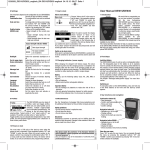
The home screen is divided into five sections:
1st line: Status line
2nd line:Profile
3rd line: Time, alarm clock
4th line: User line
5th line:Notification line (unread messages, charger masks and so on)
Status line
The following symbols may be displayed in the status line:
Alert type
Monitor alert
Loud alert
Quiet alert
Ascending alert
Discrete alert
Silent alert
Out of range display
No reception of alert messages
Bluetooth
Bluetooth turned on, but not
connected with a device
Bluetooth is connected with a
device
Key lock
Key lock is activated
Battery level
Display
Battery full, ¾, ½, ¼
Flashing
Charge the battery!
BA Quad Voice en.indd 2
Profile display
This line indicates the currently selected profile.
Time/alarm clock
This line shows the time. You can also see whether the alarm
clock is activated.
Alarm clock
Alarm clock function is activated
User line
A user-specific text is displayed.
Notification line
This line shows the charger mask and the programming
mask. If there are unread (unacknowledged) messages in the
memory, the folder information is displayed.
Folder information
Number of unread messages in the
message inbox
Number of unread messages in
message folder A
Number of unread messages in
message folder B
5. Processing alerts/messages
Receive and read new messages
When your s.QUAD receives a message, an alert occurs
through sound, vibration and illumination of the OK button,
followed by the voice announcement. By pressing the OK button, you can stop the alert. The header (timestamp) shows the
message date, message time and address name. If you now
press the BACK navigation button, the header is displayed in
full. A predefined ‘Fixtext’ may be displayed with each alert. In
case a Hybrid-Alert including text was received, the messagetext follows the fixtext. The downward-pointing arrow indicates that there is more text.
Header
(timestamp)
Fixtext
End of message
not reached
You can use the OK button or the FORWARD navigation button
to scroll to the end of the message.
The message is marked as read as soon as you reach the end.
Listen to announcement again
To listen to the announcement again, you simply need to press
the OK button from the home screen. Playback of the announcement will begin automatically. Announcements can
also be played directly from the message inbox, depending on
the configuration.
Message storage
The messages are stored in the message inbox or in the
appropriate folder. They are stored chronologically in a list.
Unread or protected messages are marked in the list. Unread
messages are also indicated in the home screen.
Read
message
Unread
message
Protected
message
Protect/delete messages
The ‘Protect message’ function allows you to protect a read
message. To delete a message, select ‘Delete message’. The
‘Empty folder’ function lets you delete all messages in the list.
Lock messages or folders with a PIN
The ‘Lock message’ function allows you to lock a message. To
be able to read a locked message, you must first enter the
corresponding PIN code. Similarly, you can use the ‘Lock folder’ function to protect an entire folder with a PIN code. You can
also specify that messages in a folder should be automatically
locked after a timeout. After this timeout, you will need to enter the corresponding PIN to be able to read these messages.
Alert reminder
If your device was configured to use an alert reminder, you will
be reminded of unread messages after the preset time. The
alert reminder is turned off as soon as you have read all messages.
•SilentTo alert you, the display backlight and
vibration are activated for ten seconds. The
device is totally mute; furthermore, no key
clicks are audible.
•MonitorThe alert occurs as a Loud alert. Whenever
radio communication is detected, it may be
heard on the loudspeaker.
The following table shows the various types of alert:
Alert type
Symbol Alert
Monitor
Standard
signalling
Standard
signalling
Loud
Standard
signalling
Standard
signalling
Quiet
Standard
signalling – quiet
Crescendo
volume
Ascending
Crescendo
volume
Crescendo
volume
Discreet
10-second vibration, quiet sound
10-second vibration,
crescendo volume
Silent
10-second
vibration
10-second vibration,
crescendo volume
6. Main menu
When you press the FORWARD navigation button, the device
switches from the home screen to the main menu. You can
use the FORWARD and BACK navigation buttons to navigate to
the individual menu items. To open a selected menu item,
press the OK button. To leave the main menu or to go to the
next higher menu, press ‘ESC’.
Main menu
•Alerting
See the chapter ‘Alerting’
•Switch off
Switch off device
•SettingsThis menu contains various settings for
the device (see the chapter ‘Settings’).
•Read last/ The last message or all unread
unread messagemessages can be read at any time by
pressing the OK confirmation button.
•MessagesHere you can manage the message
folders (message inbox, folder A,
folder B).
•Message inboxManage or read messages
(naming may differ)
•Folder A, B
Manage or read messages in the
message folders (naming may differ)
•ProfilesSelection of one of the pre-programmed profiles
The menu can be freely configured using the programming
software. Therefore, your menu on the device may differ considerably from the menu described here. Details regarding the
programming of the various menu items can be found in the
programming software manual.
7. Alert
You can select the following types of alert in the ‘Alerting’
menu:
•LoudThe alert pattern is played based on your
programming.
•Quiet
The alert pattern is played quietly.
•AscendingThe alert pattern begins quietly and
gradually gets louder.
•DiscreteThe alert is preceded by activation of the
display backlight and vibration for ten
seconds; the alert pattern is then played
quietly (once).
Alert for a priority
message
Sound as defined
Vibration
Quiet
Medium volume
Priority messages are signalled at the end always with the
programmed volume.
s.QUAD in the charger: – Vibration is not activated.
– The alert type can be overridden
using the charger mask.
8. Settings
The menu items under Settings depend very much on the
configuration of the s.QUAD.
Battery
Selection of the inserted power source
Confirmation toneYou can turn on or off the confirmation
tone that is played when a change is
applied.
BluetoothSettings for the Bluetooth 4.0
interface (Low Energy)
Date and timeYou enter the date/time by repeatedly
pressing the FORWARD and BACK
navigation buttons. If the correct
number is shown, press the OK button
to confirm.
25.02.15 12:03
Detailed status
– S tate display of the inserted power
source
– F ive-level display of the signal
strength at the current location
Last signal: signal strength of the last
transmission in the network
Last message: signal strength of the
last received message
Display of
.... No signal present
signal strength
(no reception)
(RSSI)
llll Best signal strength
– Bluetooth connection status
–D
evice information (serial number
and current firmware)
BacklightYou can turn the automatic backlight
on or off.
Out of range alarmYou can turn the acoustic warning of
the out of range alarm on or off.
ContrastYou can set the display contrast
between One (light) and Eight (dark).
Message fontSelect one of the various fonts for the
message text.
MelodiesSelect the address. After pressing the
OK button to confirm, you can use the
FORWARD or BACK navigation button
to change the alert melody.
Alert reminderSelect the type of alert reminder:
flashing and/or periodic beeping.
LanguageYou can select the menu language.
Key lockYou can turn automatic activation of
the key lock on or off.
Key click
You can turn the key click on or off.
Key vibrationA short vibration can be used to signal
that the end of a menu has been
reached. You can turn this function on
or off.
Alarm clockYou can set the alarm time and activate or deactivate the alarm clock.
VibrationYou can activate or deactivate
vibration.
9. Profiles
Select the ‘Profiles’ menu. The s.QUAD
has two types of profile: select profiles
and toggle profiles. Whilst only one of
the select profiles can be activated at
any one time, multiple toggle profiles
can be simultaneously active. You can
turn the toggle profiles on or off, irrespective of other profiles.
You can switch over the select profiles using the radio buttons . To turn the toggle profiles on or off, use the check
boxes .
10. Power-on PIN lock
If the Power-on PIN lock is configured in your s.QUAD, you
will be prompted to enter the PIN code when starting the
device for the first time.
Use the FORWARD and BACK navigation buttons to select the
individual numbers of the PIN code. Confirm the numbers by
pressing the OK button.
If you enter an incorrect PIN code ten times in succession,
the device will be locked. In this case, the only way to unlock
it is by using the programming software.
11. Alarm clock
13. Charging the battery/power supply
Set alarm clock
During the charging process, the LED of the charger glows
orange. A full charge takes approximately four hours. At the
end of the charging process, the colour of the LED changes to
green. The charge state and the name of the charging profile
are shown on the s.QUAD display. The two charging profiles
define the alert in a single device charger and in the multidevice charger.
Select the ‘Alarm clock’ menu. Use the
FORWARD and BACK navigation buttons
to turn the alarm clock on or off. You can
also use the FORWARD and BACK navigation buttons to set the alarm time.
Press the OK button to confirm.
The activated alarm clock function is displayed with the corresponding symbol in the home screen.
Acknowledge alarm
When the alarm clock sounds, the following selection appears:
Snooze or Stop. Selecting ‘Stop’ will end the current alarm
call. However, the alarm clock remains activated and will
wake you on the next day. Selecting ‘Snooze’ will initially turn
off the alarm sound. However, it will sound again after five
minutes.
The s.QUAD turns on with the alarm call
If the alarm clock is turned on and the s.QUAD is turned off,
the s.QUAD will turn on at the alarm time and the alarm clock
sounds.
12. Connection to an external device
(for example, smartphone)
The s.QUAD has a Bluetooth 4.0 Low Energy interface that can
be used to communicate with a remote terminal (smartphone). You can turn the interface on or off using the menu. If
the interface is turned off, then the s.QUAD cannot be accessed via Bluetooth. The status of the Bluetooth interface is
shown using a symbol in the status line.
Connection setup
As soon as the Bluetooth interface is turned on on the s.QUAD,
a connection with the remote terminal (smartphone) is set up
(advertising). The s.QUAD is visible on the remote terminal
(smartphone) as soon as advertising has been successful.
Pairing
During advertising, the s.QUAD transmits an identifying name
(s.QUAD and serial number) via the Bluetooth interface. You
can now select the relevant s.QUAD on the remote terminal
(smartphone).
You can change the identifying name on the remote terminal.
This will not affect the serial number.
To prevent an inadvertent or unauthorised connection, a sixdigit number (passkey) is displayed on the s.QUAD during
connection setup and you must enter it on the remote terminal
(smartphone).
The s.QUAD remembers the connection with the remote terminal. This applies even after the battery has been replaced. If
the device wishes to connect with the s.QUAD again, the connection is established automatically. As long as the connection
remains active, the s.QUAD will not be visible to other remote
terminals (smartphones).
Terminating a connection
If you would like to connect the s.QUAD with another remote
terminal (smartphone), you must first delete the active connection.
User Manual
s.QUAD Voice
1. Introduction
Congratulations on your new
Swissphone receiver! When you
purchased the new s.QUAD, you
chose a top-range device. The
s.QUAD delights with its optimum
combination of user-friendly design, high carrying comfort and top
quality. It offers easy operation via
four buttons and a graphical display.
Power source
You can use the following AA or LR6, AM3 or Mignon batteries
as a power source:
•Dry cell:
leak-proof alkaline dry cell battery
•Rechargeable battery: nickel-metal hydride rechargeable
battery
Important:
•Alkaline batteries must not be charged. There is a risk of
explosion!
•For safety reasons, only use original chargers from the
accessory product range of Swissphone Wireless AG.
•Never expose dry cell batteries or rechargeable batteries
to open flames. There is a risk of explosion!
The s.QUAD can be custom configured. For this reason, some of
the functions described in this brief operating manual may be
missing on your device.
14. Miscellaneous
We wish you success in using the s.QUAD.
Further information on this product and other products of
Swissphone Wireless AG can be found at:
http://www.swissphone.com
2. Getting started
Safety notices
•This product must not be used in explosive environments.
•The device must not be opened.
Liability disclaimer
Swissphone Wireless AG gives no guarantee and accepts no
liability in connection with the content of this document.
The company reserves the right to make changes to the content of the s.QUAD Operating Manual.
This brief operating manual provides important information
that will help you get the most out of your device. Always keep
this manual ready to hand.
Insert power source
The s.QUAD works with either a dry cell battery or a rechargeable battery. Insert the power source into the s.QUAD, making
sure that you observe correct polarity. The s.QUAD will turn on
automatically. A functional test is then performed. After the test,
please specify whether you have inserted a dry cell battery or a
rechargeable battery. The device is now ready for operation.
Further information on the power supply can be found in the
chapter ‘Charging the battery/power supply’.
Turn on
To manually turn on the s.QUAD, you must press and hold one
of the four buttons until the start screen or start text appears on
the display. The home screen is visible after a few seconds and
the s.QUAD is ready for operation.
3. Button function and navigation
This device complies with Part 15 of the FCC Rules.
Operation is subject to the condition that this device
does not cause harmful interference.
The device meets the provisions of the European
directive R&TTE 99/05/EG (‘Radio Equipment and
Telecommunications Terminal Equipment’).
You can request a copy of the declaration of conformity
from [email protected].
BACK navigation FORWARD
navigation button
button
– Scroll backwards – Scroll forward in
the menu
in the menu
– Change settings – Change settings
– Display the start – Display the secscreen or start text ondary menu
by holding the
button
ESC button
– Leave the current menu level
– Go to the home screen
by holding the button
OK confirmation
button
– Read messages
– Confirm and acknowledge alert
– Confirm menu
selection
– Call up the last
message received
FORWARD
ESC BACK
OK
v1 02/2015 0343196
BA Quad Voice en.indd 1
25.02.15 12:03