1
LAUNCH
X-431
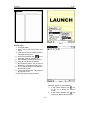
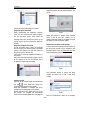
click the [view] that is in the same line with the
Transporter& V Class. The screen will display the
concrete information about the Transporter&V
Class diagnostic software.
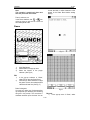
A new page will appear when user clicks
"Download" button. The pop up window will show
the description for updating the downloaded
software.
Hardware Requirement
The following should be made ready:
1. A computer that can be connected to
Internet.
2. A CF card reader/writer and a CF card that
need to be updated.
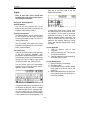
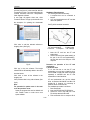
See Fig.63 for hardware connection.
Fig 61
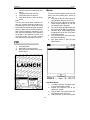
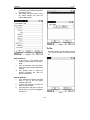
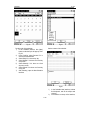
Click 'order' to add the selected software to
shopping chart. (See fig.61).
Fig.63
1-CF card reader/writer
3-USB Port 4-Computer
2-Update cable
5-CF cartridge
1. Insert the CF card into the CF card
reader/writer.
2. Connect one end of the update cable(2) to
the port of the CF card reader/writer(1),
and the other end to the USB port of the
computer.
Fig 62
Precaution on operation of the CF card
reader/writer:
1) Install the driver
If it is the first time to use the CF card
reader/writer, you may have to install its driver.
Use CD-ROM or floppy disk which are bought
separately or delivered with the CF card
reader/writer to install the driver.
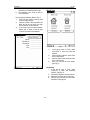
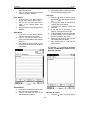
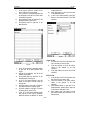
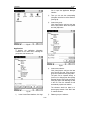
Click 'pay' to buy the software. The bought
software will be automatically added to the user's
download center.
Click 'clear' to clear all the software in the
shopping cart.
Click 'purchase other' to buy other software. (See
fig 62).
Note:
The operation for update center is the same
as for the purchase center.
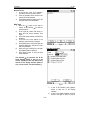
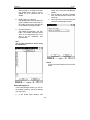
Select the programs that can be deleted and
click "Delete" button to make some more
space available.
CF card reader/writer can use the default
driver in Windows Me/2000/XP and Mac OS
9.x/Mac OS X. However, it is necessary to
install the driver on Windows 98.
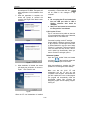
The installation procedure is as follows:
1. Boot Windows 98.
2. Insert the CD-ROM into CD-ROM drive.
3. Connect CF card to the USB port of the
PC with the attached USB cable.
4. Find and Double click on setup.exe file in
C-29