1
Creating a picture-in-picture effect
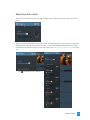
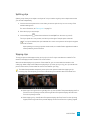
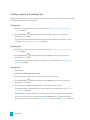
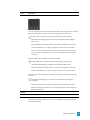
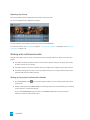
The Picture in Picture effect allows you to resize and position clips for picture-in-picture compositing.
Creating the inner picture
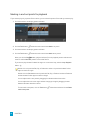
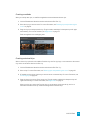
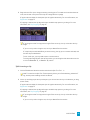
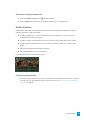
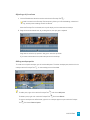
1. Create two tracks in your project. For more information, see "Adding tracks to a project" on page 43.
2. Add clips to your tracks:
n The top track will contain the smaller, inner picture.
n The bottom track will contain the background clip.
For more information, see "Adding media and creating clips" on page 35.
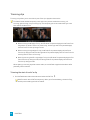
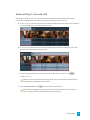
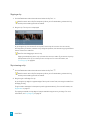
3. Click the top track to select it.
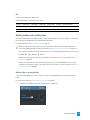
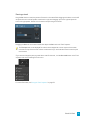
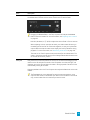
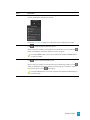
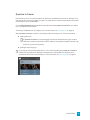
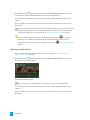
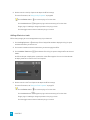
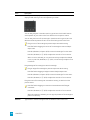
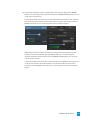
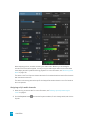
4. Click the Track button
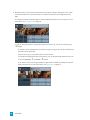
below the timeline and choose Picture in Picture. The controls for the
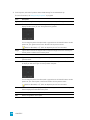
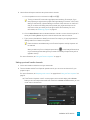
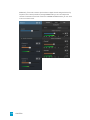
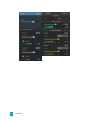
Picture in Picture plug-in are displayed in the Track Inspector.
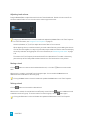
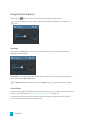
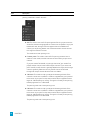
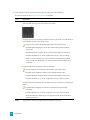
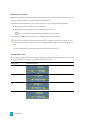
Editing picture in picture settings
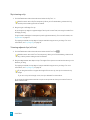
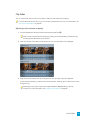
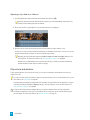
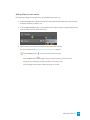
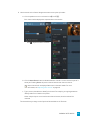
1. Select the track that contains the top clip.
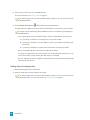
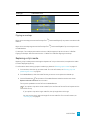
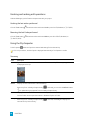
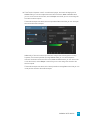
2. Click the Inspector button to show the Inspector pane.
102 CHAPTER 7