1
Trimming clips
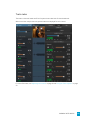
Trimming a clip allows you to control which part of the clip is played on the timeline.
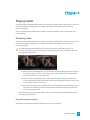
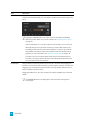
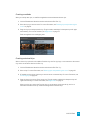
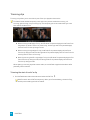
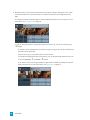
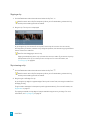
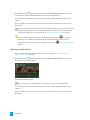
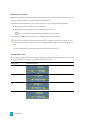
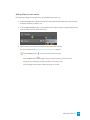
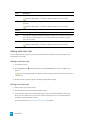
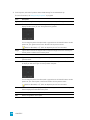
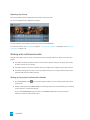
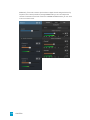
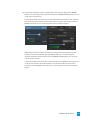
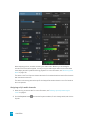
The Video Preview window temporarily enters split-screen preview mode when trimming, rolltrimming, split-trimming, or slip-trimming clips. This temporary split-screen mode allows you to see
both sides of the edit at once:
n When trimming the left edge of a clip, the left side of the preview displays the last frame from
the previous clip (black if there is no previous clip), and the right side of the preview displays
the first frame from the clip being trimmed.
n When trimming the right edge of a clip, the left side of the preview displays the last frame
from the clip being trimmed, and the right side of the preview displays the first frame from the
next clip (black if there is no next clip).
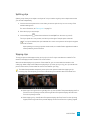
n When slip trimming the left or right edge of a clip, the left side of the preview displays the first
frame from the clip being trimmed, and the right side of the preview displays the last frame
from the clip being trimmed.
When splitting or trimming clips that contain audio, an invisible fade is applied at the edit to soften
potentially harsh transitions.
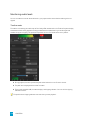
Trimming the start of end of a clip
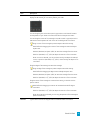
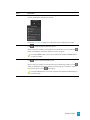
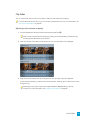
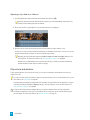
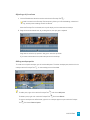
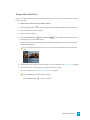
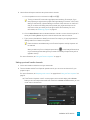
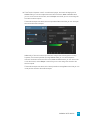
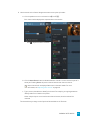
1. Click the Tools button below the timeline and select the Edit Tool
.
Hold E to switch to the Edit Tool temporarily. When you're finished editing, release the E key,
and the previous editing tool will be restored.
64 CHAPTER 6