1
Using markers
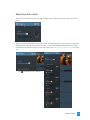
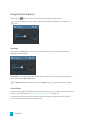
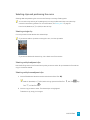
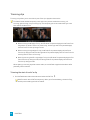
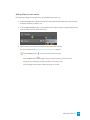
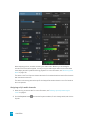
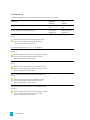
Markers can be used to indicate points of interest in projects or to make notes in the project.
Adding a marker
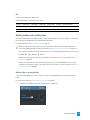
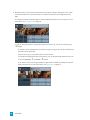
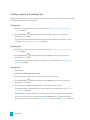
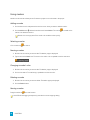
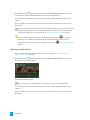
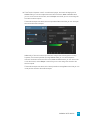
1. Click to select a track and position the timeline cursor where you want to add the marker.
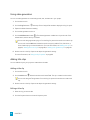
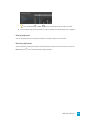
2. Click the Add button
below the timeline and choose Marker. The marker
marker ruler above the timeline.
is created on the
Double-click an empty area of the marker ruler to add a marker quickly.
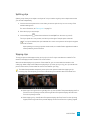
Selecting a marker
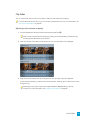
Click a marker tag
to select it.
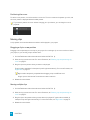
Naming a marker
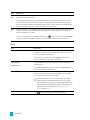
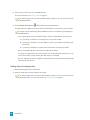
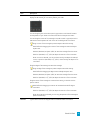
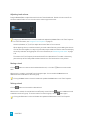
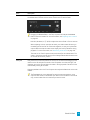
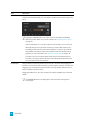
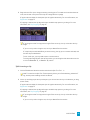
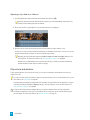
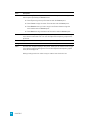
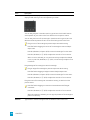
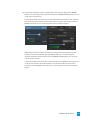
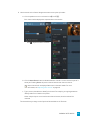
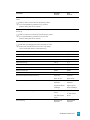
1. Double-click the marker you want to edit. The Marker popup is displayed.
2. Type a name in the Name box. The name in the marker ruler is updated to use the new name.
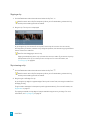
Changing a marker's color
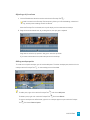
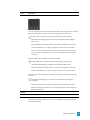
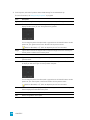
1. Double-click the marker you want to edit. The Marker popup is displayed.
2. Click a color swatch. The marker tag is updated to use the new color.
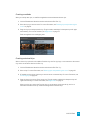
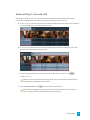
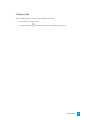
Deleting a marker
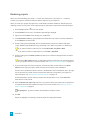
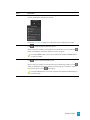
1. Double-click the marker you want to delete. The Marker popup is displayed.
2. Click the Delete button.
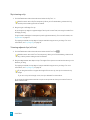
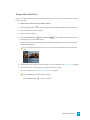
Moving a marker
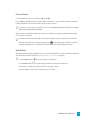
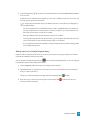
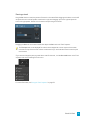
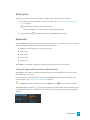
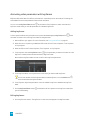
Drag the marker tag
to a new location.
Hold Shift while dragging to temporarily override the current snapping setting.
78 CHAPTER 6