1
Chap. 6
General
Inside the application Graphic Processing it is possible to see again the acquisition files (here after called
graphics) of the tests independently from the used method and from the belonging log.
This module doesn’t calculate the results, but it has the aim to have a quality image of the single test
(for example it is possible to verify the running of the load and of the deformation according to the
time, the load gradient and/or deformation had in certain portion of the graphic and so on), and a
comparison analysis of more tests performed in different times and modalities.
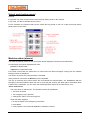
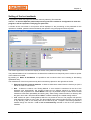
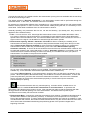
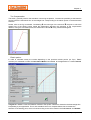
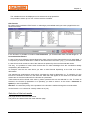
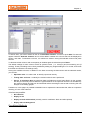
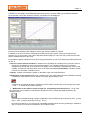
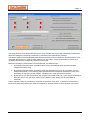
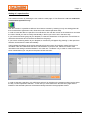
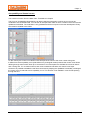
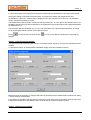
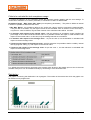
The display page is divided in two areas.
The first is reserved to the display of the selected graphic traces, the second is reserved to the display of
the graphic list open with the correspondence of traces colours.
These two areas can be suitably dimensioned by keeping the mouse pressed on the separating bar et by
moving it in the desired direction.
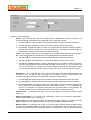
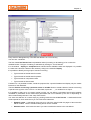
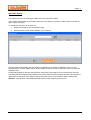
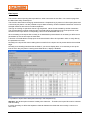
Though the voice Menù File>>Open Graphic it is possible to open one or more graphic files by the usual
Windows procedure of File opening that is briefly remembered.
First of all, in the list there are only the files with extension GRF which are the files associated to the curves
of the tests generated with the GraphWork program.
Opening of a single file: It is sufficient to select it in the proposed list
Random selection of files : Keep the key Ctrl pressed and select the desired files by
the mouse
Selection of a file consecutive assembly : keep the key shift (↑
↑) pressed and select
the first and last file of the desired list. Also the other files included between the 2
identified ones are automatically selected.
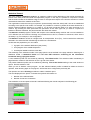
The opened files are displayed with a colour assigned for default.
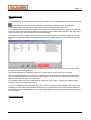
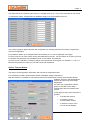
The colours can be modified by simply making a double click on the desired graphic in the list of the open
graphics.
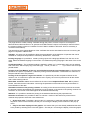
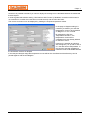
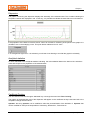
To close a graphic it is necessary to select in the list of the open files all the graphics that you want to close
and then select the item of the menu File>>Close Graphics.
You will see a message confirming the operation and then the graphic will be updated with the new selection
of open graphics.
GALDABINI Spa
GraphWork 3 – User’s manual (2731A) – 6-1