1
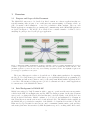
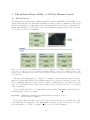
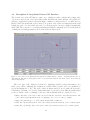
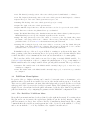
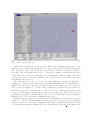
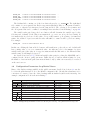
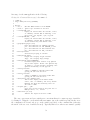
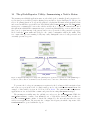
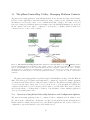
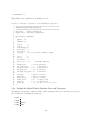
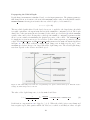
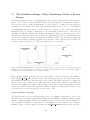
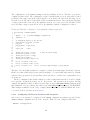
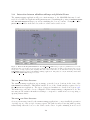
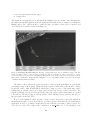
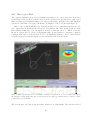
Figure 40: The OpArea panel of the alogview tool: Vehicle position(s) for a given point in time are rendered
along with vehicle trajectory history and certain geometric visual artifacts such as points, polygons and line segments
that may have been posted by the helm or another MOOS process. The image in this figure can be replicated exactly
by launching alogview on the alpha.alog file from the Alpha mission distributed with the MOOS-IvP source code,
launched with the --nowtime=144 command line option.
fixed intervals until paused or until the end of the latest timestamp of all loaded log files. The
time interval between step executions can be sped up or slowed down with the ’a’ or ’z’ keys
respectively. The primary motivation of streaming was to have the option of doing a screen capture
of images on each step saved to a file for later compilation as an animation (typically animated
GIF). Screen capturing can be enabled from the Playback pull-down menu or by hitting the ’w’
key. When enabled, a purple box should be rendered over the Op-Area panel indicating the scope
of the screen capture. By successively hitting the ’w’ key, the capture box is changed between
the following extents: "1024x768", "800x600", "640x480", "480x360", and "off". The capturing
is done by invoking a system call to the import tool distributed with the powerful ImageMagick
Open Source package.
Vehicle and Vehicle History Renderings - The Vehicles Pull-down Menu
The rendering of vehicle size, type and color, vehicle trails and the position of the vehicles may
be altered via the Vehicles pull-down menu options. The vehicle size and shape upon startup is
determined from the NODE REPORT LOCAL variable (See Section 10.1.2). The set of displayable shapes
in alogview is the same as that for the pMarineViewer application and shown in Figure 10 on page
33. The rendering of vehicles in the Op-Area panel may be toggled off and on by hitting the
CTRL-’v’ key, and the size of the vehicles may be altered with the ’-’ and ’+’. The size of the
rendered vehicle initially is drawn to scale based on the length reported in NODE REPORT LOCAL, and
can be returned to scale by hitting the ALT-’v’ key.
156