1
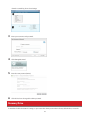
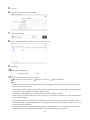
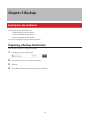
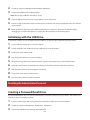
Note: All data on the USB flash drive will be erased!
4
5
6
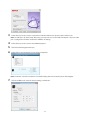
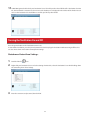
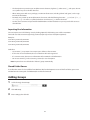
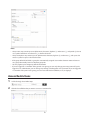
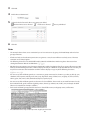
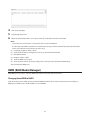
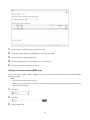
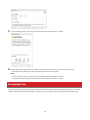
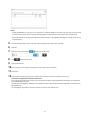
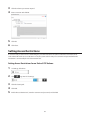
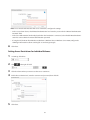
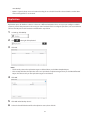
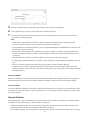
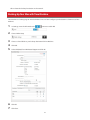
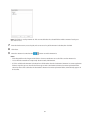
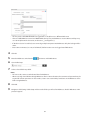
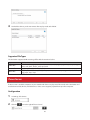
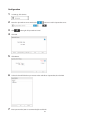
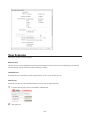
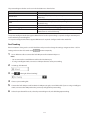
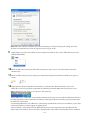
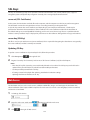
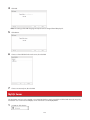
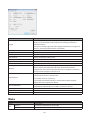
Select the USB memory device from “Target USB drive” list, then click Execute.
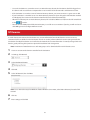
Enter the 4 digit confirmation number and click OK. The TeraStation will create the password reset drive. This will
take about a minute.
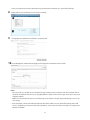
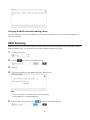
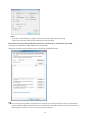
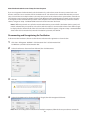
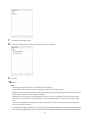
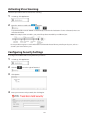
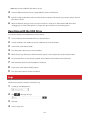
When the “finished” dialog opens, the password reset drive is ready to use. Dismount the USB drive before
unplugging it. See “Dismounting Drives” in chapter 4 for the instructions on dismounting drives.
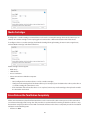
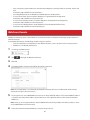
Resetting with the USB Drive
To reset your admin password, follow the procedure below.
1
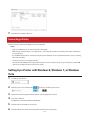
Create a USB “password initialization” drive as described above.
2
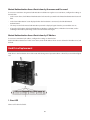
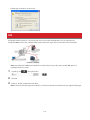
Insert the USB drive into a USB 2.0 port (not a USB 3.0 port) on the TeraStation.
3
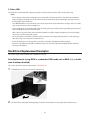
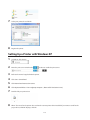
Set the boot mode switch to “USB”.
4
Press the power button to turn on the TeraStation.
5
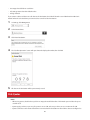
When the message “Recovery I41 PushFuncToStart” appears on the LCD panel, press the function button.
6
The password will be reset to its factory default. The TeraStation will shut down when it’s finished.
7
After shutdown, “Recovery I39 Change Boot” is displayed.
8
Set the boot mode switch to “HDD” position.
9
Press the power button to start the TeraStation.
Logs
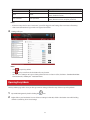
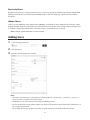
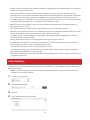
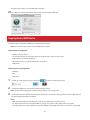
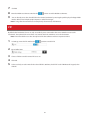
Follow this procedure to check the TeraStation’s logs.
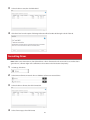
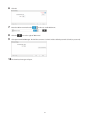
1
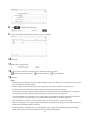
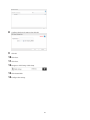
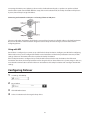
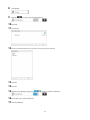
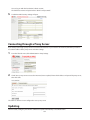
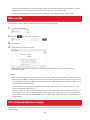
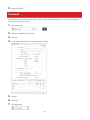
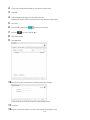
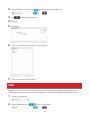
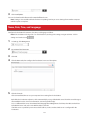
In Settings, click Management.
2
Click
3
Click Edit.
4
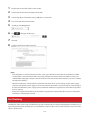
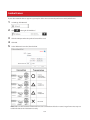
Select a log to view.
to the right of “Logs”.
129