1
Information and Communication Technologies (ICT) Programme
Project No: FP7-ICT- 247615
HEAP
Deliverable D3.2
Data dependency profiling tool
User Manual and Tutorial
Author(s): Mihai T. Lazarescu (PoliTo)
Status -Version: V1.4
Date: 23 January 2012
Distribution - Confidentiality: Public
Code: HEAP_D3.2_PTO_V1.4_20120123
Abstract: In this deliverable there is a description of the data dependency and profiling sub-toolset
Copyright by the HEAP Consortium
FP7-ICT-247615 - HEAP
Free Software-Based Flow for the Visualization of the
Parallelism in the Program Execution -- User Manual and Tutorial
Disclaimer
This document contains material, which is the copyright of certain HEAP contractors, and may not be
reproduced or copied without permission. All HEAP consortium partners have agreed to the full publication of this document. The commercial use of any information contained in this document may
require a license from the proprietor of that information.
The HEAP Consortium consists of the following companies:
No
Participant name
Participant
short name
Country
Country
1
ST Microelectronics
STM
Co-ordinator
Italy
2
Synelixis Solutions Ltd
Synelixis
Contractor
Greece
3
Thales Communications
Thales
Contractor
France
4
ACE Associated Compiler Experts B.V.
ACE
Contractor
Netherlands
5
Compaan Design
Compaan
Contractor
Netherlands
6
Politechnico Di Torino
PoliTo
Contractor
Italy
7
ATHENA Industrial Systems Institute
Athena
Contractor
Greece
8
Universita Degli Studi Di Genova
UniGe
Contractor
Italy
9
SingularLogic
SiLo
Contractor
Greece
10
Uppsala Universitet
Uppsala
Contractor
Sweden
HEAP_D3_2_final.doc
Page 3 of 40
FP7-ICT-247615 - HEAP
Free Software-Based Flow for the Visualization of the
Parallelism in the Program Execution -- User Manual and Tutorial
Document Revision History
Date
Issue
Author/Editor/Contributor
Summary of main changes
2011—09—19
1.1
1st draft. No deliverable no. yet
2011—09—20
1.2
Mihai T. Lazarescu
Mihai T. Lazarescu
2nd draft. No deliverable no. yet
2011—12—14
1.3
Mihai T. Lazarescu
Updated for tracer written in C.
2012—01—23
1.4
Mihai T. Lazarescu
Annotation and tracing tools details.
HEAP_D3_2_final.doc
Page 4 of 40
FP7-ICT-247615 - HEAP
Free Software-Based Flow for the Visualization of the
Parallelism in the Program Execution -- User Manual and Tutorial
Table of contents
1. Introduction ...................................................................................................................................... 7
2. Tool Chain ......................................................................................................................................... 7
2.1. Source Code Analysis and Instrumentation ................................................................................. 7
2.1.1. HEAP-Specific Code Analysis and Annotations .................................................................. 7
2.2. Run-Time Data Dependency Tracer Library ............................................................................... 8
2.3. IDE ............................................................................................................................................... 9
2.4. Data Dependency Visualization................................................................................................... 9
3. Demo Virtual Machine ..................................................................................................................... 9
3.1. Virtual Machine Set-up .............................................................................................................. 10
3.2. Optional Virtual Machine Set-up ............................................................................................... 15
3.3. Start of the Virtual Machine ...................................................................................................... 17
4. Demo Project................................................................................................................................... 18
4.1. Load the Demo Project .............................................................................................................. 18
4.2. Run the Demo Analysis .............................................................................................................. 20
4.3. Run the Data Dependency Visualization ................................................................................... 22
5. New Project ..................................................................................................................................... 26
6. Logout and Turning Off the VM .................................................................................................. 26
7. Tracer data structure ..................................................................................................................... 28
8. Excerpts of VirtualBox Documentation on Shared Folders ....................................................... 31
8.1. Manual mounting ....................................................................................................................... 32
8.2. Automatic mounting ................................................................................................................... 32
9. Excerpts of Code::Blocks Documentation on Creation of a New Project .................................32
9.1. The project wizard ..................................................................................................................... 33
9.2. Changing file composition ......................................................................................................... 34
9.2.1. Adding a blank file .............................................................................................................. 34
9.2.2. Adding a pre-existing file.................................................................................................... 36
9.2.3. Removing a file ................................................................................................................... 36
10. Source Code Annotation Example .............................................................................................. 36
10.1. Developer C Source Code........................................................................................................ 37
10.2. C Source Code Annotated using HEAP API ............................................................................ 37
HEAP_D3_2_final.doc
Page 5 of 40
FP7-ICT-247615 - HEAP
Free Software-Based Flow for the Visualization of the
Parallelism in the Program Execution -- User Manual and Tutorial
Abbreviations
HEAP_D3_2_final.doc
Page 6 of 40
FP7-ICT-247615 - HEAP
Free Software-Based Flow for the Visualization of the
Parallelism in the Program Execution -- User Manual and Tutorial
1. Introduction
The open-source flow for the analysis of the execution parallelism provides:
•
an IDE for the development of C language-based software projects (shared with the dependency visualization flow)
•
a program to analyse the developer C source code and to generate a functional model instrumented with code for data collection during program execution
•
a library to analyse the data gathered during program execution, at run-time, and to generate
a compact representation of the data dependencies between program instructions.
The companion tools for the visualization of data dependencies are covered by D3.4, namely:
•
an IDE for the development of C language-based software projects
•
a graphical visualization program that displays and allows the exploration of data dependencies, with automated cross-references to the source code in the IDE.
A free software virtual machine was configured with the whole chain as a means to achieve a consistent distribution able to demonstrate the tool functionality and receive valuable feedback for its further development.
2. Tool Chain
The tool chain and the virtual machine make use only of free software tools.
The changes to the tools as well as the virtual machine configuration provided are considered a beta
release. Please provide feedback to improve it.
2.1. Source Code Analysis and Instrumentation
The source code analysis and instrumentation tool is based on the CIL platform 1 (C Intermediate
Language). CIL is written in ocaml 2 and provides a high-level representation along with a set of
tools that facilitate the analysis and the source-to-source transformations of C programs.
CIL is both lower-level than abstract-syntax trees, by clarifying ambiguous constructs and removing
redundant ones, and also higher-level than typical intermediate languages designed for compilation,
by maintaining types and a close relationship with the source program. The main advantage of CIL is
that it compiles all valid C programs into a few core constructs with very clean semantics. Also CIL
has a syntax-directed type system that makes it easy to analyse and manipulate C programs. Furthermore, the CIL front-end is able to process not only ANSI-C programs but also those using Microsoft
C or GNU C extensions.
A new code analysis and instrumentation module was written for the HEAP project. Some suitable
existing CIL modules were merged and extended to implement the required functionality for code
analysis and annotation.
2.1.1. HEAP-Specific Code Analysis and Annotations
The annotator for the HEAP project reuses as much as possible the existing CIL engines for code
analysis, transformation and annotation. This brings two major benefits. First, it allows focusing
more project development efforts towards project-specific tasks. Second, it benefits the overall quali1
2
http://sourceforge.net/projects/cil/
http://caml.inria.fr/ocaml/
HEAP_D3_2_final.doc
Page 7 of 40
FP7-ICT-247615 - HEAP
Free Software-Based Flow for the Visualization of the
Parallelism in the Program Execution -- User Manual and Tutorial
ty of the tool by selecting and using the stable and reliable existing code instead of starting a new
development cycle.
A CIL extension, imarw.ml, was specifically written to perform all HEAP-related code analysis and
annotations. The extension interfaces with the intermediate representation (IR) of the source C program in CIL and uses its specific mechanisms to traverse and annotate the IR of the code.
The HEAP CIL extension reuses, to varying degrees, the following CIL code analysis and transformation engines.
The CIL extension logwrites.ml was used as the base upon which the whole HEAP CIL extension
was built. The extension was already performing code analysis and annotation that captured most of
the data accesses required for the HEAP project. The annotations were adapted to HEAP API specifications and extended to capture all data accesses needed.
The CIL extension logcalls.ml was then merged into the logwrites.ml extension. It captured and annotated function calls, also required for the HEAP project. The annotations were then adapted to
HEAP API specifications and extended to capture all function call aspects that are needed.
Besides these two CIL extensions that were used at source code level, other code transformation tools
were just enabled and used with no change at all.
One of these is dosimplify. It transforms all program expressions into three-address-mode, i.e., in a
concatenation of simple expressions with at most three elementary operands (either simple variables
or simple pointers to memory locations). This step is very important to ensure the correctness of the
HEAP API annotations.
Another CIL extension used without changes is dooneRet. This extension transforms the function
body CFG such way as to ensure there is only one return point. Also this step is very important to
ensure the correctness of the HEAP API annotations.
In addition to these full or partial code reuse cases, new functionality required for the HEAP project
was added, such as: annotation of the transfer actual function call arguments and return value, annotation of the dynamic memory allocation/free, annotation of all variable declarations (automatic for
each time a function is entered, static or global only the first time a function in a source file is entered).
An example of C source code and its annotated model is presented in annex 10.
2.2. Run-Time Data Dependency Tracer Library
The tracer library was written first in Perl 3 to allow fast prototyping of data structures and algorithms
for analysis. Once the structure was consolidated, it was fully rewritten in C to reduce the run time
(about 16x speed increase with respect to the Perl version and about 450x slower than the normal
application run).
The tracer library is linked with the instrumented application program under analysis to obtain an
executable program. To perform the execution analysis, this program should be run using the same
inputs as the normal (not annotated) application program. Data dependency is collected during program execution and at the end a summary file is generated that contains all the data needed to represent graphically the dependencies and the cross-references with the source program in the IDE.
The library is made of:
•
3
the HEAP API functions. These are called by the annotated source code during its execution
and capture in real-time the data of the events of interest, such as: data access R/W, variable
creation/destruction, function calls and actual arguments, etc.
http://www.perl.org/
HEAP_D3_2_final.doc
Page 8 of 40
FP7-ICT-247615 - HEAP
Free Software-Based Flow for the Visualization of the
Parallelism in the Program Execution -- User Manual and Tutorial
•
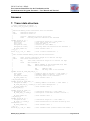
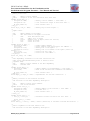
the tracer data structure (see annex 7. for details) needed to record and compress in real-time
the primary data of the events triggered during the instrumented program execution
•
utility functions for real-time and post-run data processing, such as: symbol table operations
(e.g., insert, remove, search), call stack management, automatic variable management, XML
generation, etc.
2.3. IDE
The IDE functionality is provided by Code::Blocks. 4 Code::Blocks is a well established crossplatform IDE that supports projects in C/C++/D languages. It runs on Linux, OS X, and Windows
platforms providing by design a consistent look, feel, and operation mode. It is written in C++ using
the wxWidgets 5 library and is designed to be very extensible and fully configurable.
A dedicated Code::Blocks plug-in was written for the HEAP project to extend the IDE functionality
to support the integration with the dependency visualization program.
2.4. Data Dependency Visualization
This tool chain component is based on the free software program ZGRViewer. 6 It is a graph visualiser implemented in Java and based upon the Zoomable Visual Transformation Machine. 7
ZGRviewer is specifically aimed at displaying graphs expressed using the DOT language from
AT&T GraphViz and processed by programs dot, neato or others such as twopi. It is designed to
handle large graphs and offers a zoomable user interface (ZUI), which enables smooth zooming and
easy navigation in the visualized structure.
In the latest version it can provide:
•
overview + detail views
•
focus+context magnification with Sigma Lenses views
•
graphical fish-eye focus+context distortion views
•
navigation along graph edges with Link Sliding
•
navigation from node to node with Bring & Go.
The tool chain includes the latest stable release (version 0.8.2), thus the features may differ from the
latest development version.
3. Demo Virtual Machine
A Linux 8 VirtualBox 9 virtual machine (VM) was configured to reliably support the functionality of
the tool chain. Both the linux distribution (Fedora) and VirtualBox are free software.
The VM OS is a ruthlessly stripped-down Fedora 14 10 distribution able to support a graphical interface and the HEAP tool chain.
4
5
6
7
8
9
10
http://www.codeblocks.org/
http://www.wxwidgets.org/
http://zvtm.sourceforge.net/zgrviewer/news.html
http://zvtm.sourceforge.net/
https://secure.wikimedia.org/wikipedia/en/wiki/Linux
http://www.virtualbox.org/
https://fedoraproject.org/wiki/Fedora_14_announcement
HEAP_D3_2_final.doc
Page 9 of 40
FP7-ICT-247615 - HEAP
Free Software-Based Flow for the Visualization of the
Parallelism in the Program Execution -- User Manual and Tutorial
The users defined on the virtual machine are:
•
root with the password: Demo11HEAP
This login can be used to perform administration tasks on the VM, if required.
•
heapdemouser with the password: Demo11HEAP
This login is used for all tool chain-related activities.
3.1. Virtual Machine Set-up
The virtual disk was created for the version 4.1.6 of VirtualBox and can be used on any host OS supported by VirtualBox (Linux, Macintosh, Solaris, Windows).
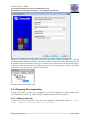
The virtual machine set-up follows the typical wizard steps, with the default settings after clicking on
“New” button:
then on “Next >”:
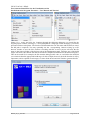
Input a name of you choosing, but select “Linux” for the operating system and “Fedora” for the version, then click on “Next >”:
HEAP_D3_2_final.doc
Page 10 of 40
FP7-ICT-247615 - HEAP
Free Software-Based Flow for the Visualization of the
Parallelism in the Program Execution -- User Manual and Tutorial
Leave the memory allocation as suggested, it can be changed later on as necessary:
HEAP_D3_2_final.doc
Page 11 of 40
FP7-ICT-247615 - HEAP
Free Software-Based Flow for the Visualization of the
Parallelism in the Program Execution -- User Manual and Tutorial
The OS was configured without swap area to reduce the virtual disk size, so it has to fit in the virtual
machine memory allocation. The memory allocation can be also lower; our tests ran well with
512MB.
Next select as the start-up disk the virtual disk provided 11 and click on “Next >”:
Review the virtual machine characteristics summary and click “Create”:
11
The VM disk releases are available here:
http://polimage.polito.it/wsnwiki/doku.php?id=research:sw:par_vm:start
HEAP_D3_2_final.doc
Page 12 of 40
FP7-ICT-247615 - HEAP
Free Software-Based Flow for the Visualization of the
Parallelism in the Program Execution -- User Manual and Tutorial
Once created, select the virtual machine from the list and click on settings:
We will add a virtual monitor to the virtual machine to have enough display real estate to be able to
properly visualize both the IDE and the dependency visualization windows.
Select “Display” on the left column. Change “Monitor Count” to “2” and click “OK”:
HEAP_D3_2_final.doc
Page 13 of 40
FP7-ICT-247615 - HEAP
Free Software-Based Flow for the Visualization of the
Parallelism in the Program Execution -- User Manual and Tutorial
To facilitate the data exchange with the virtual machine you may allow the virtual machine access
your host file system. On the “Shared Folders” tab:
HEAP_D3_2_final.doc
Page 14 of 40
FP7-ICT-247615 - HEAP
Free Software-Based Flow for the Visualization of the
Parallelism in the Program Execution -- User Manual and Tutorial
Click on the add ( ) button on the right and input the folder data (please refer to VirtualBox documentation 12 or annex 8. for additional details):
12
http://www.virtualbox.org/manual/ch04.html#sharedfolders
HEAP_D3_2_final.doc
Page 15 of 40
FP7-ICT-247615 - HEAP
Free Software-Based Flow for the Visualization of the
Parallelism in the Program Execution -- User Manual and Tutorial
3.2. Optional Virtual Machine Set-up
Also in the virtual machine settings the audio interface can be disabled for a slightly faster VM
startup:
The VM ssh port can be mapped by the VM NAT to a guest port using the “Port Forwarding” button under “Advanced” pane in the “Network” settings:
HEAP_D3_2_final.doc
Page 16 of 40
FP7-ICT-247615 - HEAP
Free Software-Based Flow for the Visualization of the
Parallelism in the Program Execution -- User Manual and Tutorial
Click on add () button and fill the fields. For instance, the setting in the figure above connects the
host port 20002 to the guest ssh port (22). To connect on the guest with this setting issue on a linux
host:
ssh heapdemouser@localhost -p 20002
3.3. Start of the Virtual Machine
To start the VM select it from the list and click on the “Start” button:
A window will open for each of the two virtual monitors defined in the settings. One of them is attached to the VM console and will display the boot up sequence:
HEAP_D3_2_final.doc
Page 17 of 40
FP7-ICT-247615 - HEAP
Free Software-Based Flow for the Visualization of the
Parallelism in the Program Execution -- User Manual and Tutorial
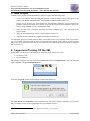
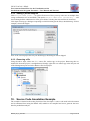
The VM will reboot and the user “heapdemouser” will be automatically logged in to a minimal
GNOME workspace.
4. Demo Project
The buttons to launch the applications of interest are exposed for convenience on the top panel of the
workspace, right next to Fedora menus:
From left to right, they are:
•
opens a terminal window;
•
opens Code::Blocks IDE;
•
discards a hanged instance of the Code::Blocks IDE;
•
displays the user manual of the distribution.
4.1. Load the Demo Project
Click on the Code::Blocks button (
HEAP_D3_2_final.doc
) to start the IDE:
Page 18 of 40
FP7-ICT-247615 - HEAP
Free Software-Based Flow for the Visualization of the
Parallelism in the Program Execution -- User Manual and Tutorial
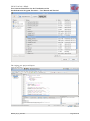
Select “File” from the top menu, then click on “Open...”. In the file selection window that opens
navigate to “heapdemouser/projects/mjpeg_par”, select “mjpeg_par.cbp” and click on “Open”:
HEAP_D3_2_final.doc
Page 19 of 40
FP7-ICT-247615 - HEAP
Free Software-Based Flow for the Visualization of the
Parallelism in the Program Execution -- User Manual and Tutorial
The “mjpeg_par” project will open:
HEAP_D3_2_final.doc
Page 20 of 40
FP7-ICT-247615 - HEAP
Free Software-Based Flow for the Visualization of the
Parallelism in the Program Execution -- User Manual and Tutorial
Now start the visualization program by clicking on the “HEAP” entry of the top menu and then on
“Run”:
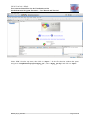
The ZGRViewer visualizer window will open:
Arrange the IDE and the ZGRV windows on the screen to have a clear view of both. If you have two
monitors attached to the host machine you may wish to move the ZGRV window on the second
monitor of the VM and then move this VM second monitor window on the second physical monitor
of the host.
4.2. Run the Demo Analysis
The analysis tool chain is run from the command line. A script is provided that loosely glues together
the whole chain.
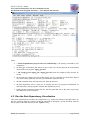
Note: the instrumented program runs about 450 times slower than the native run.
Open a terminal window by clicking on the icon in the top panel of the workspace and go into the
directory of the mjpeg_par project of the IDE:
HEAP_D3_2_final.doc
Page 21 of 40
FP7-ICT-247615 - HEAP
Free Software-Based Flow for the Visualization of the
Parallelism in the Program Execution -- User Manual and Tutorial
In this directory run the tracer.sh script with arguments:
tracer.sh -- mjpeg_par.c
where:
•
-- (double dash) ends the command line options that are passed to the compiler and linker;
•
mjpeg_par.c is the name of the source file to analyse:
HEAP_D3_2_final.doc
Page 22 of 40
FP7-ICT-247615 - HEAP
Free Software-Based Flow for the Visualization of the
Parallelism in the Program Execution -- User Manual and Tutorial
where:
•
+ /home/heapdemouser/projects/tracer/cil-1.4.0/bin/cilly is the starting command for CIL
compilation
•
the three gcc compilations that follow are part of the cilly run and generate the instrumented
model of the user program, mjpeg_par.cil.c
•
+ rm -f mjpeg_par.i mjpeg_par.o mjpeg_par.cil.i cleans the temporary files from the directory
•
the next gcc run compiles the CIL model (mjpeg_par.cil.c) and links it with the data dependency tracer library (libheap) and other system libraries (libxml2, libavl)
•
the rm command cleans the temporary files from the directory
•
the data dependency tracer is then run. It actually runs the user program instrumented for
data dependency tracing together with the data dependency tracer
•
finally, the mv command renames the file with the generated data to the name expected by
the ZGRViewer-based visualizer.
4.3. Run the Data Dependency Visualization
After each operation that can affect the visualization (e.g., change the folding in the IDE editor, update the visualizer data) the visualizer should be informed on the update. Access the HEAP menu on
the top menu of the IDE and click on the “Update” entry:
HEAP_D3_2_final.doc
Page 23 of 40
FP7-ICT-247615 - HEAP
Free Software-Based Flow for the Visualization of the
Parallelism in the Program Execution -- User Manual and Tutorial
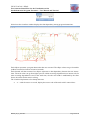
Notice how the visualizer window displays the data dependency among program instructions:
Each ellipse represents a program instruction that was executed. The ellipse colour can go from white
(seldom executed) to intense red (most executed).
Each directed arch that connects two ellipses represents a data dependency between the two instructions. The arch colour can go from light cyan (for seldom occurring dependencies) to intense red (for
most occurring dependencies) and, at the same time, also the arch width is modulated by the same
factor, the widest for the most occurring.
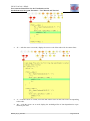
The visualizer implements a few handy shortcuts:
•
‘c’ -- with the cursor on a node, display the source code of the node with 5 context lines:
HEAP_D3_2_final.doc
Page 24 of 40
FP7-ICT-247615 - HEAP
Free Software-Based Flow for the Visualization of the
Parallelism in the Program Execution -- User Manual and Tutorial
•
‘C’ -- with the cursor on a node, display the source code of the node with 10 context lines:
•
‘e’ -- with the cursor on a node, move the IDE editor cursor on the source line corresponding
to the node;
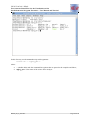
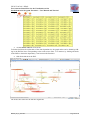
•
‘m’ -- with the cursor on an arch, display the unabridged list of data dependencies represented by the arch:
HEAP_D3_2_final.doc
Page 25 of 40
FP7-ICT-247615 - HEAP
Free Software-Based Flow for the Visualization of the
Parallelism in the Program Execution -- User Manual and Tutorial
•
‘g’ -- best fit of the graph on screen;
•
use the mouse wheel to zoom in/out.
To further facilitate the exploration of the data dependencies, the graph nodes can be folded by folding in the IDE the lines corresponding to the nodes source lines. For instance, by folding all blocks
in the IDE we obtain the dependency view between the functions:
•
fold all the blocks in the IDE:
•
update the visualizer:
The nodes still visible are the function arguments.
HEAP_D3_2_final.doc
Page 26 of 40
FP7-ICT-247615 - HEAP
Free Software-Based Flow for the Visualization of the
Parallelism in the Program Execution -- User Manual and Tutorial
5. New Project
Creating a new project for data dependency analysis requires the following steps:
1. create a new project under the IDE and populate it with the project source files (please refer
to the Code::Blocks documentation 13 for detailed explanation and to annex 9.).
Unless you are going to use Code::Blocks for development, importing a project for data dependency analysis is usually just a matter of copying the project file tree under the project directory using standard GUI or command line tools;
2. make sure the project compiles well with the native compiler (gcc), runs and produce the
proper results;
3. apply the data dependency analysis as described in section 4.2;
4. visualize the data dependency results as described in section 4.3.
An important aspect to consider when creating a new IDE project is its location. If the project directory is set on the VM virtual disk it can be lost with the next updates of the VM. It is safer to create
the project on the host file system that is accessible to the host OS using the shared folders configuration in section 3.1.
6. Logout and Turning Off the VM
At the end of a work session, the VM can be placed in a safe state in two ways:
1. by turning it off;
2. by suspending it.
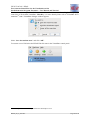
The VM was configured in such a way that it turns off when the “heapdemouser” logs out using the
menu “System”>”Log Out heapdemouser...”:
Click the “Log Out” button in the dialogue window that shows up:
The VM can be also suspended. Once suspended, the VM can be quickly resumed to its last state,
thus a working session can be resumed this way any number of times.
13
http://wiki.codeblocks.org/index.php?title=Creating_a_new_project
HEAP_D3_2_final.doc
Page 27 of 40
FP7-ICT-247615 - HEAP
Free Software-Based Flow for the Visualization of the
Parallelism in the Program Execution -- User Manual and Tutorial
The fastest way to suspend the VM is to use the VirtualBox short cuts. Press “Right Ctrl-Q” (right
control key is the default VirtualBox “Host Key”, for more details please refer to VirtualBox documentation 14) and a VirtualBox dialogue window appears:
Select “Save the machine state” and click “OK”.
To resume a saved VM select the HEAP VM click start in the VirtualBox control panel:
14
http://www.virtualbox.org/manual/ch01.html#idp7717712
HEAP_D3_2_final.doc
Page 28 of 40
FP7-ICT-247615 - HEAP
Free Software-Based Flow for the Visualization of the
Parallelism in the Program Execution -- User Manual and Tutorial
Annexes
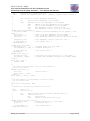
7. Tracer data structure
/* Global instruction ID offset. */
int imarw_insn_id_global_offset = 0;
/*
* Record the memory write instructions that are executed.
*
* key
instruction unique ID
* value
instruction stats as:
*
*
location instruction location (file:line)
*
ticks
how many times the instruction was executed
*/
typedef struct wi_h_s {
unsigned int id;
/* Instruction unique ID -- hash index. */
char *file;
/* Full path source file name. */
char *func;
/* Function name. */
unsigned int line;
/* Source file line number. */
unsigned int ticks;
/* How many times the instruction was executed. */
UT_hash_handle hh;
} wi_h_t;
static wi_h_t *wi_h = NULL;
/* Hash internal data. */
/* List of write instructions. */
/**
* Data transfer between memory write and read instructions.
*
* key
write (source) instruction unique ID as used for %wi keys
* value
read (sink) instructions as:
*
*
key
read (sink) instruction unique ID as used for %wi keys
*
value
data transfer as:
*
*
key
memory address of the transferred (R/W) data
*
value
data access description as:
*
*
key
symbolic name
*
value
how many times it was accessed
*/
typedef struct dt_read_mem_name_h_s {
char *name;
/* Symbolic name of the data -- hash index. */
int index;
/* Element index for vectors, if positive. */
unsigned int times;
/* How many times it was accessed. */
UT_hash_handle hh;
} dt_read_mem_name_h_t;
/* Hash internal data. */
typedef struct dt_read_mem_h_s {
unsigned int addr;
/* Memory address of the data -- hash index. */
dt_read_mem_name_h_t *names_h;/* Data access descriptions. */
UT_hash_handle hh;
} dt_read_mem_h_t;
typedef struct dt_read_h_s {
unsigned int id;
dt_read_mem_h_t *mems_h;
UT_hash_handle hh;
} dt_read_h_t;
typedef struct dt_h_s {
unsigned int id;
dt_read_h_t *reads_h;
instruction. */
UT_hash_handle hh;
} dt_h_t;
static dt_h_t *dt_h = NULL;
HEAP_D3_2_final.doc
/* Hash internal data. */
/* Instruction unique ID -- hash index. */
/* Description of the data transfer location. */
/* Hash internal data. */
/* Instruction unique ID -- hash index. */
/* Read instructions for the data written by this
/* Hash internal data. */
/* Data transfer table (connect writes with reads). */
Page 29 of 40
FP7-ICT-247615 - HEAP
Free Software-Based Flow for the Visualization of the
Parallelism in the Program Execution -- User Manual and Tutorial
/**
* Memory write table.
*
* key
memory location address
* value
unique ID of the last instruction that wrote here
*/
typedef struct mwt_h_s {
unsigned int addr;
/* Memory location address -- hash index. */
unsigned int id;
/* last instruction unique ID that wrote here. */
UT_hash_handle hh;
} mw_h_t;
static mw_h_t *mw_h = NULL;
/* Hash internal data. */
/* Memory map of write targets. */
/**
* Symbol table.
*
* key
memory address of the symbol
* vaue
data associated to the symbol as follows:
*
*
name
first declaration name
*
size
symbol size, in bytes
*
elsize
element size, in bytes (useful for vectors)
*
file
source file name
*
line
source file line
*/
typedef struct st_data_s {
unsigned int addr;
/* Symbol memory address. */
char *name;
/* First symbolic name associated to the address. */
unsigned int size;
/* Memory size of the symbol. */
unsigned int elsize;
/* Memory size of an element of the symbol (useful for
vectors). */
char *file;
/* Source file full path. */
unsigned int line;
/* Source file line number. */
} st_data_t;
static avl_tree_t *st = NULL;
/**
* Data dependency accumulator for the next instruction (the
* next source code-defined memory write or function actual
* argument read).
*
* key
memory location address of the data dependency
* value
variable name
*/
typedef struct deps_h_s {
unsigned int addr;
/* Memory address of the dependency -- hash index. */
char *name;
/* Name of the variable that references the address. */
UT_hash_handle hh;
/* Hash internal data. */
} deps_h_t;
static deps_h_t *deps_h = NULL; /* Dependencies for the next instruction. */
/**
* Memory locations of the automatic variables.
*
* The structure of each data dependency description:
*
* key
memory location (base) address
* value
size of the variable
*/
typedef struct autos_h_s {
unsigned int addr;
/* Memory address of the variable -- hash index. */
unsigned int size;
/* Variable size. */
UT_hash_handle hh;
} autos_h_t;
typedef struct autos_l_s {
autos_h_t *autos_h;
/* Hash internal data. */
/* Automatic variable collection for this level. */
struct autos_l_s *next;
} autos_l_t;
static autos_l_t *autos_l = NULL;/* Levels (functions) of automatic variable declarations. */
/**
* Actual arguments for the next function call.
*
* The structure of each data dependency description:
HEAP_D3_2_final.doc
Page 30 of 40
FP7-ICT-247615 - HEAP
Free Software-Based Flow for the Visualization of the
Parallelism in the Program Execution -- User Manual and Tutorial
*
* key
instruction ID of the function call
* value
argument data dependency description, indexed by argument number (starting at
1).
*
*
The structure of each data dependency description:
*
*
key
name of the data dependency of the argument
*
value
description of the data dependency of the argument:
*
*
addr
address of the data dependency for the argument
*
size
size of the data dependency for the argument
*
file
data dependency location: source file name
*
line
data dependency location: source file line number
*/
typedef struct args_addd_deps_h_s {
unsigned int addr;
/* Address of the data dependency for the argument -- hash
index. */
char *vname;
/* Name of the data dependency for the argument. */
unsigned int size;
/* Size of the data dependency for the argument. */
char *file;
/* Data dependency location: source file full path and name.
*/
unsigned int line;
/* Data dependency location: source file line. */
UT_hash_handle hh;
} args_addd_deps_h_t;
/* Hash internal data. */
typedef struct args_addd_h_s {
unsigned int id;
/* Argument unique ID -- hash index. */
args_addd_deps_h_t *deps_h; /* Argument description. */
UT_hash_handle hh;
} args_addd_h_t;
typedef struct args_h_s {
unsigned int inid;
args_addd_h_t *addd_h;
*/
} args_t;
static args_t args = {
.addd_h = NULL
};
/* Hash internal data. */
/* Instruction ID of the function call -- hash index. */
/* Argument data dependency description by argument number.
/**
* Call stack of function names. The last called function is
* on the first position.
*/
typedef struct funcs_l_s {
char *func;
/* Function name. */
struct funcs_l_s *next;
} funcs_l_t;
static funcs_l_t *funcs_l = NULL;
/**
* The start address of a heap memory allocation is waiting
* for its variable name.
*/
static void *alloc_pending = NULL;
/**
* Instruction to function and source file association.
*
* key
source file
* value
function list as:
*
*
key
function name[:startline[:startcol[:endline[:endcol]]]]
*
value
instruction list as:
*
*
key
instruction ID
*
value
pointer to instruction stats in %wi
*/
typedef struct files_funcs_insns_h_s {
unsigned int inid;
/* Unique instruction ID -- hash index. */
wi_h_t *wi;
/* Instruction stats. */
UT_hash_handle hh;
} files_funcs_insns_h_t;
HEAP_D3_2_final.doc
/* Hash internal data. */
Page 31 of 40
FP7-ICT-247615 - HEAP
Free Software-Based Flow for the Visualization of the
Parallelism in the Program Execution -- User Manual and Tutorial
typedef struct files_funcs_h_s {
char *fname;
/* Unique function name within source file -- hash index. */
files_funcs_insns_h_t *insns_h; /* Function list of instructions. */
UT_hash_handle hh;
} files_funcs_h_t;
typedef struct files_h_s {
char *fname;
files_funcs_h_t *funcs_h;
UT_hash_handle hh;
} files_h_t;
/* Hash internal data. */
/* Unique full path source file name -- hash index. */
/* Source file function list. */
/* Hash internal data. */
8. Excerpts of VirtualBox Documentation on Shared
Folders
With the “shared folders” feature of VirtualBox, you can access files of your host system from within
the guest system. This is similar how you would use network shares in Windows networks -- except
that shared folders do not need require networking, only the Guest Additions. Shared Folders are
supported with Windows (2000 or newer), Linux and Solaris guests.
Shared folders must physically reside on the host and are then shared with the guest, which uses a
special file system driver in the Guest Addition to talk to the host. For Windows guests, shared folders are implemented as a pseudo-network redirector; for Linux and Solaris guests, the Guest Additions provide a virtual file system.
To share a host folder with a virtual machine in VirtualBox, you must specify the path of that folder
and choose for it a "share name" that the guest can use to access it. Hence, first create the shared
folder on the host; then, within the guest, connect to it.
There are several ways in which shared folders can be set up for a particular virtual machine:
•
In the window of a running VM, you can select “Shared folders” from the “Devices” menu,
or click on the folder icon on the status bar in the bottom right corner.
•
If a VM is not currently running, you can configure shared folders in each virtual machine's
“Settings” dialogue.
•
From the command line, you can create shared folders using VBoxManage, as follows:
VBoxManage sharedfolder add "VM name" --name "sharename" --hostpath
"C:\test"
See the section called “VBoxManage sharedfolder add/remove” for details.
There are two types of shares:
1. VM shares which are only available to the VM for which they have been defined
2. transient VM shares, which can be added and removed at runtime and do not persist after a
VM has stopped; for these, add the --transient option to the above command line.
Shared folders have read/write access to the files at the host path by default. To restrict the guest to
have read-only access, create a read-only shared folder. This can either be achieved using the GUI or
by appending the parameter --readonly when creating the shared folder with VBoxManage.
Starting with version 4.0, VirtualBox shared folders also support symbolic links (symlinks), under
the following conditions:
1. The host operating system must support symlinks (i.e. a Mac, Linux or Solaris host is required).
2. Currently only Linux Guest Additions support symlinks.
HEAP_D3_2_final.doc
Page 32 of 40
FP7-ICT-247615 - HEAP
Free Software-Based Flow for the Visualization of the
Parallelism in the Program Execution -- User Manual and Tutorial
8.1. Manual mounting
You can mount the shared folder from inside a VM the same way as you would mount an ordinary
network share. In a Linux guest, use the following command:
mount -t vboxsf [-o OPTIONS] sharename mountpoint
To mount a shared folder during boot, add the following entry to /etc/fstab:
sharename
mountpoint
vboxsf
defaults
0
0
8.2. Automatic mounting
Starting with version 4.0, VirtualBox can mount shared folders automatically, at your option. If
automatic mounting is enabled for a specific shared folder, the Guest Additions will automatically
mount that folder as soon as a user logs into the guest OS.
With Linux guests, auto-mounted shared folders are mounted into the /media directory, along with
the prefix sf_. For example, the shared folder myfiles would be mounted to /media/sf_myfiles on
Linux.
The guest property /VirtualBox/GuestAdd/SharedFolders/MountPrefix determines the prefix that is
used. Change that guest property to a value other than "sf" to change that prefix; see the section
called “Guest properties” for details.
Note Access to auto-mounted shared folders is only granted to the user group vboxsf, which is created by the VirtualBox Guest Additions installer. Hence guest users have to be member of that group
to have read/write access or to have read-only access in case the folder is not mapped writeable.
To change the mount directory to something other than /media, you can set the guest property
/VirtualBox/GuestAdd/SharedFolders/MountDir.
To have any changes to auto-mounted shared folders applied while a VM is running, the guest OS
needs to be rebooted. (This applies only to auto-mounted shared folders, not the ones which are
mounted manually.)
9. Excerpts of Code::Blocks Documentation on Creation of a New Project
This section is a guide to many of the beginning (and some intermediate) features of the creation and
modification of a Code::Blocks project. If this is your first experience with Code::Blocks, here is a
good starting point.
9.1. The project wizard
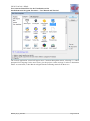
Launch the Project Wizard through File->New->Project... to start a new project. Here there are
many pre-configured templates for various types of projects, including the option to create custom
templates. Select Console application, as this is the most common for general purposes, and click Go.
HEAP_D3_2_final.doc
Page 33 of 40
FP7-ICT-247615 - HEAP
Free Software-Based Flow for the Visualization of the
Parallelism in the Program Execution -- User Manual and Tutorial
The console application wizard will appear next. Continue through the menus, selecting C++ when
prompted for a language. In the next screen, give the project a name and type or select a destination
folder. As seen below, Code::Blocks will generate the remaining entries from these two.
HEAP_D3_2_final.doc
Page 34 of 40
FP7-ICT-247615 - HEAP
Free Software-Based Flow for the Visualization of the
Parallelism in the Program Execution -- User Manual and Tutorial
Finally, the wizard will ask if this project should use the default compiler (normally GCC) and the
two default builds: Debug and Release. All of these settings are fine. Press finish and the project will
be generated. The main window will turn gray, but that is not a problem, the source file needs only to
be opened. In the Projects tab of the Management pane on the left expand the folders and double
click on the source file main.cpp to open it in the editor.
This file contains some default code.
9.2. Changing file composition
A single source file is of little uses in programs of any useful complexity. In order to handle this,
Code::Blocks has several very simple methods of adding additional files to the project.
9.2.1. Adding a blank file
To add the new file to the project, bring up the file template wizard through either File->New>File... or Main Toolbar->New file (button)->File...
HEAP_D3_2_final.doc
Page 35 of 40
FP7-ICT-247615 - HEAP
Free Software-Based Flow for the Visualization of the
Parallelism in the Program Execution -- User Manual and Tutorial
Select C/C++ source and click Go. Continue through the following dialogues very much like the
original project creation, selecting C++ when prompted for a language. On the final page, you will be
presented with several options. The first box will determine the new file name and location (as noted,
the full path is required). You may optionally use the corresponding button to bring up a file
browser window to save the file's location. Checking Add file to active project will store the file
name in the Sources folder of the Projects tab of the Management panel. Checking any of the build
targets will alert Code::Blocks that the file should be compiled and linked into the selected target(s).
This can be useful if, for example, the file contains debug specific code, as it will allow the inclusion
(or exclusion) from the appropriate build target. In this example, however, the hello function is of key
importance, and is required in each target, so select all the boxes and click Finish to generate the file.
HEAP_D3_2_final.doc
Page 36 of 40
FP7-ICT-247615 - HEAP
Free Software-Based Flow for the Visualization of the
Parallelism in the Program Execution -- User Manual and Tutorial
9.2.2. Adding a pre-existing file
Click Project->Add files... to open a file browser. Here you may select one or multiple files
(using combinations of Ctrl and Shift). (The option Project->Add files recursively... will
search through all the subdirectories in the given folder, selecting the relevant files for inclusion.)
Click Open to bring up a dialogue requesting to which build targets the file(s) should belong. For this
example, select both targets.
Note: if the current project has only one build target, this dialogue will be skipped.
9.2.3. Removing a file
Using the above steps, add a new C++ source file, useless.cpp, to the project. Removing this unneeded file from the project is straightforward. Simply right-click on useless.cpp in the Projects tab
of the Management pane and select Remove file from project.
10. Source Code Annotation Example
The example is limited to the main() function of the developer C source code used in this document
and its annotated form using the HEAP API, suitable to be compiled and run to generate the trace
data for parallelism analysis.
HEAP_D3_2_final.doc
Page 37 of 40
FP7-ICT-247615 - HEAP
Free Software-Based Flow for the Visualization of the
Parallelism in the Program Execution -- User Manual and Tutorial
10.1. Developer C Source Code
#define NULL 0
#define EOF -1
#include "mjpeg_func.h"
int main(int argc, char **argv)
{
int t, j, i;
THeaderInfo
TPackets
TBlocks block;
/*
DECL(hi, 1, 0);
DECL(block, 1, 0);
DECL(stream, 1, 0);
*/
hi;
stream;
for (t = 0; t < 1/*NumFrames*/; t++) {
initVideoIn (&hi);
for (j = 0; j < 2/*VNumBlocks*/; j++) {
for (i = 0; i < 2/*HNumBlocks*/; i++) {
mainVideoIn(&block);
mainDCT(&block, &block);
//intArith(&block, &block);
mainQ(&block, &block);
mainVLE(&block, &stream);
mainVideoOut(&hi, &stream);
}
}
}
return 0;
}
10.2. C Source Code Annotated using HEAP API
The source code is completely rewritten by the CIL-based annotator. The used parts of the includes
for each source file are output in the model.
The HEAP annotations are interspersed in the functional code to capture as close as possible the operation of the original code during program run.
/* Generated by CIL v. 1.4.0 */
/* print_CIL_Input is true */
extern int imarw_insn_id_global_offset ;
static int imarw_insn_id_local_offset =
0;
static int imarw_decl_globals_done =
0;
static void imarw_decl_globals(void) ;
typedef int TNumOfBlocks;
typedef int TPixel;
enum _TBlockType {
RGB = 0,
YUV = 1
} ;
typedef enum _TBlockType TBlockType;
struct TBlockData {
TPixel pixel[64] ;
};
typedef struct TBlockData TBlockData;
struct TBlocks {
TBlockData Y1 ;
TBlockData Y2 ;
HEAP_D3_2_final.doc
Page 38 of 40
FP7-ICT-247615 - HEAP
Free Software-Based Flow for the Visualization of the
Parallelism in the Program Execution -- User Manual and Tutorial
TBlockData U1 ;
TBlockData V1 ;
};
typedef struct TBlocks TBlocks;
struct TBitStreamPacket {
int marker ;
int byte[1] ;
};
typedef struct TBitStreamPacket TBitStreamPacket;
struct TPackets {
TBitStreamPacket packet[64] ;
};
typedef struct TPackets TPackets;
struct TFrameSize {
int Hor ;
int Ver ;
};
typedef struct TFrameSize TFrameSize;
struct THeaderInfo {
TFrameSize FrameSize ;
TNumOfBlocks NumOfBlocks ;
TBlockType BlockType ;
};
typedef struct THeaderInfo THeaderInfo;
struct TQTables {
int QCoef[64] ;
};
struct THuffTablesAC {
int ACcode[257] ;
int ACsize[257] ;
};
struct THuffTablesDC {
int DCcode[257] ;
int DCsize[257] ;
};
void initVideoIn(THeaderInfo *HeaderInfo ) ;
void mainVideoIn(TBlocks *blocks ) ;
void mainDCT(TBlocks const
*input , TBlocks *output ) ;
void intArith(TBlocks const
*input , TBlocks *output ) ;
void mainQ(TBlocks const
*input , TBlocks *output ) ;
void mainVLE(TBlocks const
*blocks , TPackets *stream ) ;
void mainVideoOut(THeaderInfo const
*HeaderInfo , TPackets const
int main(int argc , char **argv )
{
int t ;
int j ;
int i ;
THeaderInfo hi ;
TPackets stream ;
TBlocks block ;
TBlocks const
*__cil_tmp9 ;
TBlocks const
*__cil_tmp10 ;
TBlocks const
*__cil_tmp11 ;
THeaderInfo const
*__cil_tmp12 ;
TPackets const
*__cil_tmp13 ;
int __retres14 ;
*stream ) ;
{
imarw_init__();
heap_startFunction("main", "/home/mihai/projects/heap/cil-ocaml/mjpeg_par/mjpeg_par.c",
5);
heap_arg_write(imarw_insn_id_local_offset + 19, "main", 1, "argc", & argc, 4,
"/home/mihai/projects/heap/cil-ocaml/mjpeg_par/mjpeg_par.c", 7);
heap_arg_write(imarw_insn_id_local_offset + 20, "main", 2, "argv", & argv, 4,
"/home/mihai/projects/heap/cil-ocaml/mjpeg_par/mjpeg_par.c", 7);
heap_decl(imarw_insn_id_local_offset + 21, "t", & t, 4, 1, 0,
"/home/mihai/projects/heap/cil-ocaml/mjpeg_par/mjpeg_par.c", 7);
heap_decl(imarw_insn_id_local_offset + 22, "j", & j, 4, 1, 0,
"/home/mihai/projects/heap/cil-ocaml/mjpeg_par/mjpeg_par.c", 7);
heap_decl(imarw_insn_id_local_offset + 23, "i", & i, 4, 1, 0,
"/home/mihai/projects/heap/cil-ocaml/mjpeg_par/mjpeg_par.c", 7);
heap_decl(imarw_insn_id_local_offset + 24, "hi", & hi, 16, 1, 0,
"/home/mihai/projects/heap/cil-ocaml/mjpeg_par/mjpeg_par.c", 9);
heap_decl(imarw_insn_id_local_offset + 25, "stream", & stream, 512, 1, 0,
"/home/mihai/projects/heap/cil-ocaml/mjpeg_par/mjpeg_par.c", 10);
heap_decl(imarw_insn_id_local_offset + 26, "block", & block, 1024, 1, 0,
"/home/mihai/projects/heap/cil-ocaml/mjpeg_par/mjpeg_par.c", 11);
heap_decl(imarw_insn_id_local_offset + 27, "__retres14", & __retres14, 4, 1, 0,
"/home/mihai/projects/heap/cil-ocaml/mjpeg_par/", -1);
HEAP_D3_2_final.doc
Page 39 of 40
FP7-ICT-247615 - HEAP
Free Software-Based Flow for the Visualization of the
Parallelism in the Program Execution -- User Manual and Tutorial
if (! imarw_decl_globals_done) {
imarw_decl_globals();
}
t = 0;
heap_write(imarw_insn_id_local_offset + 1, "t", & t, 4, "/home/mihai/projects/heap/cilocaml/mjpeg_par/mjpeg_par.c", 18);
while (t < 1) {
heap_arg_read(imarw_insn_id_local_offset + 2, "initVideoIn", 1, "hi", & hi, 16,
"/home/mihai/projects/heap/cil-ocaml/mjpeg_par/mjpeg_par.c", 20);
initVideoIn(& hi);
j = 0;
heap_write(imarw_insn_id_local_offset + 3, "j", & j, 4,
"/home/mihai/projects/heap/cil-ocaml/mjpeg_par/mjpeg_par.c", 22);
while (j < 2) {
i = 0;
heap_write(imarw_insn_id_local_offset + 4, "i", & i, 4,
"/home/mihai/projects/heap/cil-ocaml/mjpeg_par/mjpeg_par.c", 24);
while (i < 2) {
heap_arg_read(imarw_insn_id_local_offset + 5, "mainVideoIn", 1, "block", & block,
1024, "/home/mihai/projects/heap/cil-ocaml/mjpeg_par/mjpeg_par.c", 26);
mainVideoIn(& block);
__cil_tmp9 = (TBlocks const
*)(& block);
heap_arg_read(imarw_insn_id_local_offset + 7, "mainDCT", 2, "block", & block,
1024, "/home/mihai/projects/heap/cil-ocaml/mjpeg_par/mjpeg_par.c", 28);
heap_arg_read(imarw_insn_id_local_offset + 7, "mainDCT", 1, "block", & block,
1024, "/home/mihai/projects/heap/cil-ocaml/mjpeg_par/mjpeg_par.c", 28);
mainDCT(__cil_tmp9, & block);
__cil_tmp10 = (TBlocks const
*)(& block);
heap_arg_read(imarw_insn_id_local_offset + 9, "mainQ", 2, "block", & block, 1024,
"/home/mihai/projects/heap/cil-ocaml/mjpeg_par/mjpeg_par.c", 31);
heap_arg_read(imarw_insn_id_local_offset + 9, "mainQ", 1, "block", & block, 1024,
"/home/mihai/projects/heap/cil-ocaml/mjpeg_par/mjpeg_par.c", 31);
mainQ(__cil_tmp10, & block);
__cil_tmp11 = (TBlocks const
*)(& block);
heap_arg_read(imarw_insn_id_local_offset + 11, "mainVLE", 2, "stream", & stream,
512, "/home/mihai/projects/heap/cil-ocaml/mjpeg_par/mjpeg_par.c", 33);
heap_arg_read(imarw_insn_id_local_offset + 11, "mainVLE", 1, "block", & block,
1024, "/home/mihai/projects/heap/cil-ocaml/mjpeg_par/mjpeg_par.c", 33);
mainVLE(__cil_tmp11, & stream);
__cil_tmp12 = (THeaderInfo const
*)(& hi);
__cil_tmp13 = (TPackets const
*)(& stream);
heap_arg_read(imarw_insn_id_local_offset + 14, "mainVideoOut", 2, "stream", &
stream, 512, "/home/mihai/projects/heap/cil-ocaml/mjpeg_par/mjpeg_par.c", 35);
heap_arg_read(imarw_insn_id_local_offset + 14, "mainVideoOut", 1, "hi", & hi, 16,
"/home/mihai/projects/heap/cil-ocaml/mjpeg_par/mjpeg_par.c", 35);
mainVideoOut(__cil_tmp12, __cil_tmp13);
heap_read(imarw_insn_id_local_offset + 15, "i", & i, 4,
"/home/mihai/projects/heap/cil-ocaml/mjpeg_par/mjpeg_par.c", 24);
i ++;
heap_write(imarw_insn_id_local_offset + 15, "i", & i, 4,
"/home/mihai/projects/heap/cil-ocaml/mjpeg_par/mjpeg_par.c", 24);
}
heap_read(imarw_insn_id_local_offset + 16, "j", & j, 4,
"/home/mihai/projects/heap/cil-ocaml/mjpeg_par/mjpeg_par.c", 22);
j ++;
heap_write(imarw_insn_id_local_offset + 16, "j", & j, 4,
"/home/mihai/projects/heap/cil-ocaml/mjpeg_par/mjpeg_par.c", 22);
}
heap_read(imarw_insn_id_local_offset + 17, "t", & t, 4,
"/home/mihai/projects/heap/cil-ocaml/mjpeg_par/mjpeg_par.c", 18);
t ++;
heap_write(imarw_insn_id_local_offset + 17, "t", & t, 4,
"/home/mihai/projects/heap/cil-ocaml/mjpeg_par/mjpeg_par.c", 18);
}
__retres14 = 0;
heap_write(imarw_insn_id_local_offset + 18, "__retres14", & __retres14, 4,
"/home/mihai/projects/heap/cil-ocaml/mjpeg_par/mjpeg_par.c", 41);
{
heap_arg_read(imarw_insn_id_local_offset + 18, "main", 0, "__retres14", & __retres14,
4, "/home/mihai/projects/heap/cil-ocaml/mjpeg_par/mjpeg_par.c", 5);
heap_endFunction("main", "/home/mihai/projects/heap/cil-ocaml/mjpeg_par/mjpeg_par.c",
5);
imarw_cleanup__();
return (__retres14);
}
}
}
HEAP_D3_2_final.doc
Page 40 of 40