1
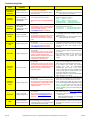
Step 8 – Attach the Software-Generated System File For some registrations, the valid software-generate system file (victor or VideoEdge) must be provided. victor Only: Under the following conditions, you will be required to select the victor-generated file from the host PC requiring the license: st 1. New 1 Time Install 2. Update Existing License (Selecting either V4.2 or V4.3) Software victor-Generated System Files V4.1x V4.2x xxxxxxxxxx.XML victor_xxxxxxxxxx.XML (Do Not Modify The File) (Do Not Modify The File) V4.0x xxxxxxxxxx.XML (Do Not Modify The File) victor V4.3x victor_xxxxxxxxxx.XML (Do Not Modify The File) Note1: Required to identify the victor host machine’s system values to auto-generate the compatible license file. Note2: If an invalid file or incorrect file version is attached, then the registration server will flag an error message. Note3: If a valid file is attached but is from a different PC, then the license generated will not be compatible with the victor host machine. VideoEdge Only: Under the following conditions, you will be required to select the VideoEdge-generated file from the host PC requiring the license: st 1. New 1 Time Install 2. Update Existing License (Selecting either V4.2 or V4.3) Software Actions V4.0x VideoEdge-Generated System File V4.1x V4.2x V4.3x Click Button: <Generate VideoEdge System Information> <Generate Host ID> Save Output: NVRid-xxxxxxxxxxxx (Do Not Modify The File) VideoEdgeNVRHostID.txt (Do Not Modify The File) VideoEdge Note1: Required to identify the VideoEdge host machine’s system values to auto-generate the compatible license file. Note2: If an invalid file or incorrect file version is attached, then the registration server will flag an error message. Note3: If a valid file is attached but is from a different PC, then the license generated will not be compatible with the VideoEdge host machine. OPTION: Enter any comments. Optional – Request for Open Source information If you wish to receive access to the list of Open Source Information that is used in the victor software, click on the application option. Step 9 – Submit the completed registration form For all registrations, click the <SUBMIT> button to register the product. If all of the required information has been provided in valid format, then the system will proceed to process the submitted registration. Success: Congratulations, you will be redirected to the success page, receive an email with the license file and latest AD Licensing Instructions. Failure: If any issues are found with your registration, then an error message with details of the problem(s) and recommended actions will be posted on the registration page. Please review and proceed to rectify the issue. See Troubleshooting Guide below for assistance. Note: At any time, you can select <RESET> to clear all of the fields on the form to start over. Page 8 AD Registration Instructions – victor/VideoEdge Online Auto Registration Form (V4.0-to-V4.3) Rev43b