1
FIRMWARE UPDATES
How to keep your Snow2 updated to the latest software version:
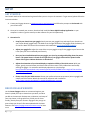
1. Visit Recon Engage website (engage.reconinstruments.com) and create an account (if you already have an Engage
account jump to the next step).
2. Log into your Engage account and navigate from DEVICES > MANAGE HUD page.
3. Download Recon Uplink Desktop App on your computer (download from the right hand side of the MANAGE HUD
page).
4. Power up your Snow2 and connect it to your computer using the provided USB cord.
5. Wait for Recon Uplink Desktop App to recognize your Snow2 and then follow the prompts to register your Heads-up
Display. (NOTE: You may be required to open the Recon Uplink Desktop App on your computer, if it didn't launch
automatically).
6. Wait for Recon Uplink Desktop App to sync your Snow2 data to your Recon Engage account, then update your Snow2
to the latest firmware version (if available).
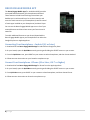
7. On your Snow2 HUD, select "OK" on the firmware update popup using your Snow2 remote to initiate the firmware
update.
Your HUD will then reboot automatically and will go through the software update process. Once the software update is
complete, you will be prompted to press any button on your remote to reconnect it with your Snow2.
Operational notes:
Features and functionality of Recon Engage are supported by internet connection.
IMPORTANT: Make sure Snow2 is fully charged before performing a firmware update. If your battery is not sufficiently
charged and Snow2 loses power during the upgrade, your device can be permanently damaged. Recon recommends
that you plug your device into the AC wall charger while doing the firmware update.
To verify that your device has been successfully updated, navigate to Software Version under About in the Settings menu
of your Snow2.
21 | P a g e