1
Tutorial—RTI Recording Console
3.2
Recording Data
1.
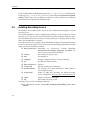
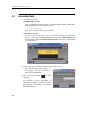
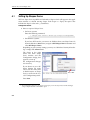
Start Recording Console.
On UNIX-based systems:
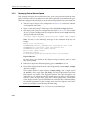
Open a command prompt, change to the <Recording Service install directory>/scripts directory and start the Console:
> rtirecordingconsole
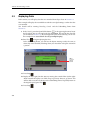
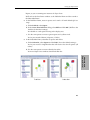
Wait a few seconds for the Console to launch:
On Windows systems:
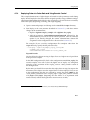
If you have Connext Messaging, you can start the Recording Console from RTI
Launcher’s Tools tab. Or from the Start menu, navigate to RTI Recording Service <version>, and select RTI Recording Console. Wait a few seconds for the
Console to launch:
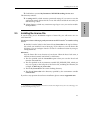
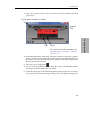
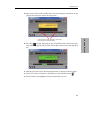
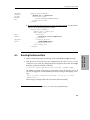
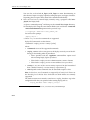
2. Create a new file in which to record data from Shapes Demo:
• Press the New Recording button
and specify a file name and location.
Then click on Create File.
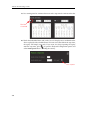
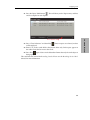
3. Press the Record button
recording.
to start
(On Windows systems, depending on
your security settings, you may see a Windows Security Alert dialog—if so, simply
click Allow Access.)
3-4