1
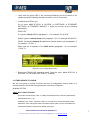
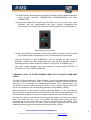
The OLED screen (sometimes fast) the status call status and the different phases it
steps through: CALLING, CONNECTING, SYNCHRONIZING and finally
CONNECTED.
Verify that the SYNC LED situated under the CALL key is lit in green color, as an
indication that the communication has been correctly established and
synchronized. You should hear audio from Phoenix Master in the headphones.
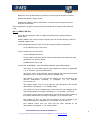
Established connection detail
Be sure that ON AIR is activated for that communications channel in order to allow
the full-duplex audio transmission from/to the associated XLR connectors.
Once the connection is well established, it can be repeated as many times as
necessary varying the audio coding algorithm until the best possible quality is
reached given the network conditions. (Menu CH1 STATUS
CODING (List).)
The audio coding algorithm lists are created by entering MAIN STATUS
SYSTEM
10. SIP CODEC PROFILES
5. MAKING A CALL TO OTHER PHOENIX CODEC OR TO A N/ACIP COMPLIANT
CODEC
The calls to Phoenix Master or Phoenix Master 2 have been automatically answered.
To make a manual call to other codec, it is necessary to configure the second one the
same way, if it is connected to a managed local network, or in a simpler way if it is
connected to Internet directly through an ADSL router or cable modem with DHCP
server (as explained in the corresponding application notes AN0A or AN0B).
Once the reporter unit can connect properly to Phoenix Master (-2), you can create in
the phone book a contact with the name and URI of the other unit as explained for the
Phoenix Master contact in the previous chapter, and the call can be directly made.
You can also send the call without having previously created a contact in the Phone
Book. Just select the Chn 1 line in the MAIN STATUS screen, press the CALL
corresponding to CH1 (the leftmost one), and you will reach CH1 CALL MENU. Then
select the URI line and edit it in order to type the other equipment’s URI. Now just
validate by pressing the encoder button and press the DIAL soft key.
APLICACIONES ELECTRONICAS QUASAR S.A.
TEL: (34) 91 686 13 00 - FAX: (34) 91 686 44 92 - E-mail: [email protected] - Web:
6
www.aeq.eu