1
PETracer ML User Manual
Chapter 9: Reports and Tools
Navigator Panes
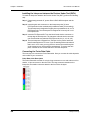
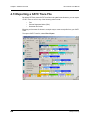
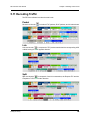
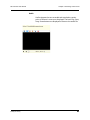
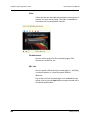
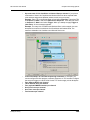
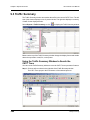
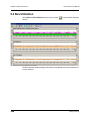
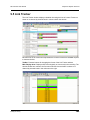
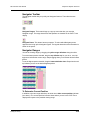
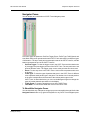
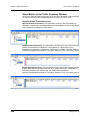
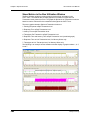
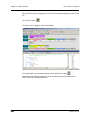
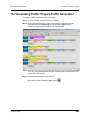
You can display any combination of CATC Trace Navigator panes.
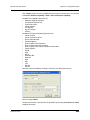
From left to right, the panes are: Pre/Post Trigger, Errors, Traffic Type, Traffic Speed, and
Link Width. Each pane represents the entire CATC Trace with respect to different types
of information. The top of each pane represents the start of the CATC Trace file, and the
bottom represents the end of the CATC Trace file.
•
•
•
•
•
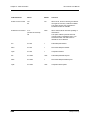
Pre/Post Trigger: To view the trigger event in the CATC Trace and the relative size
of pre-trigger and post-trigger portions of the CATC Trace. The two portions are set
apart as different colors. The trigger event occurs at the point the two colors meet.
Errors: To view any errors in the CATC Trace. A thin red line represents each error
in the pane.
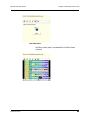
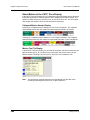
Traffic Type: To view the types of packets that occur in the CATC Trace. A different
color represents each packet type in the pane. The relative size of colored portions
in the pane corresponds to the amounts of the various packet types in the
CATC Trace. As described below, you can use the Navigator legend to change the
types of packets that take precedence in the display.
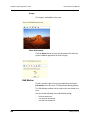
Traffic Speed: To view the speed that occurs in the CATC Trace.
Link Width: To view the link width that occurs in the CATC Trace.
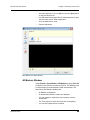
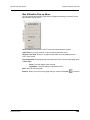
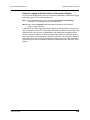
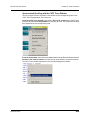
To Show/Hide Navigator Panes
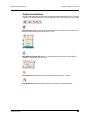
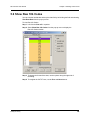
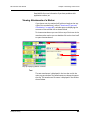
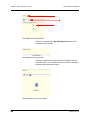
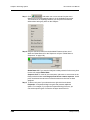
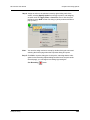
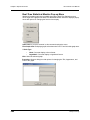
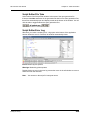
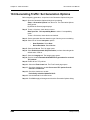
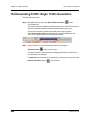
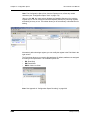
You can show/hide any of the panes using pop-up menus accessible through left-click the
Navigator Panes button or by right-click anywhere in any CATC Trace Navigator pane.
Teledyne LeCroy
173