1
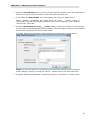
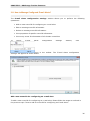
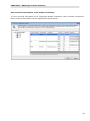
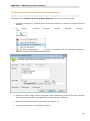
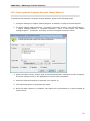
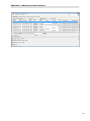
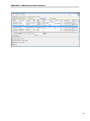
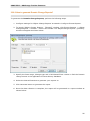
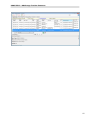
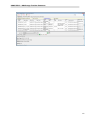
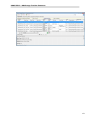
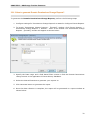
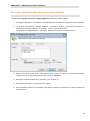
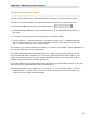
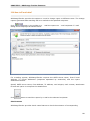
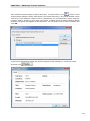
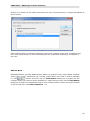
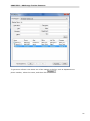
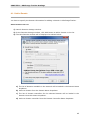
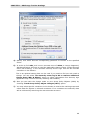
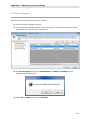
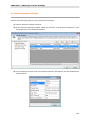
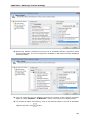
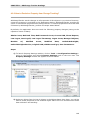
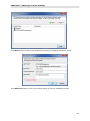
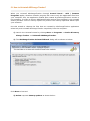
CHAPTER 3 –ADChange Tracker Features 3.16 Configure Events Reports This section provides step-by-step procedure for configuring Events Reports. This process consists of three primary steps: Enable audit policy. Configure event ID(s) in application for security event log data collection. Set up auditing in object's SACL. This step is applicable for Object Change Reports and Permissions Change Reports only. Enable audit policy 1. Click Start, point to Administrative Tools, and then Group Policy Management. 2. In the console tree, double-click the name of the forest, double-click Domains, doubleclick the name of your domain, double-click Domain Controllers, rightclick Default Domain Controllers Policy, and then click Edit. 3. Under Computer Configuration, double-click Policies, double-click Windows Settings, double-click Security Settings, double-click Local Policies, and then click Audit Policy. 4. In the details pane, right-click the Policy pertaining to the report as shown in the following table and then click Properties. Report Name Policy User Logon/Logoff Reports Audit logon events Password Change Reports Audit account management Terminal Services Activity Reports Audit logon events Object Change Reports Audit directory service access Permissions Change Reports Audit directory service access 5. Select the Define these policy settings check box. 6. Under Audit these attempts, select the Success check box, and then click OK. Configure event ID(s) in application for security event log data collection. For security event log data collection, configure event ID(s) corresponding to each report in Real Time Events -> Alerts as stated in the following table: Report Name User Logon/Logoff Reports Event ID(s) 4624, 4634 43