1
corner of the window. New users will need to click on Register to complete the quick and
easy registration process. (Note: The registration process simply consists of providing your
name, email address, and entering a password.)
Once you have registered and/or
logged on to the web site, locate
the version of the plugin that
coincides with your computer’s
operating system and click on the
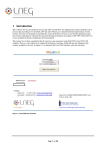
Add To Cart link. (See Figure 7.)
Next, click on View Cart to review
your order and, when ready, click
on your desired method of
payment. When you have
completed the payment process,
Figure 7: To purchase and install the full edition of PLAN, click
on the Add To Cart link.
the web page will display your
order-information details, including
a Serial Number that you will need to start using your PLAN software. (Note: You may wish
to print a copy of the order-information details web page for your records. Your orderinformation details will also be emailed to the address you used to register on the BuildEdge
web site.) Next, complete the following steps:
1. Near the bottom of the order-information details page, click on the Download Link.
You will be prompted to enter a location to store the BuildEdge PLAN installation
file. Enter a location of your choosing and click on the Save button.
2. Open the SketchUp application and, on SketchUp’s menu bar, click on Window →
Preferences to open SketchUp’s System Preferences dialog box.
3. On the left-hand side of
the System Preferences
dialog box, click on
Extensions, as pictured
in Figure 8.
4. Click on the Install
Extension button in the
bottom left-hand corner
of the System
Preferences dialog box.
An Open dialog box will
appear.
Figure 8: The System Preferences dialog box in SketchUp.
5. From within the Open
dialog box, navigate to
the location where you saved your BuildEdge PLAN installation file. With the file
selected, click on the Open button at the bottom of the dialog.
6