1
Page 4 of 31
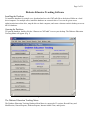
Record Entry and Modification Section
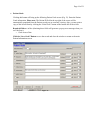
This section includes buttons to access the main Patient Information screen, as well as table information for
Diabetes Educators, Physicians, Diagnoses, etc., which appear as selections in the drop-down fields
throughout the database.
Entering Values on Main Menu for Blood Glucose Meters, Diabetes Educators, Diagnoses, Facilities,
Insurance Providers, Medications, and Physicians
•
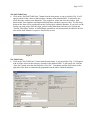
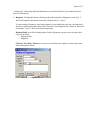
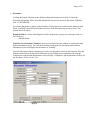
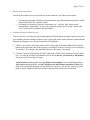
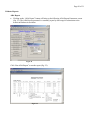
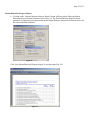
Click on the “Diagnosis Table Entry” button or other “Table Entry” button from the main menu. A
pop-up window (Fig. 2) will appear with all of the values for that category currently in the database
table/available in the drop-down menus. To add a new one, scroll down the window to the blank
line. Type in the new value and close the window. It will now automatically save to that table and
appear as an alphabetized choice in the drop-downs within the database.
Please note: If you are looking to add an entry for another category other than those listed on the
Main Menu, please contact your database administrator/programmer. These will need to be entered
“behind the scenes”.
Figure 2
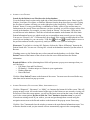
Entering Values on Main Menu for Coordinator, Site Staff, & Sites for ADA Recognition Application
Coordinator Table Entry
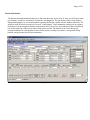
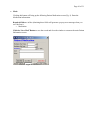
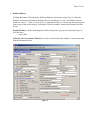
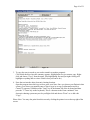
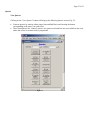
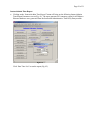
• Click on the “Coordinator Table Entry” button from the main menu. A pop-up window (Fig. 3) will
appear for you to enter your organization’s Diabetes Self-Management Education (DSME)
Coordinator information. There is only one designated Coordinator and thus one Coordinator record
in the database. Therefore, if this information changes, you must edit the record on this screen. The
Coordinator will also appear automatically on the Site form for each Site in the Site table.
Figure 3