1
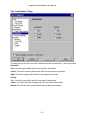
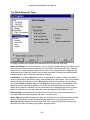
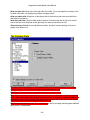
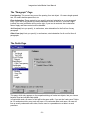
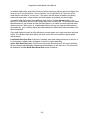
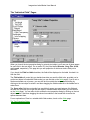
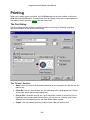
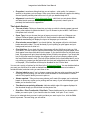
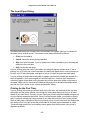
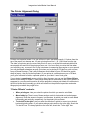
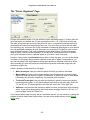
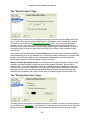
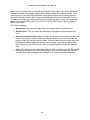
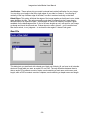
Imagemixer Label Maker User Manual Properties: Launches a dialog that lets you set options – print quality, for instance -specific to the printer you’ve chosen. Since your printer manufacturer supplies this dialog, we can’t predict precisely what will be on it or give you detailed help with it. Alignment: Launches the Printer Alignment Dialog, which lets you set printer offsets and label stretch amounts in case your printer, like most printers, doesn’t print at precisely the locations it’s supposed to. The Labels Section: The row of tabs: Clicking on these lets you bring up a tab for choosing paper type and sundry other options for particular labels. If you’ve chosen to print a label, it will have a little printer icon in its tab. Paper Type: Lets you choose the type of paper you want to print on. Whenever you choose a different paper type from this list, the thumbnail underneath the Click on labels to use heading will display the layout of the paper you’ve chosen. Print a border around label: If you check this box, the program will print a thin black border around the label. This can be handy if you’re printing on plain paper and your background has lots of white in it. Print fold lines: If you check this box, the program will print fold lines to help you fold your labels. You don’t need to check this box unless you’re printing on plain paper; most stock paper forms have folds built into the paper. If you check this box for the jewel case back, the program will print lines indicating where to fold the two spines. If you check this box for the jewel case front/inside, the program will print a line indicating where to fold the front/inside booklet in half. (The box will be disabled for the front/inside label if you’re not printing on a paper type that prints both the front and inside labels on the same side of the paper.) This checkbox will always be disabled for the CD disc label. You can set a variety of options for fold lines in the Preferences Dialog. You can decide whether you want your fold lines to be solid or dashed lines, whether you want them to be inside or outside the label, and what color you want them to be. Click on labels to use: If you’ve chosen a paper type that can print more than one label of the type you’re printing, you can click on the the labels on the thumbnail to choose which of the paper’s labels you want to print on. Sheets required: Tells you how many sheets you’ll need of the paper you’ve selected, based on how many copies you’re printing and how many of your selected paper type’s labels you’ve chosen to use. That black arrow pointing leftwards: Indicates which edge of the paper displayed in the thumbnail image you should feed into the printer first. Print Disc / Print Front/Inside / Print Back: These checkboxes let you choose which labels you want to print. If you check the box for a label, it will print. If not, it won’t. Once you’ve selected what you want to print and what you want to print it on, click the Print button to proceed. The next thing you see will be: - 41 -