1
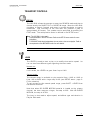
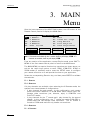
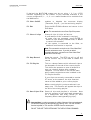
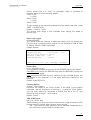
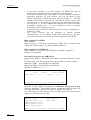
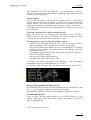
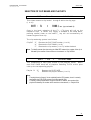
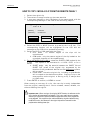
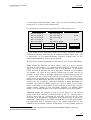
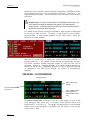
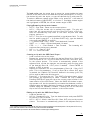
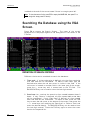
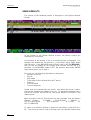
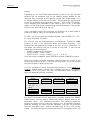
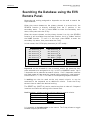
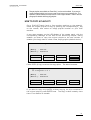
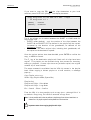
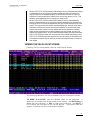
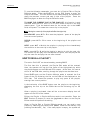
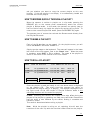
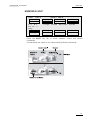
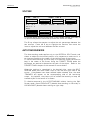
EVS MULTICAM - User’s Manual Version 8.00 EVS Broadcast Equipment SA – Dec 2005 If desired, the MULTICAM system can be run using 1, 2, 3 or 4 EVS remotes. Depending on the number of play channels available in the current configuration, 1- , 2-, 3- or 4- remote modes will be available from the MAIN menu. F5: Char. On/Off: enables or disables the on-screen display (Timecode, Clip ID,…) on the monitoring outputs. F6: Exit Exits the MULTICAM software and returns to the EVS Menu. Note: This command also runs a Save Clips+Plst process. F7: Clear all clips Clears all clips. All clips will be lost. A confirmation of this command is required: If some clips are protected, press ENTER to delete all clips except protected ones, or MENU to cancel the command If the system is connected to the XNet, an additional confirmation is required. Note: This command is not similar to the “Clear Video Disks” from the maintenance menu. If you wish to refresh completely the server, you need to use “Clear Video Disks” rather than “Clear all clips”. F8: Stop Record Stops the record. The REC key will go off and the F8 function key is now used to restart the record. F9: Fill Playlist This is a «dump» feature which allows all clips to be «dumped» at the end of the current playlist. This allows the operator to save all material to tape, as a backup feature after a show is complete. You can select in the SETUP menu which camera angles have to be included in the Fill Playlist function. If your clips are currently connected to another XT server on the network, the clips from that server will be added to your current playlist. Make sure the playlist you have selected is an empty one. This function will append the clips at the end of an existing playlist. F0: Save Clips+ Plist ! Saves all clips and playlists in all banks. Note that this process is also performed automatically as a background task every minute (or more frequently when creating/modifying clips). Important Note: In order to guarantee the validity of data and clips previously saved, it is advised to properly exit the application by pressing <Alt>+ <Q> and <ENTER> from the keyboard, or <F6> and then <ENTER> from the remote panel. DO NOT TURN OFF THE SYSTEM WHILE THE APPLICATION IS RUNNING. 13