1
Introduction
Controlling the Geometry
9.1.4
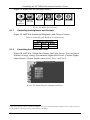
9.1.4.1 Adjusting the Zoom Ratio
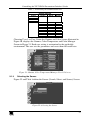
9.1.4.2 Adjusting the Zoom Position
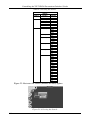
9.1.5 Configuring via the Utility Screens
9.1.5.1 Choosing the Graphic Utility Settings
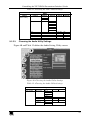
9.1.5.2 Choosing the Video Utility Settings
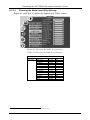
9.1.5.3 Choosing the Audio Utility Settings
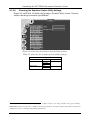
9.1.5.4 Choosing the Audio Level Utility Settings
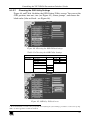
9.1.5.5 Choosing the PIP Utility Settings
9.1.5.6 Choosing the Seamless Switch Utility Settings
9.1.5.7 Choosing the OSD Utility Settings
9.1.5.8 Choosing the Output Utility Settings
9.1.5.9 Choosing Factory Reset
9.1.5.10 Choosing Advanced Utility Settings
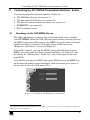
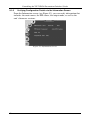
9.1.6 Verifying Configuration Details via the Information Screen
36
39
39
40
41
42
43
44
45
46
47
48
50
51
52
9.2
9.3
9.4
Operating via the LCD Display
Operating via the Infra-red Remote Control Transmitter
Operating via ETHERNET/Serial Port
53
53
56
9.4.1
9.4.2
9.4.2.1
9.4.3
Installing and Running the Configuration Software
Configuring the Ethernet Connection
The Configuration Screen
Control the VP-725DSA via the Ethernet/Serial Port
56
56
56
58
10
10.1
10.2
Using Text Overlay
Downloading the TextOverlay Program
Setting the Text Message
60
62
62
10.2.1 Connecting and Disconnecting the TextOverlay Program
10.2.2 Saving and Loading Settings
63
64
11
12
13
65
66
73
Technical Specifications
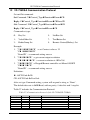
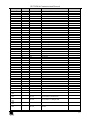
VP-725DSA Communication Protocol
VP-725DSA Text Overlay Protocol
Figures
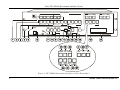
Figure 1: VP-725DSA Presentation Switcher / Scaler Front Panel
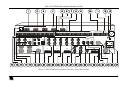
Figure 2: VP-725DSA Presentation Switcher / Scaler Rear Panel
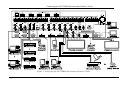
Figure 3: Connecting the VP-725DSA Presentation Switcher / Scaler
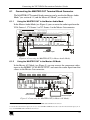
Figure 4: Connecting the MASTER OUT (in Master Audio Mode)
Figure 5: Connecting the MASTER OUT (in Master AV Mode)
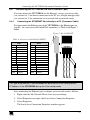
Figure 6: Connecting the PC
Figure 7: RJ-45 PINOUT
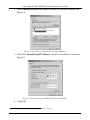
Figure 8: Local Area Connection Properties Window
Figure 9: Internet Protocol (TCP/IP) Properties Window
Figure 10: Connecting a Balanced Stereo Audio Input/Output
Figure 11: Connecting an Unbalanced Stereo Audio Input
Figure 12: Connecting an Unbalanced Stereo Audio Output
Figure 13: OSD PIP Status
ii
6
9
14
15
15
16
17
18
18
20
20
20
25
KRAMER: SIMPLE CREATIVE TECHNOLOGY