1
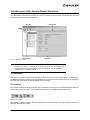
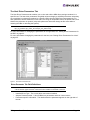
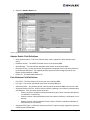
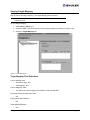
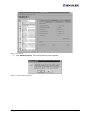
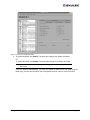
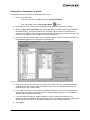
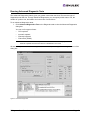
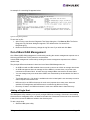
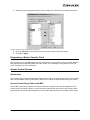
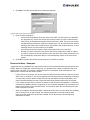
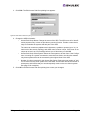
Figure 23: Driver Parameters tab - HBA selected
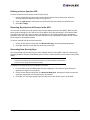
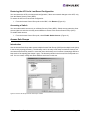
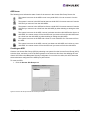
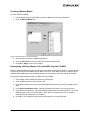
4. In the Driver Parameters tab, click the parameter that you want to change. A description of the
parameter appears on the right side of the dialog box.
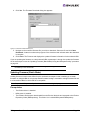
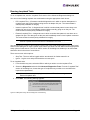
5. Enter a new value in the Value field in the same hexadecimal or decimal format as the current
value. If the current value is in hexadecimal format, it is prefaced by "0x" (for example, 0x2d).
You may enter a new hexadecimal value without the "0x". For example, if you enter ff10, this
value is interpreted and displayed as "0xff10".
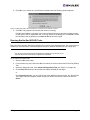
6. If you want the change to be temporary (causing the parameter to revert to its last permanent
setting when the system is rebooted), check the "Make change temporary" box. This option is
available only for dynamic parameters.
7. If you are making changes to multiple parameters, and you want all the changes to be
temporary, check the "Make all changes temporary" box. This setting overrides the setting of the
"Make change temporary" box. Only dynamic parameters can be made temporary.
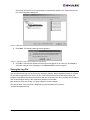
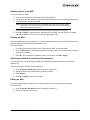
8. Click Apply.
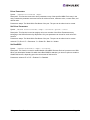
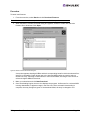
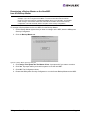
Restoring All Parameters to Their Earlier Values
If you changed parameters, but did not click Apply and you want to restore the parameters to their last
saved values, click Restore.
Resetting All Default Values
If you want to reset all parameter values to their default (factory) values, click Defaults.
HBAnyware User Manual
Page 34