1
10. Other Functions
10.1.3 Auto(matic) Revert Time
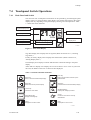
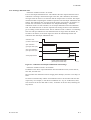
While the Execution/Setup display, or any other display that is positioned lower than the
Execution/Setup display (see Figure 7.3.1, earlier in this manual), is displayed, if there is
no key entry from the touchpanel for a certain time, the current display will automatically return to the basic panel display. This action is referred to as “auto return.”
The “auto return” time setting starts from no key entry to the return to automatic return.
The “auto return” time can be set from 0 to 255 minutes. If 0 is set, there will be no
automatic return. By default, the “auto return” time is set to 0 (zero).
To set the “auto return” time, follow these steps:
(1) Select the Setup key from the basic panel display to display the Execution/Setup
display. Then select Maintenance from the Execution/Setup display.
(2) Select the Display setup from the Maintenance display.
(3) Select Auto return time. The numeric-data entry display then appears.
(4) Enter your desired automatic return time. If you want to set “one hour,” enter 060.
10.1.4 Entering Tag Name
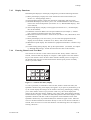
You can attach a desired tag name to the equipment. To attach it, follow these steps:
(1) Select the Setup key from the basic panel display to display the Execution/Setup
display. Then select Maintenance from the Execution/Setup display.
(2) Select the Display setup from the Maintenance display.
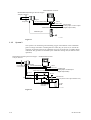
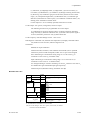
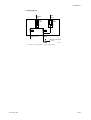
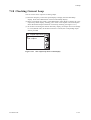
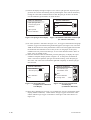
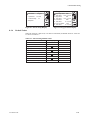
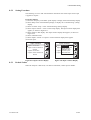
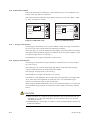
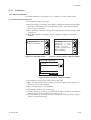
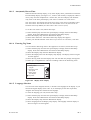
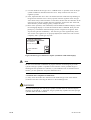
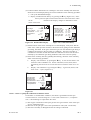
(3) Select the Display item from the Display setup display. The display shown in Figure
10.6 then appears.
(4) Select the Tag name from the Display item. The text-data entry display then appears.
(5) Enter up to 12 alphanumeric characters including codes for the desired tag name.
Display item
r Primary value:
Oxygen
r Secondary value:
mA-ouput1
r Tertiary value:
mA-output2
Tag name:
Enter
F10.6E.EPS
Figure 10.6 “Display Item” Display
10.1.5 Language Selection
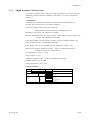
You can select either English, German, or French as the language for the display. If you
selected an English display (basic code: -E, for the display) at the time of purchase,
“English” has already been selected for the language.
To select the language you want, follow these steps:
(1) Select the Setup key from the basic panel display to display the Execution/Setup
display. Then select Maintenance from the Execution/Setup display.
(2) Select the Display setup from the Maintenance display.
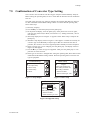
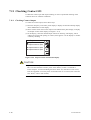
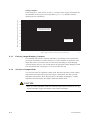
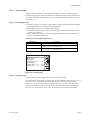
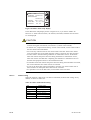
(3) Select Language from the Display setup display. The language selection display as
shown in Figure 10.7 then appears.
IM 11M12A01-02E
10-7