1
Windows, Macintosh
Step 3
Windows
Setting Up Your Digital Camera
Transferring Images to a Windows PC
2
3
4
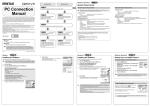
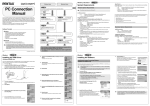
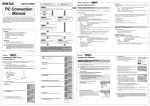
Press the MENU button.
If the digital camera is connected to your PC in [PictBridge] USB Connection mode, the
images cannot be transferred. Disconnect the USB cable from your camera and PC, follow
the instructions in “Setting Up Your Digital Camera” to set the USB Connection mode to
[PC], and then reconnect the USB cable.
The [A Rec. Mode] menu or the [Q Playback] menu appears.
Press the four-way controller (5) to display the [B Set-up] menu.
Use the four-way controller (23) to select
[USB Connection].
Press the four-way controller (5).
Press the four-way controller (23) to select [PC].
Press the OK button twice.
Exit
Connecting the Camera and PC
NTSC
For Windows user
go to Windows Step 4
3min
OK
OK
1
2
Turn your PC on.
Windows 2000
“Found New Hardware Wizard” is displayed.
Windows Me
“Found New Hardware Wizard” is displayed.
MacOS 10.3
MacOS 10.2
MacOS 10.1
MacOS 9.2
Exit
OK
Select folders
9
For Macintosh user
go to Macintosh Step 4
3
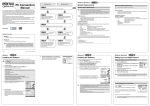
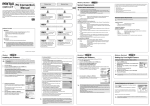
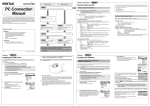
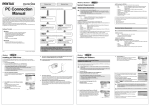
Turn your camera on.
The Device Detector screen appears automatically.
If the Device Detector screen does not appear, display and copy the images following the
steps in “When the Device Detector screen does not appear”.
Turn off the camera and remove the USB
cable from your PC.
When the camera is connected to a PC with the USB cable, the power indicator blinks to
indicate that the camera is communicating with the PC.
Click “Cancel”, turn off the camera and
remove the USB cable from your PC.
Click “Cancel”, turn off the camera and
remove the USB cable from your PC.
Turn off the camera and remove the USB
cable from your Macintosh computer.
Turn off the camera and remove the USB
cable from your Macintosh computer.
Turn off the camera and remove the USB
cable from your Macintosh computer.
Windows XP
1
2
Turn your Macintosh on.
With your camera turned off, connect to your Macintosh using the USB
cable.
Double-click the
in the task bar.
[Safely Remove Hardware] icon
The Safely Remove Hardware screen appears.
Select [USB Mass Storage Device] and click [Stop].
The Stop a Hardware device screen appears.
Transferring Images
4
Confirm that [Acquire images from the device with
ACDSee] is checked and click [OK].
3
Select [USB Mass Storage Device] and click [OK].
A message appears indicating that the hardware can be safely
removed.
5
Click [Next].
Disconnect the USB cable from your PC and the
camera.
Windows 2000/Me
Step 4
Connecting the Camera and Macintosh
Click [OK].
Disconnecting the Camera from Your PC
Follow this instruction
Transferring Images to a Macintosh
Specify the destination folder.
The image is copied to the PC.
4
1
2
Select [Copy To Folder...] from the [Edit] menu.
The Copy Files screen appears.
OK
The i-Photo function starts, but the image
cannot be identified.
Nothing is displayed on the camera and your
Macintosh computer.
“Print error” is displayed on the camera’s LCD
monitor.
The message “Software needed for the USB
device “Unnamed device” is not available.
Click “Cancel”, turn off the camera and
Would you like to look for the software on the remove the USB cable from your Macintosh
internet?” appears on your Macintosh
computer.
computer.
Macintosh
Select the folders you want to copy to the PC.
Hold the [Ctrl] key on the keyboard while clicking on the folders in
which the images you want to copy are stored.
10
11
PC
• Do not connect the camera to your PC while [PictBridge] is selected for the USB
Connection mode.
• Do not connect the camera to your printer while [PC] is selected for the USB Connection
mode.
• If you connect the camera to a PC while the USB connection mode is set to [PictBridge],
do the following operation according to your operating system. After completing the
procedure, change the connection to [PC] and reconnect the camera and PC again.
Windows XP
8
If there is no SD Memory Card in the camera, the images stored in the built-in memory will
be transmitted to your PC.
USB Connection
MENU
Status for USB connection
Recognized as PENTAX Optio S55, but
cannot read images when trying to acquire
them.
Images are stored in folder [xxxPENTX], where “xxx” is a threedigit folder number.
With your camera turned off, connect to your PC using the USB cable.
PictBridge
OS
Double-click the [DCIM] folder.
Set-up
Brightness Level
Video Out
USB Connection
Auto Power Off
Fn Setting
Reset
MENU
5
6
7
When the digital camera is connected to your Windows PC and the camera is turned on, the
PC automatically recognizes the camera and begins transferring images.
Setting the USB Connection Mode to [PC]
1
Step 4
6
Select an image to copy and click [Next].
1
Disconnecting the Camera from Your Macintosh
1
2
2
Drag [untitled] on the desktop to the trash.
[Unplug or eject hardware] icon
The Unplug or Eject Hardware screen appears.
Select [USB Mass Storage Device] and click [Stop].
The Stop a Hardware device screen appears.
If the SD Memory Card has a volume label, drag the icon of that name to the trash.
Disconnect the USB cable from your Macintosh and the camera.
Double-click the
in the task bar.
7
• If the camera (removable disk) is being used by an application such as ACDSee for
PENTAX, the camera cannot be disconnected until the application is closed.
• The camera will be turned off when the USB cable is disconnected.
Specify the name and save destination of the image,
and click [Next].
The image is copied to the PC.
If there is no SD Memory Card in the camera, the images stored in the built-in memory will
be transmitted to your Macintosh.
3
8
Select [USB Mass Storage Device] and click [OK].
A message appears indicating that the hardware can be safely
removed.
Click [Finish].
The ACDSee for PENTAX 2.0 Browser starts.
4
5
3
The first time ACDSee for PENTAX 2.0 is run, “ACDSee has detected that you do not have
the following software installed on your computer: Ghostscript 7.0 (or later)” may appear
in the [Components missing] dialog box. If you will only display or edit images inside the
digital camera, it is not necessary for Ghostscript 7.0 to support ACDSee for PENTAX 2.0.
Click [Close] to close the message window.
Turn your camera on.
The camera is recognized as [untitled] ([NO_NAME] in Mac OS X) on the
desktop. The drive name can be changed.
• If the SD Memory Card has a volume label, the volume label name appears instead of
[untitled]. A new unformatted SD Memory Card may show the manufacturer name or
model number.
• When the camera is connected to a Macintosh with the USB cable, the power indicator
blinks to indicate that the camera is communicating with the Macintosh.
Transferring Images
Disconnect the USB cable from your PC and the
camera.
• If the camera (removable disk) is being used by an application such as ACDSee for
PENTAX 2.0, the camera cannot be disconnected until the application is closed.
• The camera will be turned off when the USB cable is disconnected.
When the Device Detector screen does not appear
4
Double-click the [ACDSee for PENTAX 2.0] icon on
the desktop.
5
Double-click [My Computer].
Product Registration on the Internet
Please click [Product Registration] on the software selection
screen in Step 2 .
A world map for Internet Product Registration is displayed.
6
Double-click [Removable Disk].
See your Macintosh user’s manual for how to copy or move files.
• Even if camera images are not transferred, they can be directly displayed on the
Macintosh from a camera connected to the Macintosh.
• To edit images, first transfer them to your Macintosh.
Click [OK].
If your PC is connected to the Internet, click the displayed
country or region and then follow the instructions to register
your product.
Thank you very much for your cooperation.
If the SD Memory Card has a volume label, the volume label name appears instead of
[Removable Disk]. A new unformatted SD Memory Card may show the manufacturer
name or model number.
Only customers in displayed countries and regions can register their products on the
Internet Product Registration.