1
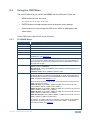
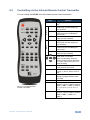
6 Controlling the VP-553 The VP-553 can be controlled via: The front panel buttons (see Section 6.1) The OSD menu (see Section 6.2) RS-232 serial commands transmitted by a touch screen system, PC, or other serial controller (see Section 6.3) 6.1 The ETHERNET (see Section 6.4) The infrared remote control transmitter (see Section 6.5) Controlling via the Front Panel Buttons The VP-553 includes the following front panel buttons: Input selector buttons for selecting the required input: CV (1 and 2), TP (1 and 2), PC (1 and 2), HDBT (1 to 3), or HDMI (1 to 3) to OUT 1 Input selector buttons for selecting the required input: HDBT (1 to 3), or HDMI (1 to 3) to OUT 2 6.1.1 Input selector buttons for selecting the required USB port (1 to 4) BLANK, MUTE and FREEZE buttons (for OUT 1 and OUT 2) MENU, ENTER, and up, down, left and right arrow buttons RESET TO XGA/720p and OSD SELECT buttons The Auto Adjust Feature The auto adjust feature (applies only to the PC input) automatically centers the image on the screen when pressing the ENTER front panel button on the remote control transmitter (when not within the OSD menu). You can also implement this feature every time the input is switched to VGA or when the input resolution changes, via the AUTO ADJUST menu (see Section 6.2.2). 16 VP-553 - Controlling the VP-553