1
Playback
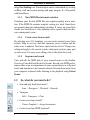
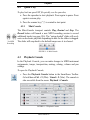
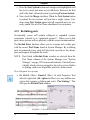
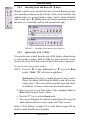
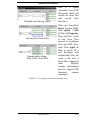
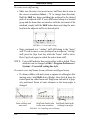
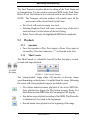
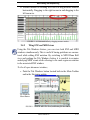
Column 5: MIDI Port displays the current port to which MIDI playback data is being sent. If more than one MIDI device is available, the
port assignment can be changed. The Lock radio button will prevent
the MIDI Port from being changed by mistake.
Column 6: MIDI Instrument: A MIDI Instrument will be assigned to
each track. The default instrument is “Grand Piano”. Some recognized
scores, depending on their structure, may have other instruments
assigned. The Instrument controls found in the Playback Console and
in System Manager can be changed in either place and will be linked.
Set Instrument: See page 182.
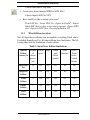
Column 7/8: Mute / Solo buttons control whether a track should be
muted while all other tracks play or soloed, muting all other tracks.
Column 9: Volume slider controls the default volume of each track
Column 10: Pan slider controls the Left/Right balance for each track.
Column 11: Transpose transposes the MIDI instrument in specific
tracks up or down.
4.3.2
Playing back a selected section
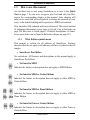
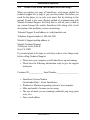
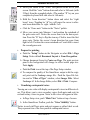
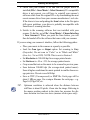
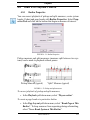
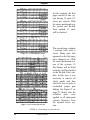
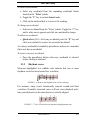
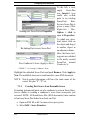
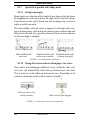
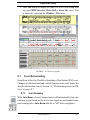
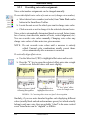
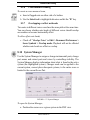
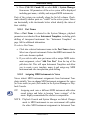
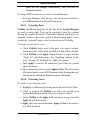
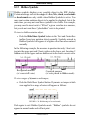
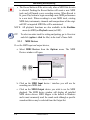
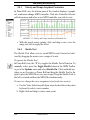
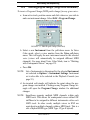
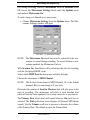
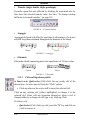
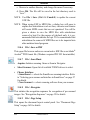
The quickest way to play back a snippet of the score is to use the
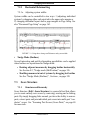
“Select” tool and drag the mouse over a region of the page while holding down the right mouse button (Alt + click for Mac). Measures
selected for playback will highlight light blue. Hit Space bar to play.
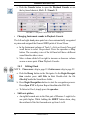
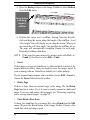
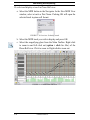
FIGURE 4 - 6: Selecting measures for limited playback
USING SmartScore
55