1
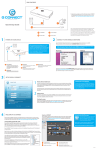
Installation Guide & User Manual FR1300 Version: 1.0.1 Date: November, 2014 1 Contents 1. Device Installation 1 2. Work Principle 1 3. Other Functions 3 4. Verify Mode 4 5. List of Parameters 8 6. Cautions 9 1. Device Installation (1) Remove the screw on the bottom of device. (2) Take away the (3) Fix the back cover on the wall according to back cover. the mounting paper. (4) Fix the device to the back cover. (5) Fix the screw. 2. Work Principle (1) Connection with Control Panel SW IT C H Less than 9 Readers can be connected with the Control Panel at present. EXT R S4 85 PC +12V GND 485485+ S TAT E PC R S4 85 P WR ACT OUT R EA D ER 1 RE A DE R 2 Access Control Panel 1 (2) Connection with Standalone Access Control FR1300 Terminal Standalone Access Control (3) The terminal definition table of Reader 2 No. Terminal Name Function 1 12V 12V Power Input 2 GND Power GND 3 485+ 485 Communication+ 4 485- 485 Communication- 5 GND Signal GND 6 BELL+ Door-Bell+ 7 BELL- Door-Bell- 3. Other Functions (1) Reset Switch If the device does not work properly because of misoperation or other abnormalities, you can use ‘Reset’ function. Operation: Remove the black rubber cap, then stick the Reset button hole with a sharp tool (diameter is less than 2mm). Reset Switch Bottom View (2) Dip Switch Setting It is adopted binary coding and little endian. Number 1~4 switches are used to set the 485 address number (device number). The address numbers setting by place these 4 switches are shown as the table below. Address Switch Setting Address 1 5 2 6 3 7 4 8 Switch Setting 3 Note: 1. Number 5 switch is idle. 2. The sixth switch is used to set the terminal resistance in RS485 communication: When the sixth dip switch is set in ON state, it means a terminal resistance of 120Ω is between 485+ and 485- in parallel. (3) Wiring Terminals Terminal Resistance Bell Power Supply Back View Wiring Terminals Note: When connecting With Standalone Access Control, please set the dial code address "1" to "ON" position. 4. Verify Mode After the reader is powered on independently, the reader can not identify the fingerprint, password or card. In other words, the reader can not receive data or send data without connectiong with Control Panel or Standalone Access Control. Operation Tips: 4 Operation Verify successfully Verify failed Verify state Non-privileged Description The indicator turns green and the buzzer makes a long beep. The indicator turns red and the buzzer makes two short beeps. The indicator turns green once every two seconds and the buzzer makes no beep. The indicator turns red and the buzzer makes three short beeps. Press [*] to input The indicator turns off and the buzzer makes password a long beep. A verify mode is finished and then into next verification The indicator turns green three times (when a verify mode is finished, the indicator turns green three times,and then into next verification when in combined verification. The inputted user ID (or The indicator turns off and the buzzer makes password) is valid a long beep. User ID (or password) is inputted and press [*] to exit verification Incorret verify mode The indicator turns red and the buzzer makes two short beeps. The indicator turns red, the buzzer makes two short beeps, and then makes a long beep. Data transmission The indicator turns red, the buzzer makes a abnormally short beep, and then makes a long beep. Communication failed The indicator turns red, the buzzer makes four short beeps. 5 Validation steps: 1. When the reader connected with the access control panel, it is in verification state. 2. Start user verification. The reader supports fifteen Verify modes: only card, only fingerprint, card and fingerprint, card or fingerprint and so on. Verify modes are as the follows: Verify modes Description First way Punch card for verification. Card, Second way Press finger for verification. Fingerprint Third way Input password for verification. and Password Only Fingerprint Only User ID Fourth way Password Input user ID for verification only. Second way First way Only Card press [#] to confirm at last. Press finger for verification only. First way Only Press [*], and then input duress password, Second way First way Input password for verification only. Press [*], and then input duress password, press [#] to confirm at last. Punch card for verification. Press [*], input duress password, and then press [#] to confirm, punch card at last. Press finger for verification. Fingerprint or Second way Input password for verification. Password Press [*], and then input duress password, 6 Third way press [#] to confirm at last. Card or Fingerprint Card or Password First way Punch card for verification. Second way Press finger for verification. Third way Press [*], input duress password, and then press [#] to confirm, punch card at last. First way Punch card for verification. Second way Input password for verification. Third way Press [*], and then input duress password, press [#] to confirm at last. User ID and Input user ID and press finger for verification, and there is Fingerprint no order. Password and Input password and press finger for verification, and there Fingerprint is no order. Card and Punch card and press finger for verification, and there is Fingerprint no order. Card and Password Card, Fingerprint and Password User ID, First way Second way verification, and there is no order. Press [*], input duress password, and then press [#] to confirm, punch card at last. Punch card, press finger and input password for verification, and there is no order. First way Password and Fingerprint Punch card and input password for Second way Input user ID, and then input password, press finger for verification at last. Press finger, and then input password, press user ID for verification at last. 7 Fingerprint, First way Card or User ID Second way Press finger and punch card for verification, and there is no order. Press finger and input user ID for verification, and there is no order. Note: 1. No matter which verify mode is setted, emergency password is effective on Control Panel. The emergency password is alse effective on the reader when connecting with Standalone Access Control which supports emergency password. 2. When connecting with Control Panel or Standalone Access Control, the firmware on device decides verify modes. 3. For how to set verify modes, please read the software user manual. 5. List of Parameters 8 Item Note Power Supply DC 12V/3A Fingerprint Collecter IR fingerprint reader Key Type Sensitive switch Verify Mode Fifteen verify modes Communication RS485 Buzzer Prompt "di-di" Indicator Two colour: red and green 6. Cautions Connect GND cable firstly, and power cable is connected after all the other wiring. It is recommend to use the DC 3A/12V power supply. Keep the exposed part of wire is less than 5mm to avoid unexpected connection, and result in machinery damage. Recommend operating temperature range: 0°C ~ 45°C. It is recommend that the distance of 485 communication is less than 200 meters when power supply independently; It is recommend that the distance between power supply and decvice is less than 100 meters, and connecting less than 5 readers when sharing power with Control Panel. 9