1
Get Started with your
®
LIFEBOOK T902 Notebook
This guide will lead you through the start-up process for your new LIFEBOOK notebook and will also provide some
valuable tips. To learn about all the exciting features that your new LIFEBOOK notebook has to offer, please see
the User’s Guide that can be accessed after completing the start-up procedure.
ENGLISH
This convenient guide will lead you through the start-up
process and will also offer some valuable tips.
What’s in the Box
Check to see that all of the following items are in the box:
■■ LIFEBOOK notebook
■■ Lithium ion battery, pre-installed
■■ AC adapter with power cord
Optional Web Cam
Depending upon your configuration, the following
items may also be shipped with your notebook:
■■ Recovery / Bootable disc
■■ Microsoft Product Identifier (bi-fold paper contains
Microsoft Office product key for activation
Web Cam Access LED
Display Panel
Status Indicator
Panel
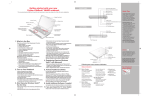
Controls, Connectors,
and Access Points Fingerprint
Sensor
Windows Button
Built-in
Microphone
LIFEBOOK Security/
Table PC Buttons
Power/Suspend/
Resume Slide
Stereo Speaker
Status Indicator Panel
Built-in Microphone
Wireless Device On/Off Switch
Ambient Light Sensor
SD/SDHC/SDXC Card Slot
Touchpad Cursor Control
left PANEL
Stereo Speaker
Keyboard
RIGHT PANEL
Air Vents
External Video Port
DC Power Jack
Smart Card Slot
HDMI Port
USB 3.0 Port with
Anytime USB Charge
Modular Bay
Device
USB 2.0 Port
Pen Tether
Attachment Point
Headphone Jack
Modular Bay
Eject Lever
Microphone Jack
USB 3.0 Port
Pen
Garage
Anti-theft Lock Slot
bottom PANEL
Back PANEL
Air Vents
(Multiple
Locations)
Gigabit LAN (RJ-45) Jack
Memory
Upgrade
Compartment
Cleanable
Dust Filter
USB 2.0 Port
Battery Latch
PortReplicator
Connector
Battery Latch
Lithium ion Battery Bay
Initial Start Up
1. Open the Display Panel
■■ Ensure that your LIFEBOOK is on a hard level surface and that the air vents are not blocked.
■■ Carefully lift the display, and adjust until it is at a comfortable viewing angle.
2. Convert from Notebook to Tablet
Display Panel
■■ Open your notebook and lift the display so it is perpendicular to the keyboard.
■■ Rotate the display 180 degrees (either direction).
■■ Carefully fold the display down onto the keyboard.
■■ Reverse this procedure to return to the notebook configuration.
■■ Be sure to rotate the display in the opposite direction.
3. Connect AC Power
■■ Plug the power cord into the AC adapter and plug the AC adapter into your notebook.
■■ Connect the power cord to an electrical outlet.
4. Booting the System
■■ We strongly recommend that you do not attach any external devices until you have gone
through the initial power on sequence.
■■ Slide the Power/Suspend/Resume button.
■■ The notebook is now on and the battery is being charged.
■■ When you turn on your notebook for the first time, it will display a Fujitsu logo on the screen.
If you do nothing the system will load the operating system, and then the Windows Welcome will begin.
DC Power
Jack
AC
Adapter
Power/Suspend/Resume Slide
5. Starting Windows® for the First Time
■■ After you boot up the system the first time and follow the instructions on the screen, you will
eventually come to the Welcome window. After the Welcome window appears, the screen will
black out for up to several minutes. This is normal. DO NOT ATTEMPT TO POWER DOWN THE
SYSTEM AT THIS POINT. While the screen is blacked out, your system configuration is being set up
and the necessary files are being installed.
■■ During the course of the first start up, you will need to read and accept the End User License
Agreements (EULAs) for Microsoft and Fujitsu.
If you reject the terms of the license agreement you will be asked to review the license agreement for information on
returning Windows® or to shut down your LIFebook .
You cannot use your LIFebook until you have accepted the license agreement. If you stop the process your Tablet PC will
return to the beginning of the Windows® Welcome Process, even if you shut your LIFebook down and start it up again.
6. Connect to the Internet or Network
■■ Ensure the Wireless Status Indicator is “On,” or— Connect an Ethernet cable (not supplied) to the
LAN jack on your notebook and to a wall jack or to Ethernet router (not included).
■■ Register your LIFEBOOK with Fujitsu Service and Support via our website
(http://solutions.us.fujitsu.com/www/content/support/). This helps us to better serve you.
7. Activate Additional Utilities, Applications, & Drivers
■■ You can launch desktop icon “Fujitsu Bonus Apps” to see if there are any additional applications
available for the system. Bonus Apps contains optional applications. You can select individual or all
software that is available. BonusApps will automatically install for you.
Wireless Decvice
Switch
8. Create backup media with MyRecovery
■■ Click on the [MyRecovery] icon to create backup recovery media and application discs.
■■ Look in the User’s Guide (Troubleshooting Your LIFEBOOK) for more detailed instructions.
9. User’s Guide
LI
ur
th yo
d wi book
arte Note
2
t St
Ge® AH53
OK
FEBO
■■ Your electronic User’s Guide contains important detailed information about your new computer. You
can access your User’s Guide by selecting its icon from the screen desktop.
(You will need to be connected to the Internet.)
Common Indicators
Quick Tips
Status Display Panel
The Status Display Panel is located below the keyboard. The indicators are
only visible when the unit is on. Following are some common indicators.
Power Indicator
Shows whether your system is operational. It lets you know
what mode your Tablet PC is in.
• Steady On (Blue): This means that there is power
to your Tablet PC and that it is ready for use.
• Flashing: This means that your Tablet PC is in Sleep mode.
• Steady Off: This means that your system is either in
Hibernate mode, or that your tablet has been turned off.
Battery Charging Indicators
Shows whether the Lithium ion battery (Battery 1) or the
optional modular battery (Battery 2) are installed and charging.
Battery Level Indicator
The Battery Level indicators display the charge level of the
indicated battery pack, as follows:
• Green, solid: Battery is between 51% and 100% charged.
• Orange, solid: Battery is between 13% and 50% charged.
• Red, solid: Battery is between 0% and 12% charged.
• Orange, blinking: Blinks during battery status
measurement (Four seconds after the battery is installed).
• Red, blinking: There is a problem with the battery.
• Off: There is no battery installed.
• If the battery pack is installed while the power is turned off,
the battery level indicator will display the charge level for five
seconds after it blinks orange.
• If the ac adapter is not connected or the battery pack is not fully
charged when the computer is switched to sleep mode, the
indicator will blink. the led blinks at the rate of one second
on/five seconds off.
• B atteries subjected to shocks, vibration or extreme
temperatures can be permanently damaged.
• A shorted battery is damaged and must be replaced
Hard Drive/Optical Drive Access Indicator
Shows whether your internal hard drive or optical drive are
being accessed is being accessed.
Security Indicator
Flashes (if a password was set) when the system resumes
from Off
or Hibernation modes. You must enter the password that
was set
in the Security Panel before your system will resume
operation.
NumLk Indicator
Showsthat the integral keyboard is set in ten-key numeric
keypad mode.
CapsLock Indicator
Shows that your keyboard is set to type in all capital letters.
ScrLk Indicator
Shows that your scroll lock is active.
It takes approximately 3 hours to charge a fully discharged single
battery with unit off or in suspend mode.
Optimizing Battery Life
• Set power management setting for best battery life.
• Adjust display brightness levels to lowest comfortable setting.
• Utilize Suspend mode when not using your notebook.
• Read the Power Management section in your User’s Guide
for additional features.
Adjusting Display Brightness
• Fn + F6 to decrease brightness | • Fn + F7 to increase brightness
Adjusting Volume
• Fn + F8 to decrease volume | • Fn + F9 to increase volume
Heat damage to your Lithium ion battery
• Extended exposure to heat will have a negative impact on your
battery. Do not expose your notebook to excessive heat such
as leaving it in the car on a hot summer day. If you are near an
outlet and playing a graphics-intensive game, it is recommended
that you remove the battery from the unit to avoid exposing it to
excessive heat.
Discharging your battery
• Full battery discharges (to unit shutdown or 0%) should be
avoided. It is recommended that batteries only be partially
discharged to levels of 20-30% before recharging.
Prolonged storage
• If your notebook isn’t going to be used for a while, you should
remove its Lithium ion battery. To store a battery for long periods
of time, its charge capacity should be around 40% and store it in
a cool dry place.
Purchasing a replacement battery
• Only purchase a replacement battery from Fujitsu. Ensure that you
purchase a battery that is specifically designed for your model
computer. It is recommended that you purchase a replacement
battery only when the current battery has noticeably degraded;
unused batteries will still suffer degradation when stored.
Power Button (shown for reference only)
Windows
Button
Button
Security Panel
Button Functions
Pre-Logon
Post-Logon
<None>
<None>
Windows®
Security Button 1
<Esc>
Volume Down
Security Button 2
Tab Left
Volume Up
Security Button 3
Rotate
Rotation Lock
Security Button 4
Tab Right
Application Button A
Security Enter Button
Enter
Application Button B
Note: There is no Ctrl+Alt+Del button. For Ctrl+Alt+Del function, press and hold the
Windows button, then slide the Power button. Ctrl+Alt+Del action will be started
after both buttons have been held for 0.75 seconds.
Save these Instructions
For Authorized Repair Technicians Only
Optical/Hard
Power
Battery
Drive Access
Indicator
1 Level
Battery Charging
Battery 2 Level
• DANGER OF EXPLOSION IF LITHIUM (CLOCK) BATTERY
IS INCORRECTLY REPLACED. REPLACE ONLY WITH THE
SAME OR EQUIVALENT TYPE RECOMMENDED BY THE
Warning MANUFACTURER. DISPOSE OF USED BATTERIES ACCORDING
TO THE MANUFACTURER’S INSTRUCTION.
NumLk
ScrLk
CapsLk
Security
Caution
•FOR CONTINUED PROTECTION AGAINST RISK OF FIRE,
REPLACE ONLY WITH THE SAME TYPE AND RATING FUSE.
Recycling your battery
Over time, the batteries that run your mobile computer
will begin to hold a charge for a shorter amount of time;
this is a natural occurrence for all batteries. When this
occurs, you may want to replace the battery with a
fresh one*.
If you replace it, it is important that you dispose of the old battery
properly because batteries contain materials that could cause
environmental damage if disposed of improperly.
Fujitsu is very concerned with environmental protection, and
has enlisted the services of the Rechargeable Battery Recycling
Corporation (RBRC)**, a non-profit public service organization
dedicated to protecting our environment by recycling old batteries at
no cost to you.
RBRC has drop-off points at tens of thousands of locations throughout
the United States and Canada. To find the location nearest you, go to
www.RBRC.org or call 1-800-822-8837.
If there are no convenient RBRC locations near you, you can also go to
the EIA Consumer Education Initiative website (http://EIAE.org/) and
search for a convenient disposal location.
Remember – protecting the environment is a cooperative effort,
and you should make every effort to protect it for current and future
generations.
* To order a new battery for your Fujitsu mobile computer, go to the
Fujitsu shopping site at www.shopfujitsu.com in the US or www.
fujitsu.ca/products/notebooks in Canada.
** RBRC is an independent third party to which Fujitsu provides
funding for battery recycling; RBRC is in no way affiliated with Fujitsu.
Important Safety Instructions
This unit requires an A C adapter to operate. Use only UL Listed I. T .E.
Adapters with an output rating of 19 VDC, with a current of 4.22A (80W)
AC adapter output polarity:
When using y our note book equipment, basic safety precautions should
always be followed t o reduce the risk of fire , electric shock and injury to
persons, including the following:
•- Do not use this product near water for example, near a bathtub,
washbowl, kitchen sink or laundry tub, in a wet basement or near a
swimming pool.
•- Use only the power cord and batteries indicated in this guide or the
User’s Manual. Do not dispose of batteries in a fire.
They may explode.
Check with local codes for possible special disposal instructions.
•- C AUTION: Risk of explosion if battery is replaced by an incorrect type.
Dispose of used batteries according to the instructions.
Popular Accessories
Additional Main Lithium ion Battery
Auto/Airline Power Adapter
Additional AC Adapter
Carrying Cases
Notebook Keyed Lock
Port Replicator
Have questions or need help?
• Visit our website at solutions.us.fujitsu.com
• Call us anytime at 1.800.8FUJITSU
• Email us at [email protected]
Want more information on Fujitsu products?
• Visit our website at www.shopfujitsu.com
• Call us anytime at 1.800.FUJITSU
Fujitsu Extended Service Plans available.
Visit us.fujitsu.com/computers
to purchase any of these accessories
or to get more information.
Record your notebook serial number here:
Serial #______________________
(see bottom of computer)
Fujitsu America, Inc.
1250 E. Arques Avenue
Sunnyvale, CA 94085
Fujitsu, the Fujitsu logo, and LIFEBOOK are registered trademarks of Fujitsu Limited.
Microsoft and Windows are registered trademarks or trademarks of Microsoft
Corporation in the United States and/or other countries. All other trademarks
mentioned herein are the property of their respective owners. Product description
data represents Fujitsu design objectives and is provided for comparative purposes;
actual results may vary based on a variety of factors. Specifications are subject to
change without notice.
©2012 Fujitsu America, Inc. All rights reserved.
B6FJ-8311-01EN-00