1
5.3 Make a New PlayBox Panel
25
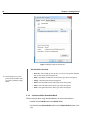
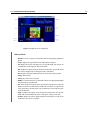
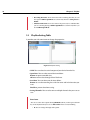
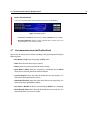
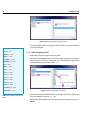
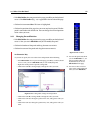
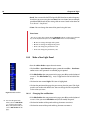
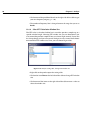
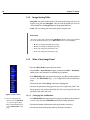
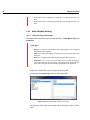
• W: You can change the height of the panel.
• X: You can change the position in x-axis.
• Y: You can change the position in y-axis.
5.3
Make a New PlayBox Panel
• Run the eWave Probe to open the main menu.
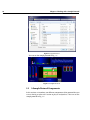
• Click File > Open Protocol to open a protocol or File > New Protocol to
create a new protocol. An editable page opens.
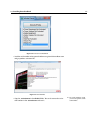
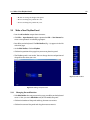
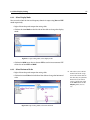
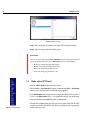
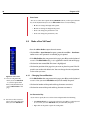
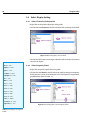
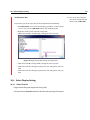
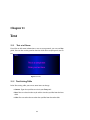
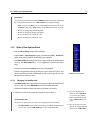
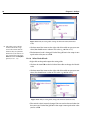
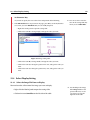
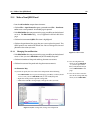
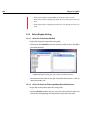
• Press E key on the keyboard. The Edit Toolbar (Fig. 5.3) appears in the left
side of the page.
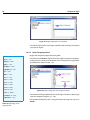
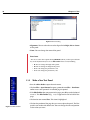
• On the Edit Toolbar, Click on PlayBox.
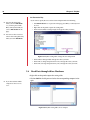
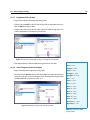
• Click on the position of the page that you want to place the panel.
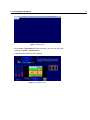
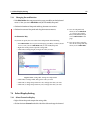
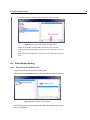
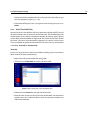
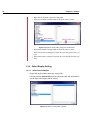
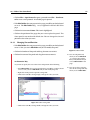
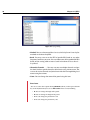
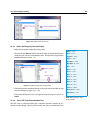
• The PlayBox panel is now made. You can change the size and position of
the panel to the values you want.
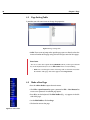
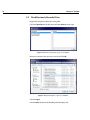
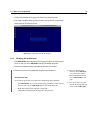
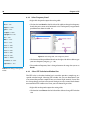
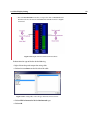
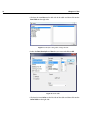
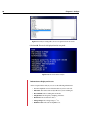
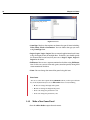
Figure 5.3 Edit Toolbar
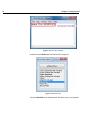
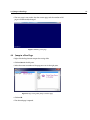
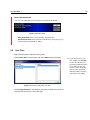
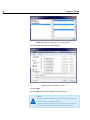
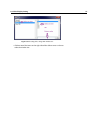
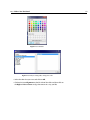
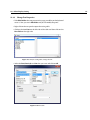
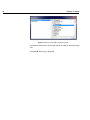
Figure 5.4 Making a PlayBox Panel
5.3.1
Changing Size and Position
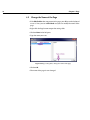
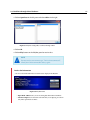
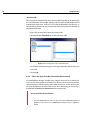
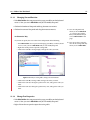
• If the Edit Toolbar does not present in the page, press E key on the keyboard
to see it. Now, you are in Edit Mode and you can modify the panel.
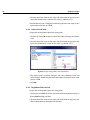
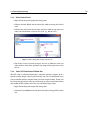
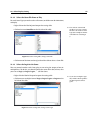
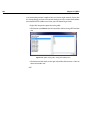
• Click on the borders of the panel and drag the mouse to resize it.
• Click on the center of the panel and drag the mouse to move it.