1
Other products from GSD
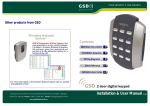
“Wireless Network
System”
GSD Wi-Max System is the next generation
in access control solutions. It provides a
Wireless Network throughout the premises,
giving the convenience and security of a fully
networked system for a fraction of the cost.
For more information on the Wireless Network System visit our website
www.globalsecurity.ie
Contents
Installation Instructions 3
Installation Diagrams
4
System Overview
6
Wiring Diagrams
8
Network Diagrams
9
Operation Instructions 12
Fingerprint Enrollment 19
Wi-Corporate Controller
No.1 Turnpike Business Park,
Ballymount,
Dublin 22, Ireland.
Telephone: +353 1 524 2691.
Fax: +353 1 4430 430.
Installation & User Manual
V2.02
2 Technical Specification
Installation Steps
Technical Specs - GSD Wi-Corporate Controller
Power Supply
Current consumption
Fuse Rating
Moisture Resistance
Dimensions
230 VAC
30mA
230VAC 315mA T
Indoor Use Only
W. 260mm D. 262mm H. 55mm
Technical Specs - Wi-Corporate Door Controls
Power Supply
Current consumption
Current consumption with load (max)
Relay Contact Rating
Operating Temperature
Moisture Resistance
Dimensions - Flush Mount
- Surface Mount
12 DC
110mA
145mA
5 Amps /230V ac
- 20 C to +60 C
IP 67 ( IP65 on Wi-Bio )
W. 87mm D. 21mm H. 119mm
W. 87mm D. 35mm H. 119mm
Features
Doors controlled
Users
User Groups
Time Zones
Door Groups
Reporting Facility
Challenge Facility
Logging
Input/Output Mapping
Supports Wireless & RS485 Networks
Automatic Backup Facility
Database Encryption
* 30000 individual usergroups are available
20
30000
128*
128
128
Yes
Yes
Unlimited
CCTV & Lift control
Yes
Yes
Yes
3
Installation Steps
Step Description
Page
1
Install the Controller using the Installation Diagrams
4-5
2
Wire the Controller using the Wiring Diagrams
8
3
Install and wire each Door Control. Refer to the Door Control
Manual for instructions.
4
Connect the Controller to the PC using Network Diagrams
9-11
5
Restoring Factory Defaults
11
6
Setting up TCP-IP
12
6
Phase 1- Setting up the GSD Controller
14
7
Phase 2 - Configuring the GSD Controller
15
8
Phase 3 - Enrolling Door Controls
9
Phase 4 - Configuring Users
19
10
Phase 5 - Configuring Access Levels
20
11
Phase 6 - Downloading Configuration
20
12
Enrolling User Fingerprints
21
13
Correct Finger Placement techniques
16-18
22-25
Installation Diagrams
4 Installation Diagrams
Control Panel opening
Control Panel features
mount hole
remove screw cap
remove retaining
screw
access to rear
void for wiring
cable
entry
mount with 4 x 1.5 inch
No. 8 Security Type screws
spirit level
mains pcb
cable
entry
cable
entry
spare cap
rear tamper
switch
to remove cover
pull forward on
right and slide left
to remove cover pull
out on right and slide left
mount hole
mount hole
cable
entry
5
6
System Overview
System Overview
RS485 Connection to Door Controls
Note: If using a single Controller,
an RS232 cable may be used.
Max cable length 10 meters
Wireless Connection to Door Controls
TCP-IP connection to Controllers
or
RS485 Network to Controllers
Max number of Controllers 3
Max Cable Length 1.4 km
Note: If using a single Controller,
an RS232 cable may be used.
Max cable length 10 meters
TCP-IP connection to Controllers
or
RS485 Network to Controllers
Max number of Controllers 3
Max Cable Length 1.4 km
Controller
#2 - 3
Place a 120ohm
Termination Resistor
across A & B on the
Controller
7
Controller
#2 - 3
50 meters
Controller
#1
50 meters
Controller
#1
50 meters
Door Control
#4
50 meters
RS485 Network to Door Controls
Max Cable Length 1.4 km.
Daisy Chain Configuration Only.
Door Control
#1
Door Control
#3
50 meters
50 meters
50 meters
Place a 120ohm
Termination Resistor
across A & B on the last
Door Control in the chain.
Door Control
#1
Door Control
#2
Door Control
#3
Door Control
#4 - 20
Door Control
#2
Note: Door Controls can be installed within 50 meters
of the Controller or within 50 meters of any other Door Control
as each Door Control will function as a repeater. Each repeater
transmits data to/from the Controller.
Door Control
#5 - 20
8
Wiring Diagrams
Network Diagrams
Network Diagrams for Single Controller
Wiring Diagrams
Warning : Installation should only be carried out
by a suitably qualified person only.
DB9 Female
Serial Cable
Cable Tie
Neutral
Earth
Live
6
7
Connect DB9 cable
to serial port on PC
Note : Used ONLY for
Wired 485 Network
Connections.
9
PC Direct Connection can be used, when
using ONLY one GSD Controller.
Set the Direct address to
ALL dip switches OFF
(see below )
Pull
Inputs/outputs
1234
ON
OFF
OP3
OP4
0V
VOUT
DAT
CLK
SEN
ON
OFF
3V Lithium
1234
TCP_IP
A
B
0V
TX
RX
5
PC Network
A
B
COM
TX
RX
Remove Battery Tab
IP1
IP2
0V
IP3
IP4
12V
OP1
OP2
A
B
COM
Inputs/outputs
Main Input Cable
230VAC
PC Direct
Maximum cable
length 10 meters
3
4
Door Network
Door Network
PC Network Connections
can be used for multiple
controllers See page
10 for wiring
8
2
PC Direct
Fuse Rating : 230VAC 315mA
1
PC Network
Cable Tie
retaining
clips
Direct Connect - All Dip Switches OFF
A
B
0V
9
10 Network Diagrams
Network Diagrams
11
Configuring GSD Controller Communications
Network Diagrams for Multiple Controllers
Step Description
1.
12V
19200
12V - 1
0V - 2
B-3
A-4
Set Baud Rate to 19200
Daisy Chain
each controller
0V B
PC Network Connections, when using more
than one GSD Controller.
PC Direct
Connect using RS232-RS485
cable to serial port on PC
Controller 1
PC Network
9600
RS485 Converter
A
B
0V
TX
RX
Click ‘Settings’ tab to open communications window. Select the Serial Port
Number connected to the Controller.
Setting the GSD Controller address
The Controller Address is set by configuring the Dip switches as shown below.
A
Daisy chain the PC network A , B , 0V to each controller.
Controller 2
Direct Connect - All OFF
Address 1 - Set SW1 ON
Note: Address 3 - Set SW3 ON only
1234
ON
OFF
PC Network
Controller 1
PC Direct
A
B
0V
TX
RX
1234
ON
OFF
Controller 2
1234
ON
OFF
Set an individual address for each controller
between 1 & 3 using the dip switches
(see below )
Address 2 - Set SW2 ON
Restoring Factory Settings
To restore the factory default setting , Set ALL Dip
Switches 1,2,3 & 4 to the ON position and then
power-up the GSD Controller.
Address 3 - Set SW3 ON
1234
ON
OFF
Address 2 - Set SW2 ON
1234
ON
OFF
1234
ON
OFF
1234
ON
OFF
Address 1 - Set SW1 ON
Controller 3
Example: All Dip Switches are set to the ON position.
Note: Factory Default settings will be restored after
powering up the controller with All dip-switches ON. The
dip-switches’s should then be set to the controller
address as shown above in section “Setting the GSD
controller address”
Operation Instructions 13
12 Operation Instructions
Setting up TCP-IP - Static IP
Setting up TCP-IP - DHCP
Step Description
Step Description
1.
2.
1.
2.
Default the Controller. See Restore Factory settings on page 11. The
default TCP/IP mode will then be set to DHCP.
Set the Controller address to address 1. See page 11 for details.
Connecting the Controller to your DHCP LAN.
Connect the Controller to your LAN using an ethernet cable. The Controller
will be assigned an IP address by your DHCP server.
On the Controller tab, Select TCP/IP with the DHCP option and enter the
MAC address of the Controller. The MAC address of the controller can be
found on the box or on the Controller PCB.The Controller icon will turn blue
when it comes online.
1.
2.
3.
4.
5.
6.
1.
2.
3.
Connecting the Controller directly to a PC using default IP address.
Connect an Ethernet cable between the Controller and the PC. (The default
IP address of the Controller is set to 169.254.1.1)
Set the IP address on the PC to a similar IP address e.g. 169.254.1.2
Note: If there is no LED activity on your PC’s ethernet interface then the PC
requires a cross-over cable between the PC and the Controller.
On the Controller tab, Select TCP/IP with DHCP option and Enter the
MAC address of the Controller or Select TCP/IP with Static IP option and
enter the default Controller IP address of169.254.1.1 and click apply.
Using MAC Address
Using Default IP Address
Default the Controller. See Restore Factory settings on page 11. The
Controllers default IP address is 169.254.1.1.
Set the Controller address to address 1. See page 11 for details.
Connect the Controller directly to a PC to using an ethernet cable.
Connecting the Controller directly to a PC using default IP address..
Connect an Ethernet cable between the Controller and the PC. (The default
IP address of the Controller is set to 169.254.1.1)
Set the IP address on the PC to a similar IP address e.g. 169.254.1.2
Note: If there is no LED activity on your PC’s ethernet interface then the PC
requires a cross-over cable between the PC and the Controller.
On the Controller tab, Select TCP/IP with Static option and enter the
default Controller IP address of 169.254.1.1 and click apply. The
Controller icon will turn blue when it comes online. A new IP address can
then be sent to the Controller using the “Controller TCP/IP Configuration”
button.
Sending a new IP address to the Controller e.g 192.168.1.26.
7. Make sure the controller is online and click on the
“Controller TCP/IP Configuration” button.
8. Choose Static IP mode and enter the IP address,
Netmask and Default Gateway assigned by your
network administrator. Click “Send new settings
to Controller”. The Controller will now go offline as
the new IP Address settings are applied.
9. Connect the PC and Controller to your LAN
and enter the new IP address to allow the
application to communicate with the
Controller.
Note: Reset the IP address on your PC to its
original setting for your LAN.
Operation Instructions 15
14 Operation Instructions
Phase 1 - Setting up the GSD Controller
Step Description
1.
Install the main GSD Controller and power up
2.
Default the controller immediately via the dip switch settings
(see instructions on page 11
3.
Important! Once powered up and the controller has completed the default
the process – reset the dip switches to the correct address positions.
(see instructions on page 11)
4.
Follow instructions on the CD provided to install the GSD PC application.
To download the latest drivers, enter the following link in your web browser.
http://www.globalsecurity.ie/download/GSDWin Access en-US.zip
5.
Open the application
A. Log in to the application as the Engineer (not the administrator) with the
password 6666.
B. Connect to the Controller. Refer to page 12 & 13 for setting up DHCP
or Static IP addresses
C. The Controller icon will change colour to show that the Controller is
on-line.
D. Go to the 'Current Events' tab and verify the log messages indicate the
controller is on-line.
Phase 2 - Configuring the GSD Controller
Step Description
1.
Open the ‘Doors’ tab in the main menu to add the required number of new
doors to be part of this network. 1 door will already be added by default.
Click on the “+” button to add new doors. “-” to remove doors.
2.
Make sure all doors are ‘Enabled’ and then click Save.
3.
Open the Settings Tab and do a Full Download to the Controller – this
gives the Controller a clean set of instructions before beginning to enroll
doors onto the network. This will take approximately 1 minute.
4. WARNING! A New Network should only be created on first installation.
Creating a new network will overwrite any existing network information
and any enrolled Door Controls will be un-enrolled. All Door Controls will
have to be defaulted and re-enrolled on the new network that has just
been created!
A new network is now ready to be created.
Go to the ‘Controllers’ tab and Click on the ‘Wireless Network’ and then
the ‘Create a New Network’ button.
Click Yes on the ‘Hit yes if you want to proceed’ pop-up.
Note: It will take about 20 - 60 seconds to complete. a pop-up will appear
when the netwrok has been created.
Operation Instructions 17
16 Operation Instructions
Phase 3 - Enrolling Door Controls
Step Description
All Door Controls should be installed at this point and powered up.
1.
All Door Controls must be defaulted before joining a network.
Note: Door Controls will be shipped with their factory default settings.
Enter Engineer mode on each Keypad Door Control in the following way
A. Press X followed by 6666
B. Enter 55 –to default
C. Press the tick to confirm – the keypad will now go through the
process of defaulting itself.
D. When this process has complete hit the X button to leave engineer
mode and to put the keypad control in the ‘Scan Mode’ – the Red Led
on the Door Control will now be in flicker mode as an indication.
E. Repeat the process for all keypad Door Controls
Enter Engineer mode on each Wi-Bio Door Control in the following way
A. Enter 6666
B. Enter 55 –to default
C. Scan Finger to confirm – the Door Control will now go through the
process of defaulting itself.
D. When this process has complete Scan Finger again to leave engineer
mode and to put the Door Control in the ‘Scan Mode’ – the Red Led
on the Door Control will now be in flicker mode as an indication.
E. Repeat the process for all Wi-Bio Door Controls
Enter Engineer mode on each Prox Only Door Control in the following way
A. Add a programming card to the Door Control by presenting a card
twice on power-up. The security wing must be removed first!
B. Present this new programming card to enter Engineer mode.
C. Present the programming card again to select “Default mode”.
D. Present any other card once to default the Door Control.
E. When this process has complete the Door Control will be in the ‘Scan
Mode’ – the Red Led on the Door Control will now be in flicker mode
as an indication.
Phase 3 - Enrolling Door Controls
Step Description
2. The controller is now ready to allow Door Controls to enroll onto the
Network – click the ‘Allow Doors to join this Controllers Network’ on
the ‘Controllers’ tab to start the controller scanning for new doors that do
not already have an address – only DoorControls without an address can
enroll – this will avoid other networks and Door Controls in the same
building on a different network becoming part of this new network!
Note: For Wired 485 Door Controls, right click on the Controller on the
right hand side of the application and select ‘Manually Assign Address’
from the drop down menu.
Once all new Door Controls are found by the Controller they will all
‘beep’ with the number of the next available address/door position on the
Controller.
e.g. if door 2 is the next available address then all Door Controls will beep
at the same time with 2 beeps. This is basically saying that any door can
be assigned to this address – it’s up to the installer to decide which one.
Also – you will notice that the Key back light of the keypad Door Controls
will be illuminated with the next available address as well.
i.e. Key 2 will be illuminated for this example.
3.
Go to the Door control that you want to make door 2 on the network
system (it should be beeping 2 times). Press any key on this keypad and
the system will automatically assign this door control to door 2 location on
the system. Present a card if the Door Control is Prox Only.
Note: All other Door Controls will now start beeping with the next
available address i.e. ‘3 beeps’ in this instance and so on every time you
enroll a new Door Control. The Key back light will also correspond to
each address as the system fills up.
Operation Instructions 19
18 Operation Instructions
Phase 3 - Enrolling Door Controls
Step Description
4.
5.
Once all Door Controls are enrolled onto the network – go back to the
Controller application and click the ‘Secure Network’ button
–this safeguards the systems –if you select another tab on the application
this will happen automatically.
Select each Door on the application and configure individual settings such
as Timed Actions, Relay Times, Ajar Times, Door Option and Alarm Options
etc.
IMPORTANT: A timezone must be selected in ‘Timed Actions’ for one of the
options: Card and PIN, Any Card, Card or PIN , or PIN only.
If all of these are set to ‘inactive’ then access will be denied for all cards
and PINs on that Door Control.
Example: Disabling cards/fobs, Enabling PIN codes only on a Wi-PIN&Prox
Set the Timed Action “Card or PIN” to “Inactive” and setting the Timed
Action “PIN Only” to “All day,Every Day”. This will grant access for PIN
codes and deny access for cards and fobs.
To enable or disable Timed Actions at specific times, select a timezone
from the drop-down list instead of “All Day, Every day”.
Phase 4 - Configuring Users
Step Description
1.
Enable a User by ticking the ‘Enabled’ box for each User
2.
Assign a Name to the User
3.
Assign a UserGroup from the drop-down menu. The Usergroup will
determine the access levels for this User. Refer to section below on
‘Configuring Access Levels’ for information on User Groups.
4.
Assign a Card , PIN number and enroll FingerPrints for the User. Refer to
section FingerPrint Enrolment on page 22
Click ‘save’ to transmit these changes to the Controller.
Operation Instructions 21
20 Operation Instructions
Phase 5 - Configuring Access Levels
Step Description
Access Levels are controlled by creating UserGroups and assigning the
UserGroup to a User as described in section ‘Configuring Users’.
1.
2.
3.
UserGroups are created by combining pairs of DoorGroups with
Timezones. Each UserGroup can have up to 6 pairs of DoorGroups and
Timezones. Select DoorGroups and Timezones from the drop-down menus
to add to the current UserGroup.
Step Description
Note: Make sure the USB Fingerprint reader is attached to the PC
1.
DoorGroups are created by grouping doors together. e.g. all the entry and
exit doors could be grouped together as ‘Peremiter Doors’. Select a Door
from the ‘All available Doors’ window and drag it to the ‘Doors in Current
Door Group’ to add it to the Door Group. Repeat for adding each door.
Step Description
After all users, access levels and door control settings have been finalised,
a full download to the controller should be carried out.
Go to the ‘Settings’ tab and click on ‘Download Configuration’. A pop-up
window will appear, tracking the status of the download. All settings will be
downloaded to the Controller and Door Controls.
Select the User for fingerprint enrollment
2. Click on the ‘Fingerprints’ button.
3.
Click on ‘Enrol’ tick box and place finger on the enrolment reader. An
image of the fingerprint will appear on the screen. Ensure that the image
quality is good and a value of at least 90% is achieved. Refer to section
‘Finger Placement’ for correct finger placement and example of good
quality image. Repeat this process if this is not achieved on first attempt.
4.
Click ‘Save’ using a good quality template only. Poor Quality templates can
lead to false rejections later when trying to gain access .
Timezones are the periods of time for each day of the week that access
will be granted. Select times and tick the days of the week this time is valid.
4 time periods can be created for each timezone. Select ‘Holiday Access’
to grant access for holiday periods. Double click on the ‘Holiday Access’ to
add days to the holiday periods. Use the calendar to select these days.
Phase 6 - Downloading Configuration
1.
Enrolling User FingerPrints
Finger Placement Wi-BIO 23
22 Finger Placement Wi-BIO
Correct Finger Placement
Incorrect Finger Placement
Note: Incorrect placement : finger does not
fully cover the sensor window.
Good Quality Image
Note: Ensure that the core of finger is
centered on the sensor window during
the enrollment process. This will increase
the quality of the fingerprint template
Note: Good Quality image, Fingerprint core
is center of sensor window
Note: The System does not store the finger
print. It uses an algorithm to generate a
binary representation using sample points
from the fingerprint. It uses this information
to then validate each users fingerprint.
Poor Quality Image
Note: Poor Quality image, No Fingerprint
core on sensor window.
This can result in poor template quality that
can lead to false rejection issues later when
the user is trying to gain access.
Finger Placement Wi-BIO 25
24 Finger Placement Wi-BIO
Correct Finger Placement
Incorrect Finger Placement
26 Installation Record
Ctrl
1
2
Door No. Door Type Door Location Name
1
2
3
4
5
6
7
8
9
10
11
12
13
14
15
16
17
18
19
20
1
2
3
4
5
6
7
8
9
10
Installation Records
Walk Test
Ctrl
2
3
Door No. Door Type Door Location Name
11
12
13
14
15
16
17
18
19
20
1
2
3
4
5
6
7
8
9
10
11
12
13
14
15
16
17
18
19
Walk Test
27