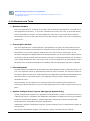
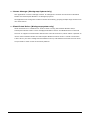
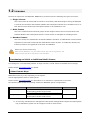
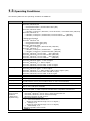
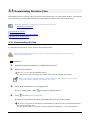
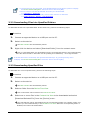
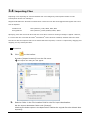
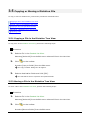
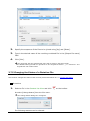
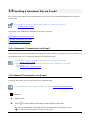
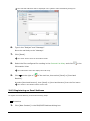
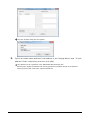
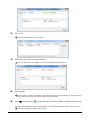
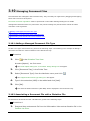
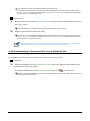
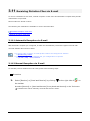
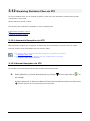
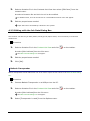
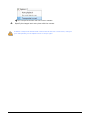
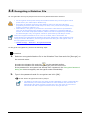
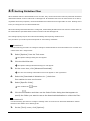
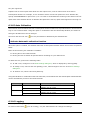
1
Olympus Dictation Management System R6 Transcription Module Reference Manual Contents 1 INTRODUCTION··························································································· 5 1.1 Olympus Dictation Management System Outline··········································· 6 1.2 Licenses ······························································································· 10 1.3 Operating Conditions·············································································· 11 1.4 Devices Supported by Transcription Module ··············································· 13 1.5 Supported File Formats ·········································································· 14 1.6 Transcription Module Capabilities ····························································· 15 1.7 Trademarks and Copyrights ····································································· 16 2 BASIC OLYMPUS DICTATION MANAGEMENT SYSTEM FUNCTIONS ········ 17 2.1 Dictation File Name and Author ID ··························································· 18 2.2 Process and Status ················································································ 19 2.3 How Folders Work ·················································································· 21 2.4 Worktypes and Option Items ··································································· 24 2.5 Ownership Attribute ··············································································· 25 2.6 Local Mode and Network Mode ································································ 26 2.7 Clean ··································································································· 27 2.8 Voice Comment ····················································································· 28 2.9 Storage Mode and Composite Mode ·························································· 29 2.10 Backing Up ························································································· 30 2.11 Debugging Option ················································································ 31 3 BASIC OPERATIONS ·················································································· 32 3.1 Starting and Exiting Transcription Module ·················································· 33 3.2 Starting and Finishing Transcription ·························································· 35 3.3 Downloading Dictation Files ···································································· 36 3.4 Importing Files ······················································································ 39 3.5 Copying or Moving a Dictation File ··························································· 41 3.6 Playing a Dictation File ··········································································· 45 3.7 Editing a Dictation File············································································ 53 2 / 197 3.8 Sending a Document File via E-mail ························································· 61 3.9 Sending Document Files via FTP ······························································ 65 3.10 Managing Document Files ······································································ 67 3.11 Receiving Dictation Files via E-mail ························································· 69 3.12 Receiving Dictation Files via FTP ····························································· 70 3.13 Voice Recognition ················································································· 71 4 MANAGING FILES AND FOLDERS ····························································· 77 4.1 Editing a Folder in the Dictation Tray ························································ 78 4.2 Editing the Properties of Audio and Document Files ···································· 80 4.3 Backing Up a Downloaded Dictation File ···················································· 83 4.4 Decrypting a Dictation File ······································································ 84 4.5 Sorting Dictation Files ············································································ 85 4.6 Sharing Dictation Files with Authors ························································· 87 4.7 Automatically Deleting Transcribed Dictation Files ······································ 88 5 CUSTOMIZING THE TRANSCRIPTION MODULE ······································· 89 5.1 Customizing the Work Area ····································································· 90 5.2 Customizing the Content List View ··························································· 91 5.3 Assigning Hot Keys ················································································ 94 6 OPTION SETTINGS ON OPERATING CONDITIONS ··································· 95 6.1 Folder Design ························································································ 96 6.2 Workflow ···························································································· 103 6.3 User Settings ······················································································ 119 6.4 E-mail / FTP························································································ 124 6.5 Device ······························································································· 128 6.6 Updates ····························································································· 130 7 TROUBLESHOOTING ··············································································· 131 7.1 The Transcription Module Does Not Start Up ············································ 132 7.2 The System Remains Silent ··································································· 133 7.3 DVR Is Not Recognized ········································································· 135 7.4 Collecting Information with Log Tool ······················································· 136 3 / 197 7.5 Updating ···························································································· 138 7.6 Modifying a Workgroup environment ······················································ 139 8 APPENDIX ······························································································· 141 8.1 Names and Functions of Window Components ········································· 142 8.2 Menu Lists (Main Window) ···································································· 160 8.3 Menu List (Voice Recognition Editor) ······················································· 166 8.4 File Property Lists ················································································ 168 8.5 Default Key Assignments ······································································ 171 8.6 Names and Functions of Option Settings Dialog Box Components ··············· 173 9 SUPPORT CONTACTS·············································································· 192 10 GLOSSARY ···························································································· 193 4 / 197 1 Introduction Thank you very much for purchasing our product. Olympus Dictation Management System is a Dictation/Transcription system that supports assignments of various sizes, from individual users to multiple users. Olympus Dictation Management System Outline Licenses Operating Conditions Devices Supported by Transcription Module Supported File Formats Transcription Module Capabilities Trademarks and Copyrights 5 / 197 1.1 Olympus Dictation Management System Outline Olympus Dictation Management System R6 (ODMS R6) is a Dictation/Transcription system that supports assignments of various sizes, from individual users to multiple users. It can be used to capture audio data highly compressed with an Olympus digital voice recorder (hereinafter referred to as "the recorder"), and allows for real-time playback, editing, and insertion of index information. ODMS R6 and recorder support the playback of DSS, an international standard for audio recording, Microsoft-promoted WMA, and MP3. With peripheral devices connected, such as a DirectRec or a foot switch, it provides a variety of additional functions, including audio streaming recording and remote control playback. The Workgroup System supports Citrix XenApp/Presentation Server, and some other virtual environments. It also supports Terminal Services provided by Windows Server products, allowing this product to be used via the Terminal Services Client Virtual Driver. DSS support in Citrix Presentation Server / XenApp environment DSS supports “Published Desktop” and “Published Application” from the Citrix Presentation Server / XenApp, but doesn’t support “Web Interface.” In addition to DSSPlayer Pro R5 features, ODMS R6 offers the following: Enhanced compatibility with Nuance Dragon NaturallySpeaking Enhanced direct recording functions using Olympus Directrec devices Citrix XenDesktop and VMware View support Addition of new applications specialized for downloading dictation files System management functions that enable sharing with DSSPlayer Pro R5 System Configurations of ODMS R6 Modules and Tools 1.1.1 System Configurations of ODMS R6 ODMS R6 offers two system variants with different administrative configurations. Standalone System With this configuration, an individual user enters the supplied license ID (for a single license), installs the software on the system, and configures applications. User profiles (various settings for each user) are located on local PCs and managed by individual users. 6 / 197 About silent installation with a multi-license ID Silent installation with a multi-license ID can standardize the settings of multiple users. For information on how to achieve this, refer to "Installation Guide." Workgroup System With this system configuration, an administrator installs and configures the modules for each user, and centrally manages and operates them under a multi-license. This system requires License Manager to be installed to manage the multi-license. User profiles are placed in a shared folder on the file server. The administrator uses the System Configuration Program to assist each user in the configurations and installations. A significant part of user profile settings can be configured and locked with the System Configuration Program. 7 / 197 About Workgroup System configuration For information on how to set up the R5Workgroup System, refer to “Installation Guide.” 1.1.2 Modules and Tools Dictation Module This is an application for an Author. It is mainly used to download a dictation file recorded with a DVR (Digital Voice Recorder), or to record a dictation file directly onto a PC. It can automatically send a downloaded or directly recorded dictation file via email or FTP. It also has the ability to automatically receive a transcribed document file and manage it with a link to the corresponding dictation file. Transcription Module This is an application for a Transcriptionist. The application can notify the Transcriptionist of the arrival of a new dictation file and switch to a smaller window at the onset for easy transcription. It automatically receives and captures dictation files via email or FTP for transcribing. It has document management capability that can automatically start your word processor software before transcribing, and can manage a document with a link to the corresponding dictation file. In addition, if the original dictation file was received via email or FTP, the application can automatically send a document file to a specified destination immediately after the transcription has been completed. File Downloader File Downloader is an application that enables easy downloading of a DVR-recorded dictation file to a PC. The application starts up automatically whenever the PC is started, and remains resident in the system. When connection to a DVR is detected, the application automatically downloads its files and stores them in a specified location. The application offers a simple, efficient method of download for users. File Downloader can be installed on a computer that has the Dictation Module and/or the Transcription Module installed, so any one of the applications can be used as required by the job at hand. System Configuration Program (Workgroup System Only) System Configuration Program is an application for administrators, which is used when structuring a Workgroup system. It facilitates the installation and updates of modules for end-users (Dictation Module and Transcription Module), manages application settings for end users (authors and transcriptionists), and updates firmware management. Installing the System Configuration Program will also install the Device Customization Program at the same time. The Device Customization Program can customize, import, and export device settings. 8 / 197 License Manager (Workgroup System Only) This application is used to manage licenses. It manages the licenses and accounts of Dictation Module and Transcription Module in a Workgroup system. The application can change the number of license accounts by grouping multiple single licenses into one multi-license. Client Virtual Driver (Workgroup system only) Client Virtual Driver is installed on a client PC when running the Dictation Module and/or Transcription Module under a Citrix XenApp/Presentation Server and Windows Server Terminal Services. It supports communication between the client PC and server, which makes it possible to use all of the Dictation Module and Transcription Module functions under a virtual environment. A Citrix driver (for Citrix XenApp and Presentation server) and Windows Terminal Services driver are provided for each virtual environment platform. 9 / 197 1.2 Licenses A license is required to use ODMS R6. ODMS R6 is provided under the following two types of licenses: Single License This is the license ID, issued with a recorder or foot switch, that allows single licensing of ODMS R6. A recorder license allows the Dictation Module and Transcription Module to be installed on a PC. A foot switch license allows only Transcription Module to be installed on a PC. Multi-license This is the combined license ID that groups several single licenses into one license ID for both Dictation Module and Transcription Module. A multi-license is managed as a floating license. Decoder License This is the license for redistribution of DSS and DSS Pro decoders. A redistribution contract allows acquisition of a decoder license ID and redistribution of the decoder. To enable the decoder, the license ID needs to be registered at the time of installation. About the multi-license key With License Manager, only the multi-license key can be registered. The single license and other licenses are not available. Purchasing an Initial or Additional Multi-license In exchange for a corresponding number of single licenses, a multi-license is available free of charge. Please contact our support team for details. Other License Keys ODMS R6 license keys vary depending on the system. Use the appropriate license for each system. Please contact our support team for information on re-issuance or replacement of a license. The following table shows the licensing scheme for ODMS R6 system configurations: System Name Standalone System Workgroup System Required License Dictation Module single license Transcription Module single license Multi-license*1 Dictation Module multi-license Transcription Module multi-license License Server Not required License Manager *1 : If not using centralized user management with System Configuration Program and sharing data only, a Standalone system can be configured under a multi-license. 10 / 197 1.3 Operating Conditions The following table lists the operating conditions of ODMS R6. Items OS Condition Standalone System Microsoft® Windows®XP Professional Edition / Home Edition SP3 (x86) Professional Edition / Home Edition SP2 (x64) Microsoft® Windows Vista® Ultimate / Enterprise / Business / Home Premium / Home Basic SP2 (x86/x64) Microsoft® Windows 7® Ultimate / Enterprise / Professional / Home Premium (x86/x64) Ultimate / Enterprise / Professional / Home Premium SP1 (x86/x64) Workgroup System CPU Memory HDD Space .NET Framework Drive Display Browser USB Audio Device Virtual Environment Platform (Workgroup System only) Microsoft® Windows®XP Professional Edition SP3 (x86) Professional Edition SP2 (x64) Microsoft® Windows Vista® Ultimate / Enterprise / Business SP2 (x86/x64) Microsoft® Windows 7® Ultimate / Enterprise / Professional (x86/x64) Ultimate / Enterprise / Professional SP1 (x86/x64) Microsoft® Windows® Server 2003 SP2 (x86/x64) Microsoft® Windows® Server 2003 R2 SP2 (x86/x64) Microsoft® Windows® Server 2008 SP2 (x86/x64) Microsoft® Windows® Server 2008 R2 (x86/x64) Microsoft® Windows® XP: 1 GHz or higher Microsoft® Windows Vista®: 1 GHz or higher Microsoft® Windows 7®: 1 GHz or higher Microsoft® Windows® Server 2003: 1 GHz or higher Microsoft® Windows® Server 2008: 2 GHz or higher Microsoft® Windows® XP: 256 MB or higher Microsoft® Windows Vista®: 1 GB or higher Microsoft® Windows 7®: 1 GB or higher (x86)/2 GB or higher (x64) Microsoft® Windows® Server 2003: 256 MB or higher Microsoft® Windows® Server 2008: 2 GB or higher At least 2 GB of free space .NET Framework 4.0 or higher CD-ROM drive installed 1024 x 768-pixel resolution or higher 65,536 colors or more (16.77 million colors or more recommended) Microsoft® Internet Explorer 6.0 or later (with the latest Service Pack applied) With the Dictation Module and Transcription Module: One or more USB ports available With the Dictation Module and Transcription Module: A Microsoft WDM- or MME-compliant and Windows-compatible sound device Windows Terminal Services* Microsoft® Windows® Server 2003 / 2008 Terminal Service Microsoft® Windows® Server 2008 RemoteApp * Requires separate TS CAL license. Citrix Presentation Server* Citrix Presentation Server 4.5 (Requires Citrix Online Plugin 12.0.0 or higher.) XenApp 5 / 6 (Requires Citrix Online Plugin 12.0.0 or higher.) XenDesktop 4 / 5 * Requires separate Citrix license. VMWare 11 / 197 Supported Languages VMWare View 4.5 English, French, German, Spanish, Russian, Swedish Installing ODMS R6 requires the privileges of an Administrator. Currently supported OSes are listed on our Web page. For the latest information, please visit the Olympus Web site at http://www.olympus-global.com/en/global/ 12 / 197 1.4 Devices Supported by Transcription Module Transcription Module supports the following Olympus devices: Device Type Foot switch 13 / 197 Models RS-31 RS-28 RS-27 1.5 Supported File Formats Dictation Files The following table lists the file formats supported by each function: Functions Playback, import, and export New recording and editing (at audio capturing) File splitting/joining Supported File Formats (Extensions) Non-encrypted file: DS2, DSS, WAV, WMA, and MP3 Encrypted file: DS2, $DSS, $WAV, $WMA, and $MP3 In addition to the above, if a codec that works with Microsoft ® DirectShow® Filter has been installed, an imported file can be played, but we do not guarantee proper operations. Non-encrypted file: DS2, DSS, WAV, and WMA Encryption settings cannot be configured in the Transcription Module. Non-encrypted file: DS2, DSS, WAV, and WMA Encrypted file: DS2, $DSS, $WAV, and $WMA Document Files The following file formats can be handled under the default setup. Text file (XXX.TXT) Rich Text Format file (XXX.RTF) Microsoft Word format (XXX.DOC/.DOCX) To use another file format, registration is required. Configure document format as an optional setting by selecting [Folder Design] and then [Attributes]. => [Folder Design]-Attributes 14 / 197 1.6 Transcription Module Capabilities The following functions are available: While playing back a dictation file that was recorded with the recorder on your PC, you can easily transcribe the recorded information using a word-processor application (Playback Control Window). Reports and meeting summaries can be created (Playback Control Window). Memos and ideas can be organized (Playback Control Window[while caputuring audio]). Recordings can be automatically downloaded from the recorder and backed up on the PC. Recordings can be automatically distributed to Transcriptionists or other users via email or FTP. Prepared documents can be automatically retrieved via email or FTP, and linked to their corresponding recordings. Downloaded dictation files can be automatically converted to text using voice recognition. Voice recognition results can be corrected with the location of the corrections fed back to the voice recognition engine. 15 / 197 1.7 Trademarks and Copyrights Microsoft, Windows, Windows Media, Windows Media Player, Windows Server, Outlook, DirectX, Active Directory, and DirectShow are trademarks or registered trademarks of Microsoft Corporation in the United States and/or other countries. Citrix, ICA (Independent Computing Architecture), MetaFrame, and Program Neighborhood are trademarks or registered trademarks of Citrix Systems, Inc., in the United States and/or other countries. Nuance, the Nuance logo, Dragon, Dragon NaturallySpeaking, and RealSpeak are trademarks and/or registered trademarks of Nuance Communications Inc., and/or its affiliates in the United States and/or other countries. GroupWise, Netware, and Novell are trademarks or registered trademarks of Novell, Inc., and/or its affiliates in the United States and/or other countries. Lotus Domino and Lotus Notes are trademarks or registered trademarks of IBM Corporation and/or its affiliates in the United States and/or other countries. Baltech Transponder is a trademark or registered trademark of BALTECH AG and/or its affiliates in the United States and/or other countries. Inner Media, DynaZip, and Active Delivery are trademarks or registered trademarks of Inner Media Inc. and/or its affiliates in the United States and/or other countries. SocketTools is a trademark or registered trademark of Catalyst Development Corporation. Other company and product names mentioned in this document are trademarks or registered trademarks of their respective owners. 16 / 197 2 Basic Olympus Dictation Management System Functions This chapter describes the basic functions of Olympus Dictation Management System (ODMS R6). Dictation File Name and Author ID Process and Status How Folders Work Worktypes and Option Items Ownership Attribute Local Mode and Network Mode Clean Voice Comment Storage Mode and Composite Mode Backing Up Debugging Option 17 / 197 2.1 Dictation File Name and Author ID Dictation File Name A dictation file created with an Olympus recorder is automatically named with eight characters in the format below. A file directly recorded with the Dictation Module also follows the same naming process. Author ID (leading four characters) + Job No. (a four-digit number beginning with 1) Author ID The Author ID, which is registered as part of the file name, represents the Author of the file. The Dictation Module can register up to ten Author IDs and transfer them to the recorder. If no Author ID is registered, the logon ID for Windows is used as the Author ID. Job No. The Job No. is automatically set when a recording is made. Each time a dictation file is created, a new number is provided for it. The Job No., which is an essential number for file management, cannot be reset by the user. Removing batteries from or formatting the memory card of the recorder will not reset the Job No. 18 / 197 2.2 Process and Status This section provides the workflow from creation of a dictation file up to final transcription and deletion of the dictation file in an ODMS R6 Standalone system and Workgroup System. Sending a dictation file via email or FTP to an external site where it is transcribed: Sharing a dictation file on the network and transcribing it: ODMS R6 manages workflows with the following combinations of processes and statuses: : Supported : Not supported Process [1] Record [2] Send [3] Transcription 19 / 197 Status Running Pending Finished Waiting Failed Finished Running Dictation File Editing Transcription / Voice Recognition Location of Dictation File In the Recording Folder In the Outbox In the Sent Items - [4] [5] Voice Recognition Delete Pending Finished Waiting Running Pending Finished Finished In the Voice Recognition queue - Recycle Box clear after certain length of time (can be configured for immediate clear) Operations after Deletion By default, deleted files are moved to the Recycle Box and then deleted permanently after a certain length of time. Files in the Recycle Box can be restored with the Restore function, but once deleted permanently, they cannot be recovered. Make sure that the configuration matches your requirements. 20 / 197 2.3 How Folders Work In Transcription Module, dictation files and document files are managed in the Dictation Tray and the Document Tray, respectively. Files are managed in different folders based on which process is being performed. Properties for each folder can be configured and centrally managed by an Administrator. There are two types of these folders: shortcut folders and virtual folders. Shortcut folders appear to be actual folders, but are really only shortcuts pointing to specified folder paths. Shortcuts are automatically created and managed by the Transcription Module. Users cannot modify them. Shortcut folders can be renamed, but the change is limited to the name only and does not affect the shortcut path. When a shortcut folder represents a path in a local PC, it is displayed as is over the network, it is displayed as (normal color). If the path (green). A virtual folder does not represent a physical path. It serves as a container of multiple shortcuts and is called a "Tray" . As for folders managed with Transcription Module, their current settings can be verified and modified in the Folder Design dialog box. Folder Descriptions Folder Functions 2.3.1 Folder Descriptions This section describes how each folder works. Folder Name Dictation Tray Download Tray Folder A- Folder G Custom Folder Sub-folder Inbox Outbox ( 21 / 197 E-mail FTP) Description This virtual folder, provided as a root folder, manages dictation files. It serves as a management container and has no specific functions. These are shortcut folders used to download and manage dictation files from the recorder. Dictation files in the recorder folders are downloaded into the corresponding Download folders. Each Download folder can be configured for a specified path. This user-defined shortcut folder manages dictation files. It is used as a download destination folder and has functions similar to the Download folders. Different custom folders can be specified for each Author ID. This shortcut folder stores dictation files received via email or FTP. This shortcut folder is the first destination for dictation files sent via email or FTP. Outbox consists of two separately managed shortcut folders: E-mail and FTP. Items distributed to Outbox are automatically sent when the automatic sending option is selected. With the manual sending option selected, they remain in this folder until the user manually sends them. The sending method is configured with option settings for E-mail and FTP. If items in the E-mail or FTP folder are deleted, their sending operations are canceled. Since these are not virtual items, their deletion affects the actual dictation files. This shortcut folder manages the dictations that have been sent. Forwarded Finished Backup Recycle Box Transcriptionist Tray Document Tray My Documents Outbox ( E-mail FTP) Sent Items This shortcut folder manages dictation files that have completed transcription and voice recognition. This folder is provided with a Clean attribute to save disk space. A dictation file for which a transcription has been completed is deleted after a prescribed length of time elapses. Dictation files that are older than the elapsed time settings are cleaned out of the folder. The automatic collection option for a workflow is configured to automatically move the dictation files that have completed transcription or voice recognition into this folder. This shortcut folder backs up dictation files when downloaded or imported. If a downloaded or imported dictation file is lost, it can be restored from the Backup folder. Since repeated backups can consume too much disk space, the folder has the Clean attribute for deletion of old backup files. This shortcut folder temporarily stores old or unnecessary dictation files. Its function is similar to that of the Recycle Bin in Windows. Deleting dictation files in this folder eliminates them permanently and makes their restoration impossible. With the General option for a workflow, you can select whether the dictation files in folders are deleted permanently or moved to the Recycle Box folder. Dictation files in the Recycle Box folder can be restored to their original location with the Restore command. This folder has the Clean attribute so that old dictation files can be automatically deleted. This is a virtual folder that allows a Transcriptionist to view dictation files other than those in the Outbox (E-mail / FTP included), Forwarded, Finished, Backup, and Recycle Box folders. This virtual folder manages document files. With the extensions of managed document files registered, using an attribute of the folder, the registered document files can be managed in the My Document folder. Since this folder is a virtual folder, document files cannot be dropped into it. This shortcut folder manages document files. A document file received via email or FTP is stored in this folder. An existing document file from the outside can also be dropped into this folder. A document file in this folder can easily be linked with a dictation file. Double-clicking a dictation file linked with a document file opens the document file. This shortcut folder is the first destination for document files sent via email or FTP. Outbox consists of two separately managed shortcut folders: E-mail and FTP. Items distributed to Outbox are automatically sent when the automatic sending option is selected. With the manual sending option selected, they remain in this folder until the user manually sends them. The sending method is configured with option settings for E-mail and FTP. If items in the E-mail or FTP folder are deleted, their sending operations are canceled. Since these are not virtual items, their deletion affects the actual document files. This shortcut folder manages items sent via email and FTP. When a dictation file has been sent, the item is then moved into the Sent Items folder. [Process/Status] of the transferred dictation file changes to [Sending/Finished]. Sent Items is a shortcut folder. Files in this folder can be moved to other folders. 2.3.2 Folder Functions 22 / 197 This section describes each folder’s capabilities and limitations. : Supported : Not supported Folder Name Renaming Sub-folder Creation Encryption Attribute Ownership Attribute File Dropping Dictation Tray Download Tray Folder AFolder G Custom Folder Sub-folder Inbox Outbox ( E-mail FTP) Forwarded *1 *2 Finished Backup *2 Recycle Box Document Tray My Documents Outbox ( E-mail FTP) Sent Items *2 *1 When a file is dropped into the Outbox, a dialog box will appear to configure settings for sending via E-mail / FTP. *2 Files can be removed from the folder, but cannot be dropped into the folder from the outside. 23 / 197 2.4 Worktypes and Option Items Worktypes and Option Items are IDs, like an Author ID, used to classify recorded files. A Worktype is defined as a string, including a department name or the category name of a recorded file. Option Items are used to further embed detailed information in a Worktype. Each recorded file is assigned a pre-defined Worktype. For example, with a Worktype associated with a document file template, the template can be opened and a document is automatically created in the appropriate format before dictation file transcription begins. The following diagram shows the relationship between Worktypes and Option Items. In this diagram, a Worktype FAX is associated with two Option Items labeled [TO] and [TITLE]. An Option Item consists of input data and its label. Once a label has been registered, its value can be entered. An Option Item is usually input with a bar code. 24 / 197 2.5 Ownership Attribute The Transcription Module is initially configured to automatically move a transcribed dictation file to the Finished folder in the module. This clarifies how many dictation files remain for transcription. However, once a dictation file has been moved to the Finished folder in Transcription Module, it is invisible to the Dictation Module and may be inconvenient for the Author. For this reason, the folder has an attribute, based on an author privilege, to prevent a dictation file from moving to the Finished folder in the Transcription Module after transcribing. This attribute is called the Ownership attribute. The Ownership attribute simply prevents a dictation file from being automatically moved to the Finished folder in the Transcription Module once the transcription has been completed. Transcriptionist or Author can move the transcribed file to another folder. => [Folder Design] - Attributes - Ownership 25 / 197 2.6 Local Mode and Network Mode A shortcut folder can be modified for any path. When a shortcut folder represents a path in a local PC, it is displayed as over the network, it is displayed as (normal color). If the path is (green). With access to the network, files in a shortcut folder assigned a path over the network can be listed. This type of configuration is called the network mode. If the download destination is a folder on the network, when a server crashes or no network access is available, audio and document files cannot be downloaded. To avoid this inconvenience, if assigned a network path that is at the time inaccessible, the destination folder is automatically switched to a local path, allowing file downloading. This is called the local mode. If a file was downloaded in the local mode, and the system switches back to the network mode, the folders for the network and local modes are both displayed and the file downloaded in the local mode is automatically moved to the folder associated with network mode. A file temporarily placed in the local mode can be identified by its icon. The icon changes back to normal when the file moves to the network mode. 26 / 197 2.7 Clean Clean is a folder attribute that deletes files. Old files can be deleted through one of two methods: by directly deleting them, or by moving them to the Recycle Box and then deleting them with the Recycle Box delete option. Folders with the Clean attribute are listed below. These folders may contain transcribed dictation files. They have the Clean attribute to clean up old dictation files. Folders that can be cleaned: Folder Dictation Module Transcription Module Download Tray Folder A- Folder G Custom Folder Sub-folder --- Sent Items Finished Forwarded ---… Unsupported function … Cleanable … Uncleanable 27 / 197 --- 2.8 Voice Comment Transcription Module supports two types of voice comments: instruction comments and verbal comments. Instruction Comments Instruction comments can be created only with Direct Recording and cannot be composed when making a recording with a standalone recorder. Instruction comments are maintained as files separate from a dictation file and provide a transcriptionist with overall instruction. A mark in column indicates there are instruction comments. Verbal Comments Verbal comments are voice comments embedded into a dictation file. Verbal comments can be recorded with supported recorders. Unlike instruction comments, verbal comments are provided for transcription of audio data immediately following the commentary. For this purpose, verbal comments can be recorded at any position in a dictation file. Instruction comments and verbal comments cannot have index marks inserted. 28 / 197 2.9 Storage Mode and Composite Mode An Olympus recorder can be equipped with any one of three standard USB classes (storage class, audio class, HID class), or all three classes. To provide stable operation, they switch between the following two modes in accordance with the current application: Storage mode (storage class only) and Composite mode (auto and HID class composite device). With the Transcription Module, Storage class is used for dictation file downloading, while Audio+HID class is used for Direct Recording. The modules listed below, which fully support the Transcription Module, are three-class composite devices (Storage + Audio + HID) when operating in Composite mode. With these models, specifying Composite mode enables dictation data download, Direct Recording, and all other operations without mode switching. DS-7000 DS-5000/5000iD DS-3500 DS-3400 DS-2800 DS-2500 DS-2400 In the case of models other than those listed above, some models do not have a Storage class in Composite mode. When such a model is connected, users need to switch to Storage mode during dictation file downloading, while users need to switch to Composite mode for Direct Recording. With the Transcription Module, Composite mode is entered automatically whenever the Direct Recording window is displayed. When recording is complete, the main window returns to the display and Storage Mode is switched to automatically. Storage and Composite modes can also be switched manually. 29 / 197 2.10 Backing Up After a folder's backup settings are configured, any file dropped into the folder will be automatically backed up to the other specified folder. 30 / 197 2.11 Debugging Option The Transcription Module provides Log Tool, which is a function to log information that enables analyses of problems that only occur in certain PC environments. By sending the log data of problematic areas to your dealer or distributor, you can receive advice to facilitate a resolution to the problem in a timely manner. Log Tool is provided as ODMSLogTool.exe in the Transcription Module program folder. It allows for per-module configuration of log outputs. Configuring all items to be logged generates a large amount of log information, resulting in slower operations of Transcription Module. When configuring logging, it is recommended to check only the items in question. For more information on how to use Log Tool, refer to "Collecting Information with Log Tool." 31 / 197 3 Basic Operations This chapter describes the basic operations of Transcription Module. Starting and Exiting Transcription Module Starting and Finishing Transcription Downloading Dictation Files Importing Files Copying or Moving a Dictation File Playing a Dictation File Editing a Dictation File Sending a Document File via E-mail Sending Document Files via FTP Managing Document Files Receiving Dictation Files via E-mail Receiving Dictation Files via FTP Voice Recognition 32 / 197 3.1 Starting and Exiting Transcription Module To start and exit Transcription Module, perform the following procedures: Starting Auto-starting Exiting Dictation Module, Transcription Module, and File Downloader cannot be running at the same time on the same PC. An option exists to prevent automatic start-up. Starting To start Transcription Module, perform the following steps: Procedure A 1. From the Windows Start menu, select [All Programs] - [Olympus Dictation Management System] - [Transcription Module]. The Transcription Module will start and the Main window will appear. Procedure B 1. Double-click a DSS or DSS Pro file through the Windows Explorer. The Transcription Module will start and the Playback Control window or Transcribe bar will appear. Auto-starting Procedure 1. Start up the resident Device Detector4, and select the Transcription Module check box. 2. Connect a supported device to a USB port on the PC. This will automatically start up Transcription Module and display the main window. Exiting If the Playback Control window or Transcribe bar is displayed, return to the main window, and then exit. 33 / 197 Procedure 1. Select [Exit] from the File menu in the Main window. Or click the button in the upper right corner of the Main window. Transcription Module will close. 34 / 197 3.2 Starting and Finishing Transcription Select a dictation file to start transcription. If configured, the specified word processor will open at this point. Starting conditions of transcription can be optionally configured. => [Workflow] - Transcription Procedure 1. Select a file in the Content List View and click on the toolbar. Or select [Start Transcription] from the File menu. When “Open specified word-processor” is enabled, the specified word processor will open at this point. When “Open word processor using document templates” is enabled, a document template can be configured to open based on a specified Author and Worktype. Configuring a Workflow for Transcription 2. The specified word processor or document template will open automatically. Configure the settings specifying the word processor or document template to open in advance. Registering a Document Template 3. Transcribe a file while playing it. Playing a Dictation File 4. Once transcription has been completed, send the created document file to the Author. •Sending a Document File via E-mail •Sending a Document File via FTP 5. Delete the transcribed dictation file. Automatic deletion can also be configured. => Configuring Auto Collection 35 / 197 3.3 Downloading Dictation Files Downloading refers to copying a file from a device and transferring it to Transcription Module. To download a file, follow the procedures described below. Downloaded files are stored in the Download Tray. Download settings are configured in the Workflow dialog box. => [Workflow] - Download Downloading All Files Downloading Files into Specified Folders Downloading Specified Files 3.3.1 Downloading All Files To download all files from a device, perform the following steps: When using a model with the Music folder, executing [Download All] will not download files from the Music folder. Procedure 1. Connect a supported device to a USB port on the PC. 2. Switch on the device. The Main window will automatically launch. The Device Tree View will display the model of the recorder and file information. When connecting or disconnecting the device while the Main window is open, device information will be updated in the Device Tree View. 3. Verify that the device is in Storage mode. If it is in Audio mode, select 4. Click to switch to Storage mode. in the Device Tree View. Or right-click the device and selct [Download All] from the context menu. All files in every folder in the device are downloaded (copied) into the corresponding folders A-G in the Download Tray. The file name format is “Recorder user ID (leading four characters) + four-digit number.” 36 / 197 • If several devices are connected, click [Download All] on the [Device] menu to display the Device Select Dialog Box. Select the device and click [OK]. • Files in a device can also be deleted when they are downloaded. => [Workflow] - Download • Downloading can be automatically started when a device is detected. => [Folder Design] - Actions - Auto Download 3.3.2 Downloading Files into Specified Folders To download all files into a specified folder at the same time, perform the following steps: Procedure 1. Connect a supported device to a USB port on the PC. 2. Switch on the device. The Main window will automatically launch. 3. Right-click the device and select [Download Folder] from the context menu. Files in a specified folder are downloaded into the corresponding folder in the Download Tray. The file name format is “Recorder user ID (leading four characters) + four-digit number.” If several devices are connected, click [Download Folder A(B - G)] on the [Device] menu todisplay the Device Select Dialog Box. Select the device and click [OK]. 3.3.3 Downloading Specified Files To download one or more specified files, perform the following steps: Procedure 1. Connect a supported device to a USB port on the PC. 2. Switch on the device. The Main window will automatically launch. 3. Select a folder from the Device Tree View. Files in the folder will be listed in the Content List View. 4. Select one or more files in the Content List View to be downloaded and select [Download Selected File] from the [Device] menu. The selected files will be downloaded into the corresponding folder (for example, folder A to folder A) in the Download Tray in the Dictation Tree View. When the corresponding folder is disabled, files cannot be downloaded. 37 / 197 38 / 197 3.4 Importing Files Importing is for capturing an external dictation file not managed by Transcription Module so that Transcription Module can manage it. Supported dictation file formats are listed below. These files can also be dragged and dropped with a tool such as Explorer. Dictation File Encrypted File DS2 (DSS Pro), DSS, WMA, WAV, MP3 DS2 (DSS Pro), $DSS, $WMA, $WAV, $MP3 Specifying a file with a format other than the ones above causes a warning message to appear. However, if a codec that can work with Microsoft® DirectShow® Filter has been installed, dictation files with other formats can also be imported. Once a file format has been imported, it can be re-captured by dragging and dropping it every subsequent time. Procedure 1. Click on the toolbar. Or select [Import Dictation] from the File menu. The Import File dialog box will appear. 2. Select a folder in the File Location field for the file import destination. Set the import destination folder with [Change]. Checking the delete option in the Options box enables the original file to be deleted after importing. 39 / 197 3. Select a file from the list and click [Open]. The specified file will be copied or moved to the folder selected in [Destination]. 40 / 197 3.5 Copying or Moving a Dictation File To copy or move a dictation file, perform the procedures described below. Copying a File in the Dictation Tree View Moving a File in the Dictation Tree View Copying a File to a Specified Location Uploading a Dictation File to the Device Exporting a File 3.5.1 Copying a File in the Dictation Tree View To copy a file in the Dictation Tree View, perform the following steps: Procedure 1. Select a file in the Content List View. Selecting [Select All] from the Edit menu selects all files in the List View. 2. Click on the toolbar. Or select [Copy to Folder] from the Edit menu. The Copy to Folder dialog box will appear. 3. Select a destination folder and click [OK]. The selected file will be copied to the specified folder. 3.5.2 Moving a File in the Dictation Tree View To move a file in the Dictation Tree View, perform the following steps: Procedure 1. Select a file in the Content List View. Selecting [Select All] from the Edit menu selects all files in the List View. 2. Click on the toolbar. Or select [Move to Folder] from the Edit menu. 41 / 197 The Move to Folder dialog box will appear. 3. Select a destination folder and click [OK]. The selected file will be moved to the specified folder. 3.5.3 Copying a File to a Specified Location To copy a file to a specified location, perform the following steps: Procedure 1. Select a file in the Content List View. Selecting [Select All] from the Edit menu selects all files in the Content List View. 2. Click on the toolbar. Or select [Copy] from the Edit menu. The specified file will be copied to the clipboard. 3. Select a destination folder in the Dictation Tree View, or specify a folder with the Explorer. 4. Click on the toolbar. Or select [Paste] from the Edit menu. The file will be pasted into the specified folder. 3.5.4 Uploading a Dictation File to the Device Uploading is copying a file in the Content List View and transferring it to a connected device. File types not supported by the device cannot be uploaded. Procedure 1. Select a dictation file in the Content List View and click Or select [Upload Selected Files] from the Device menu. The Upload dialog box will appear. 42 / 197 on the Device Tree View. 2. Select a destination folder and click [OK]. The selected file will be copied to the specified folder. 3.5.5 Exporting a File This function can export audio and management files to external media. Management files are files for storing important dictation information for dictation files. Procedure 1. Select a file in the Content List View. Selecting [Select All] from the Edit menu selects all files in the List View. 2. Click on the toolbar. Or select [Export Dictation] from the File menu. The Export dialog box will appear. If delete option in Options is checked, the original file will be deleted after exported. 3. Select a destination folder and click [OK]. The selected audio and management files will be exported to the specified folder. The export function only supports copying to an external location. Specifying a path managed by Transcription Module will result in an error. 43 / 197 44 / 197 3.6 Playing a Dictation File This section describes how to play a dictation file. • Clicking [Switch to Playback Control Window] on the View menu hides the Main window and launches the Playback Control window or Transcribe bar. • Clicking a DSS file with a tool such as Explorer directly launches the Playback Control window and starts playing the file. Starting and Stopping Playback Shifting the Playback Position Adjusting Playback Conditions Intro-Scanning Inserting an Index Mark Finishing Processing a Dictation File 3.6.1 Starting and Stopping Playback Typical tape recorder operations such as playback, stop, fast-forwarding, and rewinding are available. The Playback Control bar on the Main window and Playback Control window offer the same operations during playback. Procedure 1 Select the file to play from the Content List View in the Main window. 2. Click . Or click [Play] on the Context menu. Or select the file and select [Play/Stop] from the Play menu. Playback of the file will begin. The Position control () indicates the current playback position. shows the total length of time in white and the current position in blue. 3. Click during playback. Or select [Play/Stop] from the Play menu. Playback of the file will stop. • Clicking [Switch to Playback Control Window] on the View menu displays the Transcribe bar or Playback Control window. • Clicking 45 / 197 again after stopping playback restarts playing from a previous position set by a specified length of time configured under [User Setting] - [Playback Control] - Auto backspace. Operating with a Foot Switch Connecting a supported foot switch makes it possible to use the foot switch as a playback button with the main window playback control bar, the Playback Control window or the Transcribe bar. Connecting a foot switch does not start Transcription Module automatically. The pedal operations of a foot switch can be customized under [Device]. Function Playback Stop Start fast-forwarding Stop fast-forwarding Start rewinding Stop rewinding Transcription Module Pressing Pressing Pressing and holding Releasing . Pressing and holding Releasing . Foot Switch Operation Pressing and holding the LISTEN button. Releasing the LISTEN button. Pressing and holding the FF button. Releasing the FF button. Pressing and holding the REW button. Releasing the REW button. 3.6.2 Shifting the Playback Position This section describes how to play a file from a specified position. Moving to a Desired Position Skipping to a Position with an Index Mark or a Verbal Comment Moving the Position Control with the Keyboard Moving to a Desired Position Procedure 1. Click on a desired position on the Play bar or drag the Position control there. The Position control will move to the specified position. 46 / 197 Skipping to a Position with an Index Mark or a Verbal Comment On the Play bar, a red mark ( ) represents an index mark, and a light blue bar represents a verbal comment. Procedure A 1. Click or . Or select [Next Index Mark/Verbal Comment] from the Play menu. The Position control will move to an index mark or to the edge of a verbal comment before or after the current position. Procedure B 1. Click on the toolbar. Or select [View All Index Marks] from the Play menu. The [View All Index Marks] dialog box will appear. 2. Select an index mark and click [Skip]. Moving the Position Control with the Keyboard If the Play bar is highlighted (surrounded by a dotted line), the Position control can be moved with the keyboard. Keyboard Operations Position Control Behavior Moves to the left Moves to the right Home End 47 / 197 Moves to the beginning of a file Moves to the end of a file 3.6.3 Adjusting Playback Conditions Transcription Module can provide better sound quality of recorded sound. Functions can be selected from the Playback Control bar in the Main window, in the Playback Control window, or on the Transcribe bar. . •To show/hide each control, ⇒[User Setting] - Playback Control - Control Indicators ⇒[User Setting] - Transcribe bar - Button customization Depending on administrative settings, some menus will be hidden. Adjusting Volume Adjusting Speed Suppressing Noise Adjusting Tone Switching Channels Adjusting Volume This function is used to adjust the playback volume. Procedure 1. Drag the slider on the Volume Adjustment control. Or select [Up] or [Down] for Volume from the Play menu. The playback volume will adjust. Adjusting Speed Playback speed adjustment allows for slower playback of demanding sound parts and faster playback for less demanding parts. Procedure 1. Click or , or drag the slider on the Speed Adjustment control. Or select [Up] or [Down] for Speed from the Play menu. The playback speed can be adjusted to nine levels between 50% and 200% without changing the voice pitch (sound pitch). 48 / 197 Suppressing Noise Noise cancellation is useful for easier listening of noisy recordings. Procedure 1. Click or , or drag the slider on the Noise Cancellation control. Or select [OFF] , [1], [2], or [3] for Noise Cancellation from the Play menu. The noise cancellation effect can be adjusted to the following four levels: OFF, 1, 2, and 3. In some recording environments, noise cancellation may not work effectively. In certain noise cancellation levels (1-3), the volume level may be too low, or the sound quality may change. Adjusting Tone An emphasis is placed on the low-pitch side when shifting to the [-] side, and on the high-pitch side when shifting to the [+] side. In general, shifting to the [+] side provides better sound quality. Procedure 1. Click or , or drag the slider on the Tone Adjustment control. Or select [Up] or [Down] for Tone from the Play menu. The tone can be adjusted in increments of 1%, from 100% on the [-] side to 100% on the [+] side. Switching Channels Channel switching may deliver better sound quality. Procedure 1. Select a channel from [Channel] in the Play menu. Playback sound will be modified. Item Stereo Monaural Left Right Description Plays Plays Plays Plays as stereophonic sound as monophonic sound only the left side track of stereophonic sound only the right side track of stereophonic sound Channel switching is disabled for monaurally recorded sound. 49 / 197 3.6.4 Intro-Scanning This function sequentially plays only the first five seconds of the files displayed or selected in the Content List View. When all the files have been intro-scanned, a beeping sound is produced. A file with a recording time of less than five seconds is played through before the next file is played. A file being played back is highlighted in the Content List View. Procedure 1. Click on the toolbar in the Main window. Or select [Intro Scan] from the Play menu. Files displayed in the Content List View will be intro-scanned sequentially from a selected file. If no file is selected, intro-scanning will begin with the first file on the list. 2. Click . Or select [Play/Stop] from the Play menu. Intro-scanning will stop. 3.6.5 Inserting an Index Mark An Index mark can be inserted and deleted in the Main window, in the Playback Control window at audio capturing, or on the Transcribe bar at audio capturing. Index marks cannot be inserted into instruction comments. Inserting an Index Mark To insert an index mark, perform the following steps: Procedure 1. Select a file in the Content List View. The file will be displayed on the Playback Control bar. 2. 50 / 197 Move the Position control and click on the toolbar. Or select [Insert Index Mark] from the Play menu. An index mark will be inserted at the Position control location. The maximum number of settable index marks is 16 for a DSS file and 32 for a DSS Pro file. Deleting an Index Mark To delete an index mark, perform the following steps: Procedure A 1. Move the Position control to the index mark to be deleted by clicking or . 2. Click on the toolbar. Or select [Delete Index Mark] from the Play menu. The index mark will be deleted. Procedure B 1. Select [View All Index Marks] from the Play menu. The [View All Index Marks] dialog box will appear. Index marks are displayed in the format of HH.MM.SS. 2. Select an index mark and click [Delete]. This deletes the specified index mark. Multiple index marks can be specified for deletion at one time. 51 / 197 3.6.6 Finishing Processing a Dictation File To finish dictation file processing operations, perform the following steps: Procedure 1. Click on the transcriber or in the play control window. The Change Status dialog box will appear. 2. If transcription has been completed, click [Finished]; otherwise, click [Pending]. The dictatation file will be stored with Transcription Finished status or Transcription Pending status. 52 / 197 3.7 Editing a Dictation File DSS files, DSS Pro files, or WMA files recorded with an Olympus recorder can be edited. Edited files are always saved as new files. The following functions are available. Recording Dictation Converting the File Format Splitting a Dictation File into Two Files Joining Multiple Dictation Files into One Changing the Status of a Dictation File 3.7.1 Recording Dictation To create a new dictation file, perform the following steps: Procedure 1. Connect a supported digital voice recorder or Directrec to a USB port on the PC. 2. Select a file and click on the toolbar. Or select a file and select [Start Audio Capture] from the File menu. The Audio Capture dialog box will appear. If several devices are connected, the Device Select Dialog Box will be displayed. Select the device and click [OK]. 53 / 197 Item Description File name Enter the file name for a recorded dictation file. The current log-in user name leading four characters plus Job No. are initially displayed. Select a folder for saving a recorded file. [Folder A] is the default folder. The Download folder or custom folders can be selected. Select the recording format of a file. Select the attributes of a file. Save Folder Format Attribute 3. Click the [Start] button. The Playback Control window or Transcribe bar with the recording button will be displayed. 4. Click 5. Click to start recording. . The recording will stop. Clicking again appends recording to the same file. Recording cannot be inserted in the middle of the file. 6. Click . The file will be saved with the conditions specified in step 2, and the application will then return to the Main window. Completed dictation files always have "Recording Finished" status. 3.7.2 Converting the File Format This function converts a dictation file in the Content List View into a specified file format. With multiple files selected, it converts all of the files in the specified format. When “Format Conversion” is “enabled” in the folder property settings, files in the folder are automatically converted into the specified format according to the settings. => [Folder Design] - Actions - Format Conversion Procedure 1. Right-click a dictation file in the Content List View, and select [Convert Dictation] from the context menu. Or select the file and click on the toolbar. Or select [Convert Dictation] from the File menu. The Convert Dictation Settings dialog box will appear. 2. Select a format and attributes, and click [OK]. The resulting file will be saved in the same folder. Select whether or not to delete the original file after conversion. 54 / 197 The file will be converted to and saved as a file with another format, and the original file will be deleted based on the folder property settings. Format and Attributes of the Resulting File 55 / 197 Format and Attributes of the Resulting File The following tables list the formats and attributes that can be assigned to the resulting file in the Convert Dictation dialog box. Attributes Format WAV Codec PCM PCM PCM PCM PCM PCM PCM PCM Sampling Frequency 44.10kHz 32.00kHz 22.05kHz 16.00kHz 44.10kHz 22.05kHz 12.00kHz 8.00kHz Quantization Bit Rate 16 16 16 16 16 16 16 16 bit bit bit bit bit bit bit bit Channel (Recording Mode) stereo stereo stereo stereo mono mono mono mono Attributes Format DSS DSS Pro Codec DSS DSS DSS Bit Rate 13.7 kbps 13.7 kbps 28 kbps Sampling Frequency 12 kHz 12 kHz 16 kHz Channel (Recording Mode) mono (SP) mono (SP) mono (QP) Attributes Format WMA 56 / 197 Codec WMA WMA WMA WMA WMA WMA WMA WMA Bit Rate 8 kbps 16 kbps 32 kbps 48 kbps 12 kbps 32 kbps 64 kbps 128 kbps Sampling Frequency 8.00 kHz 22.05 kHz 44.10 kHz 44.10 kHz 8.00 kHz 22.05 kHz 44.10 kHz 44.10 kHz Channel Constant/Variable Bit Rate mono CBR mono CBR mono CBR mono CBR stereo CBR stereo CBR stereo CBR stereo CBR 3.7.3 Splitting a Dictation File into Two Files With this function, a dictation file in the Content List View can be split into and saved as two files. DSS, DSS Pro, WAV, and WMA files can be split. The resulting file format can be selected. Procedure 1. Select a file in the Content List View and click on the toolbar. Or select [Split] from the File menu. The Split File dialog box will appear. Items Input file name First half Last half Split position Display for 20 seconds File type Format File type Attributes 57 / 197 Description The name and time length of the file to be split are displayed. Type in a name for the first half of the resulting file. Type in a name for the last half of the resulting file. With the slider, specify the point of separation in the original file. With these buttons, playback of the file can be started, stopped, and verified. Checking this option zooms in on a 20-second range centered on the slider, allowing for fine-tuning at the point of separation. Specify the file format of the resulting file. Specify the attributes of the resulting file. 2. Type in the names of the two resulting files that will represent the first and last halves of the original file, respectively. 3. Specify the split position with the slider. 4. Click [Split]. The file will be split at the Position control point, and the first and last halves will be saved with their specified names in the original folder. The default naming format of the two resulting files is "the original file name + _A or _B + extension." The original file will remain intact. • File status after splitting is [Recording Finished]. • If a file to be split has instruction comments, the comments will be attached to each of the two resulting files. 3.7.4 Joining Multiple Dictation Files into One Multiple files selected in the Content List View can be joined into and saved as a single file in the same folder. DSS, DSS Pro, WAV, and WMA files can be joined. Rejoining two split files may result in noise at the point of attachment. • File status after joining is [Recording Finished]. • If files to be joined each have instruction comments, the newly combined file will retain all of the instruction comments from the original files. Procedure 1. Select the files to be joined in the Content List View and click on the toolbar. Or select [Joint] from the File menu. The Join Files dialog box will appear. With 58 / 197 and , playback of the files can be started, stopped, and verified. 2. Specify the sequence of the files to be joined using [Up] and [Down]. 3. Type in the desired name of the resulting combined file in the [Output file name] field. 4. Click [Join]. The joined file with the specified file name will be saved in the same folder. The default naming format of a joined file is "the original file name + _C + extension." The original files will remain intact. 3.7.5 Changing the Status of a Dictation File This function changes the status of the currently selected dictation file => Process and Status. Procedure 1. Select a file in the Content List View and click Or select [Change Status] from the File menu. The Change Status dialog box will appear. The following statuses can be selected: 59 / 197 on the toolbar. item Recording.Finished Transcription.Pending Transcription.Finished Voice Recognition.Pending Voice Recognition.Finished heading Recording has been completed. Transcription is underway. Transcription has been completed Voice recognition is underway. Voice recognition has been completed The selectable statuses depend on the current status. 2. Select a status and click [OK]. The status of the selected file will change. 60 / 197 3.8 Sending a Document File via E-mail The E-mail function offers manual transmission via the menu, and automatic transmission with periodic confirmation. To send a file via email, an email profile needs to be configured in advance. => [E-mail / FTP] - E-mail The following two methods are available to send a file via email. Automatic Transmission via E-mail Manual Transmission via E-mail Registering an Email Address 3.8.1 Automatic Transmission via E-mail With a folder configured to automatically send files via E-mail, the files in the folder are saved in Outbox and automatically sent to a pre-defined destination at specified intervals. • To send a file via email, an email profile needs to be configured in advance. => [E-mail / FTP] - E-mail • To automatically send email, the folder needs to be pre-configured for automatic transmission => [E-mail / FTP] - Send / Receive 3.8.2 Manual Transmission via E-mail To specify and send a file via email, perform the following steps: • For information on how to register an address, refer to Registering an Email Address. Procedure 1. Select a file. 2. Click on the toolbar, and select a mail profile to be used. Or select a mail profile using [Set E-mail Destinations] in the [Tool] menu. The “Set E-mail Destinations” dialog box will appear. 61 / 197 3. Click [To], [CC], and/or [BCC]. The POP/SMTP Address dialog box will appear. With the [New Contact] button, a new address can be registered. => Registering an Email Address 4. Select addresses from the Address Book and click [To:->], [CC:->], and/or [BCC:->]. 5. 62 / 197 After completing the configuration, click [OK]. The selected addresses will be displayed in the [Send E-mail Destination] dialog box. 6. Type in the “Subject” and “Message”. Enter the mail body to the “Message". 7. Click [Send]. The email will be saved in the Outbox folder. 8. Select the files configured for sending in the Content List View, and click in the Information View. The Information View will display the mail body. 9. Click at the right of of the tool bar, then select [Send] or [Send and Receive]. Or select [Send and Receive], then [Send] or [Send and Receive] from the Tool menu. The emails in the Outbox folder will be sent. 3.8.3 Registering an Email Address To register an email address, perform the following steps: Procedure 1. 63 / 197 Click [New Contact] in the POP/SMTP Address dialog box. The New Contact dialog box will appear. 2. Type in a contact name and the E-mail address in the “Display Name” and “E-mail Address” fields, respectively, and then click [OK]. The address will be registered in the POP/SMTP Address dialog box. Selecting the registered address and clicking [Properties] enables editing of the address. Clicking [Delete] will remove the registered address. 64 / 197 3.9 Sending Document Files via FTP The FTP sending function offers manual transmission via the menu and automatic transmission with periodic confirmation. To send a document file via FTP, perform the following steps. Automatic and manual transmission are available. To send a file via FTP, an FTP profile needs to be configured in advance. => [E-mail / FTP] - FTP Automatic Transmission via FTP Manual Transmission via FTP 3.9.1 Automatic Transmission via FTP With a folder configured for automatic FTP transmission, files in the folder will automatically be sent to a pre-determined destination at regular intervals. To send a file via FTP, an FTP profile needs to be configured in advance. => [E-mail / FTP] - FTP To automatically send a file via FTP, an automatic FTP transmission needs to be pre-configured. => [E-mail / FTP] - Send / Receive 3.9.2 Manual Transmission via FTP To manually send a file via FTP, perform the following steps: Procedure 1. Select a file. 2. Click on the toolbar. Or select the FTP profile using [Send Via FTP] in the Tool menu. The Set FTP Destination dialog box will appear. 65 / 197 3. Click [To]. The FTP Profiles dialog box will appear. 4. Select an FTP profile and click [Select]. The FTP address will be displayed in the Set FTP Destination dialog box. 5. Click [Send]. The file will be stored in the Outbox folder. With automatic FTP transmission configured in the option settings, the file will be sent based on those settings. 6. Click at the right of of the tool bar, then select [Send] or [Send and Receive] Or select [Send and Receive], then [Send] or [Send and Receive] from the Tool menu. The files in the Outbox folder will be sent. 66 / 197 3.10 Managing Document Files Document files are managed in the Document Tray. They can easily be registered by dragging and dropping them with a tool such as Explorer. File name extension registration must be performed on the Folder Settings dialog box to enable management with Document tray. Document Tray cannot manage any document file whose file name extension is not registered. Adding a Managed Document File Type Associating a Document File with a Dictation File Dissociating a Document File from a Dictation File 3.10.1 Adding a Managed Document File Type To add a new type of document file, perform the following steps. The following is an example of adding a document file with the ".WRI" extension to the Document Tray. Procedure 1. Click in the Dictation Tree View. Or select [Option] the Tool menu. The Folder Option dialog box or the Folder Design dialog box will appear. 2. Click [Document Tray] in the Folder Tree. 3. Select [Document Type] from the Attribute menu, and click . The Supported Document Type dialog box will appear. 4. Type in the extension (WRI) to be added and click [Add]. 5. Click [OK]. Files with the added extension (XXX.WRI) will be displayed in the Document Tray. 3.10.2 Associating a Document File with a Dictation File To associate a document file with a dictation file, perform the following steps: Procedure A 1. Drag and drop a document file from the Information View onto a dictation file in the Content List View. 67 / 197 The document file will be associated with the dictation file. The name of the associated document file will be displayed in the Document column of the Content List View. Selecting a dictation file in the Content List View highlights the associated document file in the Document List. Procedure B 1. Select a dictation file in the Content List View and click [Associate with Document] on the [File] menu. The File dialog box will appear with My Document as the current folder. 2. Select a document file and click [OK]. The name of the associated document file will be displayed in the Document column of the Content List View. Selecting a dictation file in the Content List View highlights the associated document file in the Document List. Selecting a dictation file and clicking [Open Document] on the [File] menu causes the associated document file to be opened with its associated application. 3.10.3 Dissociating a Document File from a Dictation File To dissociate a document file from a Dictation file, perform the following steps: Procedure 1. Select a dictation file in the Content List View and click [Remove Association with Document] on the [File] menu. Or select a dictation file in the Content List View and click on the tool bar. The file will be dissociated from the document file and the document file name will be removed from the Document column. 68 / 197 3.11 Receiving Dictation Files via E-mail To receive a dictation file via email, manual reception via the menu and automatic reception with periodic confirmation are provided. Received files are stored in Inbox. The following two methods are available to receive document files. Automatic Reception via E-mail Manual Reception via E-mail 3.11.1 Automatic Reception via E-mail With automatic reception pre-configured, E-mails are automatically received at regular intervals with received dictation files stored in Inbox. • To receive a file via email, an email profile needs to be configured in advance. =>[E-mail / FTP] - E-mail • To automatically receive a dictation file, pre-configuration is required. => [E-mail / FTP] - Send / Receive 3.11.2 Manual Reception via E-mail To manually receive dictation files via email, perform the following steps: Procedure 1. Select [Receive] or [Send and Receive] by clicking on the right side of on the toolbar. Or select [Receive] or [Send and Receive] from [Send and Receive] in the Tool menu. A dictation file will be manually received and stored in Inbox. 69 / 197 3.12 Receiving Dictation Files via FTP To receive dictation files via FTP, manual reception via the menu and automatic reception with periodic confirmation are provided. Received files are stored in Inbox. The following two methods are available to receive dictation files. Automatic Reception via FTP Manual Reception via FTP 3.12.1 Automatic Reception via FTP With automatic reception pre-configured, dictation files are automatically received via FTP at regular intervals, and the received dictation files are stored in Inbox. • To receive a file via FTP, an FTP profile needs to be configured in advance. =>[E-mail / FTP] - FTP • To automatically receive a dictation file, pre-configuration is required. =>[E-mail / FTP] - Send / Receive 3.12.2 Manual Reception via FTP To manually receive document files via FTP, perform the following steps: 1. Select [Receive] or [Send and Receive] by clicking on the right side of on the toolbar. Or select [Receive] or [Send and Receive] from [Send and Receive] from the Tool menu. Dictation files will be received and stored in the Inbox. 70 / 197 3.13 Voice Recognition A recorded dictation file can be converted to text automatically using voice recognition software. ODMS R6 comes with a collection of voice recognition functions that have been dramatically improved and enhanced. The Transcription Module provides the following functions. Automatic voice recognition of dictation files downloaded from a device Correction of voice recognition results using a special text editor (Voice Recognition Editor) Feedback of voice recognition result corrections to the voice recognition engine for improved voice recognition accuracy Getting Ready for Voice Recognition Performing Background Voice Recognition Correcting Voice Recognition Results Correction Feedback 3.13.1 Getting Ready for Voice Recognition The Transcription Module itself does not have voice recognition functions built-in. Supported voice recognition software must be installed separately. Installing Voice Recognition Software First, install supported voice recognition software. Refer to the installation guide that comes with your voice recognition software for information about how to install it. ODMS R6 supports Dragon NaturallySpeaking voice recognition software. The following are the supported versions and the supported editions of each version. Dragon NaturallySpeaking 11 Dragon NaturallySpeaking 10.0 SP1 or higher Professional Legal Professional Legal ODMS R6 does not formally support any versions/editions other than those listed above. When using Dragon NaturallySpeaking 10, installation of SP1 or higher is required. Dragon NaturallySpeaking 10 is not supported if SP1 or higher is not installed. Voice recognition functions are not supported when ODMS R6 is being used under a virtual environment. Enabling Voice Recognition Functions In order to use voice recognition with the Transcription Module, the [Workflow] – Voice Recognition on the 71 / 197 Option Settings dialog box must be used to configure voice recognition settings. Procedure 1. On the menu bar, select [Tools] – [Options] to display the Option Settings dialog box. 2. Select the [Workflow] tab, which will cause [Voice Recognition] – [General] to appear in the tree view. 3. Select the “Enable Voice Recognition” check box. This will enable use of voice recognition function with the Transcription Module. You can display a voice recognition screen in the information view. Dragon NaturallySpeaking User Profiles With Dragon NaturallySpeaking, there is a separate profile file (referred to here as a “DNS user profile”) that records personal settings for each voice recognition user. All the DNS user profiles used when performing voice recognition with the Transcription Module are registered with a link to the Author ID of the dictation file. For details about DNS user profile options, refer to “Voice recognition – Dragon NaturallySpeaking”. Procedure 1. On the menu bar, select [Tools] – [Options] to display the Option Settings dialog box. 2. Select the [Workflow] tab, which will cause [Voice Recognition] – [Dragon NaturallySpeaking] to appear in the tree view. This will access the Dragon NaturallySpeaking engine and obtain DNS user profile information kept by the Dragon NaturallySpeaking engine. 3. The [Dragon NaturallySpeaking] screen will appear. It will show the information obtained from the Dragon NaturallySpeaking engine. 4. Select the “User Profile Location” setting. If you are not sharing the DNS user profile with another user, select “Use Local Profile”. If you are sharing the DNS user profile with another user, select “Use Dragon Roaming”. 5. The “User Profile Location” setting links with Dragon NaturallySpeaking engine settings. Because of this, even if you do not click [OK] or [Apply] on the Option Settings dialog box, when the selection destination is moved the setup for Dictation Module is checked and reflected by the Dragon NaturallySpeaking Engine. If you selected “Use Dragon Roaming” in step 4, the Roaming User Wizard for the user profile will appear on the display. After configuring the roaming destination shared location in accordance with the Wizard, select the DNS user profile to be managed in the shared location from the DNS user profiles present on the local PC. This will copy the DNS user profile created on the local PC to the specified shared location. Now whenever the Dragon NaturallySpeaking engine accesses the DNS user profile, settings will be 72 / 197 changed as if the shared location was referenced and not the local PC. 6. If the Roaming User Wizard is canceled part way through, the “User Profile Location” setting is also canceled and the “Use Local Profile” is re-enabled. Use the “Profile Map” option to configure the DNS user profile to be used when implementing voice recognition with the Transcription Module. Clicking the [Add] button will display the Profile Map dialog box. Specify the Author ID and the corresponding DNS user profile/microphone device, and then click the [OK] button. 7. Repeat step 6 as many times as necessary to register to the Profile Map all users of voice recognition with the Transcription Module. 8. Voice recognition with Transcription Module cannot be performed on any dictation file with an Author ID that is not registered in the Profile Map. On the Option Settings dialog box, click [OK]. This registers the DNS user profiles of all Transcription Module users. It also will enable start of voice recognition. 3.13.2 Performing Background Voice Recognition Background voice recognition lets you queue recorded dictation files and sequentially perform voice recognition on them. Background voice recognition can be performed in parallel with other Transcription Module processes. This means voice recognition can be performed at the same time other dictation and transcription tasks are being performed. To improve the background voice recognition rate, you need to train the DNS user profile using the same recorder that you will use for actual dictation recording. For details, refer to the Dragon NaturallySpeaking user documentation. The following procedure explains the operational procedure using dictation file download as an example. Procedure 1. Configure background voice recognition option settings so dictation files are automatically added to the voice recognition queue when files are downloaded. For details, refer to “Voice recognition – Background Voice Recognition”. 2. 73 / 197 In order to register files automatically in the voice recognition queue when a file is downloaded or imported, you need to enable the “Add to recognition queue after downloading, importing and direct recording” option. Even though the “Add to recognition queue after downloading, importing and direct recording” option is disabled, a file can be added to the voice recognition queue using drag and drop after the file is downloaded. An information view will be displayed on the Transcription Module main screen. 3. The voice recognition waiting list will be displayed in the information view. 4. Connect the recorder used to record the dictation file to the PC and download the dictation file. 5. At the same time the file is downloaded, all downloaded dictation files are registered to the file recognition queue. 6. On the menu bar, select [Voice Recognition] – [Start Recognition Queue]. Voice recognition of the dictation files in the voice recognition waiting list is performed in the sequence they appear in the voice recognition queue. A progress bar appears on the display to show the progress of the voice recognition process. When a voice recognition process is complete, the dictation file is moved from the voice recognition waiting list to the voice recognition result list, so you can keep track of voice recognition process results. If you enabled the “Start recognition queue automatically when new files are added to the queue” option in step1, the voice recognition process is started automatically when a file is added to the voice recognition queue, even if you do not select [Start Recognition Queue]. You can stop an ongoing voice recognition process by selecting [Voice Recognition] [Stop Recognition Queue]. 3.13.3 Correcting Voice Recognition Results You can use the Voice Recognition Editor to correct the voice recognition results of a dictation file that has been processed with background voice recognition or real-time voice recognition. Text can be corrected using the Voice Recognition Editor while playing back the recorded dictation in the editor. When playing back the recorded dictation, the range of text that corresponds to the location being played can be highlighted, so corrections can be made to match the voice recognition result and the location being played. Further add-on recording and/or voice recognition cannot be performed on a file that has been processed with background voice recognition, or on a file that has been finished or sent for correction with Dictation Module real-time voice recognition. Because of this, the Voice Recognition Editor starts up alone, without linking with Dragon NaturallySpeaking. The recorded dictation can be played back with the Voice Recognition Editor with the position of the text being played back highlighted on the screen. When correcting text, correct voice recognition results directly using keyboard operations. Since there is no linking with Dragon NaturallySpeaking, use of the “Spell Dialog” and other editing functions provided by Dragon NaturallySpeaking are not supported. 3.13.4 Correction Feedback Dragon NaturallySpeaking has a function that learns from user corrections made to text output by voice recognition and applies what it learns to the next voice recognition session. This helps to improve the Dragon NaturallySpeaking voice recognition rate. This function is called “adaptation”. 74 / 197 The Transcription Module supports two-step adaptation. Vocabulary Adaptation Vocabulary adaptation learns the sentence structures of the author, terms that are not known by the Dragon NaturallySpeaking engine, etc. Vocabulary adaptation processing can be completed within a relatively short time. Acoustic Adaptation Acoustic adaptation analyzes and allows learning of acoustic characteristics such as the noise level of the input sound, microphone characteristics, author voice characteristics, etc. Acoustic adaptation processing takes a relatively longer time than vocabulary adaptation. Configuring option settings to execute adaptation will cause dictation files to be added to an adaptation queue when voice recognition and text correction is complete. The Transcription Module must execute the two types of adaptation in the sequence above. Acoustic adaptation cannot be performed on a dictation file unless vocabulary adaptation has been performed. The following procedure explains execution of adaptation following background voice recognition. Procedure 1. Configure option settings related to adaptation. For details, refer to “Voice recognition - General”. If the “Do adaptation after the correction of recognized texts” option is not enabled, the adaptation function does not run. 2. An information view will be displayed on the Transcription Module main screen. 3. The voice recognition waiting list will be displayed in the information view. 4. Download the file and then perform the background voice recognition operation. Files for which [Finished] command is performed are sequentially added to the adaptation queue. For the background voice recognition procedure, refer to “Performing Background Voice Recognition”. 5. After completing text correction for all of the dictation files, display the adaptation waiting list with the information view. This will display the files added to the adaptation waiting list in step 6. 4. On the menu bar, select [Voice Recognition] – [Adapt All Files]. First perform vocabulary adaption and then acoustic adaptation on all of the dictation files in the adaptation waiting list. If any dictation file already has had vocabulary adaptation performed, perform acoustic adaptation only for that file. 75 / 197 A progress bar will appear above the adaptation waiting list to indicate the progress of the process. 7. To perform vocabulary adaptation only, perform [Do Vocabulary Adaptation]. This will perform vocabulary adaptation only on the dictation file selected in the adaptation queue. To perform acoustic adaptation only, perform [Do Acoustic Adaptation]. This will perform acoustic adaptation only on the dictation file selected in the adaptation queue. If the Dragon NaturallySpeaking engine encounters an unknown term during vocabulary adaptation, a term registration dialog box will appear when vocabulary adaptation of all target files is complete. Select the check boxes next to the terms you want the Dragon NaturallySpeaking engine to learn. [Written] shows the output when the term specified by [Spoken] is encountered during voice recognition. For example, when “mister” is specified for [Spoken] and “Mr.” for [Written], “Mr.” will be output in the voice recognition results when the word “mister” is spoken. To edit [Spoken] and [Written] entries, click Edit on the term registration dialog box and then use the term editing dialog box that appears for editing. 8. The same as when [Do Vocabulary Adaptation] is performed, if a term that is unknown to Dragon NaturallySpeaking is encountered during vocabulary adaptation, a term registration dialog box will appear when vocabulary adaptation of all target files is complete. Following vocabulary adaptation, perform acoustic adaptation on all of the target files. A progress bar will appear above the adaptation queue to indicate the progress of the process. Files are deleted from the adaptation queue as both vocabulary adaptation and acoustic adaptation are complete. A file will remain in the adaptation queue whenever either type of adaptation fails for some reason. 76 / 197 4 Managing Files and Folders Folders in the Dictation Tree View and the Device Tree View can be edited for each application. The following functions are available. Editing a Folder in the Dictation Tray Editing the Properties of Audio and Document Files Backing Up a Downloaded Dictation File Decrypting a Dictation File Sorting Dictation Files Sharing Dictation Files with Authors Automatically Deleting Transcribed Dictation Files 77 / 197 4.1 Editing a Folder in the Dictation Tray To edit a folder in the Dictation Tray, follow the procedures below. Up to 20 characters can be used for a folder name (note that for a folder in a recorder, the maximum character count is eight). The following characters are unavailable: ¥ / : *?"<>| Creating a Folder Mounting a Folder Removing a Folder Renaming a Folder 4.1.1 Creating a Folder To create a folder, perform the following steps. Folders can also be created with the [New] button in the Folder Design dialog box. Procedure 1. Select a folder in the Dictation Tree View and click [New Folder] on the context menu. Or select in the Dictation Tree View. Or select [New Folder] from the [Folder] menu. The Create a New Folder dialog box will appear. 2. Type in a folder name and click [OK]. A sub folder will be created in the selected folder. 4.1.2 Mounting a Folder This function adds a specified external folder path, as a custom folder, to the Dictation Tree View. As a result, it can be managed as a shortcut folder with Transcription Module. One can also be added with [Add] in the Folder Design dialog box. Procedure 1. Select the Dictation Tray in the Dictation Tree View and click [Add Folder] from the context menu. Or click in the Dictation Tree View. Or select [Add Folder] from the [Folder] menu. The Browse for Folder dialog box will appear. 78 / 197 2. Select a folder name and click [OK]. The path to the specified folder will be registered as a shortcut folder in the Dictation Tray. It can be managed with Transcription Module just like an actual folder. 4.1.3 Removing a Folder To remove a shortcut folder previously created with [Add Folder], perform the following steps: Procedure 1. Select a shortcut folder in the Dictation Tree View and select [Remove Folder] from the context menu. Or click in the Dictation Tree View. Or select [Remove Folder] from the Folder menu. The selected shortcut folder will be removed. Only user-added shortcut folders can be deleted. Only the path to the registered folder will be removed and the folder itself, including its dictation files, will not be deleted. 4.1.4 Renaming a Folder This function renames a folder. Folders whose context menus do not display [Rename] cannot be renamed. Procedure 1. Select a folder in the Dictation Tree View and select [Rename] from the context menu. Or click in the Dictation Tree View. Or select [Rename Folder] from the Folder menu. The folder name field will become editable. 2. Type in a folder name and press [Enter]. The folder name will be modified. Up to 20 characters can be used for a folder name (note that for a folder in a recorder, the maximum character count is eight). The following characters are unavailable: ¥ / : *?"<>| 79 / 197 4.2 Editing the Properties of Audio and Document Files Dictation files and document files contain various types of information as their properties. To edit the properties of a file, the following methods are available. Editing in the Properties View In-line Editing Editing with the Job Data Dialog Box 4.2.1 Editing in the Properties View To view the properties of a file, perform the following steps. • The items displayed in gray cannot be edited. Procedure 1. Select a folder in the Dictation Tree View or Device Tree View . Files in the folder will be listed in the Content List View. 2. Select a file in the Content List View. The properties of the selected file will be displayed in the Properties View. 3. Modify the properties as needed. Items displayed in black can be edited. Click the edit box and select from the list or enter content. Entered content will be reflected immediately. 4.2.2 In-line Editing This function can edit the properties of a dictation file directly in the Content List View. Procedure 1. Click to change to . Or select [In-line Edit] from the View menu to change to 80 / 197 . 2. Select a dictation file in the Contents List View then select [Edit Item] from the context menu. Or select a Dictation file and click the cell to be modified. In editable items, text can be entered or a selectable Pull Down menu will appear. 3. Edit the properties as needed. Input data will be immediately reflected in the system. 4.2.3 Editing with the Job Data Dialog Box This function can edit the job data (Author, Worktype ID, Option Items, and Comments) of a selected dictation file. Procedure 1. Select a dictation file in the Content List View and click on the toolbar. Or select [Edit Job Data] from the File menu. The Edit Job Data dialog box will appear. 2. Edit the properties as needed. 3. Click [OK]. Baltech Transponder Baltech Transponder Reader PAD allows use of its sensor inputs as text entries in the Edit Job Data dialog box. Procedure 1. Connect Baltech Transponder to a USB port on the PC. 2. Select a dictation file in the Content List View and click Or select [Edit Job Data]from the File menu. The Edit Job Data dialog box will appear. 3. 81 / 197 Select [Transponder is used] from the Options menu. on the toolbar. The Transponder Reader PAD will become available. 4. Specify the target text entry box with the mouse. If Baltech Transponder Reader PAD is disconnected and then reconnected, configure [Use Transponder] on the Options menu in step 3 again. 82 / 197 4.3 Backing Up a Downloaded Dictation File A dictation file can be backed up with either one of two methods: by automatic backup with backup configuration, or by manual export to external media. Backing Up Automatically This method allows for automatic backup of dictation files with pre-configuration. Procedure 1. Click on the Dictation Tree View. Or select [Options] from the Tools menu. 2. Select the folder and change the backup attribute in the Folder Properties to enabled. With this setting, each time a file is updated, its backup file will be created and stored in the Backup folder. Files in the Backup folder can be deleted after a certain length of time. To achieve this, set the Purge attribute of the Backup folder. => [Folder Design] - Actions - Purge Backing Up Manually With operations such as copying, exporting, and dragging and dropping, a file can be manually backed up. 83 / 197 4.4 Decrypting a Dictation File An encrypted file can only be played once the correct password has been entered. File encryption can be performed by the Dictation Module only. File decryption can be performed by the Transcription Module only. Encryption of dictation files other than DSS Pro files uses the same Olympus proprietary format as that of DSS Player Pro R4/5. They cannot be decrypted using another company's software, etc. With DSS Pro, encryption is performed in accordance with DSS Pro specifications. They can be decrypted using another company's software if it supports DSS Pro format. In the case of Olympus software, DSS Pro format is supported by DSS Player Pro R5 and higher only. Decryption cannot be performed by DSS Player Pro R4. With the Encryption attributes set to "Yes" for a folder, files in that folder are automatically encrypted with the password set under “Attributes”. With a password not configured under “Attributes”, the Encryption Password dialog box will appear when a file is dropped into the folder. =>[Folder Design] - Attributes - Encryption/Password To decrypt an encrypted file, perform the following steps. Procedure 1. Select an encrypted dictation file in the Dictation Tree View and click [Decrypt] on the context menu. Or select the dictation file and click on the standard toolbar. Or select the dictation file and select [Decrypt] from the File menu. If the password for encryption has already been registered, the Decryption Password dialog box does not appear, and decryption starts immediately. 2. Type in the password used for encryption and click [OK]. The file will be decrypted and can be played. 84 / 197 The DSS Pro format new encryption format (Standard or High) is automatically determined by the Transcription Module for each dictation file, and then the appropriate decryption process is performed. The user does not need to be concerned with the encryption format used to encrypt each file. 4.5 Sorting Dictation Files When dictation files are downloaded from a recorder, they can be sorted and routed to particular download destinations based on their Author ID or Worktype ID. Or dictation files from all of the folders on a device, regardless of the file properties, can be downloaded and collected into a single folder on a PC. Settings need to be pre-configured to sort downloaded files. When the settings described below are configured, downloading dictation files from a device causes them to be downloaded to specified folders based on Author ID and Worktype ID. The settings specify import rules when downloading and importing dictation files. The procedure you need to perform depends on auto sorting conditions. Procedure A Use the following procedure to configure settings to download the file from the folders on a recorder and collect them into a single folder. 1. Select [Options] from the Tool menu. The Option Settings dialog box will appear. 2. Click the Workflow tab. The Option Settings Workflow dialog box will appear. 3. On the menu tree, click [Advanced Download]. The auto sort settings information screen will appear in the right frame. 4. Select the [Download all dictations to..] check box. This enables the auto sort function. 5. Select [Specific folder]. This enables the 6. Click the button. button and then use the Select Folder dialog box that appears to specify the folder you want to use as the download destination to collect the files. Procedure B Use the following procedure to configure settings when to route files to download destination folders based on their Author ID or Worktype ID. 1. 85 / 197 On the [Tools] menu, click [Options]. The Option Settings dialog box will appear. 2. Click the Workflow tab. The Option Settings Workflow dialog box will appear. 3. On the menu tree, click [Advanced Download]. The auto sort settings information screen will appear in the right frame. 4. Select the [Download all dictations to..] check box. This enables the auto sort function. 5. Select [Routing according to the following conditions]. This enables the routing condition list. 6. Click [Add]. The Rule Settings dialog box will appear. 7. On the Rule Settings dialog box, specify the Author ID and/or Worktype ID, and name of the destination folder, and then click the [OK] button. 8. When Author ID and Worktype ID are both specified, only dictation files that match both criteria are routed to the specified folder. When either Author ID or Worktype ID is specified, the non-specified condition is interpreted as “unconditional”, which is interpreted as everything matching. In this case, routing is performed in accordance with the specified condition only. Click [OK]. Clicking [Apply] will reflect the configured rules in the configuration file. 86 / 197 You can modify an existing rule by selecting it in the routing list and then clicking the [Modify] button. An existing rule can be deleted by clicking the [Remove] button. 4.6 Sharing Dictation Files with Authors Shared folders allow for file sharing with Authors. This section illustrates how to create a new custom folder, and then configure it for sharing. Dictation files to be shared with Authors are placed in the shared folder. The shared folder is configured with access permission for access by both Authors and Transcriptionists. File sharing requires configurations in both Dictation Module and Transcription Module. Procedure 1. Create a shared network folder which can be accessed by Transcriptionists and Authors. 2. Right-click the [Dictation Tray] in the Dictation Tree View and select [Add Folder] from the context menu. The Browse For Folder dialog box will appear. 3. Specify the folder created in step 1 and click [OK]. A new custom folder will be created. 4. Verify sharing for the folder created in step 1 to 3 is enabled. Both Transcriptionists and Authors should be able to access the shared folder. 5. Drag and drop a dictation file to be shared into the folder created above. Both Transcriptionists and Authors will be able to access the same Dictation File. 87 / 197 4.7 Automatically Deleting Transcribed Dictation Files With this function enabled, transcribed dictation files are automatically deleted. This function can automatically carry out a clean-up and purge of transcribed dictation files per folder after a specified length of time. The following procedure describes how to move a dictation file to the Recycle Box with the Cleaning setting after a one-month storage in the Transcription Finished folder, and how to eventually delete it permanently after a two-week storage in the Recycle Box. Procedure 1. Click [Options] on the [Tools] menu. 2. Click the Finished folder in the Folder tree in the Folder Design dialog box. 3. Select “Clean” and click . The Cleaning Settings dialog box will appear. 4. Check “Enable Cleaning”, select “1 Month(s)” for the interval, select [Move To Recycle Box], and click [OK]. 5. Click on the Recycle Box folder. 6. Select “Purge” and click . The Purge Settings dialog box will appear. 7. 88 / 197 Check [Enable Purge], select [2 weeks], and then click [OK]. 5 Customizing the Transcription Module This chapter describes how to make the module easier to use by modifying the window appearance and key assignments. The following functions are available. Customizing the Work Area Customizing the Content List View Assigning Hot Keys 89 / 197 5.1 Customizing the Work Area The work area of the Main window consists of the four parts listed in the following table. These views, except for the Content List View, can be shown or hidden as needed. Name Dictation Tree View Device Tree View Content List View Information View Properties View 90 / 197 Hidden Yes Yes Always shown Yes Yes Default Shown Shown Always shown Hidden Hidden 5.2 Customizing the Content List View The display of files in the Content List View can be customized in various ways. The following methods are available. Interchanging Displayed Columns Sorting Displayed Files Changing the Columns Displayed in the Content List View Filtering Displayed Files 5.2.1 Interchanging Displayed Columns To change the order of displayed columns, perform the following steps: Procedure 1. Select a column name, and then drag and drop it. The order of displayed columns will change. Changing the Columns Displayed in the Content List View 5.2.2 Sorting Displayed Files To change the order of displayed files, perform the following steps: Procedure 1. Select [Sort by] from the [View] menu. Files will be sorted from the selected column in ascending order. If the current sorting option is selected again, it will alternate between ascending and descending order. 5.2.3 Changing the Columns Displayed in the Content List View To show or hide the columns in the Content List View, perform the following steps. The file name and priority cannot be hidden. Procedure A 91 / 197 1. Right-click on one of columns in the Content List View. The list of column headers will be displayed as a context menu. 2. Click a column to show or hide it. Procedure B 1. Select [Columns to Display] from the View menu. The Columns to Display dialog box will appear. 2. Select the Folder type. 3. Use [>>] and [<<] to move the columns. The columns placed in the [Columns to Display] box are displayed in the Content List View. To change the order of displayed columns, use [Up] and [Down]. Clicking [Reset] returns the displayed columns to the default setting. 4. Click [OK]. The window will close and the display of the Content List View will be updated. •Displayed Property List (Dictation File List View) •Displayed Property List (Document List View) 5.2.4 Filtering Displayed Files The filtering function for column headers can filter columns to display. •Displayed Property List (Dictation File List View) •Displayed Property List (Document List View) 92 / 197 Procedure 1. Click in the Content List View. Or select [Filter On/Off] from the View menu. The filtering function will be enabled, and will be displayed for each column header. When a filtering condition has been set for a column, the button for the column turns to 2. Click . and select a condition from the list box. Selecting “All” disables the filter for the current column. For the columns whose date and time, number, or length can be specified, the Filters Option dialog box will appear when [Option] is pressed. Configure their conditions based on the instructions provided. Only files that meet the configured conditions will be displayed in the Content List View.. 93 / 197 5.3 Assigning Hot Keys The User Settings dialog box allows for verification and modification of key assignments for commands. Key assignments are configured in the User Settings dialog box. => [User Settings] - [Keyboard] The functional scope of an assigned key depends on the Hot key settings, which are configured with [Hot key On/Off] on the Tool menu. With Hot key set to [Off], the commands are executed only when the window is active. With Hot key set to [On], the commands are executed regardless of whether or not the window is active. Commands assigned to keys are operational even if another window is open on the display on top of the Transcription Module screen. For information on default key assignments for each function, refer to Default Key Assignments. 94 / 197 6 Option Settings on Operating Conditions This chapter describes how to configure the operating conditions of Transcription Module. When Transcription Module is operated as a Workgroup system, the System Configuration Program manages the users on a per-Workgroup basis. The items with the lock icon listed in the table below are managed by the System Configuration Program, prohibiting Transcriptionists from modifying them. To modify these items, contact the Administrator. Category Functions Folder Design Designs the folders used by an Author or Transcriptionist Workflow Configures the workflows performed by an Author or Transcriptionist User Settings Configures items related to usability E-mail / FTP Configures email or FTP for users Device Configures the devices used by an Author or Transcriptionist Updates Configures the updates for software or firmware Folder Design Workflow User Settings E-mail / FTP Device Updates 95 / 197 6.1 Folder Design This category is provided to customize the folders for storage of audio and document files. The items with the lock icon can only be enabled or disabled by the Administrator. Procedure 1. Select [Options] from the Tool menu. 2. Click [Folder Design]. The Folder Design dialog box will appear. 3. Select a folder to be configured from the folder tree on the left, and configure its settings in the Folder Properties box on the right. [OK]: Secures the settings [Cancel]: Exits without modifying the settings [Apply]: Reflects changes to the configuration file For information on applications and functions of the Dictation Tray and Document Tray, refer to How Folders Work. Folder Properties Attributes Actions 6.1.1 Folder Properties The Folder Properties box displays the properties of a folder selected from the folder tree. Properties are configured for each folder. Configurable properties vary depending on the folder type. Attributes Enabled Name Synchronize Folder Name Path Encryption Password Ownership Document Type 96 / 197 Actions Auto Download Format Conversion Send via E-mail Send via E-mail (Alternate Plofile) Send via FTP Send via FTP (Alternate Plofile) Backup Notification Clean Purge How to configure the properties The properties can be configured with either one of the following two methods: By clicking [+], or by clicking to display a dialog box where they can be configured. Both ways allow for configuration of the properties. 6.1.2 Attributes The following folder attributes can be configured. Enabled Name Synchronize Folder Name Path Encryption Password Ownership Document Type Enabled This attribute sets whether or not to display folders in the folder tree. This setting works with the ON/OFF setting of the checkbox in the folder tree. If this attribute set to False (Hidden), the folder is not displayed in the application’s folder tree, and files cannot be manipulated (downloaded, imported, moved, or copied) with the folder. Name This attribute sets the folder name. 97 / 197 It can be entered by clicking on the cell. Synchronize Folder Name When this is enabled, the Name attribute will automatically change to the same name of the folder specified through the Path attribute. Path This attribute sets the folder path. It can be configured using the Browse for Folder dialog box, which is displayed by clicking . Encryption The current Encryption attribute settings will appear. For Download folders and Custom folders: The Encryption attribute for the folder cannot be changed via the Transcription Module. For the E-mail folder and the FTP folder in the Outbox: This option sets whether or not the folder is encrypted when files are sent via E-mail or FTP. Password For Download folders and Custom folders: When the Encryption attribute is set to “Yes,” a decryption password must be entered for files stored in the folder. The password can be entered in the Decryption Password Dialog box, which is displayed by clicking . The specified password can be from 4 to 16 alphanumeric characters. For the E-mail folder and the FTP folder in the Outbox: When the Encryption attribute is set to “Yes,” an encryption password must be entered for files in the folder before they are sent. The password can be entered in the Encryption Password Dialog box, which is displayed by clicking . The specified password can be from 4 to 16 alphanumeric characters. Ownership The current Ownership attribute settings will appear. The Ownership attribute cannot be changed via the Transcription Module. 98 / 197 Ownership Auto Collection Yes Yes No No Yes No Dictation Files in Transcription Finished Moved to the Finished folder in Dictation Module (set as a rule) Not moved Moved to the Finished folder in Transcription Module (set as a rule) Not moved For the fundamentals of the Ownership attribute, refer to Ownership Attribute. Document Type This is an attribute configured for the Document Tray. It sets the supported types (extensions) of document files. The extensions of document files are registered in the Supported Document Type dialog box, which is displayed by clicking . Up to 100 extensions can be configured. 6.1.3 Actions The following folder actions can be configured. Auto Download Format Conversion Send via E-mail Send via E-mail (Alternate Plofile) Send via FTP Send via FTP (Alternate Plofile) Backup Notification Clean Purge Auto Download This option sets whether or not to automatically download dictation files from the recorder. When this option is set to “Yes”, dictation files are automatically downloaded from various kinds of storage media detected in the device. When they have been downloaded successfully, a completion message will be temporarily displayed. 99 / 197 Format Conversion This option sets automatic conversion of files stored in the folder. By clicking [+], format conversion can be configured. Enabled : Enables or disables auto format conversion Target Format : Selects the file format Format Attributes : Selects audio format Original Dictation : Deletes the original file after conversion These settings can also be configured in the Convert Dictation Settings dialog box, which is displayed by clicking . Send via E-mail This option sets whether or not to automatically send the folder files via E-mail. By clicking [+], automatic transmission via E-mail can be configured. Auto Send : Enables or disables automatic transmission via E-mail Profile : Selects a profile for automatic transmission TO : The destination of an E-mail CC : Additional destinations disclosed to the recipients BCC : Additional destinations not disclosed to the recipients Subject : The title of an E-mail Message : The main message of an E-mail Confirmation Dialog box : Shows or hides the confirmation dialog box when an E-mail is automatically sent These settings can also be configured in the Send E-mail Destinations dialog box, which is displayed by clicking . With multiple E-mail profiles configured, the [Select E-mail Profile] dialog box will appear. With no E-mail profiles configured, the confirmation dialog box will appear, allowing the creation of a new E-mail profile. => E-mail / FTP Send via E-mail (Alternate Profile) Setting the “Auto Send” attribute to “Yes” enables the alternate setting for [Auto Send via E-mail]. This profile is used for sending an email when it cannot be sent with the [Auto Send via E-mail] profile. If it cannot be sent with either “Auto Send via E-mail” or “Auto Send via E-mail (Alternate)”, a warning message will appear, allowing the user to decide which profile to use. 100 / 197 Send via FTP This option sets whether or not to automatically send the folder files via FTP. By clicking [+] , automatic transmission via FTP can be configured. Auto Send : Enables or disables automatic transmission via FTP Profile : The profile used for automatic transmission Comfirmation Dialog box : Shows or hides the confirmation dialog box when a file is automatically sent These settings can also be configured in the [Set FTP Destinations] dialog box, which is displayed by clicking . With no FTP profiles configured, the confirmation dialog box will appear, allowing the creation of a new FTP profile. => E-mail / FTP Send via FTP (Alternate Profile) Setting the “Auto Send” attribute to “Yes” enables the alternate setting for “Auto Send via FTP”. This profile is used to try sending a file via FTP when it cannot be sent with the “Auto Send via FTP” profile. If it cannot be sent with either “Auto Send via FTP” or “Auto Send via FTP (Alternate)”, a warning message will appear, allowing the user to decide which profile to use. Backup When [Backup] is enabled, files in the folder will be backed up to the Backup folder. Notification This option sets whether or not to give the user notification when a new file has been stored in the folder. The notification is issued when a file is added via downloading, email, or FTP. With the option set to [Yes], notification is made according to the Notification setting of the Workflow. Clean This option sets the retention period for the files in the folder. The settings include whether or not to move the files to the Recycle Box, and whether or not to delete them permanently once the retention period has expired. Retention Period: Sets the length of time until file cleaning occurs after the files have been moved to the Finished/Sent Items folder 101 / 197 Value : 1-99 Unit : Month(s)/Week(s)/Day(s) By clicking [+] , the cleaning function can be configured. Enabled : Enables or disables the cleaning function Aging period : The minimum age of files to which cleaning is applied (Default: 1 month) Option : The conditions for deleting cleaned files These settings can also be configured in the Cleaning Settings dialog box, which is displayed by clicking . Purge This option is configured for the Backup folder and Recycle Box. With Purge configured for the folder, the files in the folder are automatically deleted (purged). This option sets the length of time until purging files once they have been copied to the Backup folder or moved to the Recycle Box. Retention Period Value : 1-99 Unit : Month(s)/Week(s)/Day(s) By clicking [+], the purge function can be configured. Enabled : Enables or disables the purge function Target : The minimum age of files to which purging is applied (Default: 1 month) These settings can also be configured in the Purge Settings dialog box, which is displayed by clicking 102 / 197 . 6.2 Workflow The Transcription Module provides a Workflow, which is a configured series of operations when downloading and editing a dictation file. The items with the lock icon can only be enabled or disabled by the Administrator. Procedure 1. Select [Options] from the Tool menu. 2. Click [Workflow]. The Workflow dialog box will appear. 3. Select an item from the tree on the left and configure it on the right. [OK] : Secures the settings [Cancel] : Exits without modifying the settings [Apply] : Reflects changes to the configuration file General Download Advanced Download Import Receive Notification Routing Voice recognition - General Voice recognition – Background Voice Recognition Voice recognition – Text Correction Voice recognition – Template Voice recognition – Dragon NaturallySpeaking Transcription Worktype Auto Collection Logging 6.2.1 General This category configures the general settings for a Workflow. The items with the lock icon 103 / 197 can only be enabled or disabled by the Administrator. DSS Classic Delete Option Device Synchronization Filename Resolution Refresh Interval DSS Classic Select this checkbox only if accessing shared folders on the network using DSSPlayer Pro R4. Delete Option This option selects how to handle a dictation file when it has been deleted using [Delete] on the Edit menu or the [Ctrl+D] shortcut keys. When [Move to Recycle Box] is selected, a deleted file is moved to the Recycle Box. When [Delete Completely] is selected, a deleted file is permanently deleted. • When [Move to Recycle Box] is selected for [Delete], selecting [Shift]+[Delete] executes "Delete Completely." When [Delete Completely] is selected for [Delete], selecting [Shift]+[Delete] executes "Move to Recycle Box." • This option can only affect dictation files. Deleting a document file always executes "Delete Completely," resulting in permanent deletion. Device Synchronization This option sets whether or not to automatically synchronize the DVR (recorder) clock setting with the time on the PC when the DVR is connected to the PC. Filename Resolution This option sets whether or not to rename a dictation file when it is downloaded, imported, or dragged and dropped. When “Automatic rename” is selected, the file is automatically renamed if there is a file with the same name in the destination folder. When “Prompt user for Action” is selected, after receiving a message, the user can select overwriting or renaming of the file if there is a file with the same name in the destination folder. 104 / 197 Refresh Interval This option configures refreshing of the current folder. When “Refresh folders automatically every” is enabled, the file information displayed in the Content List View is periodically refreshed. The refresh interval is configured with "Refresh interval". (default: 10 minutes) 6.2.2 Download This category configures operations when a dictation file is downloaded. For a downloaded file, the message displayed, file naming rule, and deletion criteria can be configured. The items with the lock icon can only be enabled or disabled by the Administrator. Automatic Download Job Data Settings Rename Delete Automatic Download The automatic download option enables the PC to automatically receive audio data from the device after detecting it. The following settings can be configured only for automatic download enabled folders. Prompt for selecting the file to be downloaded When [Prompt for selecting the file to download] is enabled, the dialog box for selecting files to download appears when they are downloaded. Only the files set to “Automatic download” will be downloaded. Job Data Settings When “Prompt for data every time a file is downloaded” is enabled, the Edit Job Data dialog box appears each time a file is downloaded. Files can be downloaded after their Worktype ID and Option Item settings are each verified. Rename When “Rename downloaded files with the set format” is enabled, a downloaded file is renamed according to a naming rule. The naming rule can be configured in the Format Options dialog box, which is displayed by clicking the 105 / 197 [Format]. The items to be included in a file name, with a separator between them, can be defined. Delete This option sets how to delete a dictation file in the device after it has been downloaded. When “After downloading file(s), delete the original file(s)” is enabled, the original file is deleted after it has been downloaded. When “Display confirmation dialog” is enabled, a confirmation dialog box appears before the file can be deleted. When “Delete locked file(s)” is enabled, even locked files are deleted after importing. 6.2.3 Advanced Download Advanced download configures settings to route dictation files as they are downloaded to download destination folders in accordance with specified conditions. Items that have a lock icon can be configured and canceled by the system administrator only. Advanced download Downloads dictation files to a specific folder, or a folder assigned the Author ID and Worktype ID. [Download folder A-G] menus will be disabled when the option is enabled. Use [Download All] when downloading the files. Auto download settings are implemented in accordance with the [Auto Download] settings of the Download Tray. The [Auto Download] settings of individual folders (such as Folder A, etc.) are not displayed and are disabled. When the “Download all dictations to...” option is enabled, select the download method. When “Specific folder” is selected, all dictation files in the device are downloaded into the specified folder. When “Routing according to the following conditions” is selected, download is performed by routing files in accordance with the conditions specified with the routing rule table. Routing Rule Table Use this table to configure rules for auto routing when downloading and importing dictation files. Setting up storage destination folders in accordance with Author ID/Workforce ID combinations automatically routes dictation files to folders that conform to conditions during download and import. Routing rule table conditions are applied only when the “Routing according to the following conditions” option is selected. A maximum of 100 rules can be registered at any time. 106 / 197 To add a rule, click the [Add] button, and then make settings in the displayed Rule Settings dialog box. To modify a rule, select it in the list and then click the [Modify] button. Modify rules on the Rule Settings dialog box. To delete a rule, select it in the list and then click the [Remove] button. 6.2.4 Import This category configures operations when a dictation file is imported. The message for display and the file naming rule when the file is imported can be configured. The items with the lock icon can only be enabled or disabled by the Administrator. Job Data Settings Rename Delete Job Data Settings When “Prompt for data every time a file is imported” is enabled, the Edit Job Data dialog box appears when a file is imported. Files can be imported after both their Worktypes and Option Items are verified and configured. Rename When “Rename imported files with the set format” is enabled, an imported file is renamed according to a naming rule. The naming rule can be configured in the Format Options dialog box, which is displayed by clicking [Format]. The characters used to separate the words in the file name can be selected. Delete This option sets how to delete a dictation file in the device after it has been imported. When “After importing the file(s), delete the original file(s)” is enabled, the original file is deleted after it has been imported. When “Display confirmation dialog” is enabled, a confirmation dialog box appears before the file can be deleted. When “Delete locked file(s)” is enabled, even locked files are deleted after importing. 6.2.5 Receive This category configures the settings for automatically receiving dictation files. 107 / 197 E-mail / FTP profiles, dictation file types, receipt notifications, and expiration of dictation file for transcription can be configured. Items with the lock icon can only be enabled or disabled by the Administrator. Receiving Dictation Rename Receiving Dictation When [E-mail] is enabled, dictation files can be received via email. The default display is the currently used email profile. An E-mail or FTP profile can be created and modified by clicking [Change the profile]. ⇒E-mail When [FTP] is enabled, dictation files can be received via FTP. Multiple FTP sites can be registered. They are added to the list after registration. A dictation file can be received via FTP sites with the appropriate checkbox selected. A dictation file can be received when it has one of the extensions enabled in the “Specify the dictation type to receive by selecting applicable extensions”. Rename When “Rename received dictation with the set format” is enabled, a received dictation file is renamed according to a naming rule. The naming rule can be configured in the Format Options dialog box, which is displayed by clicking [Format]. Items to be included in the file name with a separator between them can be defined. 6.2.6 Notification This setting displays a Notification window (a pop-up window) when a file has been added to the folder. Enable notification for new dictation received every Notification reminder for new dictation waiting for transcription Notification on high priority dictations only Pop up Notification Sound Notification Support background notification when Transcription Module is not running 108 / 197 Enable notification for new dictation received every When this option is enabled, a sound or a pop-up window will notify the user at a specified interval if a file has been added to the folder. (default: 10 minutes) The notification settings can be configured on a per-folder basis with [Set notification folder]. Notification reminder for new dictation waiting for transcription As long as a newly added dictation file has [Recording.Finished] status, notification is issued repeatedly, even if the user has already been notified of the file's arrival. Notification on high priority dictation only Notification is made only for the arrival of dictation files with [High] priority. Pop up Notification A pop-up window notifies the user of the arrival of a dictation file. When this option is enabled, clicking [Customize] displays the Configure Notification dialog box, where the user can configure the display time and the information to be displayed in the pop-up window. Sound Notification This option configures the sound for notification. : Plays the notification sound : Stops playback of the notification sound : Specifies the name of the notification sound file (Default: notify.wav) Support background notification when Transcription Module is not running Notification of the arrival of a new file is made even when Transcription Module has not been started. 6.2.7 Routing This option configures the rules for routing. Registered routing rules are listed (Up to 100 rules). E-mail ( ) and FTP ( Sender ) each have their own icon to display. : Senders of dictation files are displayed Destination : Destination paths of dictation files are displayed 109 / 197 Receiver : Receivers of document files are displayed To add a routing rule, configure it in the Routing Settings dialog box, which is displayed by clicking [Add]. To change a rule, select the rule, click the [Modify] button, and then modify settings in the displayed Rule Settings dialog box. To delete a routing rule, select it and click [Remove]. 6.2.8 Voice recognition - General These are settings for configuring application general options that are applied when using voice recognition with the Transcription Module. Items that have a lock icon can be configured and canceled by the system administrator only. Enable Voice Recognition Enables and disables voice recognition with the Transcription Module. When the “Enable Voice Recognition features” check box is selected, all voice recognition functions are enabled. When the check box is not selected, voice recognition functions are not displayed on the Transcription Module screen and no voice recognition functions are available for use. Adaptation With adaptation, the voice recognition software learns user corrections to the document generated by the voice recognition process, which improves future voice recognition accuracy. When the “Do adaptation after the correction of recognized texts” check box is selected, the file on which voice recognition is being performed is automatically added to the adaptation list when its status becomes Transcription.Finished. 6.2.9 Voice recognition – Background Voice Recognition These are settings for configuring options used when background voice recognition is executed with the Transcription Module. Items that have a lock icon can be configured and canceled by the system administrator only. Queuing Control Completing a dictation file download operation, an import operation, or a direct record operation while “Add to recognition queue after downloading, importing and direct recording” is enabled will cause the dictation 110 / 197 file to be automatically added to the voice recognition queue. While “Start recognition queue automatically when new files are added to the queue” is enabled, background voice recognition starts automatically whenever a file is added to the voice recognition queue. If it is disabled, background voice recognition does not start until the user executes the [Start Recognition Queue] command. Others Performing background voice recognition while “Use Noise Cancellation” is enabled will perform voice recognition with noise cancellation being performed on the recorded data. This reduces any noise introduced during recording and may enable an improved voice recognition rate. 111 / 197 6.2.10 Voice recognition – Text Correction These are settings for configuring options used when correcting text generated by voice recognition with the Transcription Module. Items that have a lock icon can be configured and canceled by the system administrator only. Focusing Enabling “Highlight words during the playback of voice file” will highlight (by reversing its background color) the text that corresponds to the current playback location during dictation playback. Finishing Enabling “Prompt for confirmation when text correcting is finished” will display a dialog box for confirming the dictation file output destination and other settings whenever voice recognition result correction is complete. This setting is applied only when [Finished] is executed from the Voice Recognition Editor for text correction following voice recognition. Enabling “Export documentation” will convert the text of a voice recognition results to a specified file format and output it when [Finished] is executed from the Voice Recognition Editor. Use [Output Format] to specify the output file format. [Output Format] specifies the output destination folder for the converted document files. When “Prompt for confirmation when text correcting is finished” is enabled, export/do not export, output settings, and other settings can be configured on the confirmation dialog box. [Output Format] and other settings are used as initial values when the confirmation dialog box is displayed. When “Prompt for confirmation when text correcting is finished” is not checked, export is performed automatically using specified conditions. 112 / 197 6.2.11 Voice recognition – Template These are template file settings that are used during execution of voice recognition. A template file is a document pattern file that embeds, by default, formats that are always used by the user, such as a name input box. In the case of background voice recognition, voice recognition results can be output to a template file. Items that have a lock icon can be configured and canceled by the system administrator only. Only Rich Text Format files are supported. Only Rich Text Format files can be specified as a template file. Templates When “Use document templates in Voice Recognition.” is enabled, background voice recognition results are output to the specified template file. A maximum of 100 rules can be registered at any time. Rules are created for Author ID and Worktype ID combinations. When rules are created without specifying either of the IDs, the non-specified ID is interpreted as “unconditional”, which is interpreted as everything matching. For example, if “OLYMPUS” is specified for the Author ID and nothing is specified for the Worktype ID, any “OLYMPUS” Author ID is judged to be a match, regardless of the Worktype ID. To add a rule, click the [Add] button, and then make settings in the displayed Rule Settings dialog box. To modify a rule, select a template in the list and then click the [Modify] button. Modify rules on the Rule Settings dialog box. To delete a rule, select a template in the list and then click the [Remove] button. Voice Recognition Result Starting Position Normally, voice recognition result text is output from the beginning of the Rich Text Format file. When using a template file, however, there may be cases when you want to include the author name, voice recognition date, or other information before the voice recognition result. To do so, you can use a Rich Text editor such as the standard Windows WordPad to insert the “[VR_START_POSITION]” tag into the template file. Then when voice recognition is performed, voice recognition results are output starting from the position where [VR_START_POSITION] is located. The [VR_START_POSITION] tag itself is automatically deleted when voice recognition results are output. It does not remain as part of the voice recognition result. 113 / 197 Templates and Adaptation With adaptation, the Dragon NaturallySpeaking voice recognition engine learns by comparing voice recognized dictation data with the text data. In the case of voice recognition using a template file, the applicable audio is not in the part in the template where data is first inserted. When performing adaptation, any part of the template that does not contain audio is not used for adaptation. When voice recognition is performed, the Transcription Module automatically determines whether a template was used, and excludes anything in the text area at the beginning of the template from the adaptation process. In the example presented above, “AUTHOR NAME” and any other terms that are included before the [VR_START_POSITION] tag, as well as the date and other information in the template text area are not part of the adaptation process, and so they are not learned by the voice recognition engine. In order to use the adaptation function to teach particular terms to the voice recognition engine, the actual author must say the terms and they must be learned for voice recognition. Terms also can be learned directly by the voice recognition engine using functions such as Dragon NaturallySpeaking Train Word. 6.2.12 Voice recognition – Dragon NaturallySpeaking These are settings for configuring Dragon NaturallySpeaking. Items that have a lock icon can be configured and canceled by the system administrator only. Dragon NaturallySpeaking User Profile When using Dragon NaturallySpeaking voice recognition, user profiles (files that record personal user settings and other information for voice recognition) that record author user information are required to improve the voice recognition rate. This setting specifies the management method for Dragon NaturallySpeaking user profiles (DNS user profiles). 114 / 197 User Profile Location Dragon NaturallySpeaking has two methods that can be used for managing DNS user profiles. Though selection of the method is a Dragon NaturallySpeaking setting, the setting also can be configured from the Transcription Module. Use Local Profile When “Use Local Profile” is selected, DNS user profiles are managed on the local PC where Dragon NaturallySpeaking is installed. This method can be used only for voice recognition with DNS user profiles that are present on the local PC. This is a Dragon NaturallySpeaking standard operation. Use of “Use Local Profile” is recommended in an environment where the authors performing voice recognition do so on their own PCs. Use Dragon Roaming When “Use Dragon Roaming” is selected, share management of DNS user profiles is performed by the network folder specified by the [Roaming Folder Path] box. Dragon NaturallySpeaking can handle all of the DNS user profiles present in the specified shared folder the same way as DNS user profiles on a local PC. When a user is opened with Dragon NaturallySpeaking, it loads the DNS user profile located in the shared folder, reads in the personal setting information, and performs voice recognition. When adaptation or other methods are used to update personal setting information, the DNS user profile of the applicable author located in the shared folder is also updated. This means that all users that reference the shared folder are able to use the DNS user profiles for each author, which are automatically and constantly updated, without copying the DNS user profile each time. “Use Dragon Roaming” is recommended in an environment where multiple users are cooperating with each other to record dictation, perform voice recognition, make corrections, and perform other tasks. When using “Use Dragon Roaming”, you need to prepare and specify a shared folder for managing DNS user profiles. Click the [...] button next to the [Roaming Folder Path], and then specify the shared folder for managing DNS user profiles. DNS user profiles on the local PCs are not used while “Use Dragon Roaming” is being used. This means that DNS user profiles need to be exported from the local PCs to the shared folder. Changing from the “Use Local Profile” to the “Use Dragon Roaming” setting starts up the user profile Roaming User Wizard. The DNS user profiles to be exported can be selected in the Wizard. Completing the Roaming User Wizard causes the DNS user profiles selected for export to be copied to the specified shared folder. The DNS user profile export process can be re-executed after the Export Wizard is complete by pressing the [Export] button. Profile Map Specifies all Author DNS user profiles that can possibly perform voice recognition with Transcription Module. When executing background voice recognition, the DNS user profile used by each author must be switched. Because of this, DNS profile and microphone device to be used during voice recognition are associated, keying on the Author ID recorded to a dictation file. 115 / 197 To add a profile and Author ID matching condition, click the [Add] button, and then configure settings on the Profile Map dialog box that appears. To modify Profile and Author ID matching conditions, select the condition you want to modify on the Profile Map, and then click the [Modify] button to display the Profile Map dialog box. To delete Profile and Author ID matching conditions, select the condition you want to delete on the Profile Map, and then click the [Remove] button. Dragon Engine Configuration Enabling “Always restart Dragon NaturallySpeaking Engine” will force the Dragon NaturallySpeaking voice recognition engine to restart whenever the Transcription Module is started up. Restart is not performed if the voice recognition engine is not running when the Transcription Module is started up. Also, clicking the [Restart Now] button will immediately restart the voice recognition engine. When “Enable to run Transcription Module and Dragon NaturallySpeaking on same CPU core” is enabled, simultaneous operation of the Transcription Module and the Dragon NaturallySpeaking voice recognition engine are controlled to work simultaneously on the same CPU core. 6.2.13 Transcription This category configures the operations for when transcription is started. Open word processor in starting transcription When “Open word processor in starting transcription” is enabled, a specified word processor is started when starting transcription. When “Open specified word-processor” is enabled, transcription is started with a specified word processor. When “Open word processor using document templates” is enabled, a document template can be configured to open based on a configured Author (ID) and Worktype. (Up to 100 templates can be registered.) To add a document template, configure it in the Template Association dialog box, which is displayed by clicking [Add]. To modify a document template, select it and click [Modify]. Then, make changes to the template in the Template Association dialog box. To delete a document template, select it and click [Remove]. 6.2.14 Worktype Option items are data for file management that are set for dictation files. With Dictation Module, it is possible to register up to 10 option items for each dictation file. Items are numbered 1 to 10 according to the order 116 / 197 they are registered. Captions can be set as option item labels for each option item, such as column titles of file lists in Transcription Module. For example, to set “Customer name” as the first option item for a dictation file, specify CUSTOMERNAME in option item 1, so it is easier to understand the meaning of the data in the first option item of the dictation file list. If dictation file captions are not set, option items appear as 1 through 10. 6.2.15 Auto Collection This function moves dictation files with “Transcription.Finished” status into a specified folder in the Download Tray or into a custom folder. Using this option in combination with the Ownership attribute, the folder for saving the dictation files can be changed. The items with the lock icon can only be enabled or disabled by the Administrator. Activate Automatic collection function When this option is enabled, the dictation files with “Transcription.Finished” status are moved to a specified folder. Either of the following two methods is available: Moving files to the Finished folder Moving the files to Author ID-specific folders according to a pre-defined rule To define the rule, perform the following tasks: To add a rule, configure it in the Rule Settings dialog box, which is displayed by clicking [Add]. To modify a rule, select it and click [Modify]. Then, make changes to the rule in the Rule Settings dialog box. To delete a rule, select it and click [Remove]. Using this attribute in combination with Auto Collection, the dictation files with Transcription Finished status can be automatically moved to the Finished folder. Ownership Auto Collection Dictation Files in Transcription Finished Yes Yes No No Yes Moved to the Finished folder in Dictation Module (set as a rule) Not moved Moved to the Finished folder in Transcription Module (set as a rule) Not moved No 6.2.16 Logging Set the profile for log file output. For items marked with 117 / 197 (icon for locking), only the administrator can change the settings. User Operations Items Functions Specify whether or not to output user actions to a log file Location Enable this item when outputting a log file in which user operations have been recorded. From the list, select a location to which a log file is to be output, or enter it directly. Set a log file name. The format of a file name will be (prefix) computer name_yyyy-mm(suffix)Only the (prefix) and (suffix) portions can be changed. File Name 118 / 197 Default Disabled 6.3 User Settings This category provides user-customized settings for using Transcription Module. The items with the lock icon can only be enabled or disabled by the Administrator. Procedure 1. Select [Options] from the Tool menu. 2. Click [User Settings]. The User Settings dialog box will appear. 3. Select an item from the tree on the left and configure it on the right. [OK] : Secures the settings [Cancel] : Exits without modifying settings [Apply] : Reflects changes to the configuration file General Keyboard Playback Control Transcribe bar 6.3.1 General This category configures general settings for users. Language Selection This option selects the language displayed by the application. If the setting has been modified, it comes into effect only after the application has been restarted. Dictation color The display colors for the listing of dictation files can be configured based on the status of each file. Dictation Type High Priority (Background color) New (Recording.Finished) In progress (Transcription.In progress) Pending (Transcription.Pending) Finished (Transcription.Finished) 119 / 197 Default Color Custom Black Black Olive Silver Font Bold Italics Default DS500001.ds2 DS500001.ds2 DS500001.ds2 DS500001.ds2 DS500001.ds2 The colors can be selected from a drop-down list. By clicking [Custom], the color can be customized and added as a new color to the drop-down list. Clicking [Reset] returns display colors to the default settings. System Event Sounds Disables system sounds such as alarm and audios while Transcription Module is launching. 6.3.2 Keyboard Specific functions can be assigned to the keys on the keyboard. The items with the lock icon can only be enabled or disabled by the Administrator. Category Selecting a category from the category list displays the command/key assignment list in the selected category. Playback Control General New Key To add a key assignment, select a command with no key assigned, specify a key in the New Key box using the keyboard, and click [Assign]. [Alt], [Shift], and [Ctrl] can be combined with any other key. To modify a key assignment, select a command to be modified, specify another key in the New Key box using the keyboard, and click [Assign]. To delete a key assignment, select a command with a key assigned, and click [Remove]. To return key assignments to the default settings, click [Reset All]. For information on default key assignments, refer to Default Key Assignments. Current Key If the key entered under “New Key” has already been assigned, the currently assigned command will be displayed. For information on default key assignments, refer to Default Key Assignments. 120 / 197 6.3.3 Playback Control This category configures the settings for audio playback. The items with the lock icon can only be enabled or disabled by the Administrator. Control Indicators Auto backspace Winding speed Control Indicators This option manages control display switching as follows: Shows/Hides the Speed control Shows/Hides the Noise Cancellation control Shows/Hides the Tone control Shows/Hides the Level Meter control Auto backspace This option sets the length of time for Auto backspace in the range of 0.0 to 5.0 seconds, in steps of 0.1 seconds. Display mode Switches the mode for the Transcription with [User Setting] - Transcribe bar. Length/Remaining time indication Changes the display to either the recording time or the remaining time with [User Setting] - Transcribe bar. Position This option shows the Transcribe Bar Position. When “Always on top...” is enabled, the Transcribe Bar or the Playback Control Window are displayed as the topmost window. Winding speed The feed amounts of CUE/REVIEW and FF/REW can be configured in four levels. The horizontal axis represents the length of time that has elapsed since starting (3 seconds minimum, 60 seconds maximum). 121 / 197 The vertical axis represents the scaling factor relative to the standard playback speed (1.5x minimum, 50x maximum). Click any one of the four levels and adjust the scaling factor to the desired level. Note that it cannot be adjusted to levels less or equal to the scaling factor at the previous level. To make an adjustment, select the box displayed for each level. Elapsed time can be adjusted using and . The playback scaling factor can be adjusted using and . Support playback audio during cue/review A typical CUE operation thins out audio data for playback. With this option enabled, however, when 1.5x or 2.0x is selected, the Speed control is used to provide continuous playback without thinning out sound data. 6.3.4 Transcribe bar This category configures the settings of the Transcribe bar. Items with the lock icon can only be enabled or disabled by the Administrator. Display mode Length / Remaining time indication Transcribe Bar Position Button customization Display mode This option switches the initial mode for a transcription. It can be selected from [Standard view] (Playback Control window) or Transcribe bar. Length/Remaining time indication This option switches the displayed information between the played time length and the remaining time length. Transcribe Bar Position When [Always on top Playback control/Transcribe bar] is enabled, the Playback Control window or Transcribe bar is displayed as the foreground window. This setting is not applied to the Playback Control bar in the Main window. 122 / 197 Button customization This option configures the buttons to be displayed on the Transcribe bar. To add a button, select it from [Non-Display Button] (on the left) and click [Add->]. To hide a button, select it from [Display Button] (on the right) and click [<-Remove]. To return the button display settings to the default settings, click [Reset]. To change the order of displayed buttons, select a button to be moved and use the [Up] or [Down] button. Displayed button customization is available only for the Transcribe bar. 123 / 197 6.4 E-mail / FTP This category configures the E-mail and FTP profiles. The items with the lock icon can only be enabled or disabled by the Administrator. Procedure 1. Select [Options] from the Tool menu. 2. Click [E-mail / FTP]. The E-mail / FTP dialog box will appear. 3. Select an item from the tree on the left and configure it on the right. [OK] : Secures the settings [Cancel] : Exits without modifying the settings [Apply] : Reflects changes to the configuration file E-mail FTP Send / Receive Proxy 6.4.1 E-mail This category can register and modify E-mail profiles. Up to 100 profiles can be registered. ODMS R6 supports the following transmission/reception protocols: Internet E-mail (POP3/SMTP) IMAP Microsoft Outlook Novell GroupWise Lotus Notes Selecting an E-mail Profile If some profiles have already been registered, select a profile for email transmission and reception from the Default Profile drop-down list. Registering an E-mail Profile To register a new E-mail profile, perform the following steps: 124 / 197 Procedure 1. Click [Add]. The E-Mail Settings (Select) dialog box will appear. 2. Select an email transmission/reception protocol and click [Next]. If Microsoft Outlook has been selected, the following settings are not necessary. Exit the setting procedure. Otherwise, the Settings dialog box for the selected E-mail profile will appear. Internet E-mail (POP3/SMTP) => E-mail Settings (POP/SMTP) Dialog Box IMAP => E-mail Settings (IMAP) Dialog Box Novell GroupWise => E-mail Settings (GroupWise) Dialog Box Lotus Notes => E-mail Settings (Lotus Notes) Dialog Box 3. Configure settings. Advanced settings, such as port settings and SSL, can be configured only when using Internet email (POP3/SMTP) and IMAP protocols. To configure these settings, click [Advanced settings]. Internet E-mail (POP3/SMTP) => Advanced Settings (POP/SMTP) Dialog Box IMAP => Advanced Settings (IMAP) Dialog Box 4. When configuration has been completed, click [Finish]. For more information on email settings, contact your service provider or system administrator. Modifying a Profile To modify an E-mail profile, select it and click [Modify]. Then, make changes to the profile in the dialog box. The displayed dialog box will vary depending on the selected E-mail profile. Internet E-mail (POP3/SMTP) => E-mail Settings (POP/SMTP) Dialog Box IMAP => E-mail Settings (IMAP) Dialog Box Novell GroupWise => E-mail Settings (GroupWise) Dialog Box Lotus Notes => E-mail Settings (Lotus Notes) Dialog Box Deleting a Profile To delete a profile, select it from the [Default Profile] drop-down list and click [Remove]. Attachment With this option enabled, the upper limit for the total size of the files attached to an email can be configured. 125 / 197 If the limit is exceeded, a separate email will be created to accommodate the excess. The upper limit can be set in increments of 1 MB in the range of 1 to 100 MB. 6.4.2 FTP This category configures an FTP profile. The items with the lock icon can only be enabled or disabled by the Administrator. FTP Profile Registered FTP profiles are listed. Up to 100 FTP profiles can be registered. With multiple FTP profiles registered, files can be sent to and received from multiple registered FTP sites via FTP. To add an FTP profile, configure it in the FTP Settings dialog box, which is displayed by clicking [Add]. To modify an FTP profile, select it and click [Modify]. Then, make changes to the profile in the FTP Settings dialog box. To delete an FTP profile, select it and click [Remove]. 6.4.3 Send / Receive This category configures the transmission and reception settings of email and FTP. Files are sent and received via email or FTP typically when [Send and Receive] is clicked on the module. They can also be automatically sent and received at regular intervals. The items with the lock icon can only be enabled or disabled by the Administrator. Receive Interval When this option is enabled, files are automatically received at regular intervals. The receiving interval can be set in the range of 1 to 999 minutes (Default: 10 minutes). Send Interval When the “Automatically send transcribed documents via E-mail / FTP” option is enabled, document files in the Outbox are detected and automatically sent. With “Send documents in the Outbox immediately” enabled, document files moved to the Outbox are sent immediately. With “Send documents in the Outbox every” enabled, document files moved to Outbox are sent at the 126 / 197 specified interval (default: 480 min.) Management File When sending a dictation file or document file via E-mail/FTP, specifies whether or not a management file is attached. A management file is a system file used when sending a dictation file or document file with DSS Player Pro R5 or ODMS R6 to share dictation file or document file related information, transcription date and time information, and other information with the sender/receiver. When “Send management file with forwarded dictation” is selected, a dictation file, management file, and instruction comment file (if present) are all sent. Select this option when the addressee is a DSS Player Pro R5 user or an ODMS R6 user. When “Do not send management file with forwarded dictation” is selected, only a dictation file and instruction comment file (if present) are sent. Their management file is not sent. Select this option when the addressee is not a DSS Player Pro R5 user or ODMS R6 user. 6.4.4 Proxy This category configures a proxy. The items with the lock icon can only be enabled or disabled by the Administrator. When “Use Internet Explorer's settings” is selected, the module accesses the same proxy server as the one used by Internet Explorer. When “Don't use the proxy server” is selected, no proxy server is configured. When “Use this proxy server” is selected, the module accesses a proxy server with a specified address and port number. 127 / 197 6.5 Device Device settings can be configured to assign function to the foot switch buttons. Procedure 1. Select [Options] from the Tool menu. 2. Click [Device]. The Device dialog box will appear. 3. Use the drop-down list in the upper left corner of the screen to select the model of the foot switch to be used in combination with the Transcription Module. This will display the screen for the selected foot switch and a dropdown list for each button. 4. Assign a function to each of the foot switch pedals and then click the [OK] button. Assigned Function List This section explains the functions that can be assigned to each pedal, and the operation of each function. One of the functions described below can be assigned to any one of the pedals of all the supported models. Functions REW FF PLAY/STOP DISABLE INDEX COMMENT EOF/BOF PLAYBACK FOR INSTRUCTION COMMENT FINISH TRANSCRIPTION SPEED CONTROL NOISE CANCEL 128 / 197 Description Rewind is performed while the pedal is pressed. Releasing the pedal stops rewind. Fast forward is performed while the pedal is pressed. Releasing the pedal stops fast forward. Dictation file playback is performed while the pedal is pressed. Releasing the pedal stops playback. Disables pedal operation. No operation is performed when the pedal is pressed. Pressing the pedal inserts an index mark at the indicator position. Pressing the pedal displays the Information window that shows dictation file detailed information, with the focus on the “Comment” box. Pressing the pedal moves the indicator to the end of the file. If the indicator is already at the end of the file, pressing the pedal moves to the beginning of the file. Instruction Comment playback is performed while the pedal is pressed. Releasing the pedal stops the indicator at the location where the pedal was released. Pressing the pedal ends transcription. The dictation file status changes to “Transcription finished”. Pressing the pedal switches the playback speed to a preset speed. Pressing the pedal again returns to normal speed (1X). Assigning [Speed Control] to a pedal displays a drop-down list for selection of a playback speed. The speed selected in the drop-down list is the speed switched to when [Speed Control] is executed. Pressing the pedal enables Noise Cancel at a preset setting. Pressing the pedal again disables Noise Cancel. Assigning [Noise Cancel] to a pedal displays a drop-down list for selection of the Noise Cancel value. The [Noise Cancel] setting selected in the drop-down list is the setting switched to when [Noise Cancel] is executed. 129 / 197 6.6 Updates This category configures whether or not to check for the latest Updates. Procedure 1. Select [Options] from the Tool menu. 2. Click [Update]. The Update dialog box will appear. 3. To configure automatic checking, check “Check for updates automatically” and set the “Check interval”. 4. To check for Updates immediately, click [Check now]. 5. Click [OK]. The settings will be confirmed. [OK] : Secures settings [Cancel] : Exits without modifying settings [Apply] : Enables changes Transcription Module To automatically check for the latest updates, enable “Check for updates automatically” and configure “Check interval”. When automatic updating is enabled, the Olympus download server is checked for updates at configured intervals. When a newer version than the currently installed one is detected, a confirmation dialog box for upgrading will appear. If upgrading is selected, the data is downloaded from the server and then updating of Transcription Module will begin. If a proxy server needs to be configured, click [Proxy Settings] and configure the address and port number of the server. 130 / 197 7 Troubleshooting This chapter assists in solving problems with Transcription Module. The Transcription Module Does Not Start Up The System Remains Silent DVR Is Not Recognized Collecting Information with Log Tool Updating Modifying a Workgroup environment 131 / 197 7.1 The Transcription Module Does Not Start Up If the Transcription Module does not start up, check for the following items. Other Olympus software is running Some Olympus software does not allow the Transcription Module to be started up while it is running. Check that none of the following software applications are running. If any one of the following applications is running, exit it and then start up the Transcription Module. Olympus Dictation Management System Dictation Module / File Downloader DSS Player Pro R5 Dictation Module / Transcription Module DSS Player Standard Dictation Module / Transcription Module Olympus Sonority 132 / 197 7.2 The System Remains Silent If no sound is produced, verify the following items. Recorder Connection Check that the device is connected to your PC and turned ON. Speakers Check that the speaker volume is turned up to an audible level. Sound Card Check whether or not your sound card features a manual volume control; if it does, try turning up the volume. Playback Volume To check this, perform the following steps: Procedure 1. Select [Settings] - [Control Panel] from the Start menu. 2. Select [Sounds and Multimedia] - [Audio], and then click [Master]. 3. Check that the volume for [Master] and [Wave] is not set to the minimum level, and that the [Mute] box is not checked. (Play WAV File) With Windows Vista/7, you can adjust the playback volume of each application. If the global system volume is set correctly, the Transcription Module specific volume may be turned off. To check this, perform the following steps. Procedure 1. Start up Transcription Module. 2. On the [Start] menu, click [Control Panel]. 3. Switch to the category view. Under the [Sound] category, click “Adjust system volume”. 4. The “Volume Mixer” dialog box that appears shows the currently running applications. Check that the Transcription Module volume is set to an appropriate level. 133 / 197 When running a Terminal Services environment When running the Transcription Module under a Terminal Service environment, the client PC needs to have a Terminal Services Client Virtual Driver installed. The Terminal Services Client Virtual Driver supports playback under Terminal Services. Install a Terminal Services Client Virtual Driver that is the same version as the Transcription Module being used. The Terminal Service Client Virtual Driver is included on the ODMS R6 Administrators CD. Software Internal Error An internal error that occurs when installing the Transcription Module can cause incorrect installation of the playback program. This will cause the message “Run OlyCodecFilterSetup.exe.” to appear when the Transcription Module is started up. If this happens, run OlyCodecFilterSetup.exe, which is located in the Transcription Module installation folder. This will perform a repair setup of the playback module, and may enable proper operation of the playback program. If the same message appears after you run OlyCodecFilterSetup.exe, contact your Olympus Dealer where you purchased the product. 134 / 197 7.3 DVR Is Not Recognized If the recorder connected to the PC is not recognized, verify the following items: Procedure 1. After connecting the recorder to your PC using a USB cable, check that the LCD display of the Digital Voice Recorder reads [REMOTE]. 2. If [REMOTE] is not displayed, remove the USB cable from the recorder and check that the Stop mode and the hold switch are not enabled. 3. Reconnect the USB cable to the recorder and check that the LCD display reads [REMOTE]. 4. If it still does not display [REMOTE], the communication driver may not be working properly. In such cases, check Communication Driver Problem. 135 / 197 7.4 Collecting Information with Log Tool Olympus Dictation Management System R6 provides the ability to trace and log a series of application operations. To perform logging, the modules to be logged have to be specified before the application is started. When a problem is encountered, it is recommended that the PC operating conditions and the log data of the problematic areas be sent to your dealer or distributor. Procedure 1. Open the Transcription Module installation folder with a tool such as Explorer, and double-click ODMSLogTool.exe. The ODMS Log Tool dialog box will appear. 2. Check the Trace column of the modules to be logged. The log output generates a large amount of information, resulting in slower operations of Transcription Module. It is recommended to check only problematic modules. 3. Click 4. Click [Set]. 136 / 197 next to the Output Path field to specify the log output path. will appear next to the items configured for logging, setting the application to the log output mode. When Transcription Module is started the next time, log outputs will begin for the specified items. 5. Perform a problematic operation with Transcription Module, and then exit the application. 6. Click [Reset all]. A confirmation dialog box will appear. Clicking [OK] disables the log output configuration. 7. Click [Copy Profiles] if needed. A Transcription Module settings file will be generated into the folder specified in the [Profile Output Path] 8. Click [Send log files]. Mail software will start, creating an email with ODMSLog.zip, a compressed log file and settings information file. 9. Write the required information in the email, and then send it to your dealer or distributor. 137 / 197 7.5 Updating It is recommended to keep software up-to-date. To check for the latest updates for Transcription Module, perform the following steps: Procedure 1. Select [Check for Updates] from the Help menu. The Olympus download server will be checked for updates. When a version newer than the currently installed one is detected, a confirmation dialog box for upgrading will appear. 2. Select upgrading. The data will be downloaded from the server and updating of Transcription Module will begin. 138 / 197 7.6 Modifying a Workgroup Environment The settings for license servers and repository folders can be modified after the Transcription Module is installed in a Workgroup environment. You must have administrative privileges to modify the settings for license servers and repository folders from the Transcription Module. If you are running the Transcription Module on a computer that is running Windows Vista or Windows 7, you will be required to open the application by right-clicking the Transcription Module icon in the Start menu, and then clicking [[Run as administrator]. Modifying Repository Settings (Automatic Update Enabled) If the previously used repository is left on the network or if repository service is still running, settings will be automatically reconfigured so the new repository is referenced, even if you do not change any settings with the Transcription Module. When the repository is moved in the case of a shared-folder repository, the System Configuration Program records information for a redirect to the new repository in the old repository folder. The Transcription Module will automatically redirect and update upon launch. In the case of a repository service configuration, the System Configuration Program switches the mode of the old repository service to notification of the new repository service location. When the Dictation Module is started up and receives redirect information from the old repository service, it automatically updates settings to access the new repository service. If the old repository folder is deleted or if it cannot be accessed for some reason making automatic configuration of settings impossible, you should reconfigure settings manually. Changing a repository folder (manually) Use the procedure below to configure settings manually of auto repository updating cannot be used for some reason. Procedure 1. Select [Change Repository] from the [Workgroup] menu. The [Change Repository] dialog box will appear. 2. On the Change Repository dialog box, specify the new repository path, or the name and port number of the PC running the repository service. 3. Click [OK]. In the case of a shared-folder configuration, logged in users need to have full-access rights to the network folder specified as the repository folder. Before starting to modify settings, check that you have sufficient access permissions for the new repository folder. If you do not have sufficient access permissions, the settings will not be applied when 139 / 197 you click the [OK] button. Changing the License Server To change the license server, perform the following steps. Procedure 1. Select [Change License Server] from the [Workgroup] menu. The [Change License Server] dialog box will appear. 2. Enter the IP address for the new license server, or enter the PC name and port number. 3. Click [OK]. When you click [OK], the Transcription Module will access the license server. Once access has been confirmed, setup is complete. If access cannot be confirmed, setup will remain imcomplete. Before changing the settings, complete setup for the license server. 140 / 197 8 Appendix The appendix provides a collection of related information. Names and Functions of Window Components Menu Lists File Property Lists Default Key Assignments Names and Functions of Option Settings Dialog Box Components 141 / 197 8.1 Names and Functions of Window Components This section describes the names and functions of the components composing the three windows of Transcription Module. Main Window Playback Control Window Components Playback Control Window Components during Audio Capturing Transcribe Bar Transcribe Bar during Audio Capturing Dictation Tree View (Main Window) Device Tree View (Main Window) Content List View (Main Window) Information View (Main Window) Properties View (Main Window) Main Window This is the main window of Transcription Module. It is used to organize and play files. The Recording window and Playback Control window are launched via the Main window. The names and functions of the Main window components are described here. 142 / 197 Title Bar Displays the standard Windows title bar Menu Bar Displays the menu used with Transcription Module Toolbar Displays toolbar buttons, which are divided among four groups: Standard, Editing, Mail/FTP, Voice Recognition. Displayed buttons vary depending on the settings. Dragging a toolbar button with the [Alt] key pressed can change the display order of the buttons. Right-clicking the toolbar displays the context menu, which can be used to show or hide buttons. Playback Control Bar Used to play the dictation files selected in the Content List View. The Playback Control bar provides functions and ways of use similar to the Playback Control window. Dictation Tree View Displays various folders storing audio and document files managed by Transcription Module. Organization and properties of the folders can be configured based on user needs. Selecting a folder displays audio and document files in the folder in the Content List View. Device Tree View Displays folders in connected devices and cards. Selecting a folder displays the dictation files in the folder in the Content List View. Content List View Lists audio or document files in the folder selected in the Dictation Tree View or Device Tree View Information View Displayed by clicking [Restore] in the Content List View. This View displays information on content in the Content List View, including the content of document files and messages of sent email. In addition, voice recognition information is also displayed in the information view. Properties View Displays the properties of the file or folder that is currently highlighted. 143 / 197 Status Bar Displays the following information: First Area (Operating state display) Displays the current operating state. In the halt condition, the number of contents listed in the Content List View and the number of selected contents among them are displayed. Second Area (Icon display) Displays the progress of files being automatically sent via email or FTP. Double-clicking this icon area shows the Status dialog box, where you can see the progress of transmission. When an error occurs, an icon appears. By double-clicking the icon, the details of the error can be checked. Third Area Displays Author ID. If no Author ID has been registered, the Windows logon ID is displayed. 144 / 197 Playback Control Window Components The names and functions of the Playback Control window components are described here. The Playback Control window is displayed by clicking [Switch to Playback Control Window] on the View menu in the Main window. This window is specialized for playing files. It is used to perform tasks such as writing a document while listening to a recorded file. Exiting the window brings the user back to the Main window. Title Bar Displays the name of the file that is currently being played, and the name of the folder in which the file is stored. Control Panel Priority Button This mark indicates the priority of a file. A red mark means that the file is assigned high priority. Audio/Instruction Comment Mode Switching Button Switches between audio playback and Instruction Comment playback. In Instruction Comment mode, the icon turns to green and the Play bar is surrounded by a green line. Information Button Clicking this button displays the property information of a file. The Main window does not have this button. User Setting Button Clicking this button displays the User Settings dialog box. Playback condition and Transcribe Bar settings can be changed. Transcribe Bar Button Switches Playback Control Window to Transcribe Bar. Show Status Bar Button Shows or hides the status bar. The Main window does not have this button. Play Bar and Position Slider Graphically displays which part of the current file is being played. The range from the beginning to the current position is shown in blue, and verbal-commented ranges are shown in light green. Index Mark Clicking inserts an index mark at the Position control point. Displayed Area Slider Indicates the currently displayed range in the Dictation file with the displayed range. Control Buttons Pressing these buttons moves the Playback Position control. : Moves to the beginning of a file 145 / 197 .. Dragging the slider shifts : Moves to the previous index mark or to the edge of a verbal comment : Rewinds a file. Holding the button speeds up rewinding. / : Starts playback. Pressing this button during playback stops it. : Fast-forwards a file. Holding the button speeds up fast-forwarding. : Moves to the next index mark or to the beginning (or end) of a verbal comment : Moves to the end of a file Playback Position/Recording Time Length Displayed on the immediate right of the Play bar, in the format of HH:MM:SS. The playback position of a file is displayed in blue, and the total recording time length is displayed in white. Timescale control Displays the timescale of the Play bar. The time frame can be changed in the range of a one-minute width to full-scale. Clicking or can change the timescale. Volume Adjustment Control Allows for the adjustment of output sound volume. This function is not available with an older sound board that does not have electronic volume adjustment capabilities. In that case, adjust the volume manually. Audio Output Display Displays the current state of audio playback. In the case of a monoral recording, the L and R outputs are displayed at the same height. Playback Speed Adjustment Control Clicking or or dragging the slider can adjust the playback speed without changing the voice pitch (sound pitch). Noise Cancellation Control Clicking 3. or or dragging the slider can adjust noise cancellation in four levels of 0, 1, 2, and Tone Adjustment Control Clicking or or dragging the slider can adjust the tone in increments of 1% from 100% on the B side to 100% on the T side. Status Bar Displays the following information: First Area: The current operating state (Play, Stop, Fast-forward, Rewind, CUE, REVIEW) Second Area: Author ID Third Area: Worktype Fourth Area: Comment Playback Control Window Components during Audio Capturing This Playback Control window is displayed when clicking [Start Audio Capture] on the File menu. It can create a new dictation file. Exiting the window brings the user back to the Main window. 146 / 197 Title Bar Displays the name of the file currently being played and the name of the folder in which the file is stored. Control Panel Priority Button This mark indicates the priority of a file. A red mark means that the file is assigned high priority. Audio/Instruction Comment Mode Switching Button Switches between audio playback and Instruction Comment playback. In Instruction Comment mode, the icon turns to orange and the Play bar is surrounded by an orange line. Information Button Clicking this button displays the property information of a file. The Main window does not have this button. Switch Input Device Button Pressing this button displays the Select Input Device dialog box, enabling the user to select an input device. User Setting Button Clicking this button displays the User Settings dialog box. Playback condition and Transcribe Bar settings can be changed. Transcribe Bar Button Switches Playback Control window to Transcribe Bar. Show Status Bar Button Shows or hides the status bar. The Main window does not have this button. Play Bar and Position Slider Shows the current position of recording. Index Mark Clicking inserts an index mark at the Position control point. Displayed Area Slider Indicates the currently displayed range in the Dictation file with the displayed range. .. Dragging the slider shifts Control Buttons Pressing these buttons moves the Playback Position control. : Starts audio capturing. : Moves to the beginning of a file. : Moves to the previous index mark or to the edge of a verbal comment : Rewinds a file. Holding the button speeds up rewinding. / : Starts playback. Pressing this button during playback stops it. : Fast-forwards a file. Holding the button speeds up fast-forwarding. 147 / 197 : Moves to the next index mark or to the beginning (or end) of a verbal comment : Moves to the end of a file Playback Position/Recording Time Length Displayed on the immediate right of the Play bar in the format of HH:MM:SS. The playback position of a file is displayed in blue, and the total recording time length is displayed in white. Timescale control Displays the timescale of the Play bar. The time frame can be changed in the range of a one-minute width to full-scale. Clicking or can change the timescale. Volume Adjustment Control Allows for the adjustment of output sound volume. This function is not available with an older sound board that does not have electronic volume adjustment capabilities. In that case, adjust the volume manually. Audio Output Display Displays the current state of audio playback. In the case of a monoral recording, the L and R outputs are displayed at the same height. Playback Speed Adjustment Control Clicking or or dragging the slider can adjust the playback speed without changing the voice pitch (sound pitch). Noise Cancellation Control Clicking 3. or or dragging the slider can adjust noise cancellation in four levels of 0, 1, 2, and Tone Adjustment Control Clicking or or dragging the slider can adjust the tone in increments of 1% from 100% on the B side to 100% on the T side. Status Bar Displays the following information: First Area: The current operating state (Play, Stop, Fast-forward, Rewind, CUE, REVIEW) Second Area: Author ID Third Area: Worktype Fourth Area: Comment Transcribe Bar This window is specialized for playing certain files. When opening and transcribing a document file, you can work with the file more efficiently using the Transcribe bar without disrupting file editing. 148 / 197 Control Buttons : Moves to the previous index mark or to the edge of a verbal comment : Rewinds a file. Holding the button speeds up rewinding. / : Starts playback. Pressing this button during playback stops it. : Fast-forwards a file. Holding the button speeds up fast-forwarding. : Moves to the next index mark or to the beginning (or end) of a verbal comment Counter Displays the current playback time length in the format of HH:MM:SS Audio/Instruction Comment Mode Switching Button Switches between audio playback and Instruction Comment playback. In Instruction Comment mode, the icon turns to green and the Play bar is surrounded by a green line. Priority Button This mark indicates the priority of a file. A red mark means that the file is assigned high priority. Displayed Area Slider Graphically displays which part of the current file is being played. The range from the beginning to the current position is shown in blue, and verbal-commented ranges are shown in light green. Index Mark Indicates an index-marked position. Volume Control Button With this button pressed, the slider is displayed, enabling the user to adjust the volume using the mouse. Speed Control Button Pressing this button displays the slider, enabling the user to adjust the playback speed using the mouse. Noise Cancellation Control Button Pressing this button displays the slider, enabling the user to adjust the noise cancellation level using the mouse. Tone Control Button Pressing this button displays the slider, enabling the user to adjust the tone using the mouse. Show/Hide Properties Button Pressing this button shows or hides the properties of the current file. Extended Display Switching Button Switches the display on the desktop and on the task bar Channel Separation Control Button Pressing this button cyclically switches the channel mode from left to right to stereo to monaural. Edit Index Mark Button Pressing this button inserts an index mark at the current unmarked position. Pressing this button at an index-marked position deletes the index mark. 149 / 197 Close Button Exits the Transcribe bar and brings the user back to the Main window Option Button Switching Shows or hides the option buttons. 150 / 197 Transcribe Bar during Audio Capturing The Transcribe bar is displayed when clicking or selecting [Start Audio Capture] from the File menu. It can create a new dictation file. Exiting the window brings the user back to the Main window. Control Buttons : Starts audio capturing. : Moves to the previous index mark or edge of a verbal comment : Rewinds a file. Holding the button speeds up rewinding. / : Starts playback. Pressing this button during playback stops it. : Fast-forwards a file. Holding the button speeds up fast-forwarding. : Moves to the next index mark or to the beginning (or end) of a verbal comment Counter Displays the current playback time length in the format of HH:MM:SS Audio/Instruction Comment Mode Switching Button Switches between audio playback and Instruction Comment playback. In Instruction Comment mode, the icon turns to green and the Play bar is surrounded by a green line. Priority Button This mark indicates the priority of a file. A red mark means that the file is assigned high priority. Displayed Area Slider Shows the current position of recording. Index Mark Indicates an index-marked position. Option Buttons Volume Control Button Functions as volume during play/stop; functions as microphone input during recording. Select Input Device Button Pressing this button displays the Select Input Device dialog box, enabling the user to select an input device. Edit Index Mark Button Pressing this button inserts an index mark at the current unmarked position. Pressing this button at an index-marked position deletes the index mark. Show/Hide Properties Button Pressing this button shows or hides the properties of the current file. Channel Separation Control Button Pressing this button cyclically switches the channel mode from left to right to stereo to monaural. Extended Display Switching Button 151 / 197 Switches the display on the desktop and on the task bar Close Button Exits the Transcribe bar and brings the user back to the Main window Option Button Switching Shows or hides the option buttons Voice Recognition Editor The Voice Recognition Editor is displayed when editing text following voice recognition with the Transcription Module. In the case of a dictation file that has been transcribed without using voice recognition, the application associated with the file format of the text file is started up. As the same when voice recognition is performed with DSS Player Pro R5: the application that matches the file format of the text file is started up (but not displayed in this window). Title Bar Shows the name of the file currently being played back. Menu Bar Displays menus of various commands used for text correction. Command availability depends on the status of the file. For details about each menu, refer to “Menu List (Voice Recognition Editor)”. 152 / 197 Toolbar Displays buttons that execute commands. A large variety of different commands including recorded dictation playback and stop, and other playback commands, and font operation and other text editing commands. Command availability depends on the status of the file. For details about each tool button, refer to “Menu List (Voice Recognition Editor)”. Text Display Area This area shows text that is output by voice recognition. Text editing can be performed while operating the toolbar playback controls to playback the dictation while manually entering text with the editor. When playing back dictation, the text that corresponds to the current playback location is highlighted in order to give you an idea of the location of the text that is playing back. Status Bar The left area of the status bar shows the dictation playback status, and other information. When there is a foot switch connected to the PC, there will be an icon displayed on the right side of the status bar to indicate that the foot switch has been recognized. 153 / 197 Dictation Tree View (Main Window) The Dictation Tree View is displayed on the upper left side of the Main window. Title Displays the name of the view Pin Button Switches the display mode of the view between automatically hidden and always displayed. (On): Always displayed (Off): Automatically hidden when not in use. To display the view again, press Content List View. in the Toolbar Displays the tool buttons for working with a file. For information on the functions, refer to the Folder menu section in Menu List. The folder structure under the Dictation Tray is displayed. For information on each folder, refer to How Folders Work. [Hide/Restore] Button Pressing hides the Device Tree View. Pressing shows the Device Tree View again. Note that if no device is connected, pressing this button does not show any View. 154 / 197 Device Tree View (Main Window) The Device Tree View is displayed on the lower left side of the Main window. This view is displayed when the device is connected. It displays the devices, with their icons, supported by Transcription Module. Toolbar Displays the tool buttons for working with a file. For information on the functions, refer to the Device menu section in Menu List. The folder structure under Device Manager is displayed. For information on each folder, refer to How Folders Work. 155 / 197 Content List View (Main Window) The Content List View is displayed in the center of the Main window. It cannot be hidden. : Shows or hides the Dictation Tree View Title Displays the name of the list View (either the Dictation List or Document List) displayed in the View area : Switches the Filter of the list View on or off : Switches the in-line editing function of the list View on or off : Shows or hides the Properties View View Area Displays audio or document files in the folder selected in the Folder Navigation Pane [Hide/Restore] Button Pressing hides the Information View. Pressing shows the Information View again. 156 / 197 Information View (Main Window) The Information View is displayed on the bottom center of the Main window. The default setting hides this view. Title Shows the screen title displayed by the information view. : Switches the displayed view Pin Button Switches the display mode of the view between automatically hidden and always displayed (On): Always displayed (Off): Automatically hidden when not in use. To show the view again, press . View Area Document List Lists all the document files under the Document Tray when the contents of the Dictation folder are displayed in the Content List View. Dragging one of the document files to a dictation file in the Content List view can link the document file with the dictation file. Mail Preview Displays the content of email. When sending a dictation file selected in the Content List View via email, its content is displayed. Voice Recognition Waiting List Shows the background voice recognition file queue and a progress bar of the current ongoing background voice recognition process. (Buttons are displayed only when the “Use voice recognition” option is selected on the Option Settings dialog box.) Voice Recognition Result List Displays a list of background voice recognition results. If voice recognition fails for some reason, the reason for the failure is also displayed. (Buttons are displayed only when the “Use voice recognition” option is selected on the Option Settings dialog box.) Adaptation Waiting List Shows the adaptation (function for feeding back corrections for the result of voice recognition) file queue. (Buttons are displayed only when the “Use voice recognition” option is selected on the Option Settings dialog box.) 157 / 197 Properties View (Main Window) The Properties View is displayed on the right side of the Main window. The default setting hides this view. Title Displays the name of the view, either Property or Job History : Switches the displayed view Pin Button Switches the display mode of the view between automatically hidden and always displayed (On): Always displayed (Off): Automatically hidden when not in use. To display the view again, press the Content List View. Property View Displays the properties of the selected file or folder. The items displayed in black characters can be edited. : Displays the properties by category : Displays all properties in alphabetical order : Displays the history of the dictation file Job History View 158 / 197 in Displayed only when Dictation is selected in the Content List View. It displays the history from the creation of the selected dictation file to the completion of its transcription (or to the completion of transmission if the dictation file has been sent via email or FTP). 159 / 197 8.2 Menu Lists (Main Window) This section describes the menus displayed on the Transcription Module main screen. File Menu Folder Menu Edit Menu View Menu Play Menu Tool Menu [Voice Recognition] Menu Device Menu Workgroup Menu Help Menu 8.2.1 File Menu Command Name Button Functions Start Transcription Starts transcription. A specified word processor is started when starting transcription. Start Audio Capture Displays the setting window and starts audio capturing Convert Dictation Converts a dictation file into a specified file format Import Dictation Imports an unmanaged external dictation file Export Dictation Exports a dictation file to external media Split Splits a file at a specified position into two files Join Joins multiple files into a single file Decrypt Decrypts an encrypted file Open Document Opens a document file. When running this operation with a dictation file specified, the linked document file is opened. Associate with Document Associates a dictation file with a specified external document file. The associated document is copied to My Documents and managed with the link. Dissociates a dictation file from its linked document file Remove Association with Document Edit Job Data Edits the job data of a dictation file. Job data refers to several editable settings: Author ID, Worktype ID, Option Items, and Comments Changes the status of a dictation file Change Status Exit 160 / 197 - Exits Transcription Module 8.2.2 Folder Menu Command Name Button New Folder Functions A subfolder will be created in a highlighted folder in the Download tray. Opens the Select Folder dialog box, with which, at the same tier as the Download tray, you can create a shortcut folder path to a specified external folder. Deletes the subfolder created with [New Folder] and removes the shortcut folder created with [Add Folder]. Renames a folder. The folders and custom folders in the Download Tray are shortcuts created internally by DSS Player. Renaming modifies the shortcut name without affecting the actual folder name. Sub folders are actual folders, so renaming one renames the actual folder. Opens the Folder Setting dialog box, with which you can configure the attributes of a folder. Add Folder Remove Folder Rename Folder Folder Setting 8.2.3 Edit Menu Command Name Button Functions Cut Copies a dictation file to the clipboard. Pasting the dictation file after cutting it moves the file to a specified folder. Copy Copies a dictation file to the clipboard Paste Moves or copies the dictation file copied to the clipboard with the Cut or Copy command to a specified folder Delete Deletes an audio or document file Select All Copy to Folder - Selects all the files in the Content List View Copies a dictation file selected in the Content List View to a specified folder Move to Folder Moves a dictation file selected in the Content List View to a specified folder 8.2.4 View Menu Command Name Button Switch to Playback Control Window Folder Navigation Property Window Information Window Toolbar Status Bar Playback Control Bar Gridlines - Columns to Display - Sort by - Filter On/Off 161 / 197 Functions Switches from the Main window to the Playback Control window or Transcribe bar. The dictation file selected in the Main window begins playing. Shows or hides the Dictation Tree View or Device Tree View Shows or hides the Properties View Shows or hides the Information View Show or hides the Standard Edit E-mail / FTP Customize toolbar Shows or hides the status bar Shows or hides the Playback Control bar Shows or hides the grid lines in the Content List View and Information View Shows or hides the columns on the Dictation Tree View and configures their display order Sorts, in alphabetical order, the files by the displayed columns selected in the Content List View and Information View Enables or disables the filtering function In-line Editing Enables or disables direct editing of the items displayed on the Dictation Tree View. Clicking a configurable item on the list makes the field editable. Refreshes the Dictation Tree View in the Main window. The Dictation Tree View refers to cached data to speed up the display. Since refreshing the list causes the cached data to be rebuilt, it may take a while to display large lists. Refresh 8.2.5 Play Menu Command Name Button Play/Stop Functions Rewind Plays a selected file or the first file on the list, in the Content List View, from the Position control point on the Play bar. Clicking this menu during playback stops it. Fast-forwards a file. Holding the button speeds up fast-forwarding. Rewinds a file. Holding the button speeds up rewinding. Next Index Mark Moves the Position control to the next index mark Previous Index Mark Volume Speed Moves the Position control to the previous index mark Tone Configures the tone, placing an emphasis on the high or low pitch area Noise Cancellation Selects the level of noise cancellation from 0, 1, 2, and 3. A larger number means a higher amount of noise cancellation. Fast Forward Channel Adjusts output sound volume Speeds playback up or down - Insert Index Mark Selects a channel for sound to be played. Stereo: Plays as stereophonic sound Monaural: Plays as monophonic sound Left channel only: Plays only the left side track of stereophonic sound Right channel only: Plays only the right side track of stereophonic sound Inserts an index mark at the Position control point Delete Index Mark Deletes an index mark at the Position control point View All Index Marks Next Verbal Comment Previous Verbal Comment Dictation / Instruction Comment Mode Intro Scan Displays the view All Index Marks dialog box 8.2.6 Tool Menu 162 / 197 - Moves the Position control to the beginning (or end) of the next verbal comment Moves the Position control to the beginning (or end) of the previous verbal comment Switches between Dictation File mode and Instruction Comment mode if an Instruction Comment has been recorded in the currently selected dictation file Sequentially plays only the first five seconds of the files selected or displayed in the Content List View Command Name Button Functions Select Speaker Selects speakers (either the ones supplied with the PC or the ones provided by a connected digital voice recorder) when playing a file Send Via E-mail Manually moves a dictation file to the email sending box. If multiple email profiles have been registered, select a profile for transmission with the pop-up menu. Manually sends a dictation file via FTP Send Via FTP Send and Receive The Send command sends an email in the Outbox or a file via FTP to the server. When transmission has successfully been completed, the dictation file is moved to Sent Items. The Receive command initiates the reception of document files. Enables or disables Hot keys Hot keys On/Off Keyboard Settings - OLE Settings - Options Show Setup Wizard - Displays user-configured keyboard options. It enables the user to assign Hot keys to Transcription Module commands, and to delete or modify the assignments. From the following two ways, selects how to handle audio data when dropping a DSS or DSS Pro file selected in the Content List View into an OLE-enabled application: • Embedding the dictation file in a document file • Embedding only the link information in a document file The Option Settings dialog box appears Displays the Setup Wizard. Only displayed if Transcription Module is installed in a Standalone System. 8.2.7 [Voice Recognition] Menu Command Name Button Start Recognition Queue Executes background voice recognition. Voice recognition of dictation files registered in the voice recognition queue is performed in sequence. Stops ongoing background voice recognition. Stop Recognition Queue Move to the Top Position - Requeue Details Adapt All Files Do Vocabulary Adaptation 163 / 197 Functions - Moves the dictation file that is selected in the voice recognition queue up in the queue to the position following the dictation file on which background voice recognition is currently being performed. In the displayed voice recognition queue, the file is moved so it is directly under the dictation file on which background voice recognition is currently being performed. Re-registers the dictation file that is selected in the voice recognition result list into the queue. Only a dictation file whose voice recognition has failed for some reason can be requeued. A file whose voice recognition was successful cannot be requeued. Shows detailed information about the voice recognition result of a dictation file that is selected in the voice recognition result list. Performs adaptation on all of the dictation files registered in the adaptation queue. Users can select doing either vocabulary adaptation or acoustic adaptation, or both vocabulary adaptation and acoustic adaptation can be performed. Performs vocabulary adaptation only on the dictation file selected in the adaptation queue. If a selected dictation file has already had vocabulary adaptation performed, that file will be ignored. Performs acoustic adaptation only on the dictation file selected in the adaptation queue. Vocabulary adaptation needs to be performed first before performing acoustic adaptation. If a selected dictation file has not yet had vocabulary adaptation performed, that file will be ignored. Deletes the selected dictation file from the voice recognition queue or other displayed voice recognition function list. Do Acoustic Adaptation Remove from the Queue Clear the Queue Deletes all of the files from the voice recognition queue or other displayed voice recognition function list. Voice Recognition Settings - Displays the page that appears when the following operation is performed on the Option Settings dialog box: [Workflow] – [Voice Recognition] – [General]. 8.2.8 Device Menu Button Functions Download Folders A-G Command Name - Download Selected Files Download All - Downloads all files in Folders A-G in the device displayed in the Device Tree View (recorder, PCMCIA card, or removable drive) into the corresponding Folders A-G in the Download Tray in the Dictation Tree View Downloads only selected files into the Download Tray in the Dictation Tree view Downloads all files in the device displayed in the Device Tree View into the corresponding Folders A-G in the Download Tray. Files in the removable drive that have no folder are downloaded into Folder A. Uploads the files selected in the Dictation Tree View into the device displayed in the Device Tree View Upload Selected Files Synchronize Date/Time Synchronizes the date and time of the recorder with those of the PC. The device can also be automatically synchronized with the PC when connected. This command is available only for models that support two types of storage media. This command specifies the contents of which media is displayed when the device is connected via a USB port to the PC. It is impossible to display the contents of both media simultaneously. With this menu, the functions of a connected foot switch can be configured via the PC. Change Storage Media Foot Switch Setting 8.2.9 Workgroup Menu Command Name Button Change Repository - Change License Server - Functions Configure settings for repository. Administrative privileges is needed to modify the settings. Configure settings for license server. Administrative privileges is needed to modify the settings. This option will appear only if the Transcription Module is installed in the Workgroup mode. 8.2.10 Help Menu 164 / 197 Command Name Contents Check for Updates About Transcription Module 165 / 197 Button F1 - Functions Displays Help for Transcription Module Checks the Olympus download server for the latest Updates and downloads them if present Displays the version information of Transcription Module 8.3 Menu List (Voice Recognition Editor) This section describes menus of Voice Recognition Editor. Menus that can be used vary depending on the status of the dictation file. [File] Menu [Edit] Menu [View] Menu [Dictation] Menu [Voice Information] Menu [Help] Menu 8.3.1 [File] Menu Command Name Button Functions Save Saves a text file. The file status is unchanged. Finished Saves the text file and changes the file status to Transcription.Finished. Files are handled as: “text file editing complete”, and subsequent text editing is not possible. Pending Saves the text file and changes the file status to Transcription.Pending. Files are handled as: “text editing temporarily interrupted, but will be resumed later”, and text editing can be resumed with the Voice Recognition Editor. Print Prints text. Print preview Displays a text print preview. Cancel Cancels changes and closes the Voice Recognition Editor. 8.3.2 [Edit] Menu Command Name Button Functions Undo Undo the last operation. Redo Redo the last undone operation. Cut Copies the text currently selected in the text display area to the clipboard. Executing Cut and then Paste will move the cut text to the cursor position. Copy Copies the text currently selected in the text display area to the clipboard. 166 / 197 Paste Moves text put on the clipboard with Cut or copies text put on the clipboard with Copy to the cursor location. Find Displays a text search dialog box, which searches for the text string specified in the text display area. 8.3.3 [View] Menu Command Name Button Functions Toolbar - Toggles toolbars between show and hide, specifies the buttons displayed in toolbars, etc. Status Bar - Toggles the status bar between show and hide. 8.3.4 [Dictation] Menu Command Name Button Functions Play/Stop Plays back the dictation file from the cursor position in the text display area. Pressing this button again stops playback. During playback, the text that corresponds to the playback position is highlighted. Home Returns the cursor to the beginning of the text. Rewind Rewinds a file. Fast Forward Fast-forwards a file. End Moves the cursor to the end of the text. Volume Adjusts output volume. Speed Adjusts the dictation playback speed. Tone Configures the tone, placing an emphasis on the high or low pitch area. 8.3.5 [Voice Information] Menu Command Name Button Show Information Window Functions Displays detailed information about a dictation file. 8.3.6 [Help] Menu Command Name Contents 167 / 197 Button Functions Opens Help. 8.4 File Property Lists This section provides the property lists of audio and document files displayed in the Content List view. Displayed Property List (Dictation File List View) Displayed Property List (Document List View) Displayed Property List (Dictation File List View) R/W: Read and Write attributes. The items that have the W attribute are user-editable. Filter : Whether or not the filter is set Option : Option setting for filtering Property Description R/W*1 Filter Option R/W Yes Value R/W Yes No R Yes No Voice Recognition A numeric value representing the priority level, ranging from 0 to 15 Priority (High/Normal) Whether or not the dictation file has been voice-recognized Instruction Comment Whether or not the dictation file has instruction comments R Yes No Whether or not the dictation file is encrypted Whether or not the dictation file is locked R Yes No R Yes No R/W R No No ----- file R/W R/W R Yes Yes Yes No No Date file R Yes Date file R Yes Date file R Yes Date file R Yes Date R R Yes Yes No Date R Yes Date R/W Yes No Priority Level Priority Encrypted Locked File Name Job Number Author Worktype Created Completed Downloaded Deletion Date Backup Date Transcriptionist Transcription Started Transcription Completed Process/Status The name of the dictation file A numeric value representing the job number The Author name The Worktype name The date and time of when the dictation started The date and time of when the dictation was finished The date and time of when the dictation was downloaded The date and time of when the dictation was deleted The date and time of when the dictation was backed up The name of the Transcriptionist The date and time of when a transcription started The date and time of when a transcription was completed The Process/Status of the dictation file: : Process Recording : Process Transcription : Process Voice Recognition : Process Export 168 / 197 Duration File Size Option Item Option Item Option Item Option Item Option Item Option Item Option Item Option Item Option Item Option Item Comment Document 1 2 3 4 5 6 7 8 9 10 File Format Audio Format Original Location Sender Received Date Receiver Forwarded Date Sent Date Location DSS License : Process Archive The recording time length of the dictation file (HH:MM:SS) The size of the dictation file (KB) The content of Option Item 1 The content of Option Item 2 The content of Option Item 3 The content of Option Item 4 The content of Option Item 5 The content of Option Item 6 The content of Option Item 7 The content of Option Item 8 The content of Option Item 9 The content of Option Item 10 Comments for a dictation file The name of a document file linked with a dictation file The extension of the dictation file The format of the dictation file The folder in which the dictation file was originally stored The sender of the dictation file The date and time of when the dictation file was received The receiver of the dictation file The date and time of when the dictation file was forwarded The date and time of when the dictation file was sent The location of where the dictation file is stored (full path) The name of the vendor that supplies the codec for the dictation file *1: The R/W column describes the Read and Write attributes. 169 / 197 R Yes Value R R/W R/W R/W R/W R/W R/W R/W R/W R/W R/W R/W R No Yes Yes Yes Yes Yes Yes Yes Yes Yes Yes Yes No --No No No No No No No No No No No --- R R R Yes Yes Yes No No No R R Yes Yes No Date R R Yes Yes No Date R Yes Date R No --- R Yes No Displayed Property List (Document List View) The following table lists the properties displayed in the Document List View and their descriptions. Property Description Priority Level Voice Recognition A numeric value representing the priority level, ranging from 0 to 15 Priority (High/Normal) Whether or not the associated dictation file has been voice-recognized Instruction Comment Whether or not the associated dictation file has instruction comments Priority Encrypted Locked File Name Author Worktype Transcriptionist Transcription Started Transcription Completed Process/Status Whether or not the document file is encrypted Whether or not the document file is locked The name of the document file The Author name The Worktype name The name of the Transcriptionist The date and time of when a transcription started The date and time of when a transcription was completed The Process/Status of the dictation file : Process Recording : Process Transcription : Process Voice Recognition : Process Export Option Item Option Item Option Item Option Item Option Item Option Item Option Item Option Item Option Item Option Item Dictation File Format File Size Receiver Sent Date Location 170 / 197 1 2 3 4 5 6 7 8 9 10 : Process Archive The content of Option Item 1 The content of Option Item 2 The content of Option Item 3 The content of Option Item 4 The content of Option Item 5 The content of Option Item 6 The content of Option Item 7 The content of Option Item 8 The content of Option Item 9 The content of Option Item 10 The file name of the dictation associated with a document file The extension of the document file The size of the document file (KB) The receiver of the document file The date and time of when the document file was sent The location of where the document file is stored (full path) 8.5 Default Key Assignments This section lists the initial default key assignments. Default Key Assignments Default Key Assignments Playback Control Key Assignments General Key Assignments Function Assignments for Programmable Buttons Playback Control Key Assignments Command Default Key F9 Play/Stop Stop Fast Forward Rewind Next Index Mark Previous Index Mark Next Verbal Comment Previous Verbal Comment Jump to Top Jump to End Volume Up Volume Down Speed Up Speed Down Tone Up Tone Down Noise Cancellation Level*1 Insert Index Mark Delete Index Mark Dictation/Instruction Comment Mode Switch Playback View Mode Switch Remain / Length Indication Back to Main Window F8 F7 Ctrl+Right Ctrl+Left Ctrl+Shift+Right Ctrl+Shift+Left Ctrl+Up Ctrl+Down Ctrl+Shift+Up Ctrl+Shift+Down Ctrl+Alt+Up Ctrl+Alt+Down Ctrl+Alt+I F10 Ctrl+Shift+Z *1: Each command execution cyclically switches levels in the order of Off, 1, 2, 3, and then back to Off again. General Key Assignments Command Start Transcription 171 / 197 Default Key Ctrl+O Start Voice Recognition Property View Hotkeys On/Off Ctrl+R F11 Function Assignments for Programmable Buttons Programmable Button [F1] [F2] [F3] [F4] [Ctrl]+[F4] [Alt]+[F4] [F5] [F6] [F7] [F8] [F9] Windows Standard Display Help Edit Item Search Display Help Edit Item --- Close Window Exit Application Refresh Window Exit Application Exit Application Refresh Window Move Pane Rewind Fast Forward Play/Stop Switch Dictation/Instruction Comment Mode Show Context Menu Hotkey On/Off [F10] [Shift]+[F10] [F11] [F12] 172 / 197 DSS Player Pro Show Context Menu 8.6 Names and Functions of Option Settings Dialog Box Components This section describes the names and functions of the components of the Option Settings dialog boxes, which are used for configuring various options. Advanced Settings (IMAP) Dialog Box Advanced Settings (POP/SMTP) Dialog Box Browse for Folder Dialog Box Cleaning Settings Dialog Box Configure Notification Dialog Box Convert Dictation Settings Dialog Box Decryption Password Dialog Box Device Select Dialog Box Edit Job Data Dialog Box E-mail Settings (GroupWise) Dialog Box E-mail Settings (IMAP) Dialog Box E-mail Settings (Lotus Notes) Dialog Box E-mail Settings (POP/SMTP) Dialog Box E-mail Settings (Select) Dialog Box Encryption Password Dialog Box Folder Design Dialog Box Format Options Dialog Box FTP Settings Dialog Box Notification Window Profile Map Dialog Box Purge Settings Dialog Box Routing Settings Dialog Box Rule Settings Dialog Box Supported Document Type Dialog Box Template Association Dialog Box Advanced Settings (IMAP) Dialog Box 173 / 197 Specify the settings and click [OK]. Advanced Settings (POP/SMTP) Dialog Box Specify the settings and click [OK]. 174 / 197 Browse for Folder Dialog Box Select a folder and click [OK]. Cleaning Settings Dialog Box Enable the Cleaning setting, specify the retention period, and click [OK]. 175 / 197 Configure Notification Dialog Box Select Items Enables or disables the items displayed in the pop-up window Priority level (Always enabled) File name (Always enabled) Author ID (Default: Enabled) Worktype ID (Default: Disabled) Folder (Default: Enabled) Received (Default: Enabled) Sender (Default: Disabled) Option items 1-10 (Default: Disabled) Automatic closing To change the display order, select an item and use the [Up] and [Down] buttons to change its position. To return the settings to default, click [Reset]. Automatic Closing When [Close the Notification window automatically] is enabled, the Notification window is automatically closed after the length of time configured with [Displayed only for…]. Configure the display length of time in the range of 3 to 30 seconds with [Displayed only for…]. 176 / 197 (Default: 10 seconds) Convert Dictation Settings Dialog Box Specify the settings and click [OK]. Decryption Password Dialog Box Enter the password then click [OK]. Device Select Dialog Box When the device menu is selected with multiple devices connected, this dialog box appears. 177 / 197 Specify a device or device folder, and click [OK]. 178 / 197 Edit Job Data Dialog Box Select the Author ID and Worktype ID from the drop-down lists. Enter the label names and values of option items. Specify the settings and click [OK]. 179 / 197 E-mail Settings (GroupWise) Dialog Box Specify the settings and click [Finish]. 180 / 197 E-mail Settings (IMAP) Dialog Box Pressing [Test settings] initiates a test to determine whether or not an email can successfully be sent and received with the current settings in the dialog box, and then displays the results. To configure advanced settings, use the Advanced Settings (IMAP) dialog box, which is displayed by clicking [Advanced settings]. Specify the settings and click [Finish]. 181 / 197 E-mail Settings (Lotus Notes) Dialog Box Specify the settings and click [Finish]. E-mail Settings (POP/SMTP) Dialog Box To configure advanced settings, use the Advanced Settings (POP/SMTP) dialog box, which is displayed by clicking [Advanced settings]. 182 / 197 Pressing [Test settings] initiates a test to determine whether or not a file can successfully be uploaded and downloaded with the current settings in the dialog box, and then displays the results. Specify the settings and click [Finish]. E-mail Settings (Select) Dialog Box Select an email transmission/reception protocol for registration and click [Next]. The E-mail Settings dialog box for the selected protocol will appear. Encryption Password Dialog Box Enter a password in the New Password and Confirm Password fields and click [OK]. Folder Design Dialog Box This dialog box is used to configure folder-related settings. The same settings can be configured in [Folder 183 / 197 Settings] by clicking . Category Bar Selects the category of the profile. The currently selected category is highlighted. The setting information included in the profile falls into the following categories. Folder Tree Configures the folders in the Dictation Tray and Document Tray. Turning the checkbox on or off enables or disables the corresponding folder. Folder Properties Displays the properties of the folder selected from the folder tree. The properties are configured for each folder. Configurable properties vary depending on the folder type. Sorts properties by category Lists the properties in alphabetical order Create Folder Buttons [New]: Creates a new folder. [Add]: Adds a specified external folder path as a custom folder to the Dictation Tree View [Remove]: Removes a shortcut folder previously created with [Add] [OK]: Secures the settings [Cancel]: Exits without modifying settings [Apply]: Enables changes 184 / 197 Format Options Dialog Box By selecting the checkbox of an item, its setting is applied to the file name. Note that "File Name" is a required item. To change the order of items, select an item and use the [Up] and [Down] buttons to change its position. Specifying a separator inserts it between selected items. The separator is selected from a drop-down list. [none] [space] - [hyphen] . [period] _ [underscore] (Default) [Preview] displays the format of a file name resulting from renaming. 185 / 197 FTP Settings Dialog Box Pressing [Test settings…] initiates a test to determine whether or not a file can successfully be uploaded and downloaded with the current settings in the dialog box, and then displays the results. Specify the settings and click [Finish]. Notification Window Notification Window (Default) Clicking [Detail>>] displays the Notification window (Detailed display). Notification Window (Detailed Display) 186 / 197 Clicking [<<Detail] returns the display to default window. Clicking closes the dialog box. Profile Map Dialog Box This dialog box associates an Author ID recorded to a dictation file with a Dragon NaturallySeaking user profile and microphone device to be used when performing voice recognition of any dictation file recorded with the Author ID. Configuring the setting of each item and clicking the [OK] button applies the settings. [Author ID] specifies the Author ID recorded to the dictation file when the author records. [Dragon Profile] specifies the Dragon NaturallySpeaking user profile created by the author. The drop-down list automatically shows the Dragon NaturallySpeaking user profiles that match the Dragon NaturallySpeaking profile management mode (Local/Dragon Roaming). [Dictation Source] lists the microphone devices recorded to the DNS user profile selected with [Dragon Profile]. This feature is used to select the microphone device to be used. 187 / 197 Purge Settings Dialog Box Specify the settings and click [OK]. Routing Settings Dialog Box Configure the settings and click [OK]. 188 / 197 Dictation Sender Specify the E-mail address or FTP protocol needed for routing from the sender. Select [E-mail] or [FTP] for the Protocol, and then select the address or protocol of the sender from [Address Book] next to the [Sender] entry field. E-mail address and FTP profile settings should be configured in [E-mail / FTP] - [E-mail] or [E-mail / FTP] – [FTP] in advance. Destination for dictation Specify the folders of routing recipients by clicking . Automatic document creation and sending With “Use automatic document creation and sending” enabled, when Transcription is started, documents can be automatically created, and when Transcription is finished, the documents are sent to the specified recipients. Documents are generated according to the configured settings for the “Open word processor” in [Transcription]. Rule Settings Dialog Box Specifying Both the Author and Worktype Specifying the Author 189 / 197 Some functions specify only Author ID, while some functions specify both Author ID and Worktype ID. Specify the dictation file Author ID, Worktype ID, and destination folder, and then click the [OK] button. Supported Document Type Dialog Box To register an extension, type it in the [Supported document extension] box and click [Add]. To delete an extension, select it from the [Supported document] list and click [Remove]. When configuration has been completed, click [OK]. 190 / 197 Template Association Dialog Box Specify the settings and click [OK]. 191 / 197 9 Support Contacts For Purchasing License Keys To purchase the following license keys, please contact your dealer or distributor. Dictation Module multi-license key Transcription Module multi-license key Asking about Malfunctions When submitting a query, the information below needs to be provided to our support staff along with the details of your problem. Please keep the following data handy. Type of PC (manufacturer and model) Amount of memory Hard disk space Name and version of the OS Connected peripheral devices For assistance in solving a problem such as a malfunction, please contact your dealer or distributor. Other Support Various types of information, including product specifications, PC connections, support for OSes, and FAQs is available on our Web site. For the latest information, please visit the Olympus Web site at http://www.olympus-global.com/en/global/ These descriptions are subject to change. 192 / 197 10 Glossary Backup After a folder's backup settings are configured, any file saved in the folder will be automatically backed up to the other specified folder. Citrix Presentation Server / XenApp Product name of a client/server system that is called a virtual environment enabling operation of applications running on a server or of the server PC desktop itself from a remote client PC on the network. Diverse client operating systems are supported, including Windows, Macintosh, Linux, etc. A Windows server can also be remotely operated from a smartphone or other portable device is Citrix client software supports. Clean A folder attribute and a way to delete files. Old files can be deleted through one of two methods: directly deleting them or moving them to the Recycle Box and then deleting them with the delete option. Setting the Clean attribute enables automatic clean-up of old files. Composite Mode A mode for simultaneous operation of multiple standard USB classes when a recorder is connected to a PC. Supported USB classes depend on the model. With the DS-7000/3500, three classes (Audio, HID, Storage) are operated simultaneously. Audio class supports function as a PC microphone and/or speaker, HID class supports button operations, and Storage class supports operation as a removable disk. Smoothing linking with each of the functions of the Dictation Module and Transcription Module can be achieved by leaving the device USB connection mode set to Composite Mode. Direct Recording A recording method that enables connection of a microphone device to a PC and recording of dictation data directly to the PC. Dictation can be directly recorded to a PC using an Olympus Directrec Series or other specialized direct record device, or a recorder microphone connected to the PC USB port. DRM This stands for Digital Rights Management. It is a general term for the technologies that protect the copyrights of digitally created contents and regulate the use and replication of them. DSS This stands for Digital Speech Standard. This voice encoding standard has been developed by Olympus and two other companies. It can downsize audio data while maintaining sound quality. All of Olympus recorder models support DSS. DSS-compliant dictation files have the "DSS" extension. DSS Pro An audio standard enhanced from the classic DSS. Key differences from the DSS standard include QP (Quality Play) mode for high-grade recording, an increase from 16 to 32 in the number of settable index marks, and support for dictation file encryption. DSS Pro-compliant dictation files have the "DS2" extension. 193 / 197 FTP This stands for File Transfer Protocol. This is a protocol used for transferring a file over the TCP/IP network. Hot Key A function that allows an application or button operation on the device to be assigned to a key on the keyboard and to be executed simply by pressing that key. It can be customized and enables the user to work more efficiently by registering frequently used functions. HTTPS A protocol that integrates SSL (Secure Sockets Layer) encrypted communication into HTTP. Instruction Comment An Instruction Comment is an instruction or other message recorded for a Transcriptionist. It can be created only with Direct Recording and cannot be created when making a recording with a stand-alone recorder. It is maintained as a file separately from a dictation file and is recorded to provide a Transcriptionist with instructions. Job Data A general term to refer to the Author ID, Worktype, option item, comment, or other data that can be specified for a dictation file by the Dictation Module or Transcription Module. Such specified data items serve as keys for dictation file management, classification, and other management. Noise Cancellation An operation that reduces noise output by extracting and filtering out noise components from a dictation file. The cancellation effect can be adjusted in three different levels. MP3 An MPEG-1-based audio compression method. Like other major audio compression techniques, it uses a lossy compression method that achieves a high compression rate by deducting less audible portions from sound data. Playback is supported with Dictation Module and Transcription Module. The file extension is .MP3. MSI Package A Windows Installer-compliant package for installation. DSS Player Pro R5 executes the MSI packages of modules when performing installations and upgrades. OLE When dragging and dropping a dictation file onto a document file, it can be configured to be an embedded object or linked object. Embedding causes audio data to be stored as-is, which results in a large volume of data. However, even if the stored data is ported to another PC, it can be played back on the destination PC as long as the PC has a player installed that can play back the applicable audio format. In the case of a link, only the file name and path of the audio file is stored which means a smaller volume of data, but playback cannot be performed if the document file is ported to a location from which the audio data embedded in the file cannot be accessed. Option Item An item associated with a Worktype. Up to 10 items can be registered with combination of values. 194 / 197 Option Items can be input with tools such as Baltech Transponder or a bar code reader. Ownership An attribute that, based on Author privileges, prevents a dictation file from moving to the Finished folder in Transcription Module after the file has been transcribed. With this attribute configured, the file is not moved to the Finished folder in the Transcription Module the moment transcription has been completed. Priority This is represented by the 16 priority levels, from 0 to 15, and allows the user to prioritize dictations. Proxy This is a boundary that separates an internal network from the external Internet. It is a computer or software that connects to the Internet on behalf of an internal computer that cannot directly access the external network. A proxy centrally controls the access traffic between the Internet and the internal network, and blocks unauthorized access. Repository A shared location for storing shared data under management by the System Configuration Program. The Olympus Dictation Management System allows selection of two repository types: a shared-folder configuration and a service program configuration. Internally, a repository stores each user's and group's profile (application setup information), the software and device firmware update programs, etc. Standalone System The basic system of Olympus Dictation Management System. It represents a system environment in which Dictation Module and Transcription Module run on local PCs, and management tools such as System Configuration Program are not used. Storage Mode Operation mode that causes a recorder's built-in memory or memory card to be recognized as a removable drive when the recorder is connected to a PC. Normal removable disk operations are supported, the same as with USB memory and other types of removable memory. Note that a recorder cannot be used as a PC microphone or speaker while connected in Storage mode. To use a recorder for Direct Recording, you must switch to Audio mode, Composite mode, or another operation mode that supports the Audio standard USB class. Terminal Service This is a client service provided by Windows Server. It can execute applications and services provided by the server on the client side. A separate license such as TS-CAL is required to use this function. VCVA A capability that enables sound-initiated recording (called Variable Control Voice Actuator) in order to improve usability and efficiency for prolonged recording. It halts recording after a certain period of silence and resumes it in response to sound. The sound level to initiate recording can be adjusted. Level settings optimized for different recording environments ensure efficient recording. For recording intended for voice recognition, it is recommended to disable the VCVA function. Verbal Comment A voice comment that is embedded in dictation file data. A verbal comment can be recorded with a supported recorder. It is provided to transcribe audio data immediately after commentary. A verbal comment is recorded at any position in a dictation file based on the need for 195 / 197 instructions. WAV A standard dictation file format for Windows. It is also referred to as the WAVE format. The specifications include the saving format for recording a digitally converted audio signal. The file extension is .WAV. WMA A standard audio format for Windows. This technology is a component of Windows Media, a multimedia technology incorporated in Windows, and is a standard audio compression technique. The file extension is .WMA. Workgroup System It is one of the operating modes in ODMS which operates DM/TM remotely from some administration software. The System Configuration Program can be used for remote Dictation Module/Transcription Module setting configuration and updating. License Manager can be used for central management of multiple user licenses. Worktype This is the data used to classify dictations. The user can classify the types and Authors of dictations with the application by selecting a Worktype on the recorder when making a new recording. Using Option Items associated with a Worktype, additonal attributes can be provided. 196 / 197 Copyright© 2008-2012 OLYMPUS IMAGING CORP.