1
DesignView® Presentation System
APPENDIX - NEC PROJECTOR
Frequently asked Questions - Part 2 (obtained from Skyline Dealers)
1. What do I do if the projected image is displayed backward?
a. Switch to rear projection (if the projector is behind the screen).
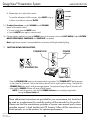
1. Press the menu button.
2. Go to the “Basic” tab.
3. Highlight “Desktop rear”.
b. Switch to front projection (if the projector is set up in front of the screen).
1. Press the menu button.
2. Go to the “Basic” tab.
3. Highlight “Desktop front”.
2. What do I do if my projected image is getting worse as I make adjustments?
a. Reset the projector to its original settings.
•Go to Menu and select RESET.
3. What do I do if the image is not displaying on the screen but is displaying in your
computer?
a. Press Function F8 (this varies from computer to computer).
b. Adjust the screen proportion (see directions below).
4. What do I do if the image displayed “Screen Proportion” appears to be the wrong.
a. Check the Screen Ratio.
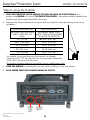
b. Open Display, click START, point to SETTINGS, click CONTROL PANEL, and then double-click
DISPLAY.
c. On the Settings tab, under Screen Resolution, drag the slider to the second screen, and then click
APPLY.
•Select Screen ratio to 1024 x 768 for the correct projector resolution.
d. When prompted to apply the settings, click OK. Your screen will turn black for a moment.
e. Once your screen resolution changes, you have 15 seconds to confirm the change. Click YES to
confirm the change; click NO or do nothing to revert to your previous setting.
DesignView Presentation System is a product of Skyline Exhibits
Patents Pending
©2011 Skyline Exhibits
21