1
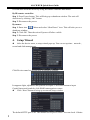
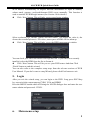
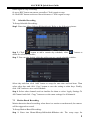
4/8-CH DVR Quick Start Guide button again to stop recording. Or press REC button on remote controller. Click it again to stop. Or click REC button on the tool bar with mouse. Click it again to stop. 7.2 Schedule Recording To Setup Schedule Recording: Step1: Enter into MenuSetupSchedule tab. Refer to the following picture. Step 2: Click “ ” button to add a certain day schedule; click “ ” button to delete the selected schedule; Step 3: You can also double-click the grid to pop up a week schedule window. Select day and then click „Add‟ button to setup the start time and end time. Then select other days and click „Copy‟ button to save the setting to other days. Finally, click „OK‟ button to save week schedule. Step 4: Select other channels and set timeline for them or select „Apply Settings To All Channel and click “Copy” button to set the same settings for all channels. 7.3 Motion Based Recording Motion detection based recording: when there is a motion event detected, the camera will be triggered to record. To Setup Motion Based Recording: Step 1: Enter into MenuSetupScheduleMotion tab. The setup steps for 6