1
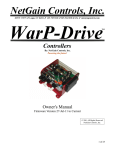
Interface Module
By: NetGain Controls, Inc.
Powering the future!
Owner's Manual
Firmware Version 01-Apr-11 to current
© 2011 All Rights Reserved
NetGain Controls, Inc.
1 of 30
Table of Contents
WarP-Drive Interface Module Purchase Record..........................................................................................4
Thank You from NetGain Controls, Inc.......................................................................................................5
NEW PRODUCT WARRANTY.................................................................................................................6
Specifications and Features..........................................................................................................................7
Installation....................................................................................................................................................7
Operation......................................................................................................................................................9
General Navigation.................................................................................................................................9
LED Status............................................................................................................................................10
Main Screens.........................................................................................................................................11
Setting the Home Screen.......................................................................................................................14
Main Menu.................................................................................................................................................15
Limits....................................................................................................................................................15
Motor Current...................................................................................................................................16
Battery Current.................................................................................................................................16
Motor Voltage...................................................................................................................................17
Display Settings....................................................................................................................................18
Features.................................................................................................................................................19
New WD Firmware..........................................................................................................................20
Add Capabilities...............................................................................................................................21
New IM Firmware............................................................................................................................21
WD Versions/IDs..............................................................................................................................22
IM Versions/IDs................................................................................................................................22
Installed Config................................................................................................................................23
Throttle Unit.....................................................................................................................................23
Datalogging...........................................................................................................................................24
Logging Event..................................................................................................................................24
Logged Data.....................................................................................................................................25
Logging Period.................................................................................................................................26
Error Management................................................................................................................................27
Display Errors...................................................................................................................................27
Clear Errors......................................................................................................................................28
Clear Warnings.................................................................................................................................29
System Settings.....................................................................................................................................29
Set Time/Date...................................................................................................................................29
Units Selection..................................................................................................................................30
Modules......................................................................................................................................................30
Shortcuts....................................................................................................................................................31
NOTES.......................................................................................................................................................31
2 of 30
WarP-Drive Interface Module Purchase Record
Please record your product's serial number and date of purchase on this page.
Interface Module Serial Number:_________________________________
Date of Purchase:_____________________________________________
Purchased From:______________________________________________
3 of 30
April 7, 2011
RE: Your new NetGain Controls, Inc. WarP-Drive™ Interface Module
Dear Customer:
We would like to “Thank You” for your purchase.
Please read this document carefully and follow the suggestions that will provide for years of great
performance from your new hardware.
This Owner's Manual contains the new product warranty, our safety information sheet, and test
procedures, as well as other information of interest and importance.
There is also a substantial amount of content that may be obtained at our website:
http://www.ngcontrols.com
Along with your dealer, we definitely want to help make your EV project a success, so please let us
know if you have any questions about your product. We'll help you or find resources that can help.
Again, we thank you for your controller purchase – we wish you success in your EV project!
Ryan J. Bohm
NetGain Controls, Inc.
President
4 of 30
WarP-Drive Interface Module
NEW PRODUCT WARRANTY*
NetGain Controls, Inc. (The Company), warrants that new products sold by it are merchantable and free of defects
in material and workmanship at the time that they are shipped from the company’s factory.
The company makes no warranty with respect to the new interface module other than the warranty stated above.
All implied warranties of merchantability and all express and implied warranties of any other kind are hereby
excluded.
The company will repair or, at its option, replace any part of any new product sold by it that fails to conform to
the warranty stated above, provided NetGain Controls, Inc. (factory) is contacted for a Repair Authorization
Number (RA#) and such part is returned to the company’s factory or to a factory authorized service station,
transportation charges prepaid, within the warranty period specified below:
NEW PRODUCT WARRANTY extends for a period of one year or 2000 hours of
equipment operation, whichever first occurs, following the date of delivery of such
equipment into which the interface module has been installed, but warranty coverage
will not exceed a period of two years from the date the interface module was shipped
from the company’s factory. Proof of equipment installation date and equipment hour
meter reading must be provided.
LIMITATION OF LIABILITY
The company’s liability, whether in contract or in tort or under any other legal theory, arising out of warranties,
representations, instruction or warnings (or any lack or inadequacy thereof), deficiencies, failures or defects of
any kind or from any cause shall be limited exclusively to repairing or replacing parts (during normal business
hours) under the provisions stated above. All liability for damages, including, but not limited to, those expenses,
or injury to business credit, reputation or financial standing is hereby excluded.
The warranties contained therein shall not apply to or include any of the following and the company shall have no
liability with respect to:
1. Repair or replacement required as a result of: (A) accident; (B) misuse or neglect; (C) lack of reasonable
and proper maintenance; (D) operation in excess of recommended capacities; (E) repairs improperly
performed or replacements improperly installed; (F) use of replacement parts or accessories not
conforming to NetGain Controls specifications which adversely affect performance or durability; (G)
alterations or modifications not recommended or approved in writing by NetGain Controls and (H) wear
and deterioration of product appearance due to normal use or exposure..
2. Product in equipment whose ownership has been transferred from the first purchaser for use to another.
NetGain Controls cannot inspect every installation and ensure that the equipment has been properly and safely
installed, or determine whether the product is suitable for any particular application. This equipment is
considered experimental and NetGain Controls assumes NO responsibility for the proper use or installation of the
interface module. The user and operator of this equipment assumes all liability and risks associated with its use
and applicability.
* No Agent of NetGain Controls, Inc. is authorized to make any modifications to this warranty
5 of 30
Specifications and Features
The WarP-Drive Interface Module (IM) is designed to connect to the WarP-Drive CANbus controller
network and provide interfacing functionality to devices connected to this network. The SAE J1939
higher-level communications protocol is used throughout the entire WarP-Drive CANbus network.
Some of the most notable features of the IM are:
•
Data logging to a miniSD card from all internal sensors in the WarP-Drive, some of which are
motor current and voltage and battery current and voltage, chill plate temperature, pulse width,
throttle position, internal power supply voltages, external supply voltage, error and warning
codes, and controller operating state. Data can then be viewed on a computer which accepts an
SD card using the included adapter.
•
Firmware upgrades to the WarP-Drive controller.
• Real-time display of the above data parameters on a variety of screens.
• Real time clock with super-cap battery backup. Set the time once, and even when unplugged, the
time will be accurately kept.
• Easy in-vehicle mounting using a windshield suction-cup mount (provided).
• Powered over the connection to the WarP-Drive so only a single cable is required to operate.
• Extremely sleek and compact design fits comfortably in your hands.
• The interface module's firmware can easily be updated by simply obtaining the new firmware file
by download, copying the upgrade files to the miniSD card, inserting the card into the Interface
Module, and power cycling the unit. Seconds later, the unit is running with upgraded firmware.
• Settings saved to non-volatile memory so powering up after disconnecting from power will
provide previously set configuration.
Package Contents
•
•
•
•
Interface module
1GB microSD card
SD card adapter
Windshield mount
6 of 30
Installation
Installation of the IM is extremely straight-forward. For the CANbus communications line, standard
Ethernet cable is used due to its low cost and wide availability. Attach the communications cable to the
IM and one of the devices on the WarP-Drive CANbus network.
Illustration 1: IM rear panel
For permanent installations, the IM can be attached to the vehicle using the included windshield mount.
Make sure the installation location does not interfere with driving operations and does not inhibit
visibility out of the windshield. Check with local laws to ensure there are no restrictions against such
devices being mounted. Also, make sure the communications cable is routed away from foot pedals,
steering wheel, and any dashboard controls.
Illustration 2: Example of IM installation in a
vehicle
Since the IM buttons will be used to navigate through various screens, consideration should be given to
the proximity to the driver. Take extreme care to install the device in such a way as to not interfere with
7 of 30
driving operations, and in accordance with all local laws concerning peripheral electronic devices.
Attempting to navigate screens while driving can be hazardous, and must be done with absolute caution.
The IM comes with an input on the back of the device for dimming the display. This input can be
connected to a 12V signal that turns on with the other dash illumination. Power can also be applied
through this port. However, typically power for the IM is obtained from the CANbus cable.
The connector for the input port is sold separately. The connector wire positions are shown in the
following illustration (actual colors may vary from those shown).
Illustration 3: plug wires
The connector part number is Tyco 172167-1 and the crimp pins (16-20 awg) are Tyco 171639-1. When
12V is applied to the illumination pin, the IM will adjust the display and keypad brightness to the userselectable adjustments. This feature is discussed in more detail in a later section.
Operation
General Navigation
The IM has a keypad with 7 buttons. These buttons are used to navigate through the various screens and
to make configuration modifications. The buttons are backlit making it possible to easily use them in
dark environments.
Most of the screens observe some general guidelines as to what the buttons are used for. Exceptions will
be noted in the specific sections for each screen. The following table describes this general usage.
8 of 30
The “Up” button is used to scroll through options or settings. When on the
“Main” screens, it is used to move to the next available main screen. When
in menus, it moves to the next highest option, or loops back around. In
some screens (e.g. setting the time), it navigates through various editable
fields within the screen.
The “Right” button is used to navigate right into other screens or options.
On some screens, it navigates through various fields.
The “Down” button is used to scroll through options or settings. When on
the “Main” screens, it is used to move to the next available main screen.
When in menus, it moves to the next lowest option, or loops back around.
In some screens (e.g. setting the time), it navigates through various editable
fields within the screen.
The “Left” button is used to navigate out of screens to the next highest level
screen. In screens where values can be modified, pressing the left button
will save the chosen values.
The “Center” button is used to make certain choices or change the screen
state. When on a main screen, pressing this button will set the current main
screen as the “Home” screen. When in the time setting page, pressing this
button puts the IM in time-edit mode.
The “Top” button is used to increase configurable values. In some main
screens, it is used as a shortcut button to commonly accessed screens.
The “Bottom” button is used to decrease configurable values. In some
main screens, it is used as a shortcut button to commonly accessed screens.
LED Status
The IM has three LEDs on the left-hand side of the device to provide the user with a quick indication of
the status of the IM and other connected devices. The following table details the meaning of these
LEDs.
LED
General
Purpose
Top
System
Description
Green: WarP-Drive is ready for throttle input.
9 of 30
“Started”
Indicator
Off: WarP-Drive is in waiting for the key to be turned on or
started.
Middle
System
Status
Indicator
Red: A diagnostic trouble code (DTC) has been logged on a
device connected to the CANbus network.
Off: All systems are operating correctly.
Bottom
Datalogging
Indicator
Green: Data is being logged.
Red: There is an error with the logging. Check that the card
is in the slot, and that it is formatted in the FAT file
system.
Off: Data is not being logged.
Main Screens
The IM has several “Main Screens”, which display real-time information being transmitted from devices
on the CANbus network. Currently, the only CANbus network hardware that is supported is the WarPDrive controller. Future updates to the IM firmware will include additional main screens to support
hardware that will be available.
To move from one main screen to another, use either the up or down buttons. To get back to the main
screens when in a sub-screen, press the left button until the main screen is reached.
The main screens will be shown and described here briefly.
Basic operation information screen – This screen shows time, throttle position, motor and battery amps,
and motor and battery voltage. It also shows the controller (IGBT) temperature in either Celsius or
Fahrenheit, depending on the units selection in the “Units Selection” menu.
03:57:23 PM
Throt
Motor Battery
0.0
0A
0A
IGBT
0V
0V
71F
Basic operation information screen with speeds – This screen can be turned on and off in the “Modules”
section under the “AutoBlock RPM” category. By default, the screen is turned off. When turned on, the
screen shows vehicle speed (if vehicle speed sensor installed), motor RPM (if motor RPM sensor
installed), motor current, battery voltage, time, and date. It also shows the controller (IGBT) temperature
in either Celsius or Fahrenheit, depending on the units selection in the “Units Selection” menu.
45 MPH 2400 RPM
Motor Battery IGBT
85A
156V
71F
03:57:23 PM 05/25
10 of 30
Advanced operation information screen – This screen shows time, capacitor temperature, motor amps,
motor power in kilowatts, current battery voltage, 10 second minimum battery voltage, and duty cycle
percentage. For the 10 second minimum battery voltage, when a new minimum voltage is encountered,
it becomes this value. If in 10 seconds, a new minimum is not encountered, the current battery voltage
becomes the 10 second minimum battery voltage. In this way, the screen can be glanced at to determine
how deep the battery pack sagged under load.
03:57:23 PM
CTemp
Motor Battery
72F
0A
0Vcur Duty
0kW
0Vmin
0%
Internal voltage parameters screen – This screen shows the SLI voltage at the controller, the two internal
15V voltage supply voltages, the two internal 5V voltage supply voltages, and the two throttle channel
voltages.
SLI: 12.4V
15V: a15.0V, b15.1V
5V: a4.9 V, b5.0 V
Thr: a0.35V, b0.70V
General system state screen – This screen shows the condition of the brake and reverse inputs, as well as
both IGBT and capacitor temperatures. It also shows whether logging is turned on or off, and a
diagnostic parameter that indicates what was the last event to force output off. This last parameter is
primarily intended for factory troubleshooting, and will be of little use to the end user.
Brake: Off Dir: FWD
CTemp
IGBT Temp
105F
120F
Log: Off Halt: 128
System status screen – This screen gives a brief textual description of the status of the controller. It does
not give detailed information, but rather provides a layman's description to understand the basic state of
the controller.
System Fully Operational
** System Status **
All Systems
Fully
Operational
11 of 30
No connection with Warp-Drive
** System Status **
Communications
With WarP-Drive
Not Available
Halt error code (level 4000) logged
** System Status **
System Fault! Must
Be Resolved Before
Vehicle Can Operate
Critical error code (level 3000) logged
** System Status **
Internal Failure Drive Only Permitted
Until Key Turned Off
Battery pack likely disconnected (warning code 2113)
** System Status **
Battery Pack
Disconnected
SLI supply voltage too low (warning code 2114)
** System Status **
SLI Input Voltage
Too Low - Ensure
DCDC Functioning
12 of 30
Battery pack voltage too high (warning code 2112)
** System Status **
Input Voltage
Exceeds Model
Limits
An undocumented warning code
** System Status **
An External
Condition Is
Preventing Operation
Setting the Home Screen
Any one of the main screens can be designated by the user as the “Home Screen”. This is the screen that
is returned to when pressing the left button to get out of sub-screens. If the IM is left on a sub-screen
without any keypad activity for 60 seconds, the home screen will be returned to.
To set a main screen as the home screen, navigate to the desired screen and hold down the center button
until the following message is displayed:
Home Screen Set
A different home screen can be selected at any time.
Main Menu
The main menu contains all the options to control the IM and peripheral devices. To navigate into the
main menu from any main screen, press the right button.
Use the up and down buttons to navigate through the various options within the main menu. Once the
desired option has been highlighted with the arrow, press the right button to navigate into that option.
13 of 30
** Main Menu **
$A: Limits
B: Display
C: Features
** Main Menu **
D: Datalogging
E: Error Management
F: System Settings
** Main Menu **
G: Modules
Limits
The “Limits” screens allow the user to set hardware restrictions. Currently, only limits for the WarPDrive are supported. These limits include motor current, battery current, and motor voltage.
Limits
$1: Motor Current
2: Battery Current
3: Motor Voltage
Limits
$4: Mot Current Ramp
Motor Current
If the WarP-Drive controller is connected, the active current limit value will be displayed. Otherwise, 0
will be shown. To edit the motor current limit, press the center button.
14 of 30
Motor Current
1000 amps
Press Center To Edit
Once in edit mode, the maximum available current will be displayed. The selected digit will show a
flashing cursor. Editing can only be done when the controller is not in drive mode. A message will be
displayed specifying this restriction if an attempt is made to change the value when in drive mode. To
change the value, use the top and bottom buttons. To navigate to the next digit, use either the left or the
right buttons.
Motor Current
1000 amps
Max Available: 1000
Press Center To Save
Once the new limit has been entered, press the center button to save the setting.
Battery Current
If the WarP-Drive controller is connected, the active current limit value will be displayed. Otherwise, 0
will be shown. To edit the battery current limit, press the center button.
Battery Current
1000 amps
Press Center To Edit
Once in edit mode, the maximum available current will be displayed. The selected digit will show a
flashing cursor. Editing can only be done when the controller is not in drive mode. A message will be
displayed specifying this restriction if an attempt is made to change the value when in drive mode. To
change the value, use the top and bottom buttons. To navigate to the next digit, use either the left or the
right buttons.
Battery Current
1000 amps
Max Available: 1000
Press Center To Save
15 of 30
Once the new limit has been entered, press the center button to save the setting.
Motor Voltage
If the WarP-Drive controller is connected, the active motor voltage limit value will be displayed.
Otherwise, 0 will be shown. Editing can only be done when the controller is not in drive mode. A
message will be displayed specifying this restriction if an attempt is made to change the value when in
drive mode. To edit the motor voltage limit, press the center button.
Motor Voltage
250 volts
Press Center To Edit
Once in edit mode, the maximum available voltage will be displayed. The selected digit will show a
flashing cursor. To change the value, use the top and bottom buttons. To navigate to the next digit, use
either the left or the right buttons.
Motor Voltage
250 volts
Max Available: 450
Press Center To Save
Once the new limit has been entered, press the center button to save the setting.
Motor Current Ramp
If the WarP-Drive controller is connected, the active motor current ramp value will be displayed.
Otherwise, 0 will be shown. The ramp is displayed in amps per 10 millisecond. If a value of 25 (the
default) is set, it would take 400 milliseconds to reach 1000 amps. The higher the setting, the faster the
controller will respond to input. Raise this value with caution, as things tend to break more with higher
values.
Editing can only be done when the controller is not in drive mode. A message will be displayed
specifying this restriction if an attempt is made to change the value when in drive mode. To edit the
motor current ramp, press the center button.
Motor Current Ramp
25 amps/10msec
Press Center To Edit
Once in edit mode, the maximum available voltage will be displayed. The selected digit will show a
16 of 30
flashing cursor. To change the value, use the top and bottom buttons. To navigate to the next digit, use
either the left or the right buttons.
Motor Current Ramp
25 amps/10msec
Max: 250, Min: 1
Press Center To Save
Once the new limit has been entered, press the center button to save the setting.
Display Settings
Several preferences can be set by the user to customize how the display looks. The parameters that can
be adjusted are described in the table below. Detailed instructions on how to make the changes will be
described later.
Parameter Name
Brightness Day
Brightness Night
Contrast
Key Bright Day
Key Bright Night
Description
This is the default brightness of the display if no illumination input is
connected.
If the illumination input is connected on the back of the display, when 12V is
applied to the input, this brightness level for the display will be used.
Contrast of the display.
This is the default brightness of the keypad if no illumination input is
connected.
If the illumination input is connected on the back of the display, when 12V is
applied to the input, this brightness level for the keypad will be used.
The daytime brightness screen will be shown in the following instructions. However, the procedure to
adjust all of the display and keypad parameters is identical.
To adjust the brightness, navigate into the adjustment screen from the “Display Settings” page by
pressing the right button.
Display Settings
$1: Brightness Day
2: Brightness Night
3: Contrast
17 of 30
Display Settings
4: Key Bright Day
5: Key Bright Night
Once on the specific page (in this case, “Brightness Day”), use the top and bottom buttons to make
adjustments. The screen will adjust to show the actual chosen value.
Incr
Brightness
Day
`
Decr `
As the top and bottom buttons are pressed, the bar on the right side of the screen will increase and
decrease accordingly.
When the desired setting has been obtained, press the left button to save the setting and exit out of the
screen.
Features
The “Features” category is used to view and change features of the IM and connected peripherals. Use
caution when making selections and changes, as these settings can alter the behavior of the connected
hardware.
The various selections available in the “Features” section are shown in the images below.
Features
$1: WD Versions/IDs
2: IM Versions/IDs
3: Installed Config
Features
4: New WD Firmware
5: Add Capabilities
6: New IM Firmware
18 of 30
Features
7: Throttle Unit
WD Versions/IDs
This screen is used to obtain serial number and firmware information from the WarP-Drive controller.
Select the screen by pressing the right button with the option selected.
The following is an example of what will be displayed:
WD Versions/IDs
S/N: 00008, HW: 00.5
Exchange S/N: 58187
Firmware: 28-Jan-10
The second line shows the WarP-Drive serial number and hardware version. The third line shows the
“exchange” serial number. This number is necessary when ordering capabilities upgrades from an
authorized NetGain Controls dealer, or when communicating with the factory for product support. The
fourth line shows the version of firmware that is running on the WarP-Drive unit.
IM Versions/IDs
This screen is used to obtain serial number and firmware information from the IM. Select the screen by
pressing the right button with the option selected.
The following is an example of what will be displayed:
IM Versions/IDs
S/N: 00006, HW: 00.5
Firmware: 03-Sep-10
The second line shows the IM serial number and hardware version. The third line shows the version of
firmware that is running on the IM.
19 of 30
Installed Config
The “Installed Config” screen shows the installed capabilities of the WarP-Drive unit. Select the screen
by pressing the right button with the option selected.
The following is an example of what will be displayed:
Volt: 160, Amp: 1000
CU:00, FU:00, F:00
Throttle: NGC, HT:00
A1B1
The first line shows the unit's voltage and current rating. The second line has the following fields:
•
•
•
CU: how many capability upgrades have taken place.
FU: how many failed upgrade attempts have been made.
F: a factory counter related to upgrading.
The third line has the following fields:
•
•
Throttle: what throttle unit the WarP-Drive is currently configured to work with.
HT: a factory counter related to temperature cycling of the WarP-Drive.
The fourth line is a factory reference field for the installed upgrades.
New WD Firmware
The “New WD Firmware” option is used to upload new firmware to the WarP-Drive controller. Select
the “New WD Firmware” option from within the “Features” menu by pressing the right button with the
option selected.
Place SD card
in slot and press
right to continue
or left to cancel
To upload new firmware, make sure a genuine NetGain Controls upgrade file has been placed on the
miniSD card and that it has been inserted into the miniSD card slot. Ensure that the IM is connected to
the controller, then press the right button to continue. Press the left button to cancel.
20 of 30
Firmware
Upload
Progress
````
If the firmware upload begins properly, the screen shown above with a progress bar will be displayed. If
any error occurs in the process, a corresponding error message will be shown. Attempting to use a
firmware file that did not originate from NetGain Controls for the specific serial number WarP-Drive
unit will result in a failed upload and can cause the controller to enter a lockout mode.
Add Capabilities
The WarP-Drive controller has the unique ability to have its “capabilities” upgraded in the field using
the IM. These capabilities consist of voltage and current upgrades. Future plans call for other advanced
features that can be added by the end user.
Often, it is desirable or necessary to upgrade the firmware to the latest version before adding
capabilities. Follow the procedure described in the previous section to update the firmware.
To add new capabilities, a genuine capabilities file must be obtained from an authorized NetGain
Controls dealer. This file can be transmitted electronically via e-mail, or sent on a miniSD card. The
capabilities file is specific to the serial number of the target WarP-Drive unit. Attempting to use a
capabilities file intended for a different unit will result in a failed upgrade and potentially a locked out
unit. Only use an authentic capabilities file intended for the unit for which the capabilities
upgrade was requested for!
To request the capabilities file from your dealer, you will need the serial number and exchange serial
number for the target WarP-Drive unit. These numbers can be found by using the “WD Versions/IDs”
screen under the “Features” category. This screen is described in a later section.
To initiate the loading of the new capabilities file, follow these simple steps:
1.
2.
3.
4.
Copy the capabilities file, “wd.cap” onto the miniSD card.
Insert the miniSD card into the IM.
Select the “Add Capabilities” option by pressing the right button with the option highlighted.
Confirm the action by pressing the right button.
The upgrade process will happen within just a few seconds. If the upgrade succeeded, the message,
“Upgrade File Sent” will be displayed. The new capabilities can be verified by selecting the “Installed
Config” option within the “Features” menu.
New IM Firmware
As new firmware becomes available for the IM, the firmware can be uploaded to the IM using a similar
process to that of uploading new firmware to the controller. Unlike the controller firmware upload
21 of 30
process, the firmware file does not need to specifically match the IM serial number.
To upload new firmware, simply place the new firmware file on the miniSD card, insert it into the IM,
and select the “New IM Firmware” option using the right button with the option selected.
The following screen will be displayed:
Place SD card
in slot and press
right to continue
or left to cancel
Press the right button to continue. Press the left button to cancel.
Firmware
Upload
Progress
````
When the upgrade has completed, the IM will reboot and begin running the new firmware.
Throttle Unit
This screen allows for choosing available throttle units. As more throttle units are characterized by
NetGain Controls, they will be made available in IM and WarP-Drive firmware upgrades. Throttle units
that show up in the list when selecting this screen are those that are currently characterized.
The following is an example of how the screen will appear:
Throttle
$CTS703
Prius
TPS-DP1
Unit
To change the selection, use the up and down arrows. The selection is saved and written to the WarPDrive when the screen is exiting using the left button.
Datalogging
One of the most useful functions of the IM is to log data streamed from the WarP-Drive unit over the
CANbus network onto a miniSD card. The user can choose what triggers the logging, what data is
22 of 30
logged, and the frequency that the data is written to the card.
Logging Event
To choose what triggers the logging of data, select the “Logging Event” option in the datalogging menu
by pressing the right button. The following screen will be shown.
Logging Event
$Key On/Off
System Started
On Trigger Only
To make a different selection, press either the up or down buttons to move the arrow. When the desired
selection has been made, exit the “Logging Event” screen by pressing the left button.
The following list describes each of the available choices:
•
•
•
Key On/Off: data will begin logging when the “Key On” input is activated or “turned on”, and
will stop logging when it is deactivated or “turned off”.
System Started: data will begin logging when the system has been “started” (i.e. the main
contactor has closed, and the controller is waiting for throttle input). Logging will stop when the
system is turned “off”.
On Trigger Only: data will start logging when the datalogging shortcut button (“Bottom” button
when on a main screen) is pressed. Data will stop logging when the button is pressed again.
Use caution to not accidentally interrupt power to the IM while data is being logged. Doing so will lose
all data in the file that was being logged to at the time of the interruption in power.
When data begins logging, a new file is always created. If a folder doesn't already exists for the month
in which the data is being logged, a folder will be created on the root of the miniSD card for that month.
The format of the folder name is “MM-CCYY”, where MM is the month, CC is the century, and YY is
the year. The name of the file created is in the format “DDHHmmSS.csv” where DD is the day of the
month, HH is the hour in military format, mm is the minute, and SS is the seconds. The filename will
correspond with the time and date the file was started, not when it was finished.
Logged Data
The WarP-Drive transmits a large amount of data onto the CANbus related to its operation. The IM
breaks this data into several categories. The user can select what categories will be logged.
The following shows the screens for selecting the data to be logged:
23 of 30
Logged Data
$*Power Data
Sensor Related
*Supply Voltages
Logged Data
$ Speed Data
*Operational Data
To select the category for logging, navigate to the desired category using the up and down buttons. Then
press the right button. This will place a star by the category, which means it is selected for logging.
The following table describes what data is logged for each category:
Category
Parameters Logged For This Category
Power Data
Motor amps, battery amps, pack voltage, motor voltage
Sensor Related
Throttle percentage, duty cycle percentage, throttle channel A raw reading,
throttle channel B raw reading, throttle channel A voltage, throttle channel
B voltage, chillplate temperature
Supply Voltages
Supply DCIN (SLI) voltage, 15V supply (channel A), 15V supply
(channel B), 5V supply (channel A), 5V supply (channel B)
Speed Data
Off by default. Data from a CANbus speed input device is logged if one is
connected and this option is selected. Logs both vehicle speed and RPM.
Vehicle speed will be zero if a sensor for vehicle speed is not connected.
Operational Data
Controller state (0 = off, 1 = key on, 2 = started), errors (no errors = “ok”,
no WarP-Drive communications = “noWD”, errors = listing of error codes
separated by dashes)
For each period logged, all parameters for each selected category will be written to a line in a comma
separated value (CSV) text file. The first column in the file designates the time in seconds that the line
was written. The first entry will correspond with the seconds field of the filename, i.e. the second that
the file was first created.
The files are logged into folders corresponding with the month and year the file was created. For
example, if a file was logged in December of 2010, it will be saved in a folder labeled “12-2010”. The
file name is a combination of the day and time that the file was created. The file name is in the
following format: DDHHMMSS.csv. An example file name is 06133312.csv. For this file name, the
day of the month is 06, or the 6th of December. It was created at 1:33:12 pm.
The following image shows an example of the logged data in a spreadsheet:
24 of 30
Illustration 4: Comma Separated Value (CSV) file from IM Logging
Most modern spreadsheet programs will import a CSV file. Some of the more common programs are
Microsoft Excel and OpenOffice Calc. OpenOffice provides the the software at no charge, and is
available for most common computer platforms on the market.
Logging Period
The selected data packets are logged at an interval chosen by the user. The available intervals are 100
milliseconds (10 times per second), 1 second, and 10 seconds. To choose the logging period, navigate to
the “Logging Period” screen from the “Datalogging” menu by pressing the right button with the option
selected. The screen has the following appearance:
Logging Period
$100ms (large files)
1s (medium files)
10s (small files)
To select a different logging period, move the arrow up or down using the up and down buttons. To save
the selection, navigate out of the screen using the left button.
As the options suggest, the 100ms logging interval will produce the largest files relative to the other
options. Use this logging period to obtain the most detailed data – usually in a short logging time frame.
For more extended logging periods, consider using either the 1s or 10s options. These will produce less
detailed data files, but are useful for showing trends over long periods of time without overwhelming the
spreadsheet software or filling up the miniSD card quickly.
Error Management
The “Error Management” screens provide the ability to easily view and clear any error codes that might
be present on the WarP-Drive controller. The following options are available:
25 of 30
Error Management
$1: Display Errors
2: Clear Errors
To select an option, move the arrow up or down by using the up and down buttons. When the desired
option is selected, use the right button to navigate into that screen.
Display Errors
Diagnostic trouble codes (DTC's) present on the WarP-Drive can be viewed by selecting the “Display
Errors” screen.
Current:
History:
DTC's are either active (current) or stored for historical purposes. Refer to the WarP-Drive Controller
Manual for meaning of the specific DTC's.
Current: 01 21 32
History: 04
Up to 10 active and 10 historical codes can be displayed on the screen. In the highly unlikely event that
more codes exist than that, the additional codes will not be displayed.
To exit the “Display Errors” screen, press the left button.
Clear Errors
Once the condition that caused the error code has been corrected, the “Clear Errors” option can be
chosen to easily remove the stored error code from the controller.
To clear the error codes (level 3000 and 4000 codes) from the controller, press the right button while in
the “Error Management” menu with the arrow on the “Clear Errors” line.
If the error codes are successfully cleared, the following screen will be displayed:
26 of 30
All errors
successfully
cleared from the
controller
To exit out of the screen, press the left button.
System Settings
The system settings menu is used to set parameters specific to the IM. The system settings menu is
shown in the following image:
System Settings
$1: Set Time/Date
2: Units Selection
To select an available option, use the up and down buttons to move the arrow. To navigate into the
selected option, press the right button.
Set Time/Date
The IM has a highly accurate real-time clock built into the circuitry. The clock is backed up by a longlife super-capacitor that doesn't require replacement like some Lithium coil cell backed-up devices. The
super-capacitor will maintain the real-time clock setting with without power connected to the IM for
several weeks.
The “Set Time/Date” screen will have the following appearance when it is first entered:
Set Time/Date
WED 03/03/2011
03:30:37 PM
Press Center To Edit
To begin editing the time and date, press the center button. The day of the week will initially be
highlighted, and will have a blinking block cursor to show the field that is selected.
27 of 30
Set Time/Date
WE` 03/03/2011
03:30:37 PM
Press Center To Save
Use the right, left, up, and down buttons to navigate to the various time and date fields. To change a
field, first select it, and then use the top and bottom buttons to change the value.
Once satisfied with the values, press the center button. The time will begin to advance showing proper
operation. To navigate out of the Set Time/Date screen, press the left button.
Units Selection
The IM can be configured to show units in both English and SI. To change this setting, select the “Units
Selection” option within the “Systems Settings” screen. When the screen has been selected, press the
right button to navigate into the screen.
Units Selection
$English
SI
Use the up and down buttons to move the arrow and change the selection. To save the setting and exit
the screen, press the left button.
Modules
As new hardware is introduced that works in conjunction with the WarP-Drive system, the ability to
configure and interface with the hardware will become available through updated IM firmware. The
modules for which there is IM support will be listed under the Modules section. Currently, support is
being integrated for speed sensor management using the RechargeCar AutoBlock RPM hardware.
Currently, there is only the ability to turn on and off the speed sensor main screen. However, the next
revision of IM firmware will have the ability to display the speeds on the speed sensor main screen, as
well as the functionality to set parameters on the external AutoBlock hardware.
Shortcuts
Several shortcut buttons are used to give quick access to some of the more commonly used screens. The
following table describes these shortcut buttons, and on which screens they apply.
Shortcut button
Shortcut Destination / Action
Applicable Screens
28 of 30
Datalogging menu
All main screens
Trigger button for datalogging –
starts logging
All main screens
Error management menu
System status main screen
29 of 30
NOTES
_______________________________________________________
_______________________________________________________
_______________________________________________________
_______________________________________________________
_______________________________________________________
_______________________________________________________
_______________________________________________________
_______________________________________________________
_______________________________________________________
_______________________________________________________
_______________________________________________________
_______________________________________________________
_______________________________________________________
_______________________________________________________
_______________________________________________________
_______________________________________________________
_______________________________________________________
_______________________________________________________
_______________________________________________________
_______________________________________________________
_______________________________________________________
_______________________________________________________
_______________________________________________________
_______________________________________________________
_______________________________________________________
_______________________________________________________
_______________________________________________________
_______________________________________________________
_______________________________________________________
_______________________________________________________
30 of 30